BookingTimes supports several quick and easy payment options, from credit cards to vouchers. See the article below for a brief overview of taking payment and after-payment activities, such as emailing invoices.
Taking payment
Steps
Navigate to the Bookings menu
Select the relevant booking
Click Pay Now
Enter payment details (Tip: click on the payment type to pre-populate the amount due. e.g. “Credit”)
Click Save Payment or Charge Card (for Credit)
Entering payment details
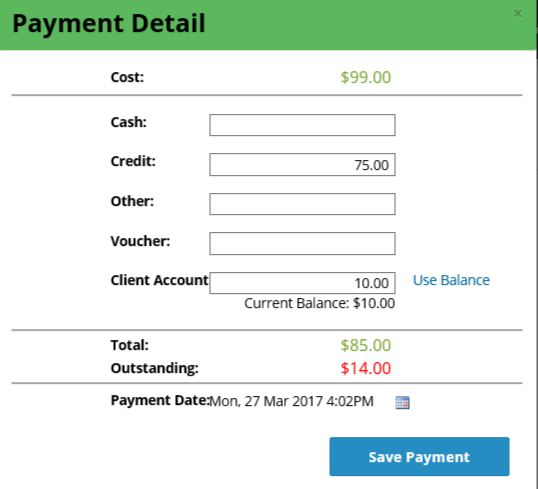
The payment detail screen lets you spread the payments across multiple sources. The outstanding amount to yet be allocated is displayed in red.
Entering credit card payment details
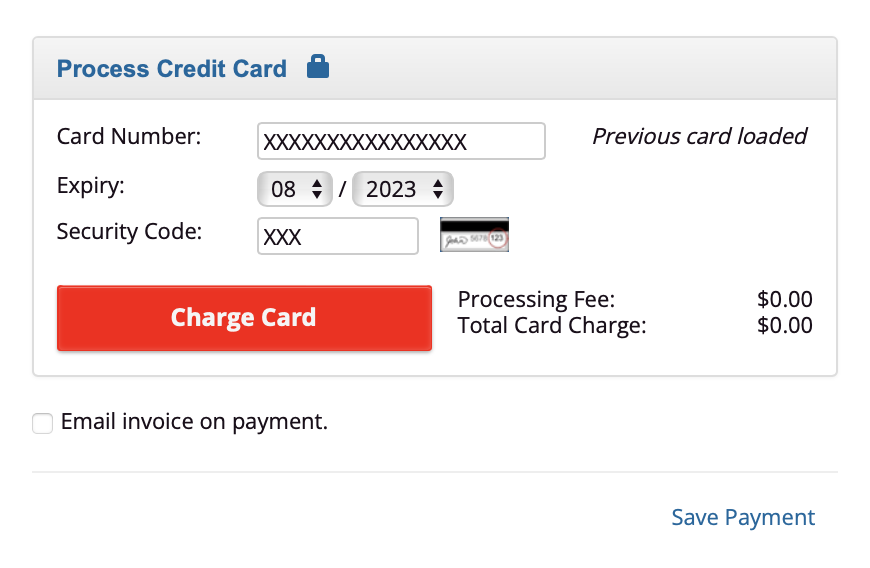
When you click the Process Credit Card section it will expand and a Charge Card button and Save Payment link will appear (depending on your permissions - see more information in the Taking credit card payments section below).
Taking cash payments
Steps
Enter the value in the Cash field
Click Save Payment
Taking credit card payments
Steps
Enter the value in the Credit field
Expand the Process Credit Card box enter the card details
Click Charge Card button
Important - difference between “Charge Card” vs “Save Payment”
Clicking the Save Payment link will not process their credit card. Only Charge Card will.
Save Payment is generally used to record a credit payment via a physical credit card terminal. For these transactions, no Transaction ID will be assigned to the payment. They're only assigned when payment is taken through BookingTimes itself via the Charge Card option.
If you'd like to turn off the Save Payment option you can do so via Setup > Accounts & Security > Manage Permissions and update turn off the Record Manual CC Payments permission for those staff members.
.png)
Emailing invoices
Please refer to the Emailing an invoice article.
Tracking payment
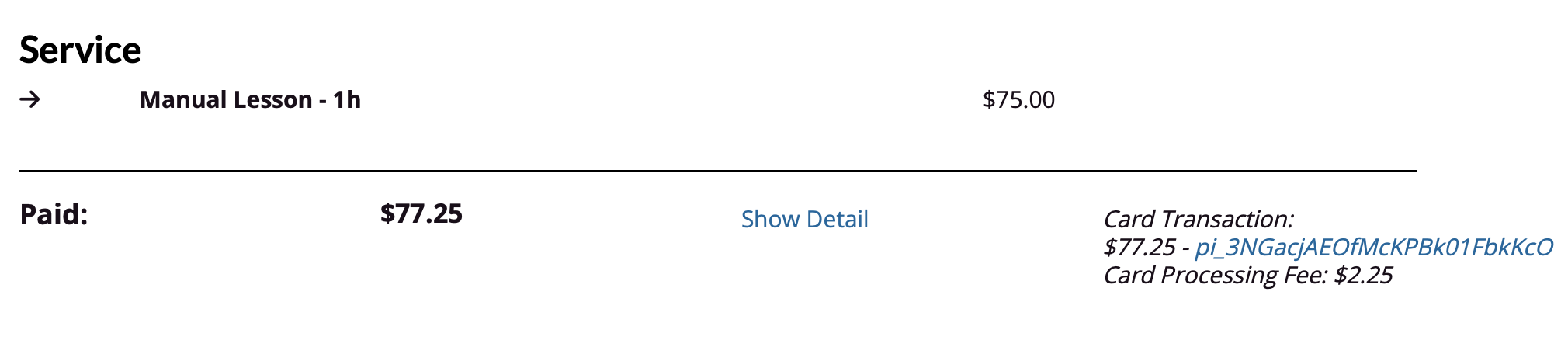
Upon payment completion, you can see payment information at the bottom of the booking detail screen. If payment was taken by card through the BookingTimes system, the transaction ID will be visible for tracking on the bottom right.
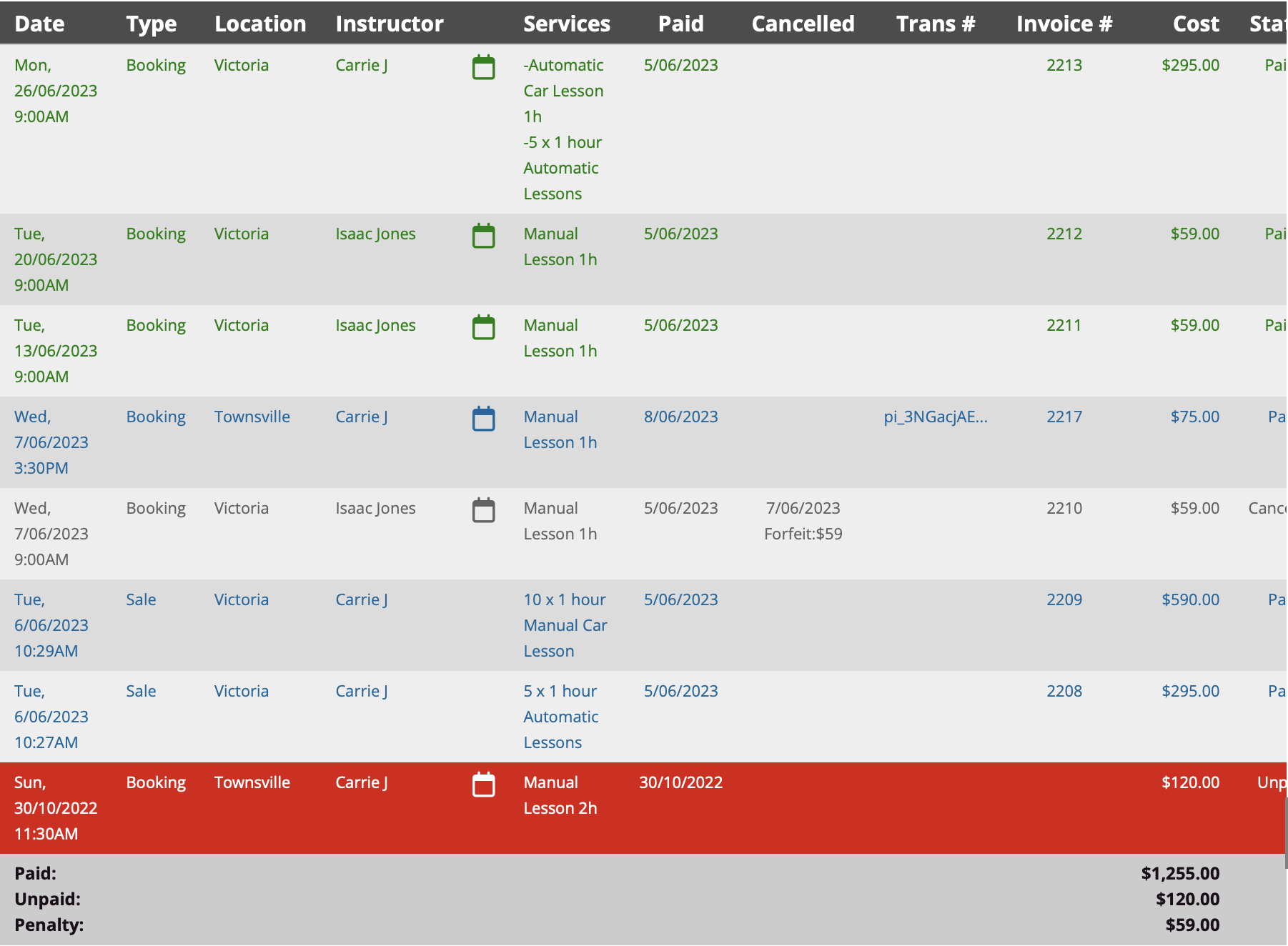
The payment details can also be seen on the Client's history tab showing you all the bookings they've made and their payment status.
Finally - any online payments can be tracked if they’re still with the payment processor via the various Payouts reports. Please refer to Payouts article for more details.