Please see Lesson types article to outline all the lesson types, this article focuses on the Quiz lesson.
You can add numerous questions to a Quiz lesson that can be a combination of automatic marked questions and / or questions that are marked by an assessor.
You can also copy quiz questions to the same course, or to another LMS online course that you’re creating. When you copy a question, you will also be able to change the answer type before saving the new question.
Creating a quiz lesson
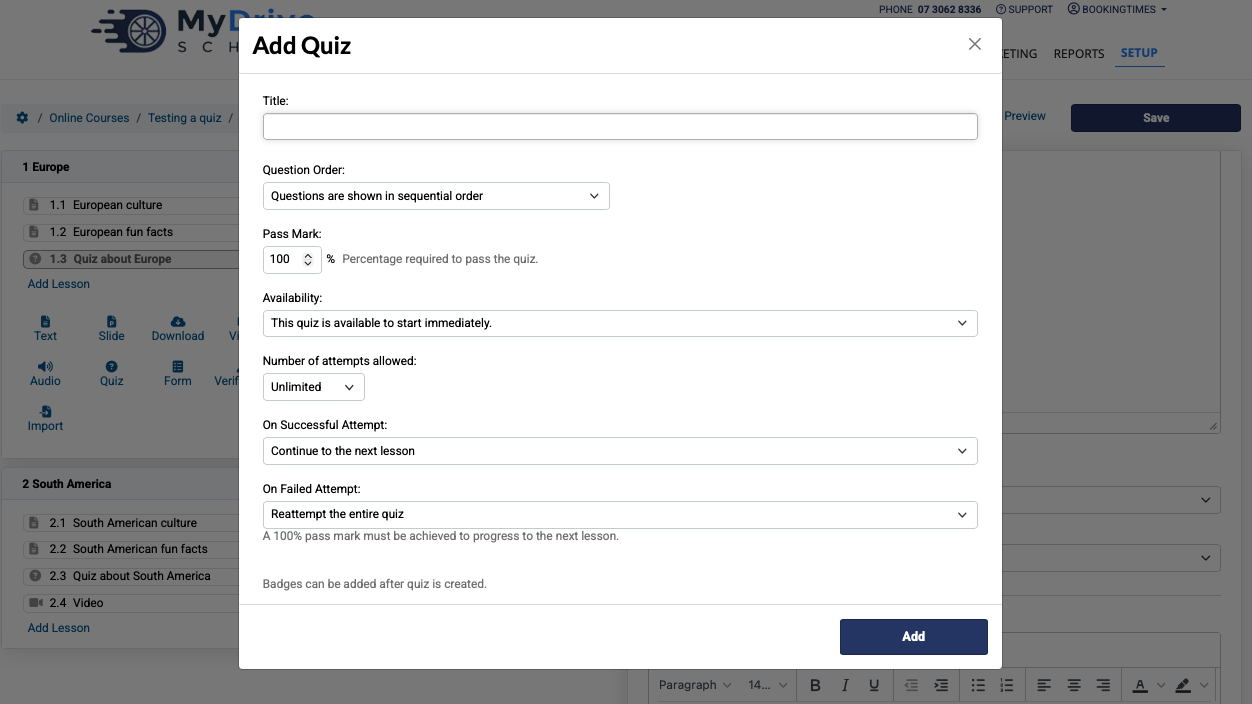
When adding a Quiz, you'll need to add a Title for the Quiz and select your desired configuration options.
Question editor
The question editor view will change depending on what answer type you have chosen.
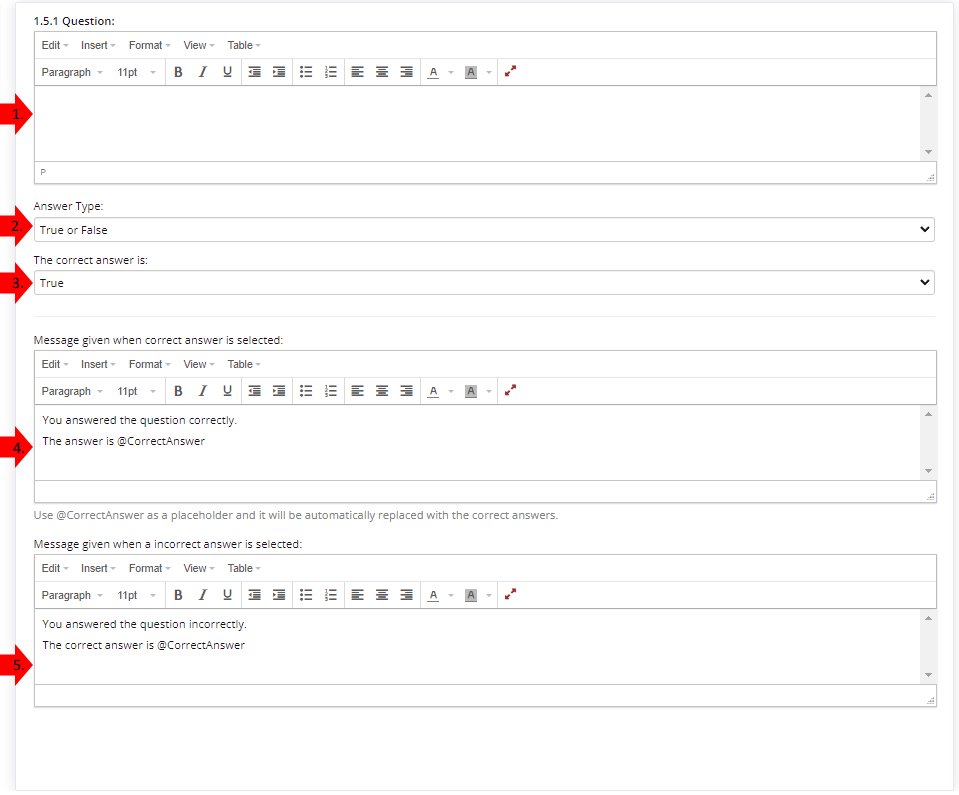
This is the question box where you add the question.
This is the answer type, which clicking on gives the options of (these are expanded in the next section):
True or False
Yes or No
Multiple Choice
Text Response (marked by assessor)
Image Response (marked by assessor)
Video Response (marked by assessor)
File Submission (marked by assessor)
Note: once you save an Answer Type, it cannot be changed. To change it, you’ll need to copy the quiz question and then update the Answer Type before saving it. Please refer to the Copying a Quiz Question section later in this article.
This section is displayed for True and False and Multiple choice answer types. Detailed information is below.
You can customize the message for a correct answer given to the client for an automatically answered question. For manual marking, a different section is displayed where you can add specific marking criteria that can be given to the assessor, which the client does not see.
You can customize the message for an incorrect answer given to the client for an automatically answered question. For manual marking, a different section is displayed where you can add specific fail criteria that can be given to the assessor, which the client does not see.
Supported browsers for recording video response. Browser version must be greater than or equal to the version number shown below.
Desktop browsers
49
79
14.1
29
36
Mobile browsers
107
14.5
5
13.4
13.1
13.18
2.5
Quiz answer types
True or False - The client can answer the question by selecting True or False. This answer type is automatically marked.
Yes or No - The client can answer the question by selecting Yes or No. This answer type is automatically marked.
Multiple Choice - The client is presented with multiple possible answers to the question. Answers are shown randomly and you can configure how many of the answered you have added will show which will help with randomization so that they aren't always shown the same answers if they have to retake the quiz. This answer type is automatically marked.
Please see section below for more information
Text Response - The client is required to write their answer. This answer type is submitted for manual marking to an Assessor.
Image Response - The client is required to use their webcam and take a photo for their answer. This answer type is is submitted for manual marking to an Assessor.
Video Response - The client is required to use their webcam and record their answer. If their browser does not support recording video on the web page, they are required to manually upload their video. This answer type is is submitted for manual marking to an Assessor.
File Submission - The client is required to uploaded file. This answer type is is submitted for manual marking to an Assessor.
Multiple Choice configurations
Multiple Choice answers present the client with multiple possible answers to the question.
First, add a list of correct & incorrect answers underneath the relevant column.
From there, you can set the Total answers to display to control how many answers the client will see when doing the question.
The Number of correct answers to pick will determines how many correct options the client will have to select to get the question marked correctly.
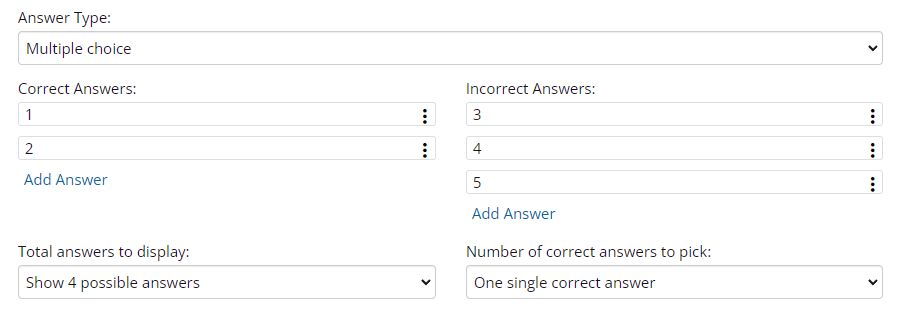
The list of answers is randomized depending upon the overall number of answers entered, and the display requirements.
Copying a Quiz question
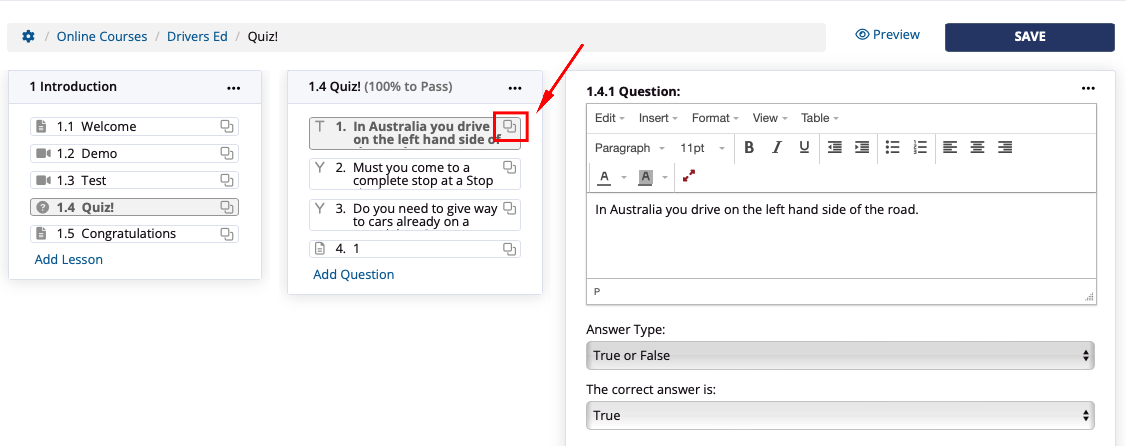
To copy a quiz question click on the copy icon of the question to copy
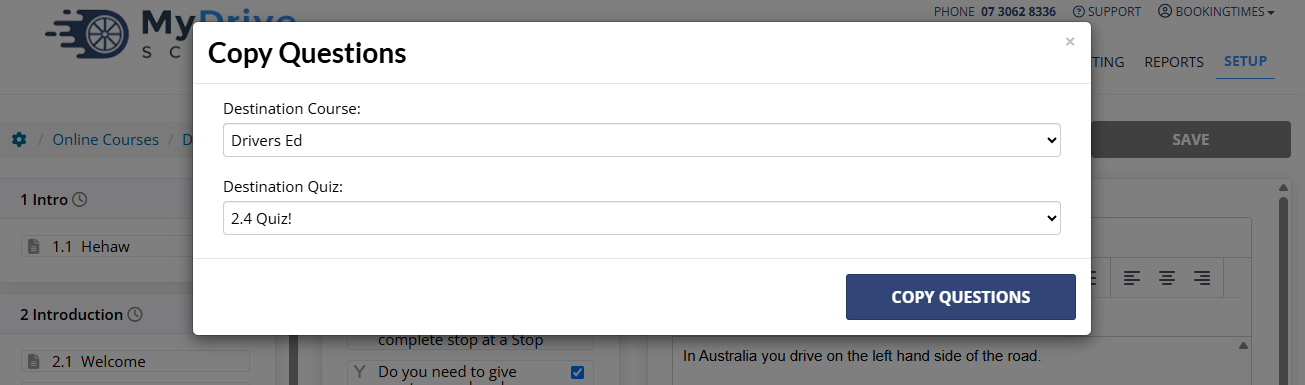
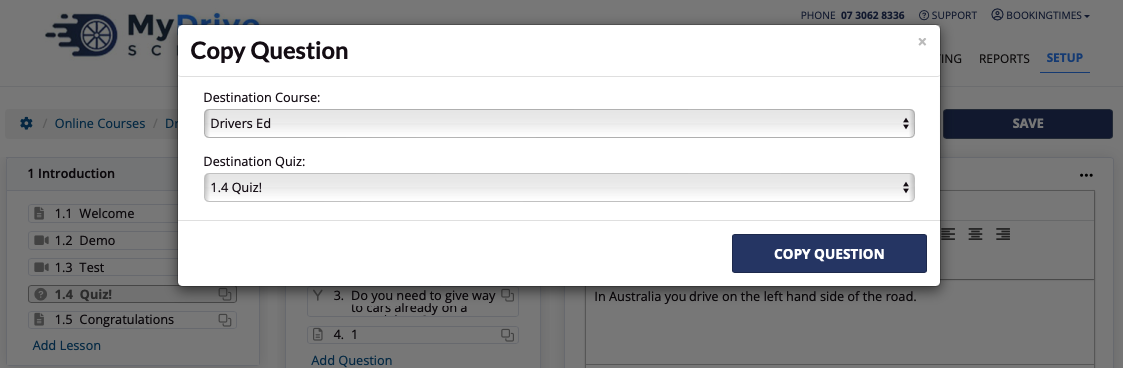
Select the Destination Course (either the same course or any other LMS online course you have created), and the Destination Quiz to copy it to, and click Copy Question
Once copied you have the opportunity to change the Answer Type (which cannot be changed once saved) and other information. Once you’re happy with the changes click Save.

Copying multiple Quiz questions at once
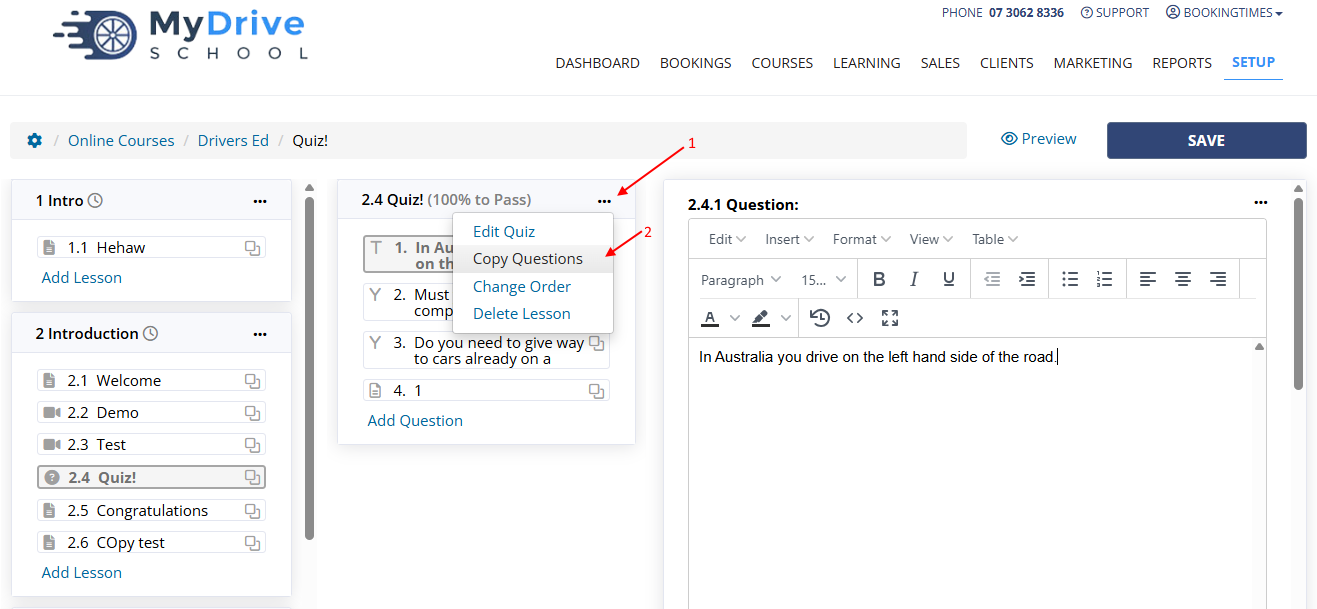
To copy multiple quiz questions at once click on the 3 dots, and select Copy Questions.
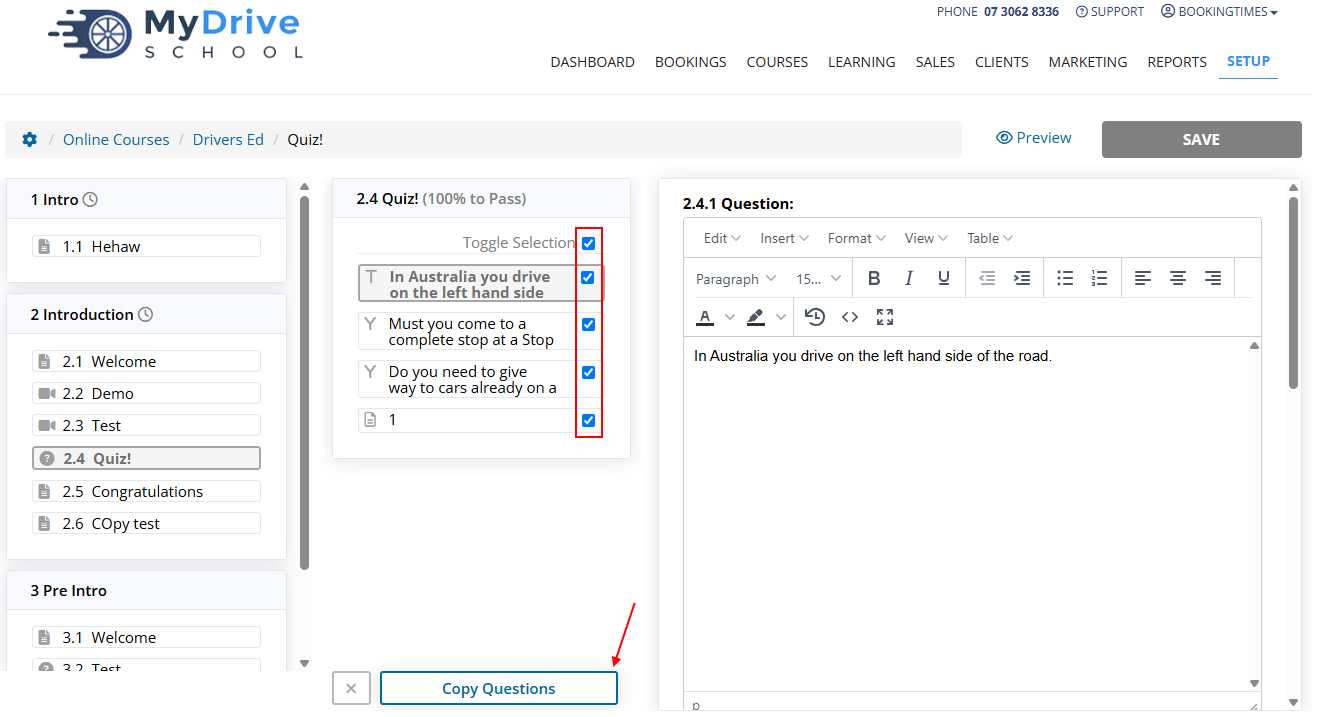
Check the questions you wish to copy, and click Copy Questions.
Select the Destination Course (either the same course or any other LMS online course you have created), and the Destination Quiz to copy it to, and click Copy Questions