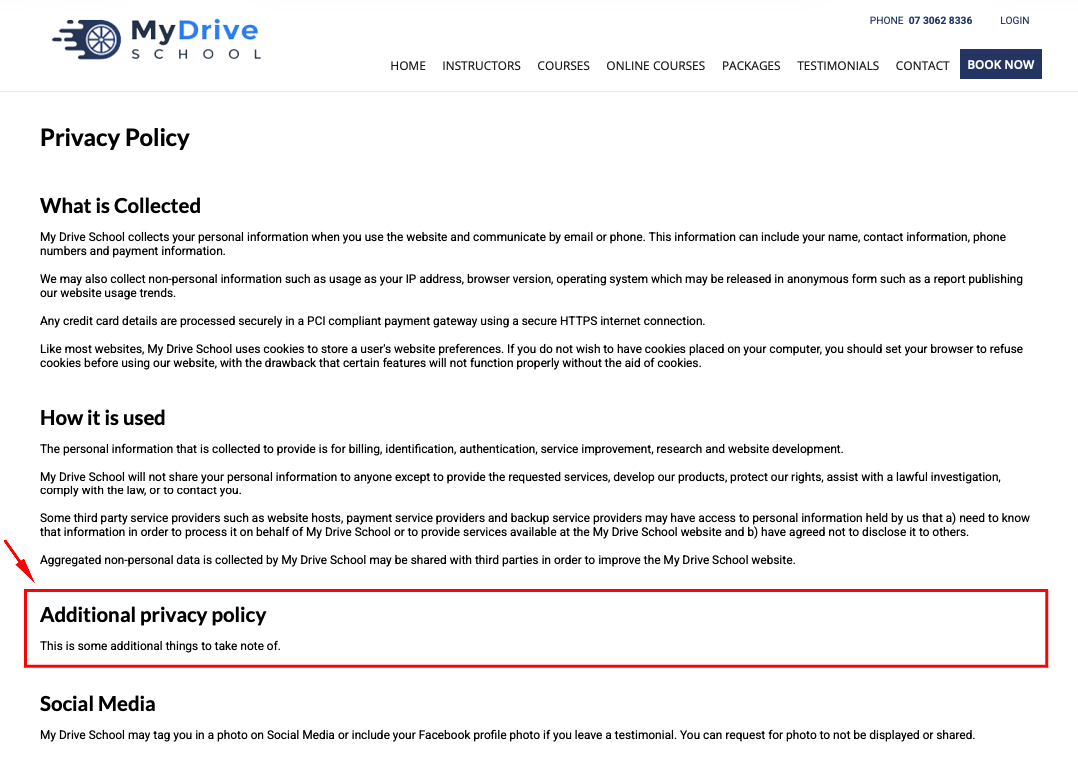
When you have a BookingTimes site, it automatically comes with a default Terms & Conditions page (e.g. https://YourDomain/Terms), and a default Privacy policy page (e.g. https://YourDomain/Privacy).
These terms include specific text, and also includes items which reflect some of your system configuration settings. They will automatically update your Terms & Conditions when you adjust the configuration settings. These include:
Changing cancellation fees, see: Changing your cancellation policy and fees
Changing expiry date of Vouchers, see: Changing your voucher expiry date
Note
These policies are designed to cover numerous parties (including you, us and our 3rd party providers).
They cannot be edited directly (except for those items that are inserted based on certain configuration options), however, they can be added to via following these instructions.
Set additional Terms & Conditions, Refund Policy or Privacy Policy
Steps
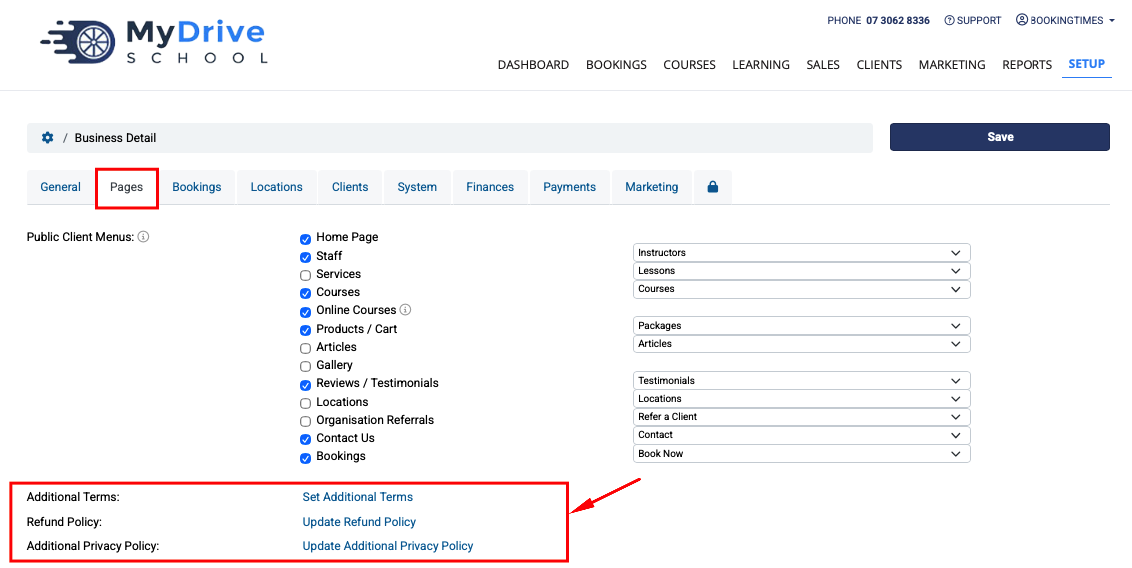
Navigate to Setup > System Settings > Business Detail
Click on the Pages tab
Click Set Additional Terms and/or Set Refund Policy and/or Set Additional Privacy Policy
Please note: once additional information is added, the link changes from Set… to Update…
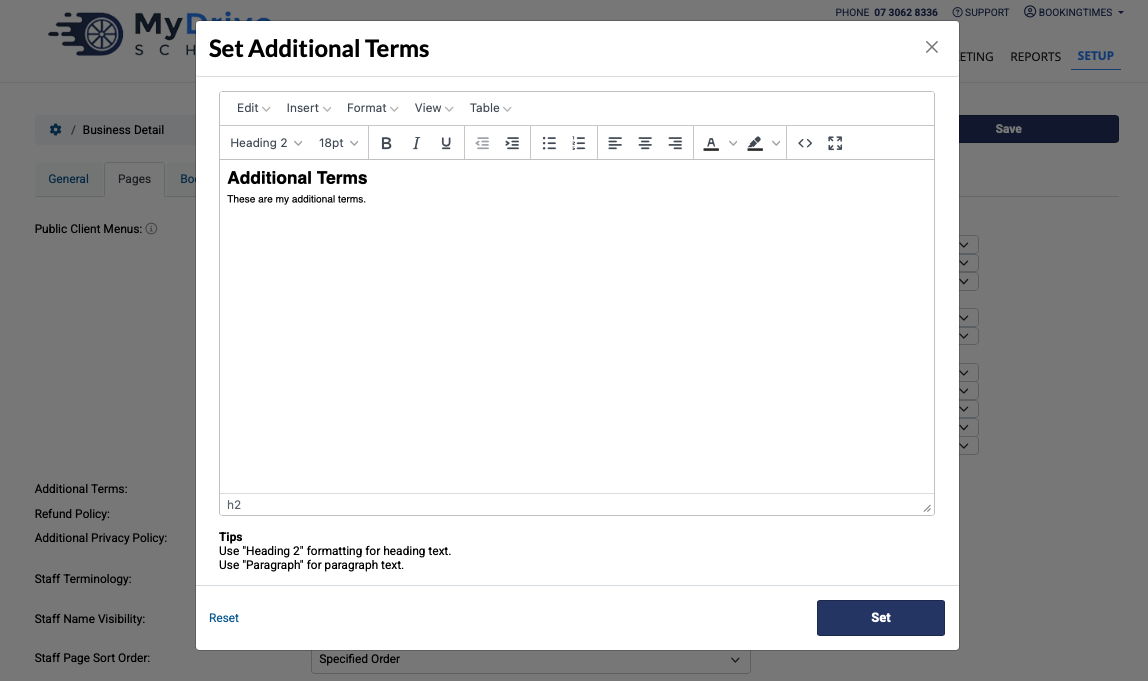
Enter your additional terms/additional refund policy/additional privacy policy in the text box. Note you can apply formatting so they blend in with the existing page.
Click Set
Click Save when you’re back on the main business details screen
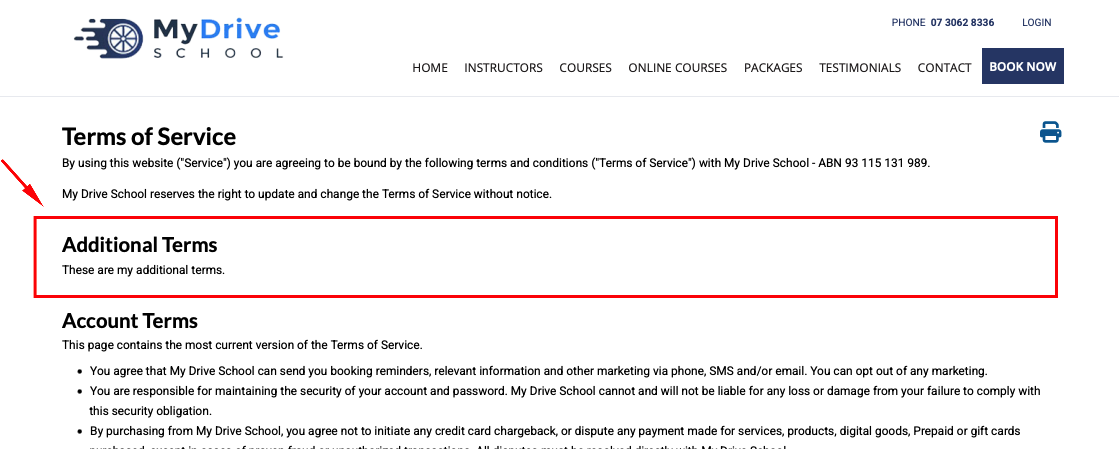
Additional terms are shown as follows in within your terms page. e.g. https://YourDomain/Terms
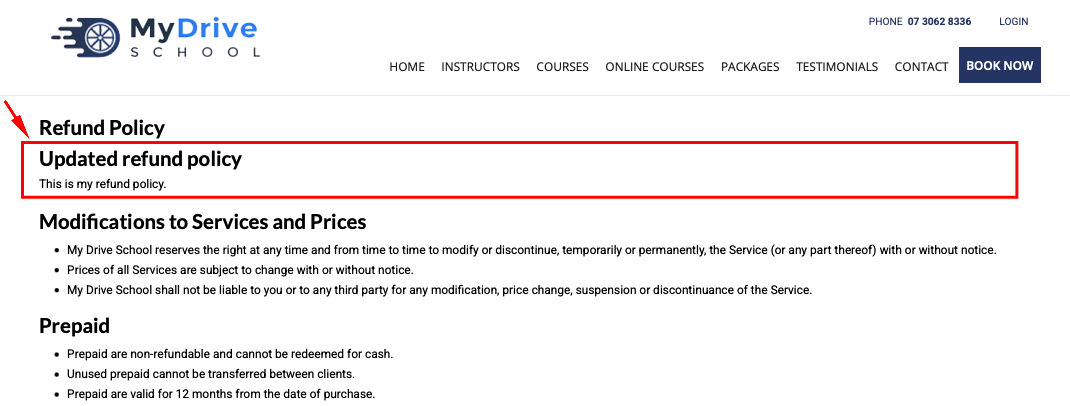
Additional refund policy are shown as follows in within your terms page. e.g. https://YourDomain/Terms
Additional privacy policy are shown as follows in within your privacy page. e.g. https://YourDomain/Privacy