This feature is available on these plans (view pricing)
Once you have created membership groups, they can also be used to restrict the booking calendar to membership group/s.
Steps
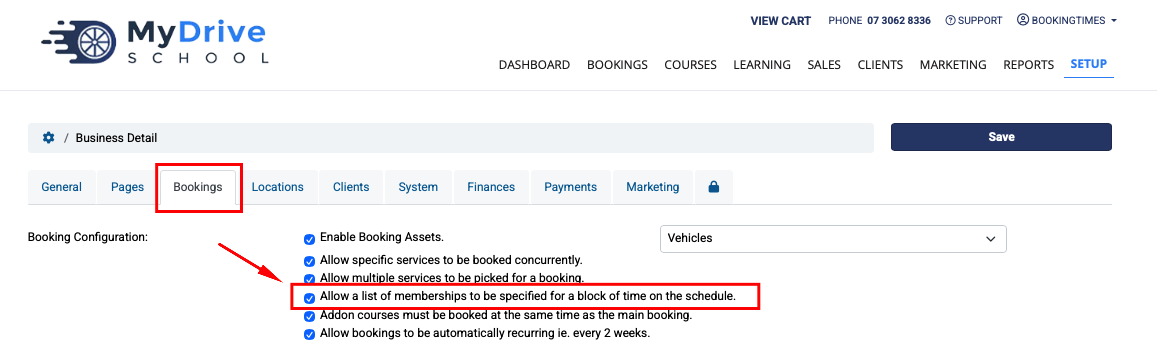
Ensure this feature is enabled via Setup > System Settings > Business Detail > Bookings (tab)
Under Booking Configuration select Allow a list of memberships to be specified for a block of time on the schedule.
Click Save.
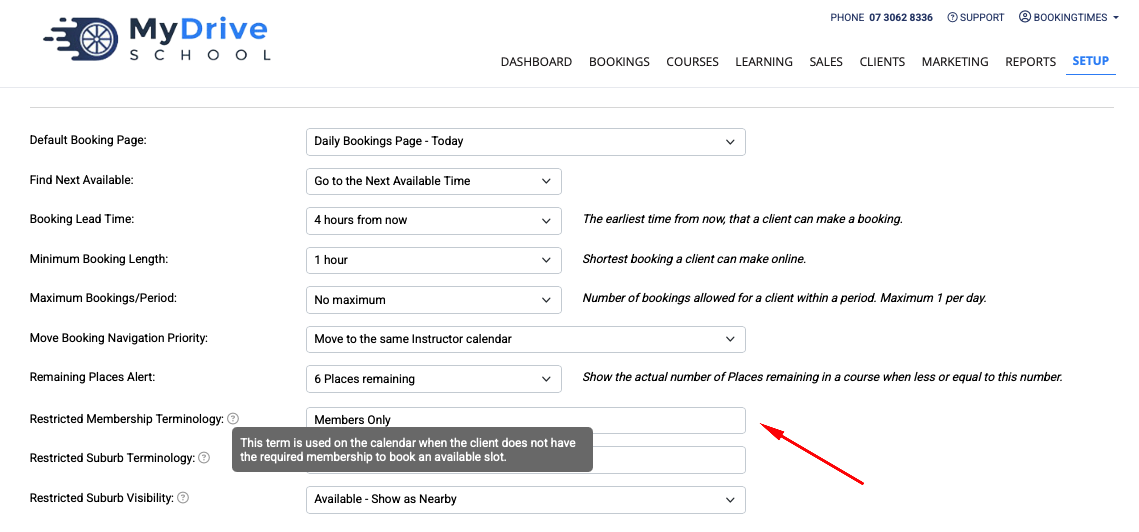
You can also optionally set up different terminology to appear on the calendar when the client does not have the required membership to book an available slot. This is on the same Bookings tab as above under Restricted Membership Terminology. If you update this, ensure you click on Save.
To restrict the calendar, click on the Bookings main menu item to navigate to the booking calendar
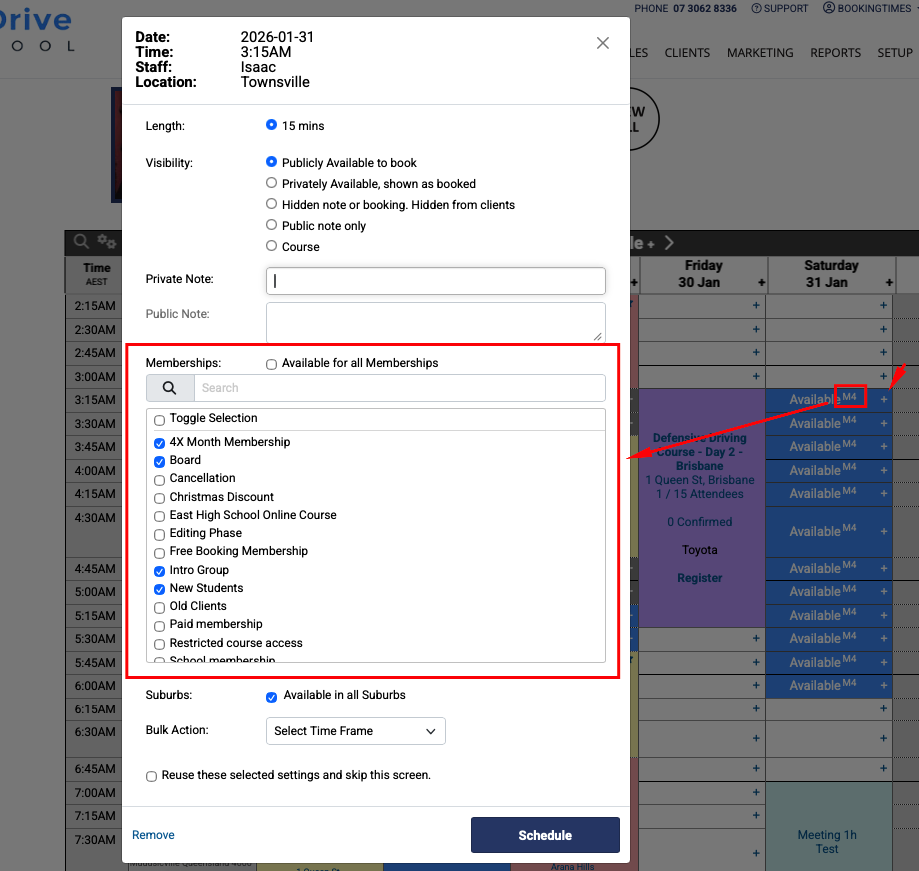
Click on the “+” of the timeslot that you wish to restrict to certain memberships:
Select the membership/s you wish to allow
Use the Bulk Action drop down list to apply to subsequent timeslots
Click Schedule button
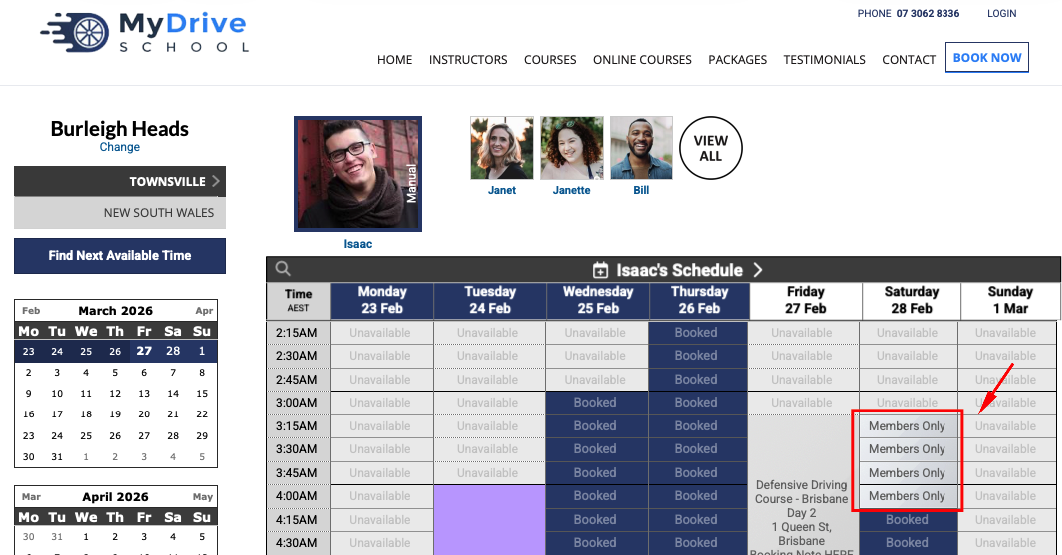
When this restriction has been added in, this is how it looks to a client that does NOT have the membership (or if the client is not yet logged in to determine if they have the required membership or not).