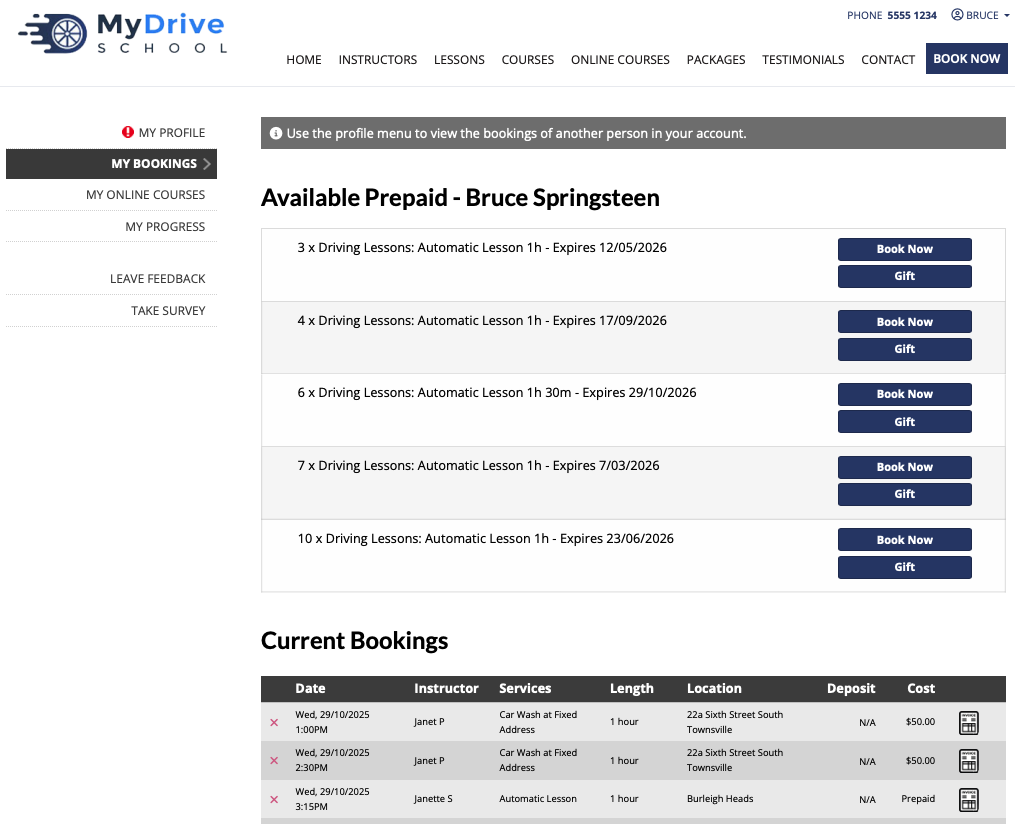
Prepaid vouchers (also commonly referred to as a package) allows you to purchase prepaid vouchers for a particular service, but then book it later. A monetary voucher allows you to have that monetary value on your account as a credit, ready to use for any service that the business offers.
You can also give a prepaid and monetary voucher to someone as a gift. This guide will show you how to purchase a prepaid or monetary voucher from a client’s perspective assuming you have already created an account.
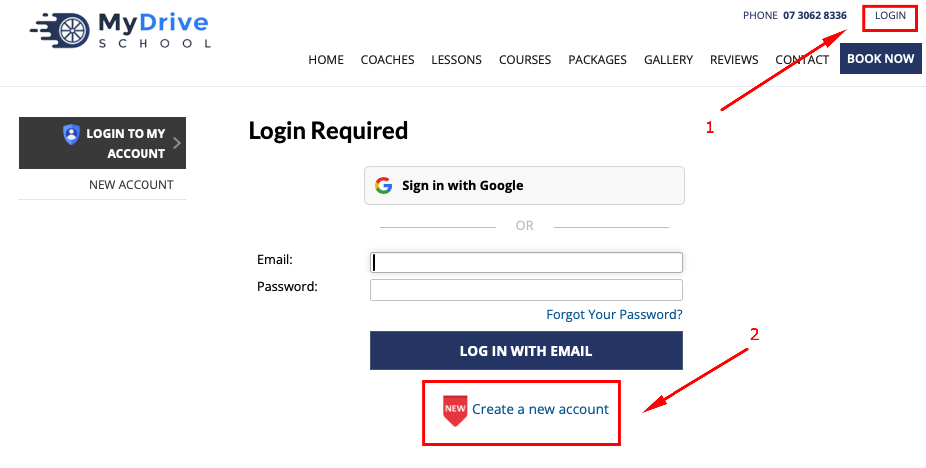
If you haven’t yet created an account, please do so by either:
Clicking on the Login link and selecting to Create a new account
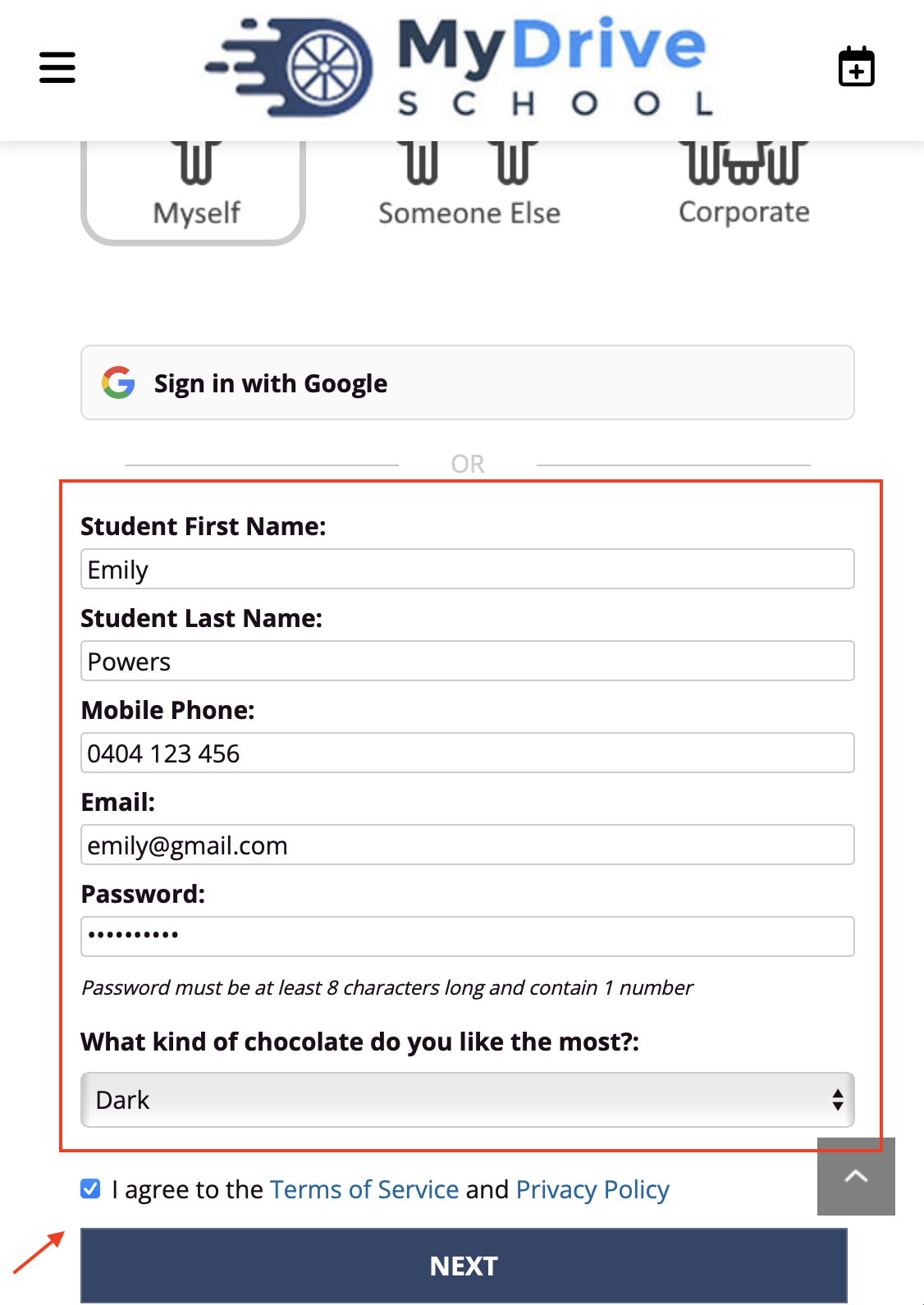
Or purchasing your desired prepaid voucher and then follow the on screen instructions to create your account then and complete the required information:
Mobile
Steps
If you are not logged in yet, click the hamburger icon (i.e. 3 horizontal lines) to open the menu
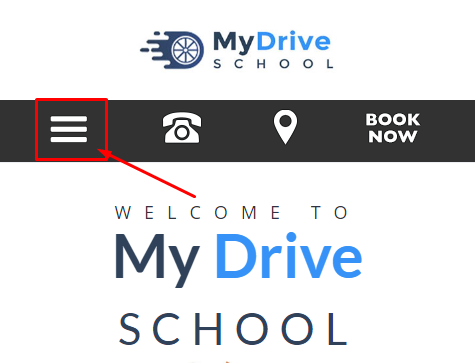
Click on Login and enter your email and password
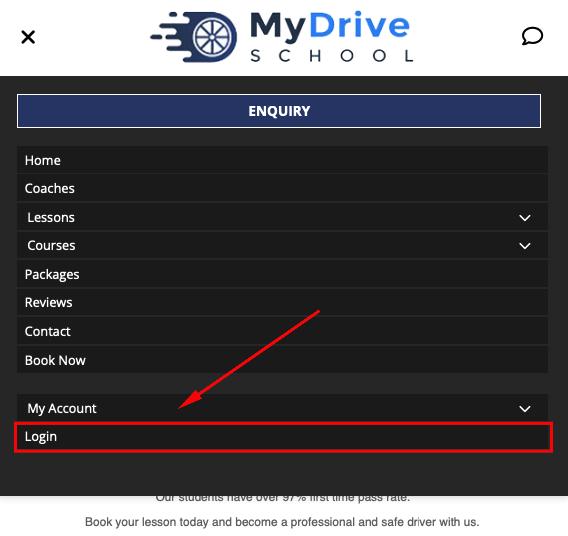
Click the hamburger icon to open the menu again
Click on the Products/Store/Shop/Vouchers page (the terminology will depend on the website)
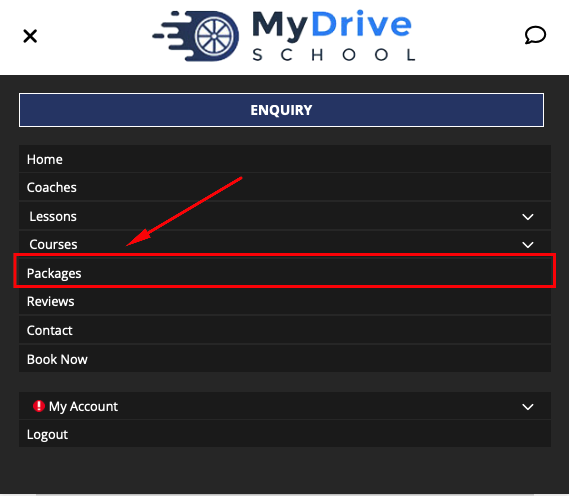
(Optional) For some websites you might be prompted to select a suburb/city/neighbourhood, if so please select the appropriate location
Select your prepaid or monetary voucher and click Add To Cart
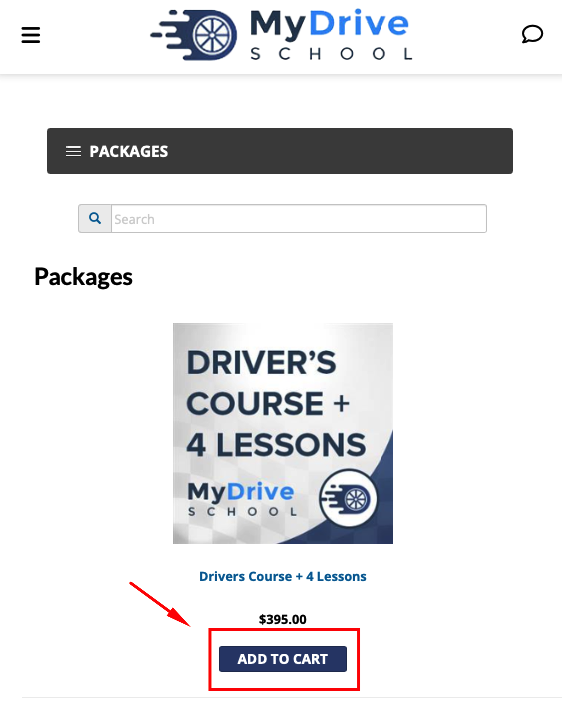
Click Check Out
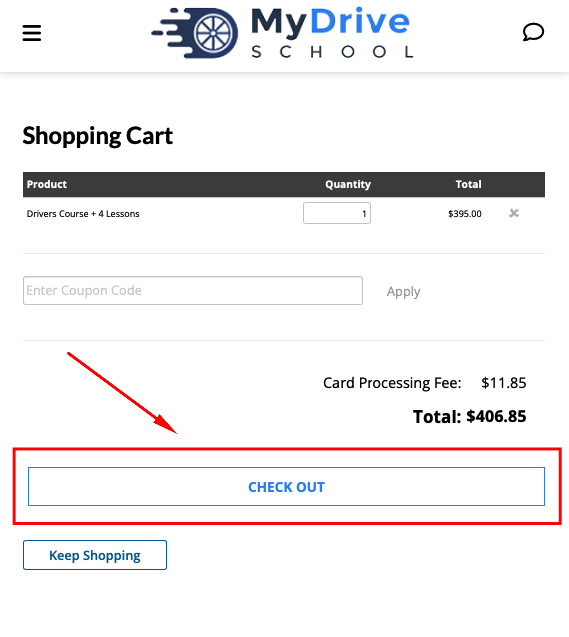
You may be asked whether you wish to purchase this prepaid or monetary voucher for yourself or someone else (depending on the website configuration)
Complete the checkout process and enter the appropriate payment details
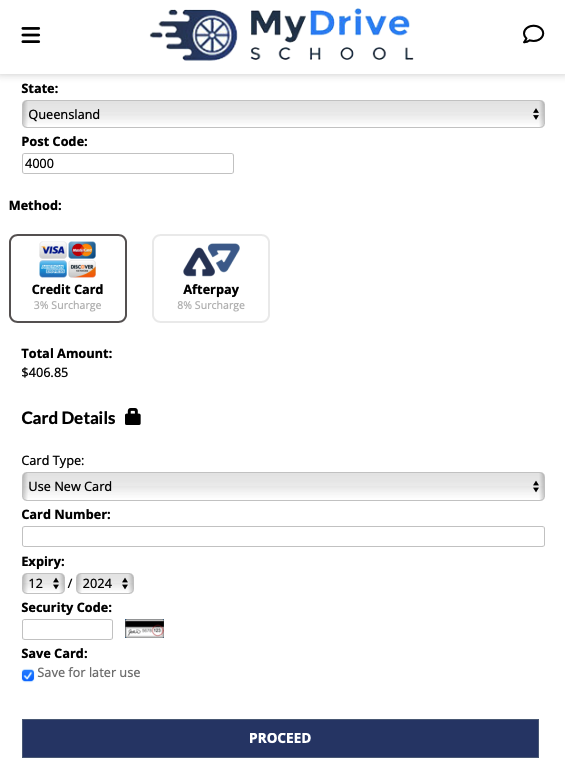
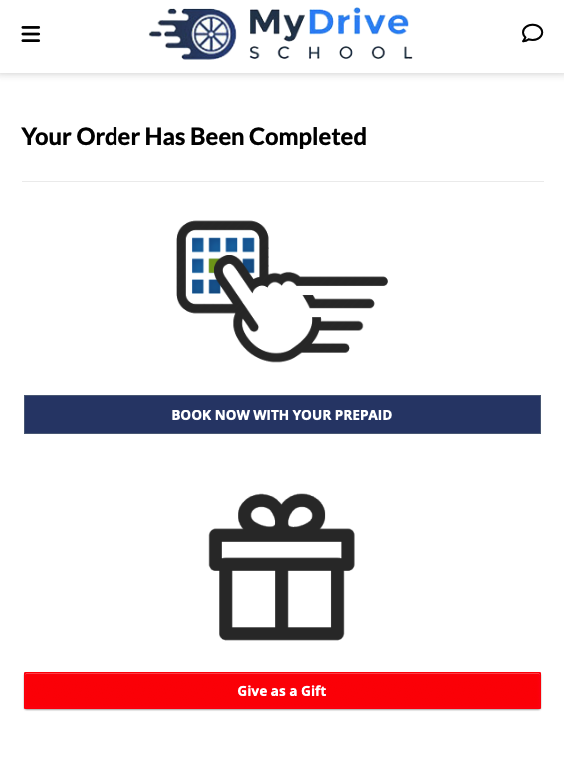
If you are making the purchase for yourself you will receive a confirmation screen. You can book a lesson directly from this confirmation screen, email the prepaid or monetary voucher to someone as a gift, or close the window and save your prepaid or monetary voucher for later
To gift this to someone please see the Gifting products & prepaid vouchers article.
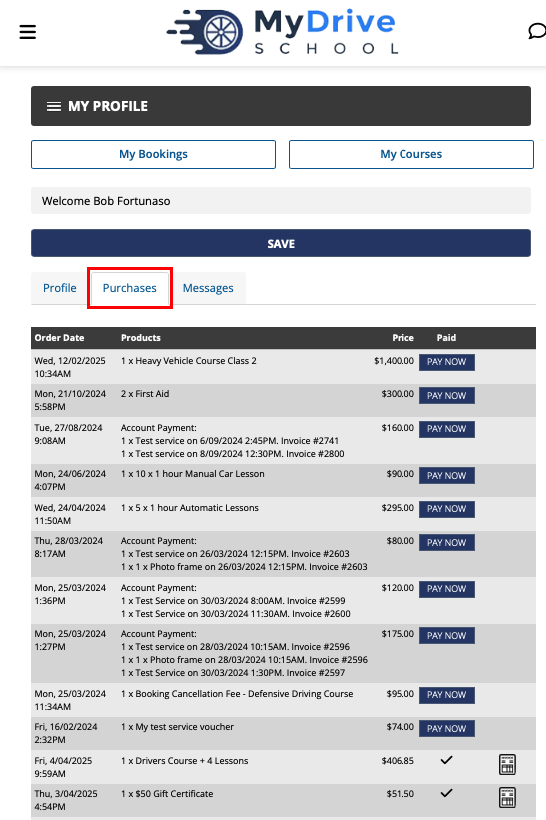
To view your purchase go to My Profile and select the Purchases tab and you’ll see a list of all your purchases and ability to download any invoices;
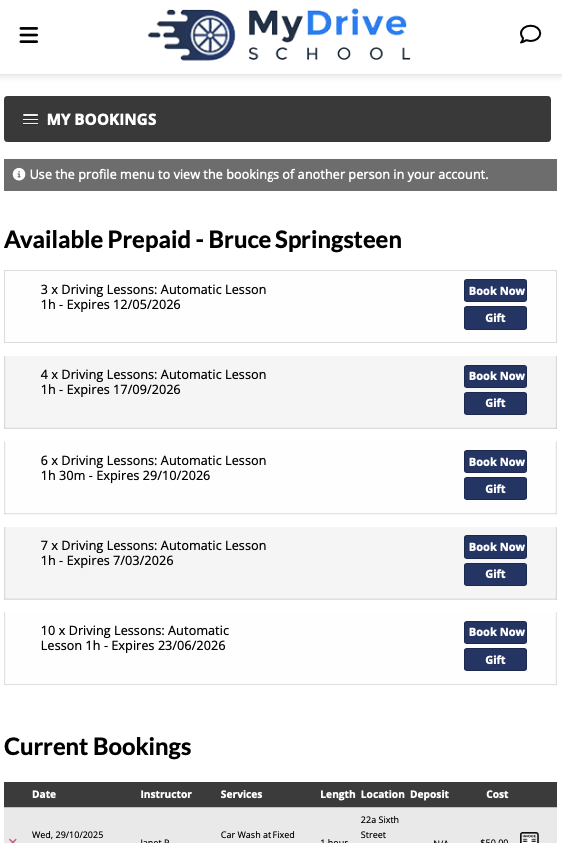
To view your prepaid voucher go to My Bookings where you will see all your prepaid vouchers and you are able to book those services immediately from here. You can also gift any prepaid vouchers from here depending on the business setup.
NOTE: monetary vouchers can only be gifted immediately after their purchase, they will not appear in this list of prepaid vouchers. Please see Gifting products & prepaid vouchers for more details.
Desktop
Steps
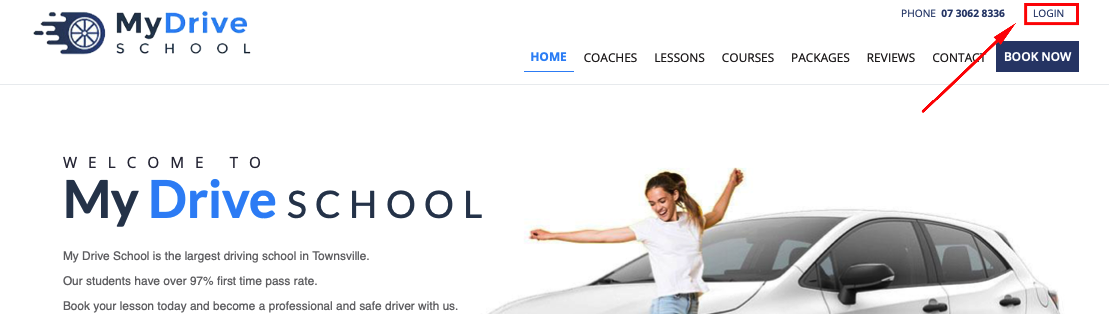
If you are not logged in yet, click Login
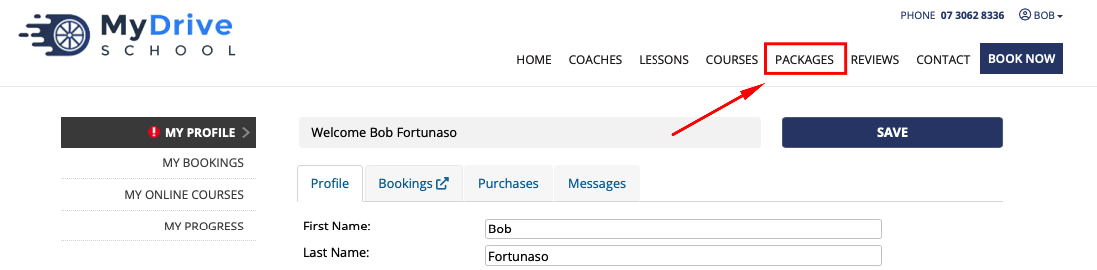
Click on the Products/Store/Shop/Vouchers page (the terminology will depend on the website)
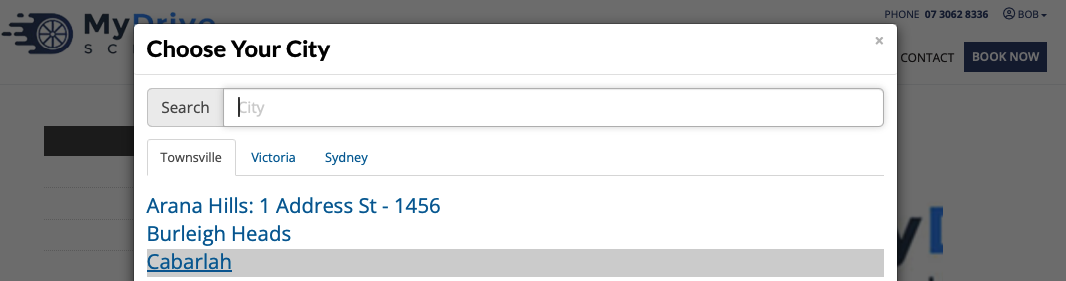
(Optional) For some websites you might be prompted to select a suburb/city/neighbourhood, if so please select the appropriate location
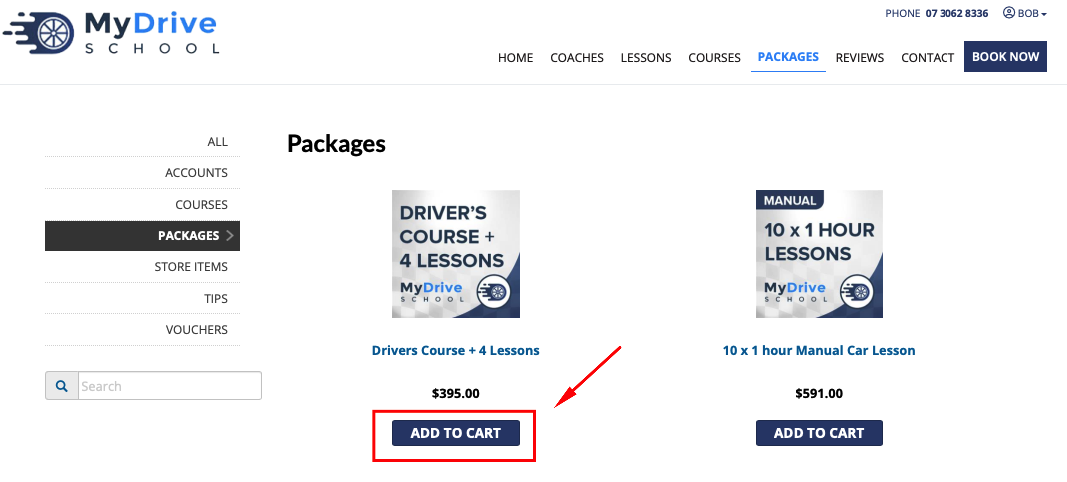
Select your prepaid voucher and click Add To Cart
Click Check Out
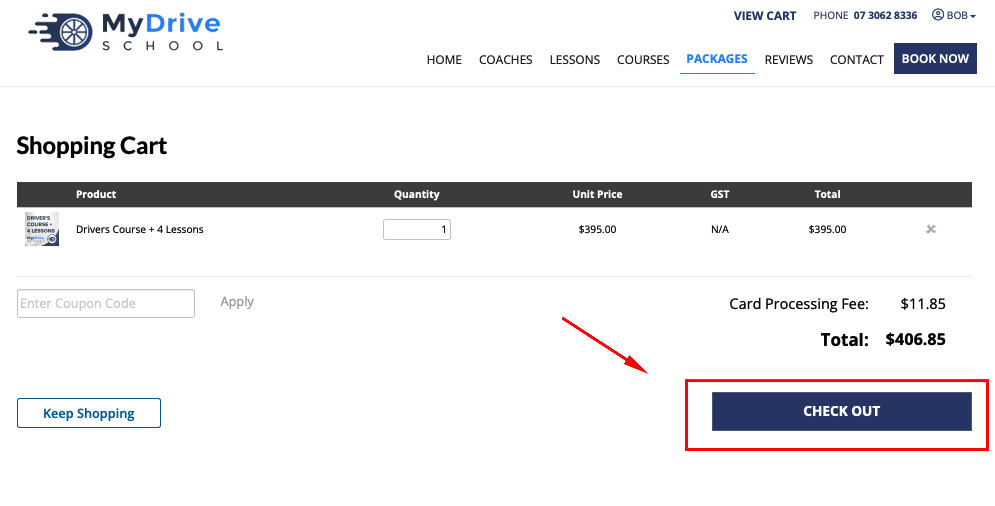
You may be asked whether you wish to purchase this prepaid voucher for yourself or someone else (depending on the website configuration)
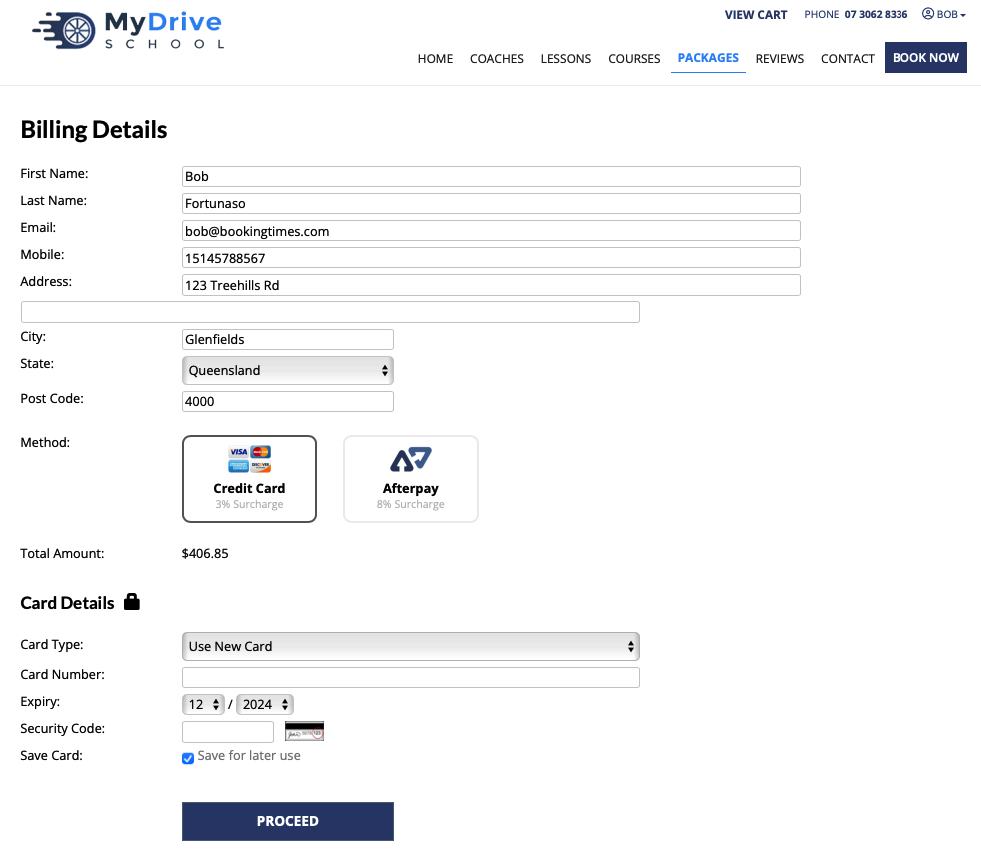
Complete the checkout process and enter the appropriate payment details
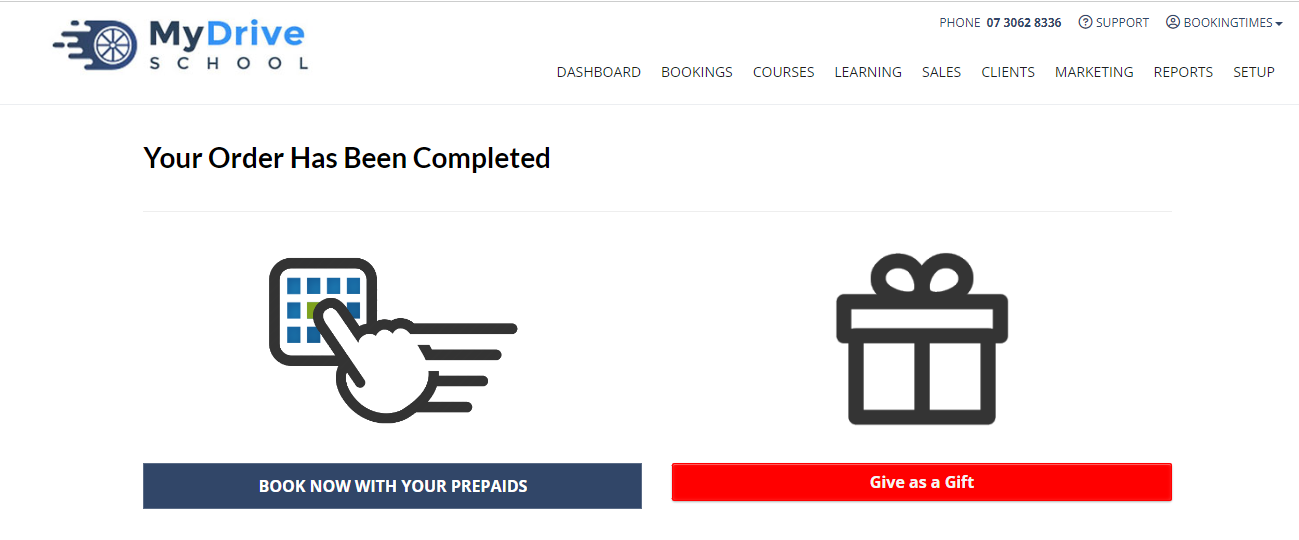
If you are making the purchase for yourself you will receive a confirmation screen. You can book a lesson directly from this confirmation screen, email the prepaid voucher as a gift, or close the window and save the prepaid voucher for later
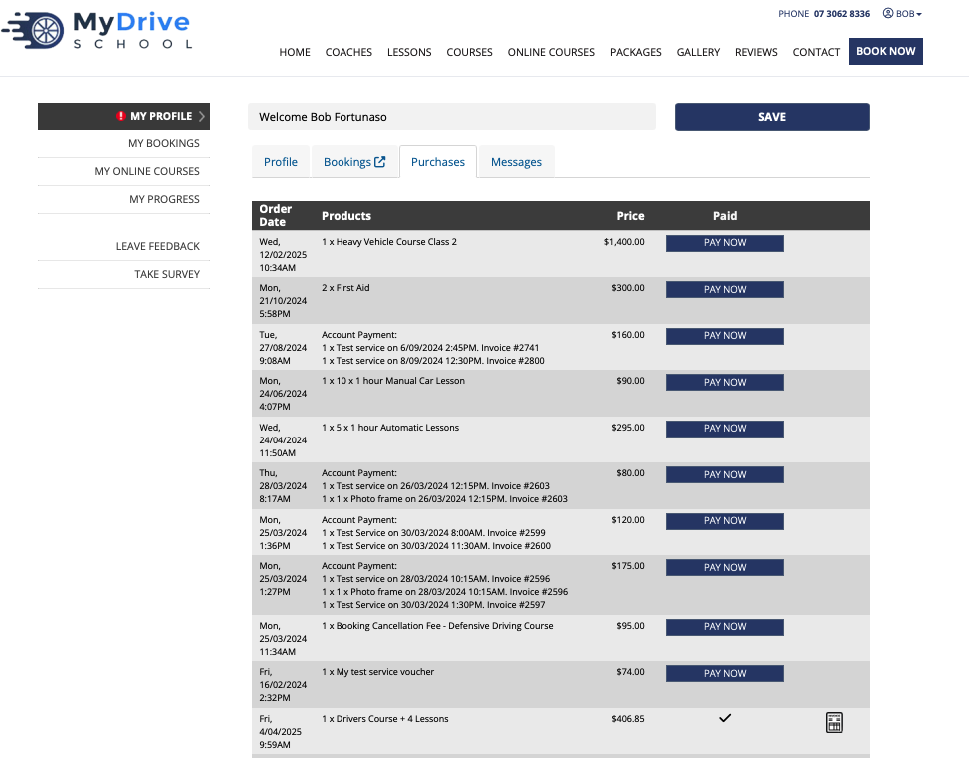
To view your purchase go to My Profile and select the Purchases tab and you’ll see a list of all your purchases and ability to download any invoices;
To view your prepaid voucher go to My Bookings where you will see all your prepaid vouchers and you are able to book those services immediately from here. You can also gift any prepaid vouchers from here depending on the business setup.
NOTE: monetary vouchers can only be gifted immediately after their purchase, they will not appear in this list of prepaid vouchers. Please see Gifting products & prepaid vouchers for more details.