This feature is available on these plans (view pricing)
A marketing sequence allows you to specify a number of emails or text messages^ to be sent at preset intervals to a specified group of people. There are many uses for this including:
Build a marketing campaign for people who have booked a particular service and you can cross-sell your other services
Send a series of training emails to staff members
Give customers a list of follow up courses that you provide once they've completed a course
Please note that clients are able to opt-out of receiving marketing sequences (same as with Newsletters), so please ensure that any crucial information relating to a course or booking is contained within a suitable Reminder email instead.
Within each marketing sequence you can also determine if you would like to automatically remove clients from the sequence after they make a new booking or a paid sale, and a number of global marketing sequences are available including an Abandoned Cart sequence so you can follow up on any incomplete purchases.
^ Please note any text messages cost extra and this will be added to your invoice as appropriate.
No duplicate subscribers
Please note that if someone has already been added to a marketing sequence, if they get triggered to be added again (e.g. another purchase of the same product), they will not be resent that marketing sequence. They will only be sent that marketing sequence once.
If you're wanting to inform clients of any service specific information upon each booking (e.g. please remove any makeup prior to the facial appointment), then use the service specific reminders functionality which is outlined in the Creating reminders for different services article.
This article outlines how to set up a marketing sequence and its sequence steps, and the various ways in which subscribers can be added to the sequence.
Creating a marketing sequence
Steps
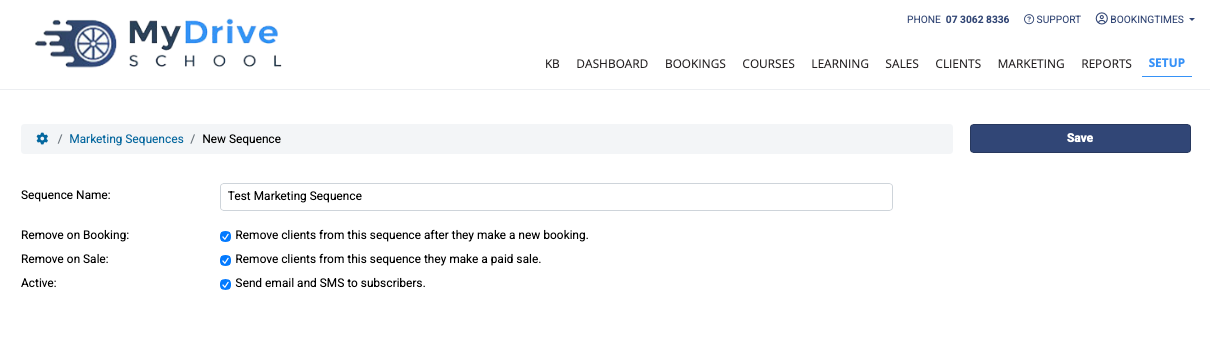
Navigate to Marketing > Marketing Sequences
Click Add Sequence
Enter a Sequence Name
Select if you would like to automatically remove clients from the sequence after they make a new booking or a paid sale by selected the appropriate check box
Click Save
Adding sequence steps
Steps
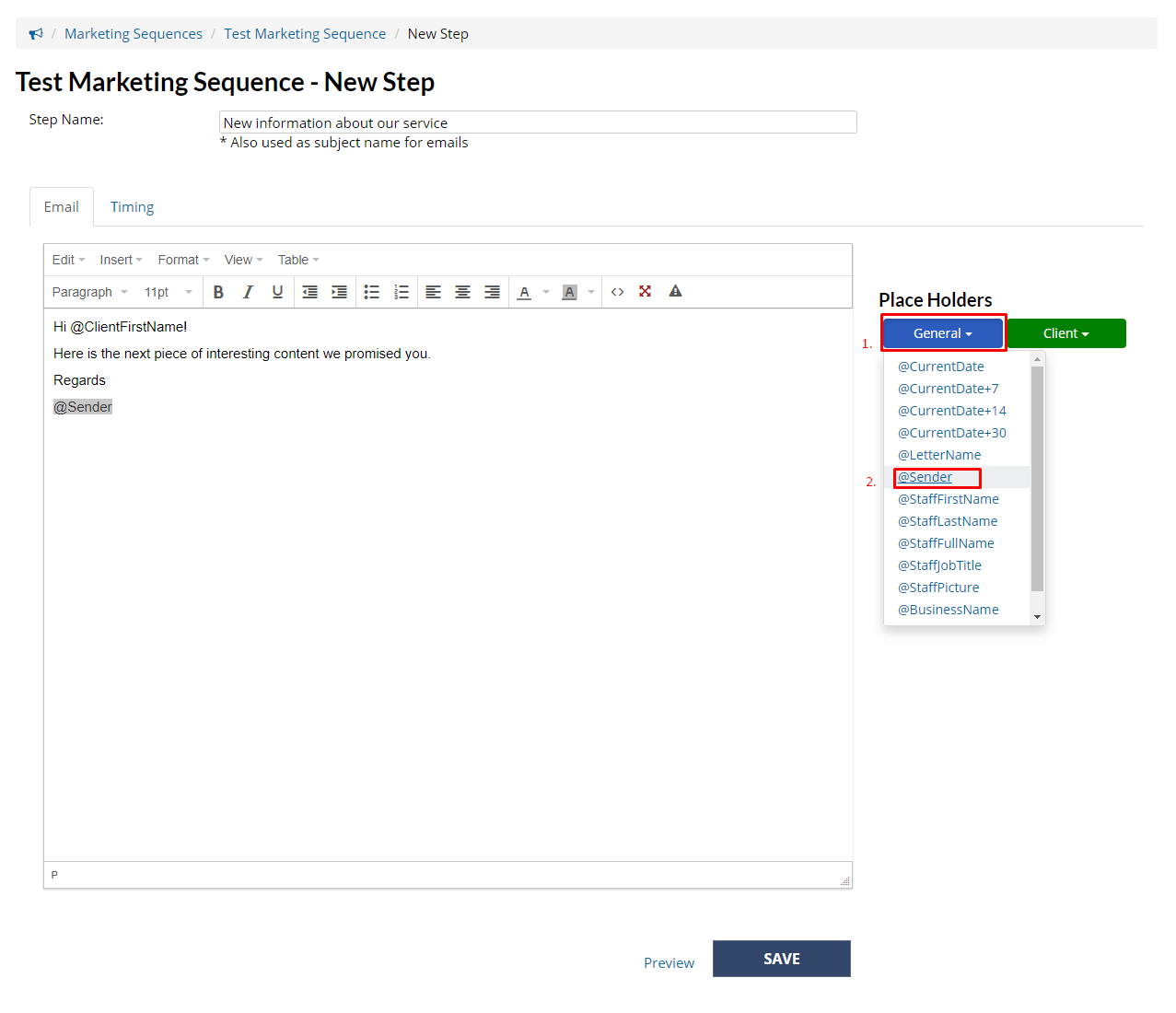
Click Add Step
Enter Step Name - this is the same as the subject name used in the email
Click and type in the text box to edit email message
Click a placeholder from the right to insert it into your message (a place holder will automatically populate with the right information for each client. e.g. @Sender will change to the name of the staff member who is currently logged in).
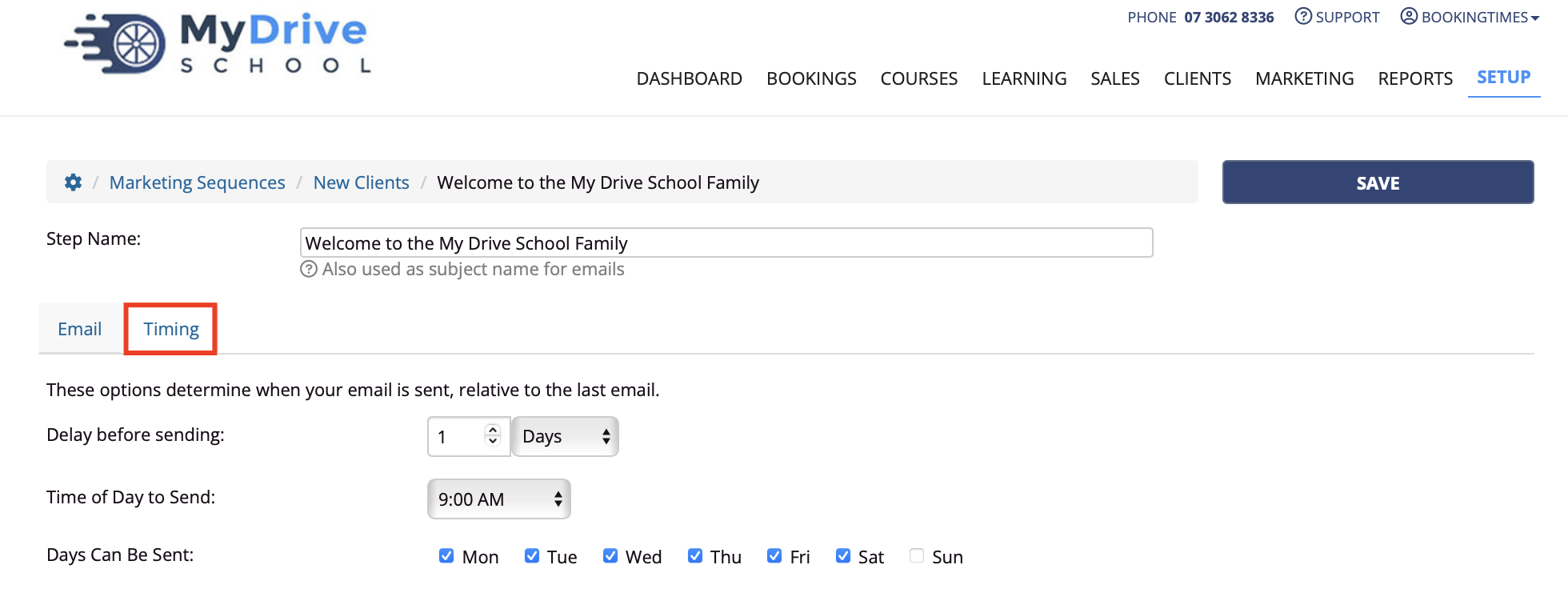
Navigate to Timing tab
Choose Delay before sending
This specified how many days to wait after the previous step in the sequence (if it is your first email, it will be relative to the next valid day an email can be sent)
Choose Time of Day to Send
This specifies which time of day the email will be sent
Select Days can be sent
This specifies which days of the week the email is allowed to be sent on
Back on the Email tab, click Preview to check the message
Click Save
Click Return to Sequence in the top right
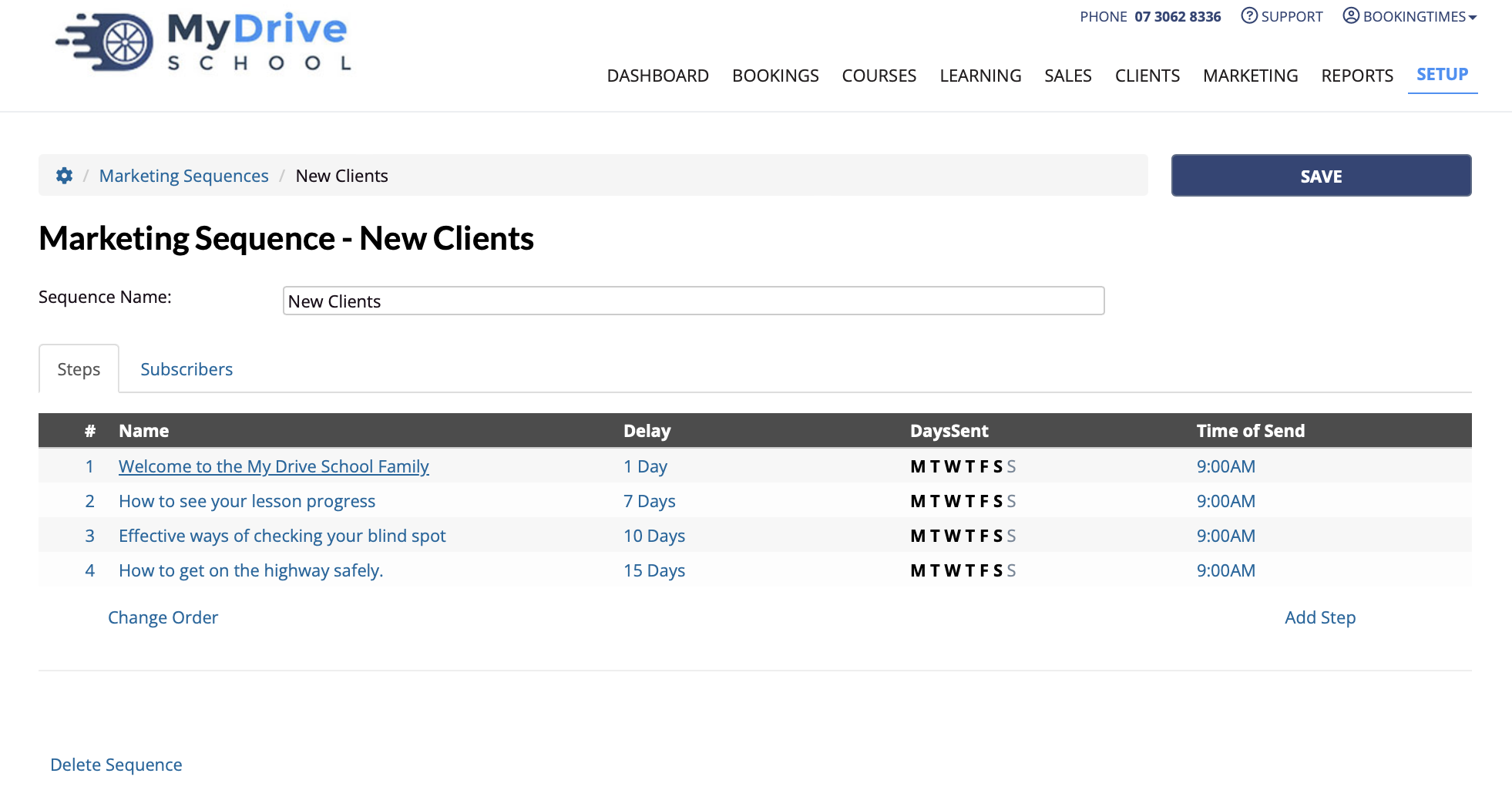
Repeat this process for each required sequence step ensuring you have them in the correct order
To change the order of the steps click the Change Order link
Tip
We recommend that each client receives an email every 1-2 weeks for 2-3 months
Adding or removing subscribers from marketing sequences
Please refer to Add or remove subscribers from marketing sequences article including:
Manually add or remove a single client
Automatically when booking a service
Automatically when purchasing a product/package
Automatically when booking into an online course
Automatically add to global marketing sequences. e.g. Abandoned Cart