As part of our services, we offer custom-branded email addresses based on your domain through our dedicated email server. These emails enhance your business's professionalism, build trust with your clients, strengthen brand recognition, and boost credibility. They also serve as subtle yet effective marketing tools, showcasing your brand with every interaction.
These emails must match your domain name, so if you domain name is “yourdomainname.com” then you could have the following emails as an example:
info@yourdomainname.com
name@yourdomainname.com
Additional emails can now be directly added via your BookingTimes website, and includes adding any email aliases, and resetting passwords - which can also be done via the online webmail portal outlined in How to change your BookingTimes email password.
Emails can also be deleted, but please use extreme caution before doing this. Ensure that any emails have been exported if you wish to keep them, or you are ok with them being permanently deleted. No rollback option is available once you confirm on the delete popup.
Required permissions to create and update
Please note you can only access this functionality if you have the following security permissions. If you do not have the required permissions, please contact your business owner so they can create your email or reset your password for you, or give you the appropriate permissions.
“Access to Setup Roles & Permissions”
“Access to Domain settings”
Creating a new email
Steps
Navigate to Setup > Accounts & Security > Email Accounts
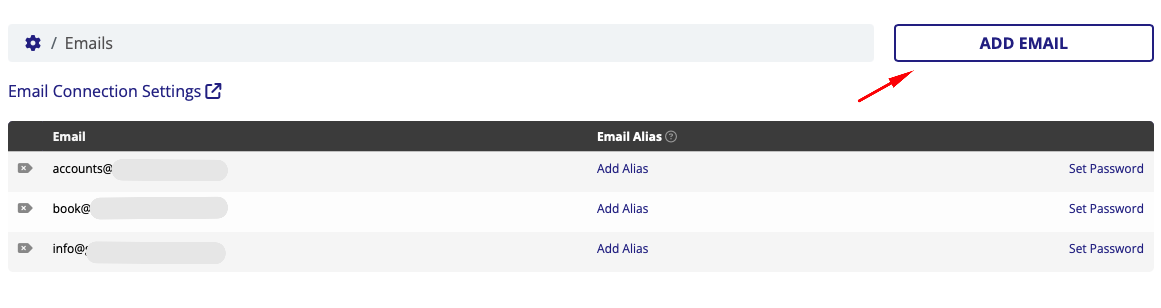
Click on Add Email button
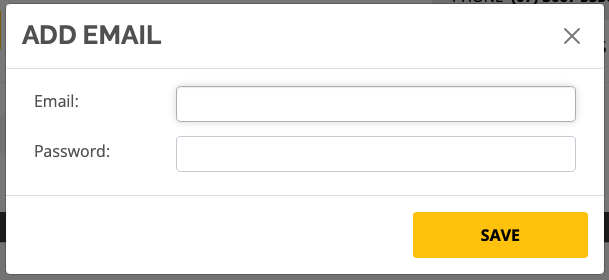
Add the username only (e.g. the name before the @ symbol)), or the full email including the username and your domain. e.g. username@yourdomainname.com.
Click Save
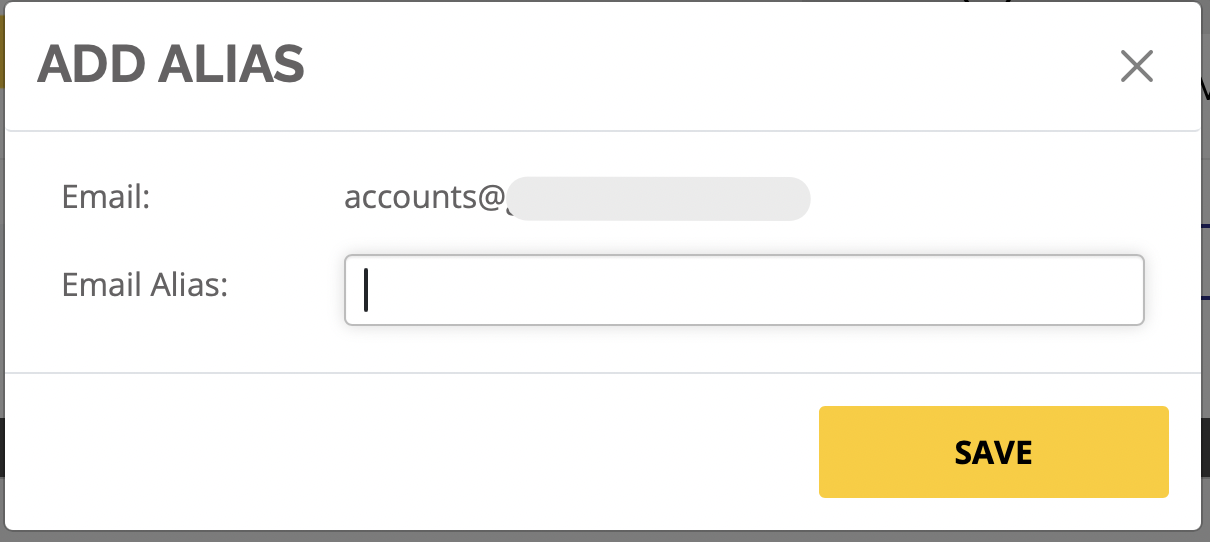
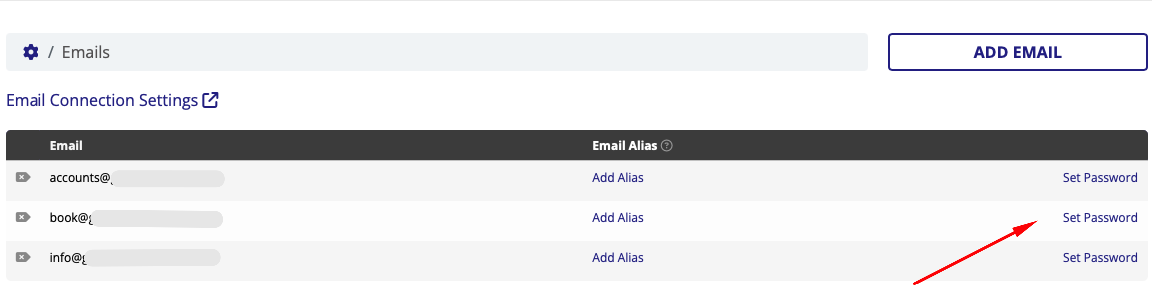
If you wish to setup an alias for any of your emails (this is an additional email address using this domain that sends its messages to your primary email account), click on the Add Alias link, enter in the email alias and click Save.
To delete an email, click on the little arrow with the ‘x’ on it next to the email address. Please use extreme caution before doing this - ensure that any emails have been exported if you wish to keep them, or you are ok with them being permanently deleted. No rollback option is available once you confirm on the delete popup.
Setting a password
This will reset any existing password on this email account to the new one chosen.
Please note - this password is different to the one that you use to log into your BookingTimes website.
Steps
Navigate to Setup > Accounts & Security > Email Accounts
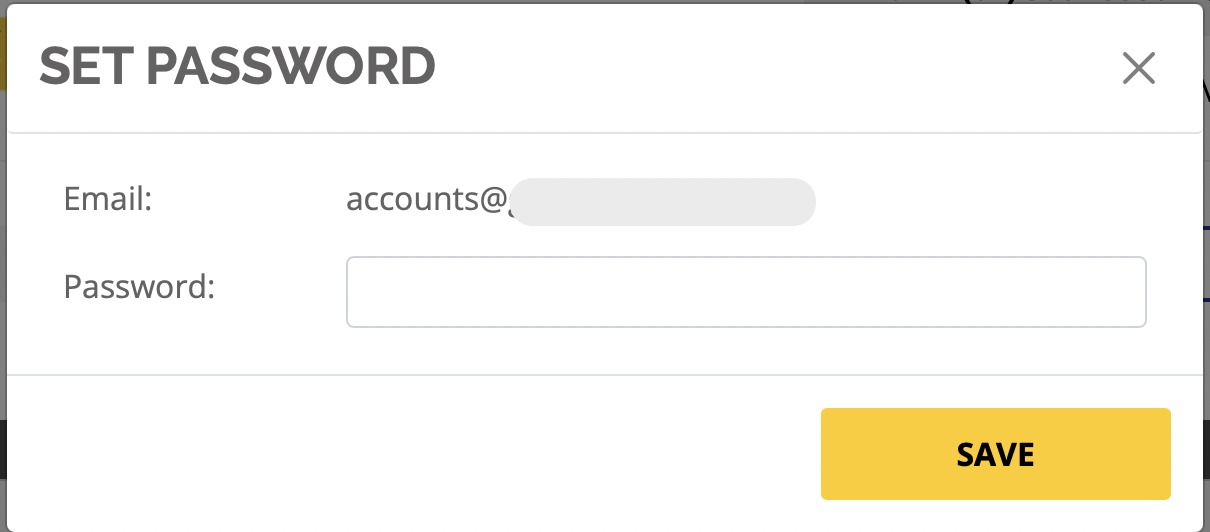
Click on Set Password link for the email account you wish to set a password for,
Enter a new password and click Save.