You may have opted to have an email address for you (and your staff) hosted with BookingTimes (e.g. info@yourdomainname.com, name@yourdomainname.com) which is used for incoming enquiries on the website and sending correspondence out to clients.
This article will outline how these emails can be accessed directly through the BookingTimes mail portal. You can also set it up on your device which is covered in the Setting up email on your device article.
Log into online webmail portal
You can access your email online at: https://mail.bookingtimes.com
Enter your email and password, and click Login.
Please Note
Your email username login and password covered her, and your website username login and password are not linked.
You may have the same email username for both, but any passwords set up are for each individual system - so please ensure you keep track of each of these distinct logins.
Email dashboard
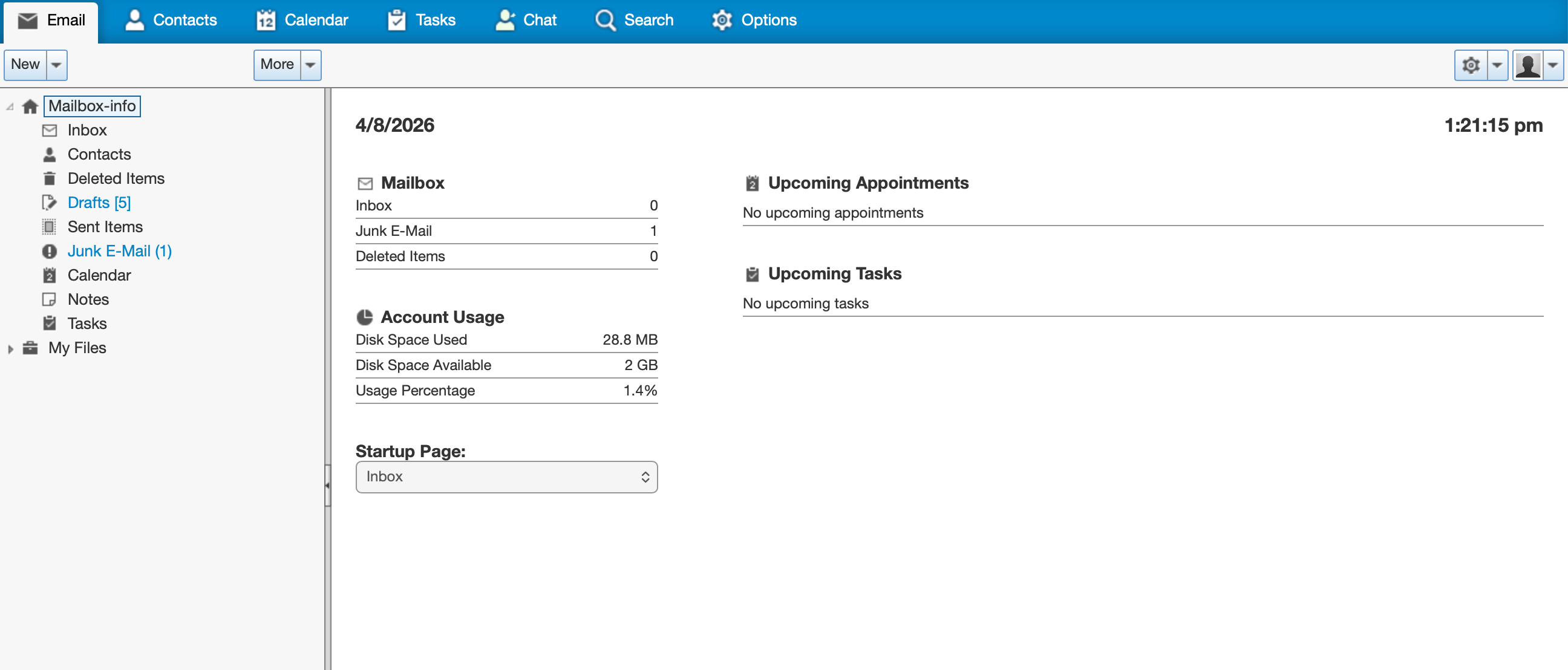
This is how your email account looks like after successful login:
Mobile version
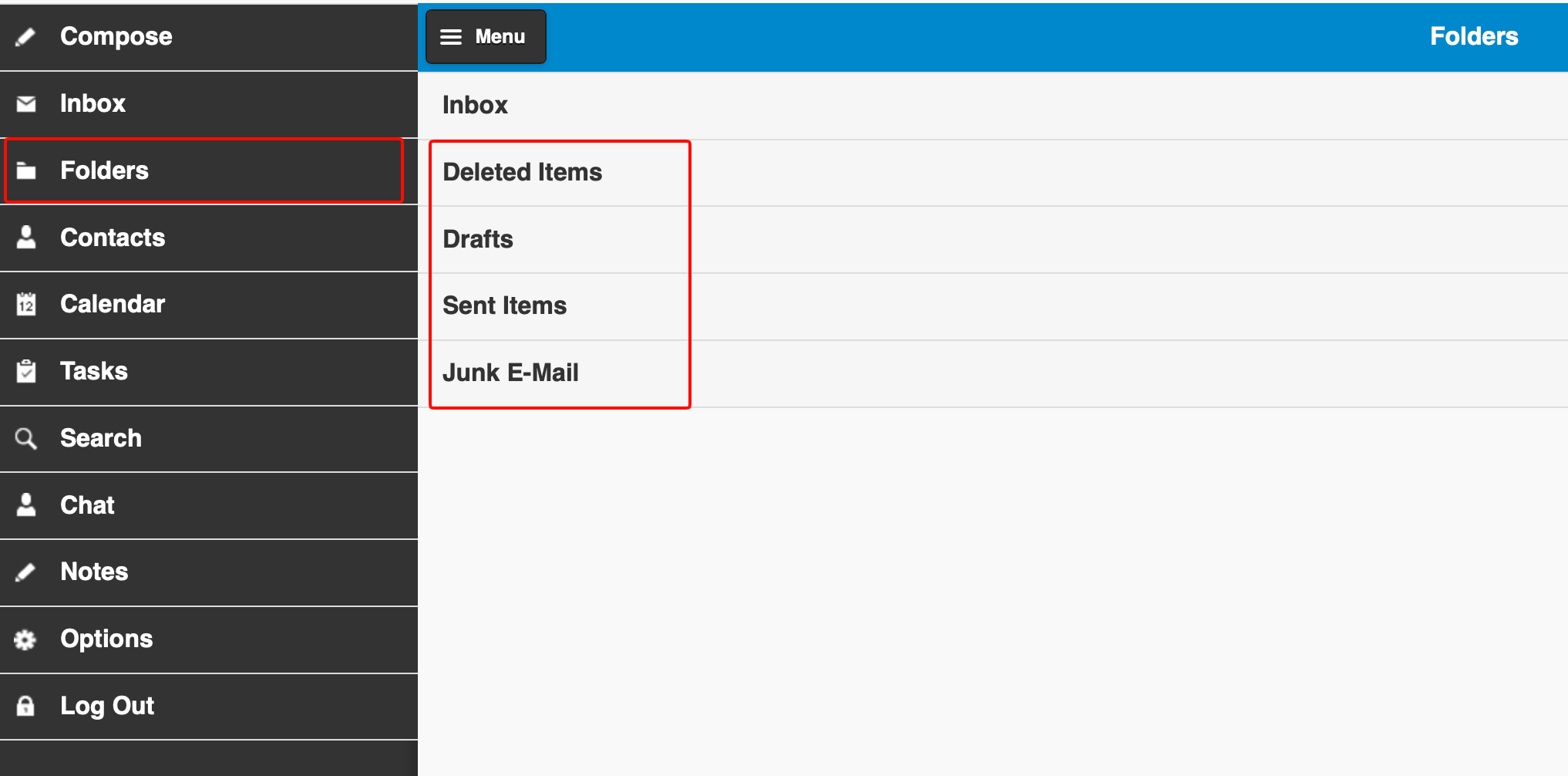
The online mobile version is slightly different to the desktop version and may not contain all options. Please note that all email folders can be access as follows.
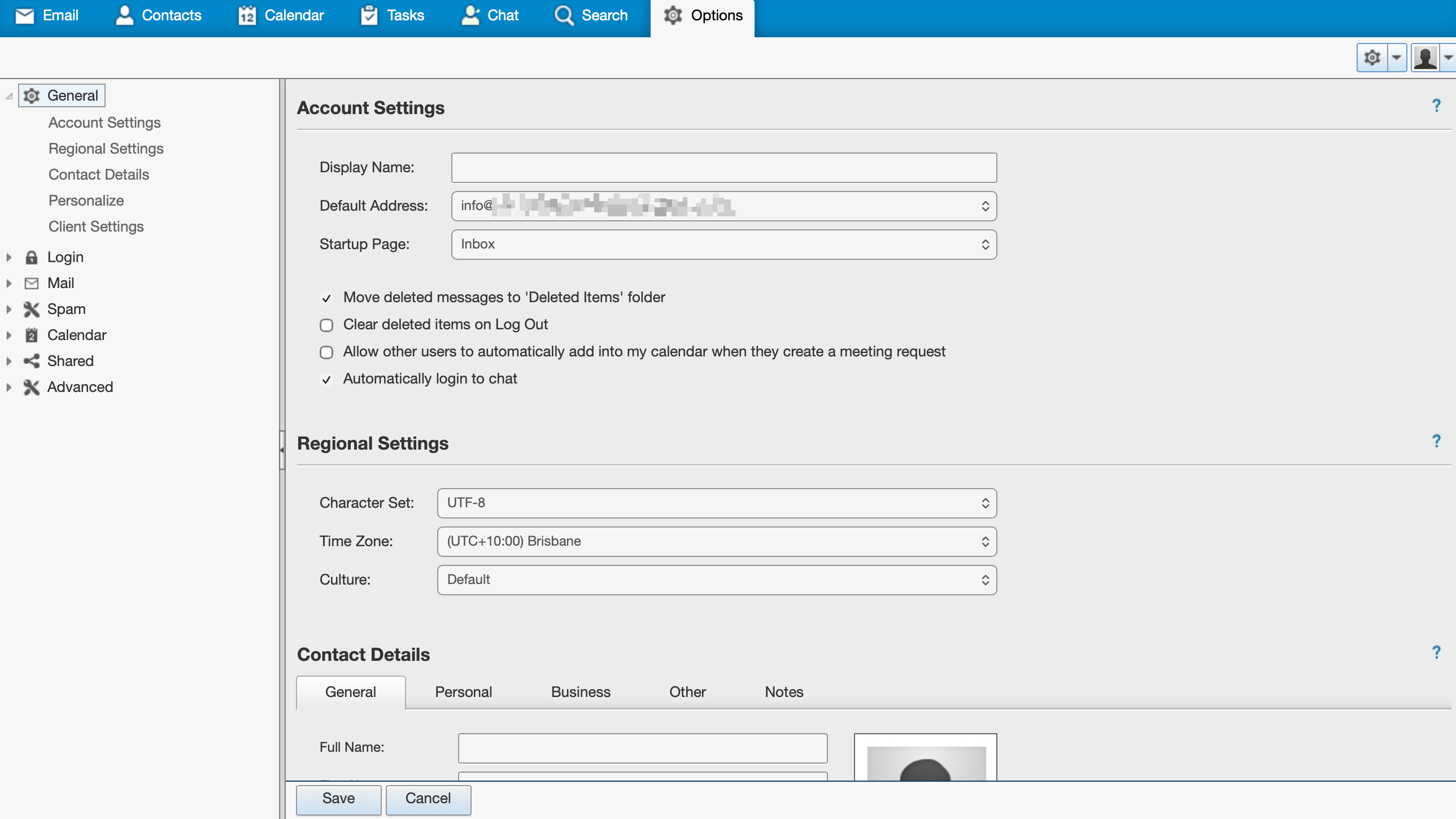
Email options - account settings
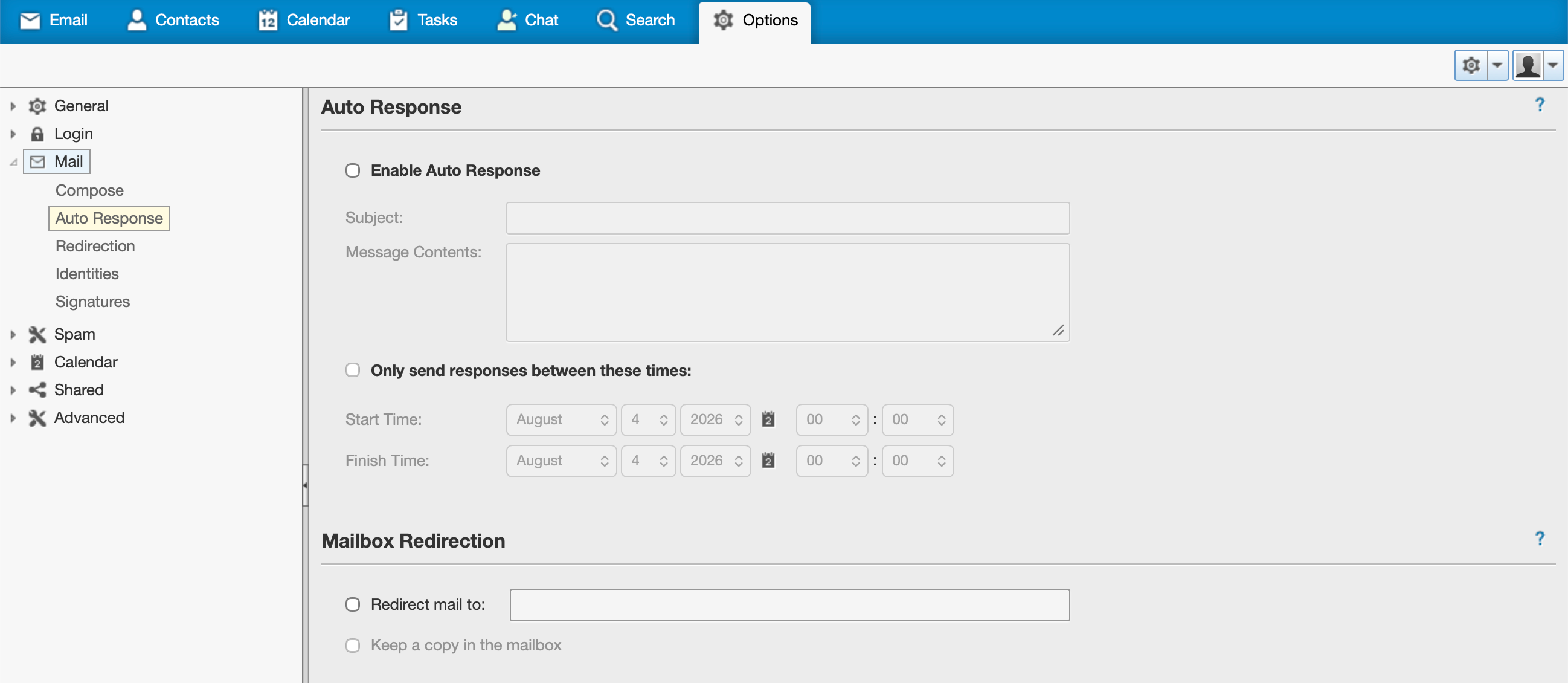
Email options - auto response
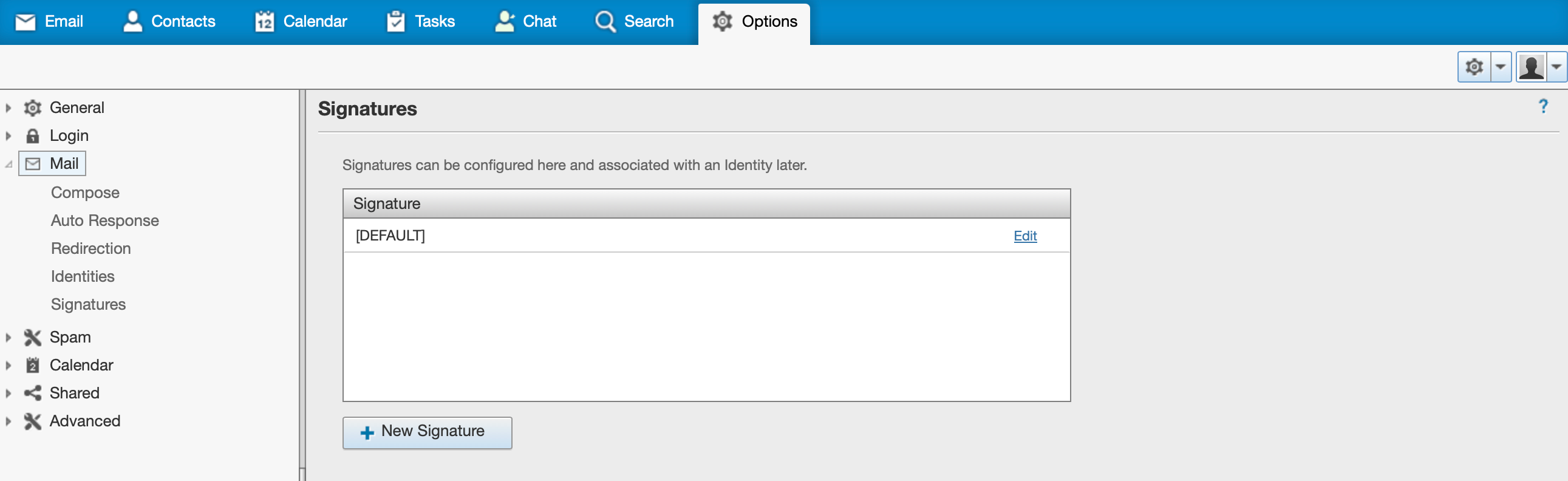
Email options - email signatures
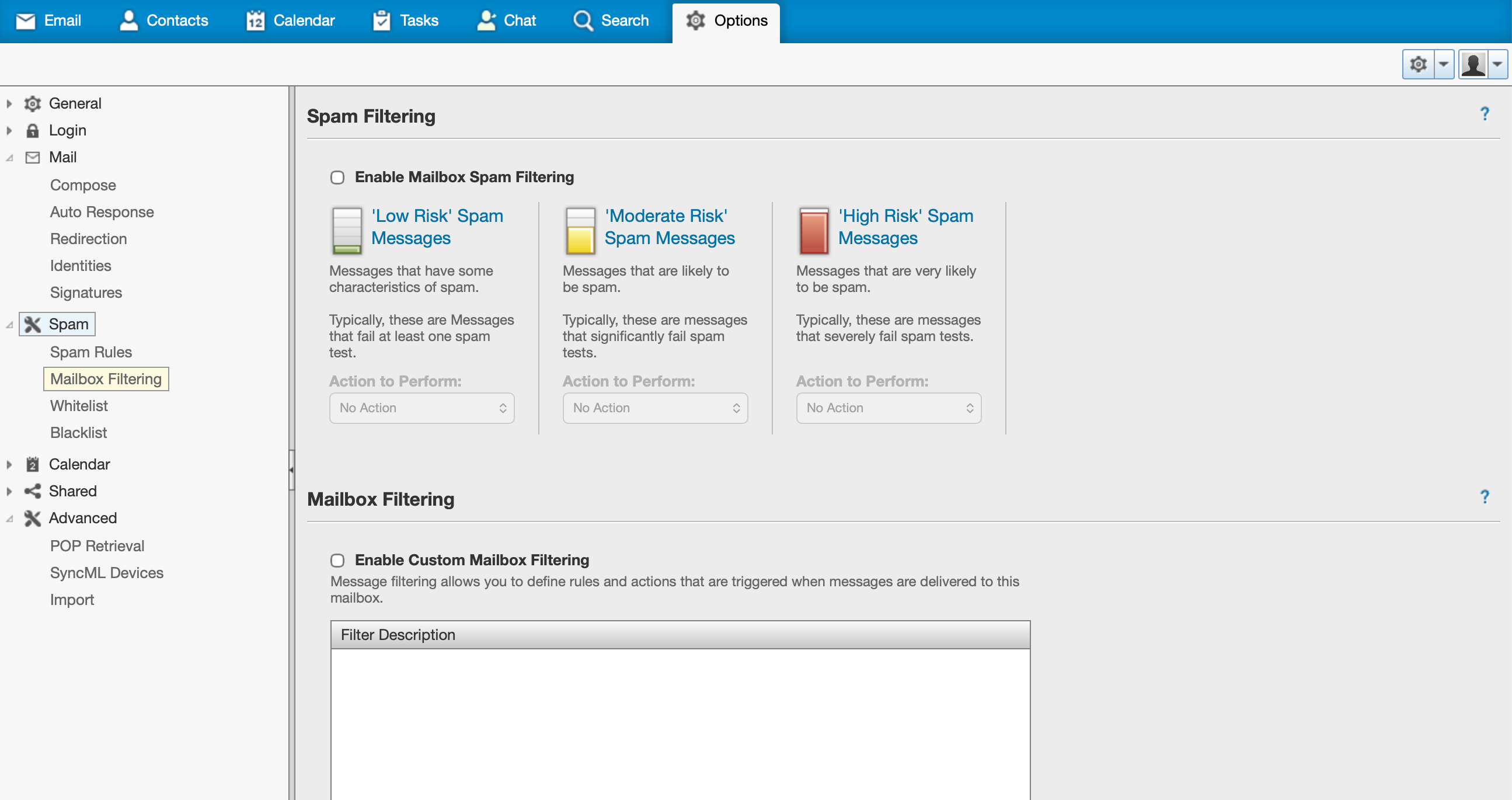
Email options - spam filtering
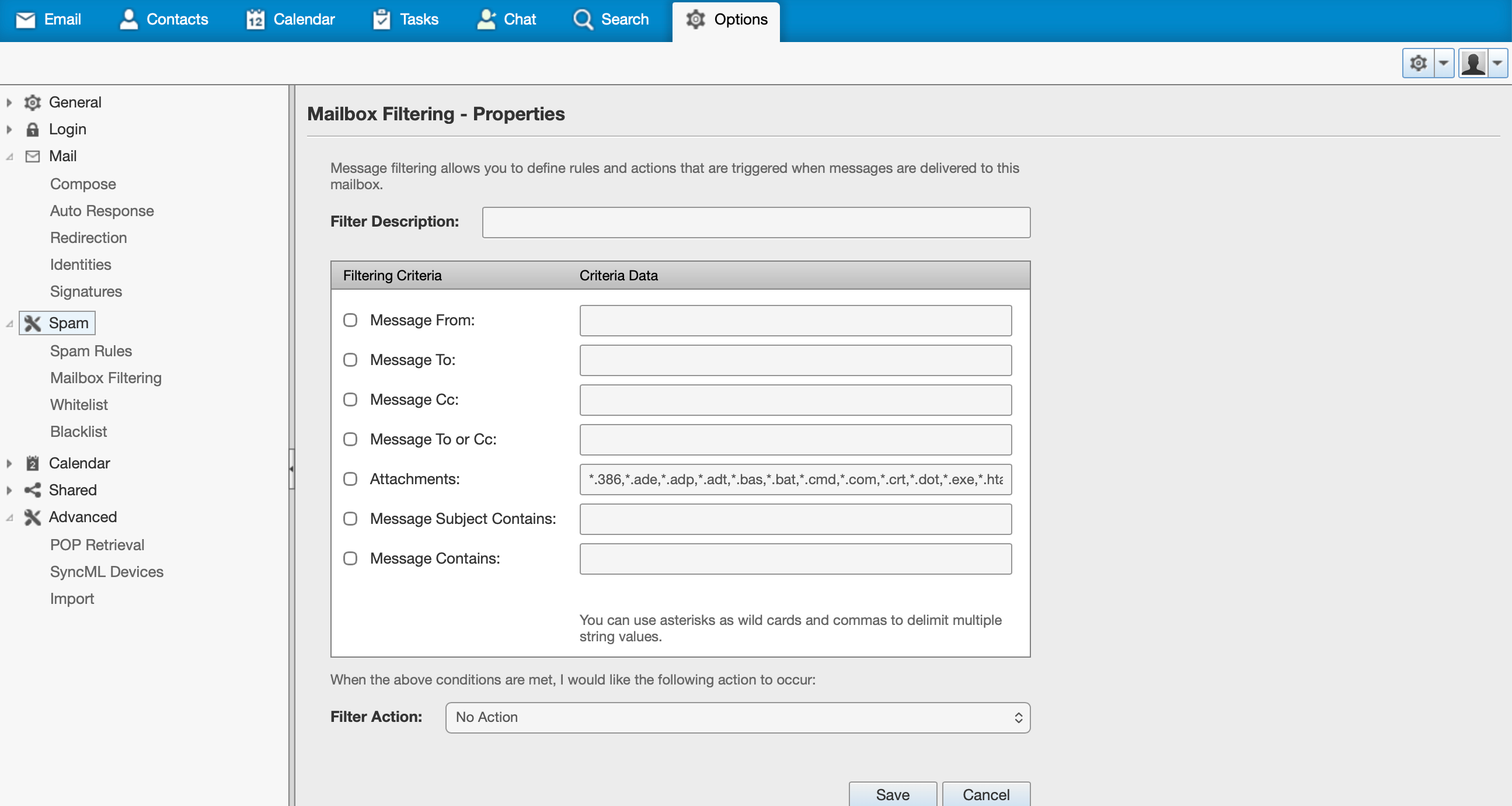
Email options - mailbox filtering rules
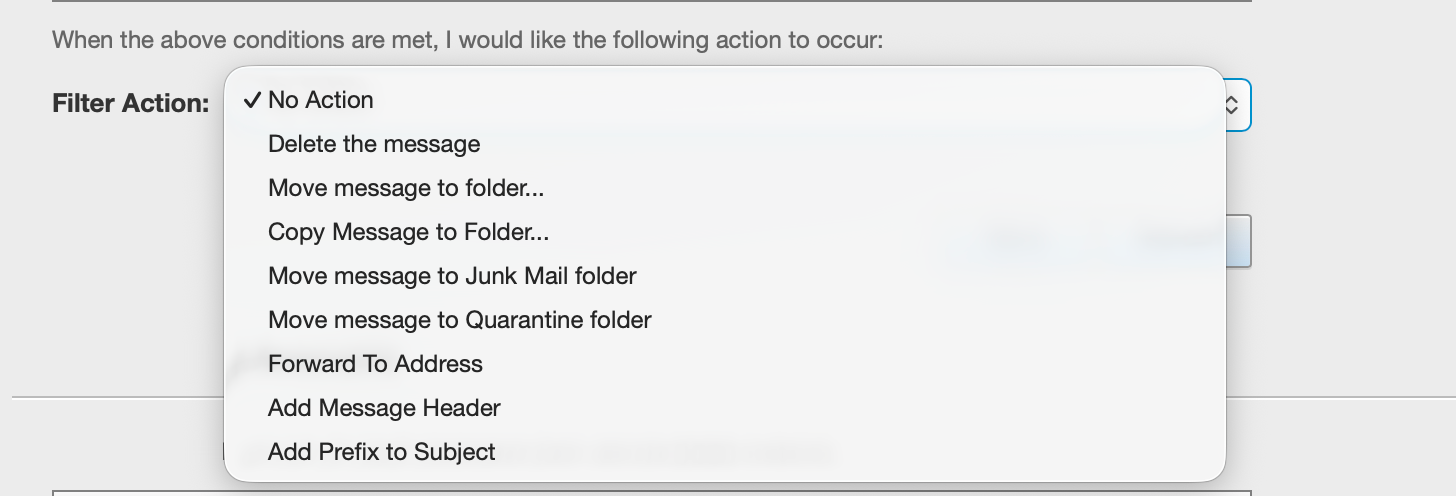
Filter action:
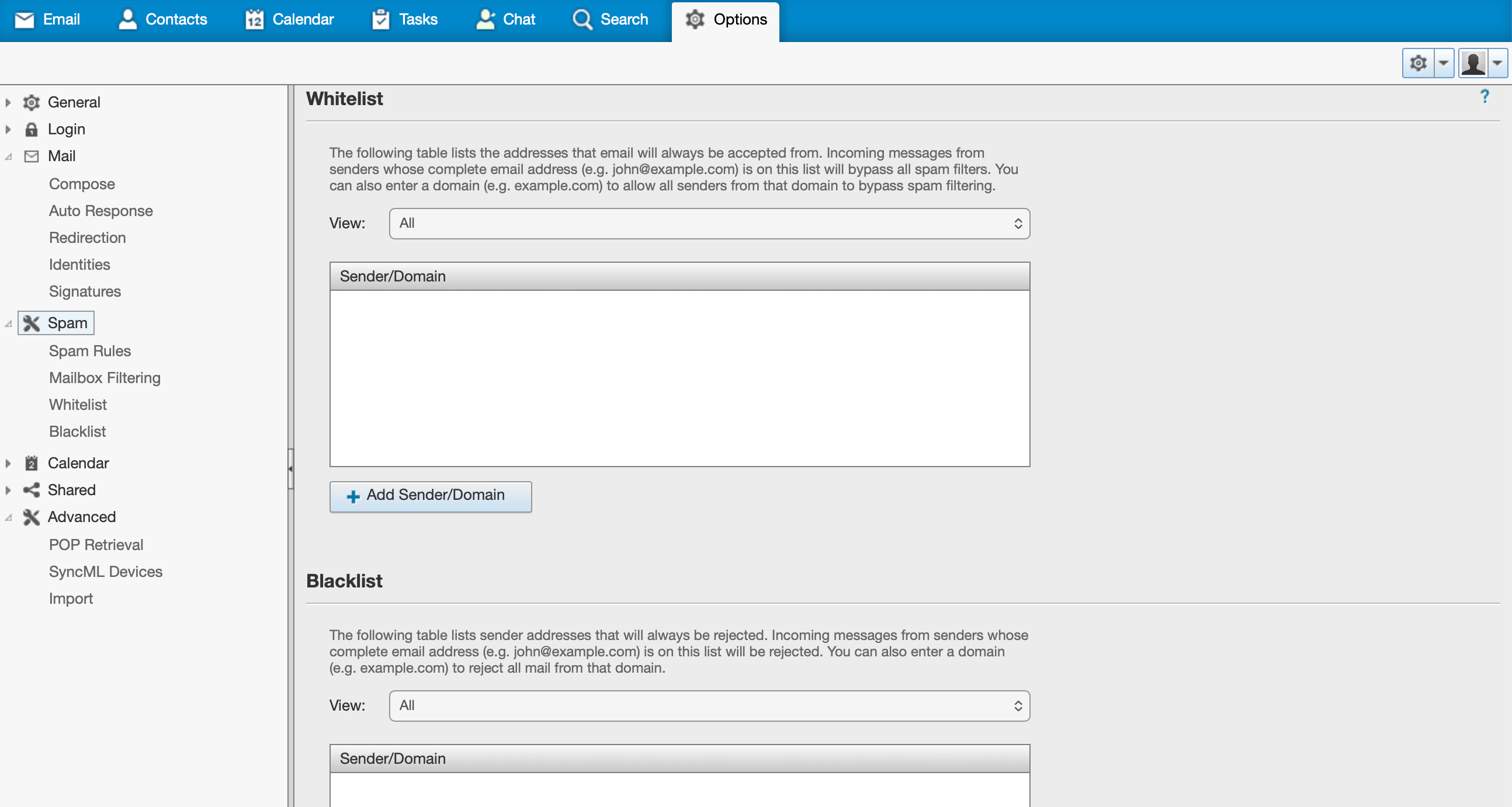
Email options - whitelist and blacklist
Please note on the mobile version of this online email portal, there is no whitelist option icon available on individual emails.