Note
This guide is only for BookingTimes email users. If you use another service to setup and manage your email accounts, such as GSuite or Exchange, this will not apply to you.
You can reset your email password by via the online webmail portal, or via your BookingTimes website (provided you have appropriate permissions).
Changing via online webmail portal
Steps
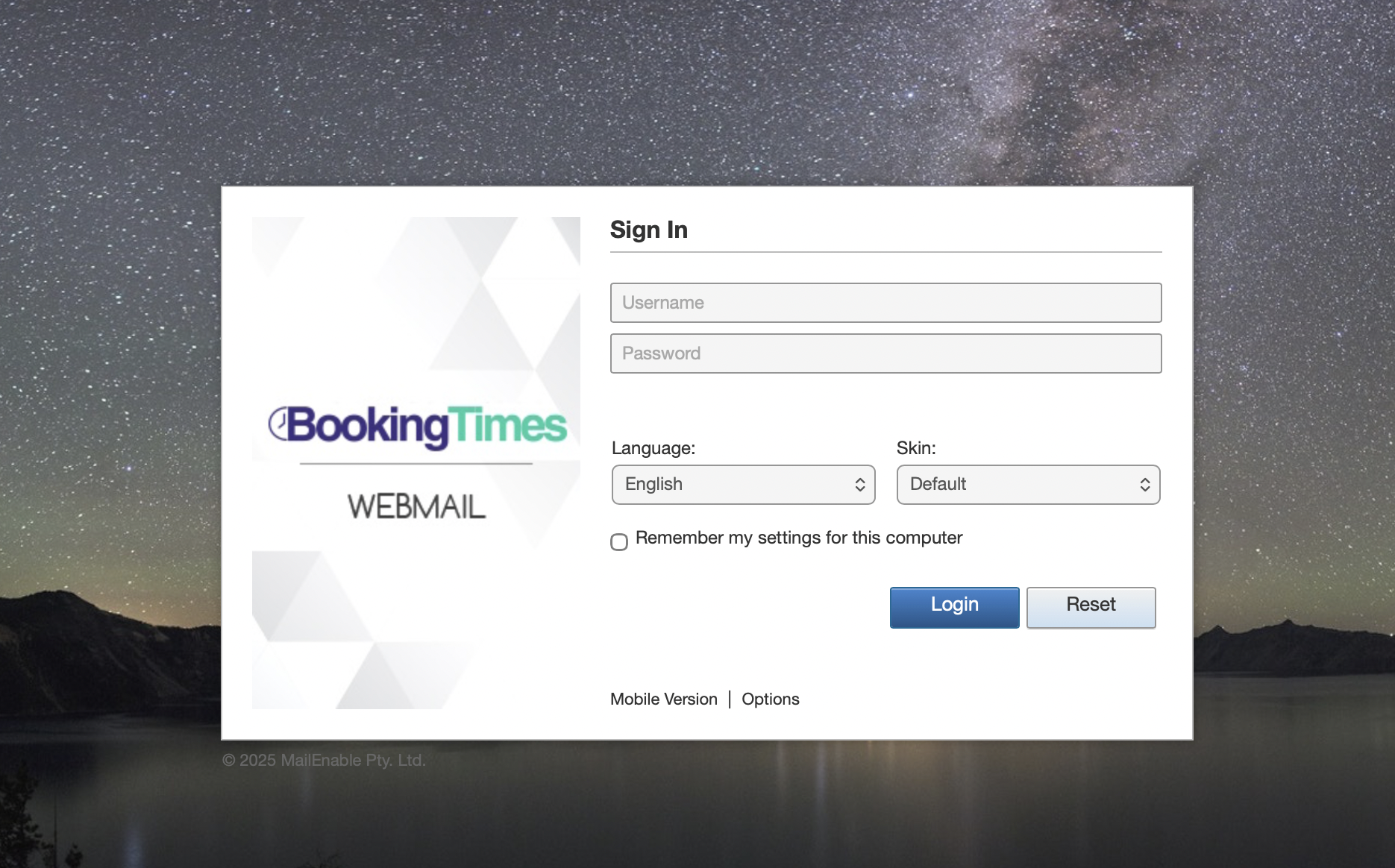
Navigate to https://mail.bookingtimes.com
Enter your current email and password to log into your account
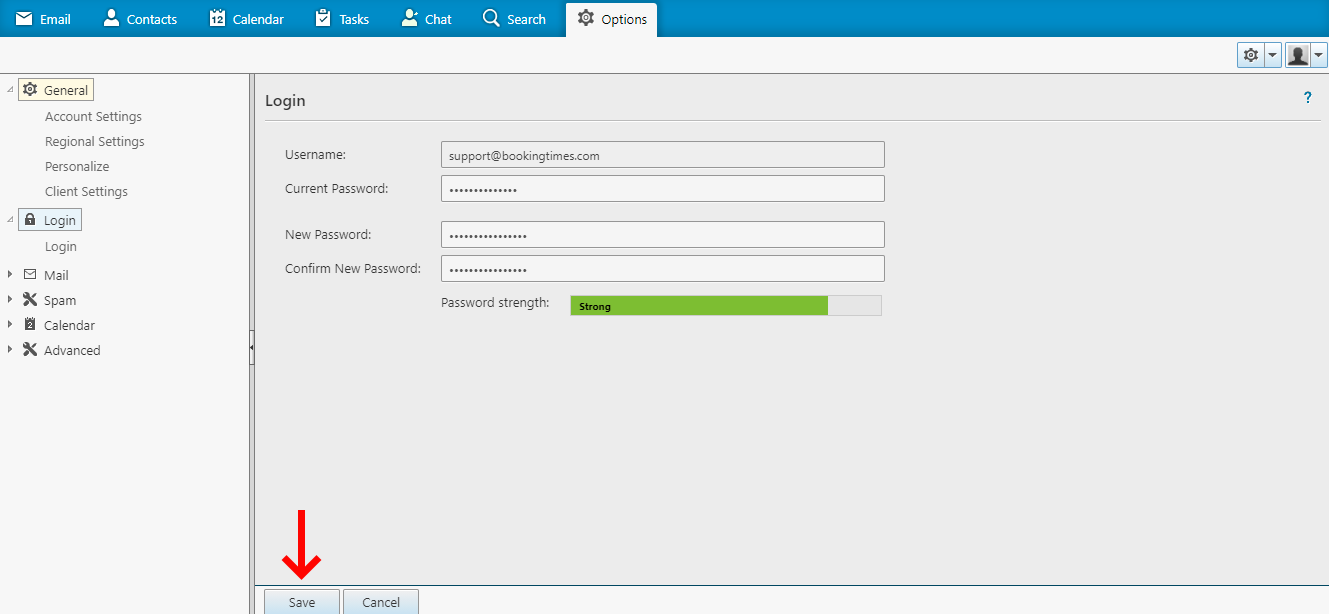
Select Options in the top level menu
Select Login on the left hand menu
Enter and confirm your current and new password
Click Save button
Changing via BookingTimes website
This will reset any existing password on this email account to the new one chosen.
Required permissions to update
Please note you can only access this functionality if you have the following security permissions. If you do not have the required permissions, please contact your business owner so they can reset your password for you, or give you the appropriate permissions.
“Access to Setup Roles & Permissions”
“Access to Domain settings”
Please note - this password is different to the one that you use to log into your BookingTimes website.
Steps
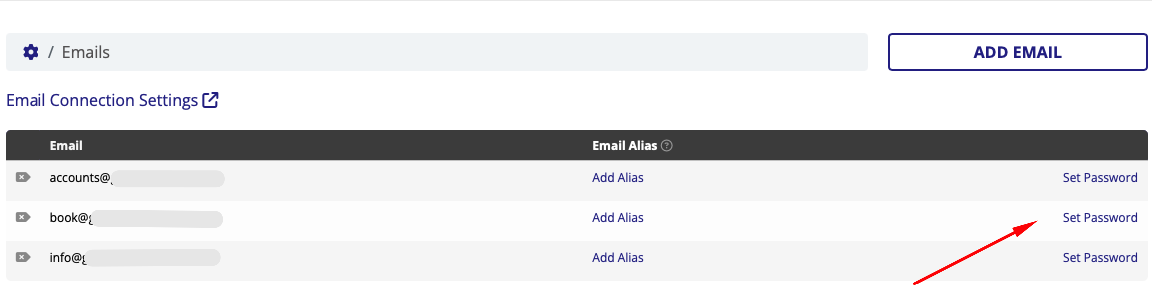
Navigate to Setup > Accounts & Security > Email Accounts
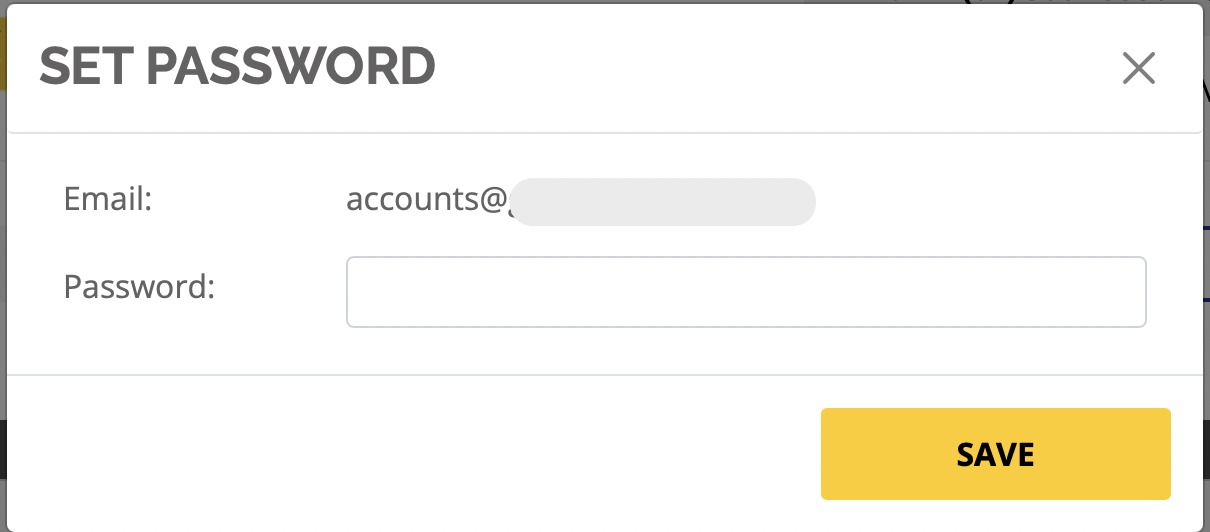
Click on Set Password link for the email account you wish to set a password for, enter a new password and confirm.
Enter a new password and click Save.