This feature is available on these plans (view pricing)
There are a number of ways that subscribers can be added or removed from a marketing sequence:
Manually add or remove a single client
Automatically when booking a service
Automatically when purchasing a product/package
Automatically when booking into an online course
Automatically add to global marketing sequences. e.g. Abandoned Cart
Manually add sequence subscribers
The marketing sequence will be sent to all subscribers on the next valid day.
Steps
Navigate to Marketing menu item > Marketing Sequences in left hand menu
Select the relevant sequence
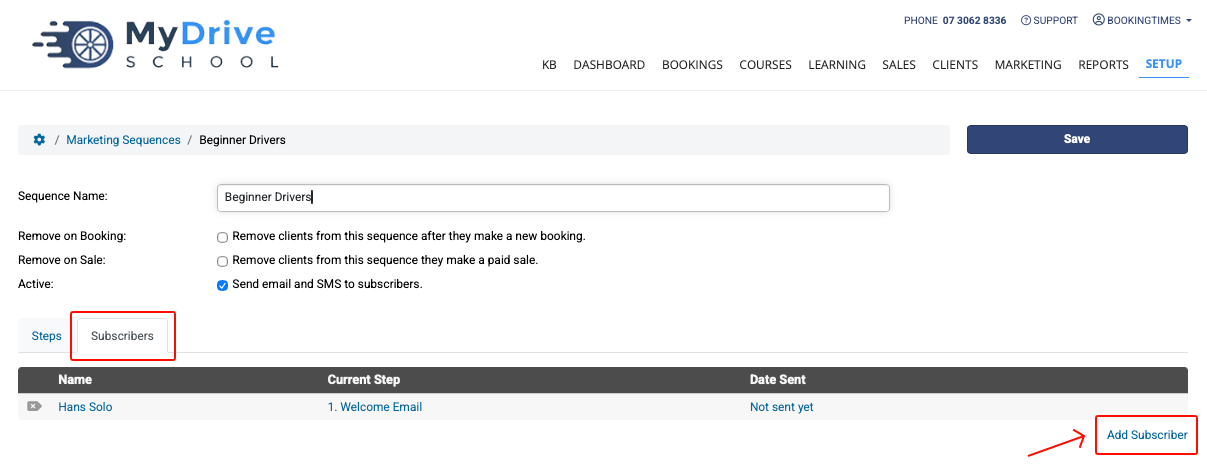
Navigate to the Subscribers tab
Click Add Subscriber link
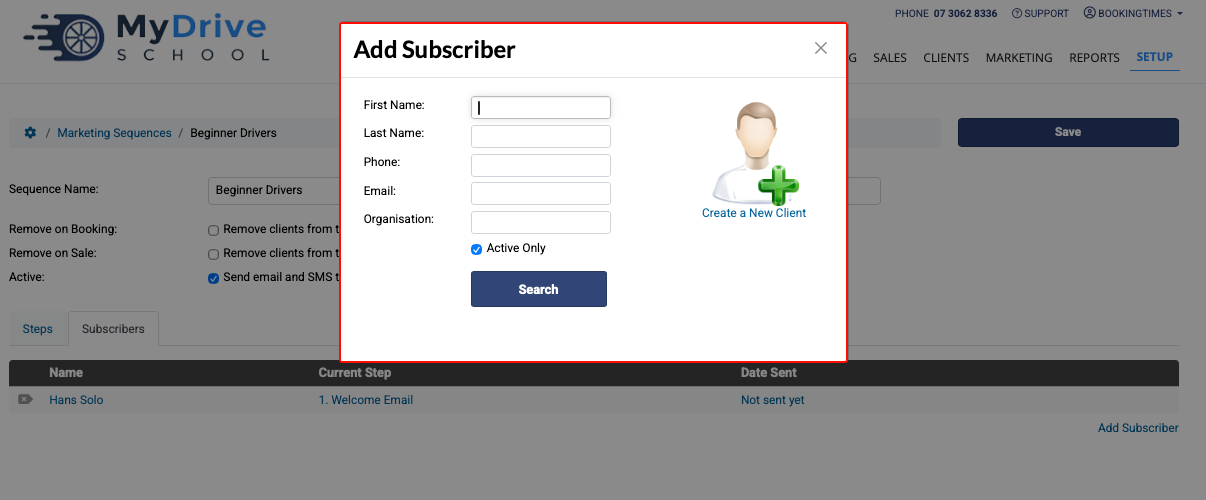
Search for an existing client and select client OR
Click Create a New Client to add a new client
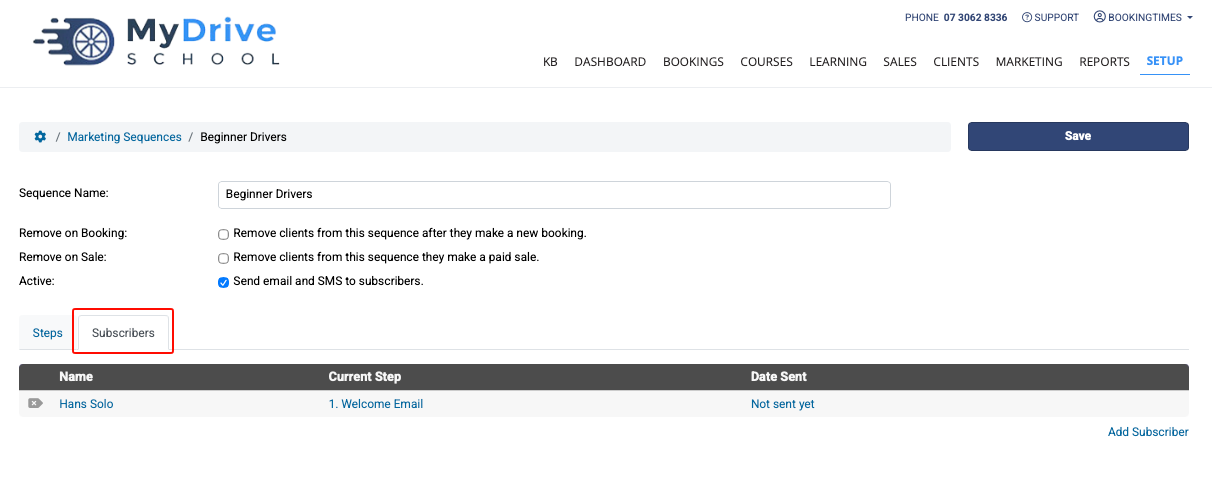
All clients appear in the Subscribe tab
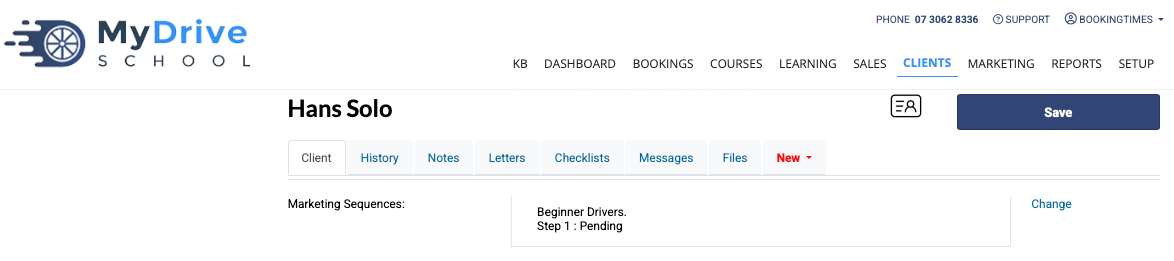
You can also view all the marketing sequences that a client is part of via their client record, scroll down to Marketing Sequences field.
Manually remove sequence subscribers
Clients can be removed from a marketing sequence in 2 ways: via the marketing sequence itself, or via their client record.
Steps
Navigate to Marketing menu item > Marketing Sequences in left hand menu
Select the relevant sequence
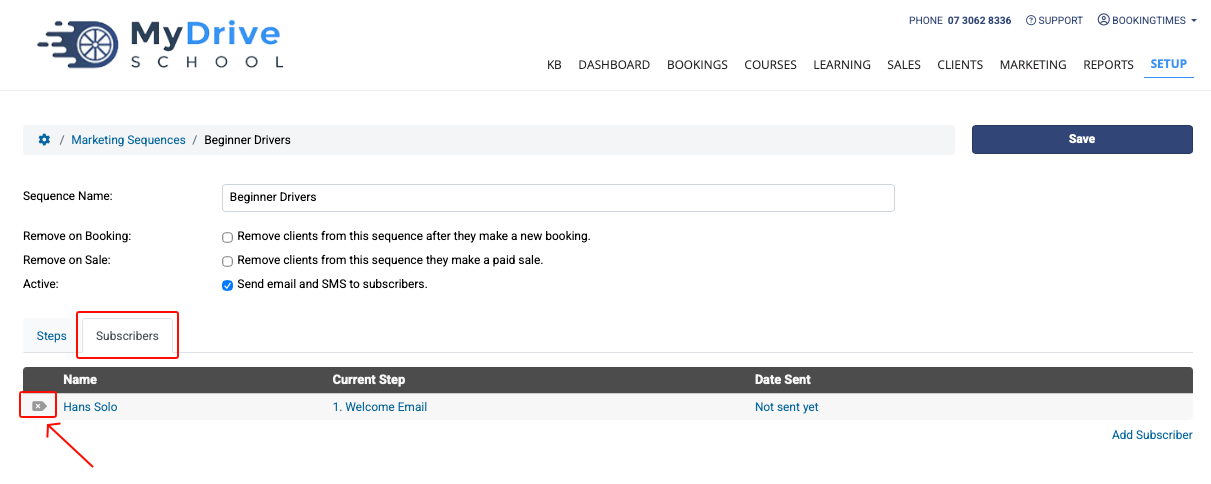
Navigate to the Subscribers tab
Click Delete icon to the left of the client name
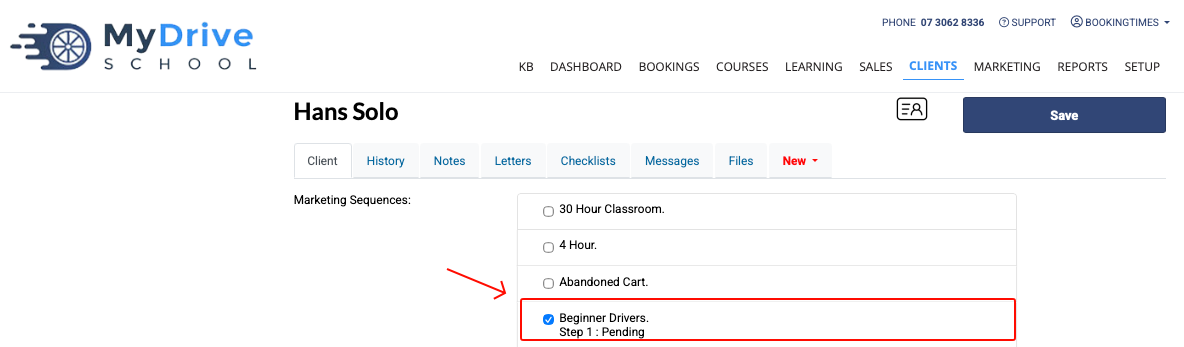
OR via the client record, scroll down to Marketing Sequences field, click on the Change link
Uncheck the sequence and click Save on the client record
Automatically add subscribers when booking a service
The marketing sequence will be sent after a customer books or pays for/attends a service.
Steps
Navigate to Setup > Bookings > Services
Select the relevant service
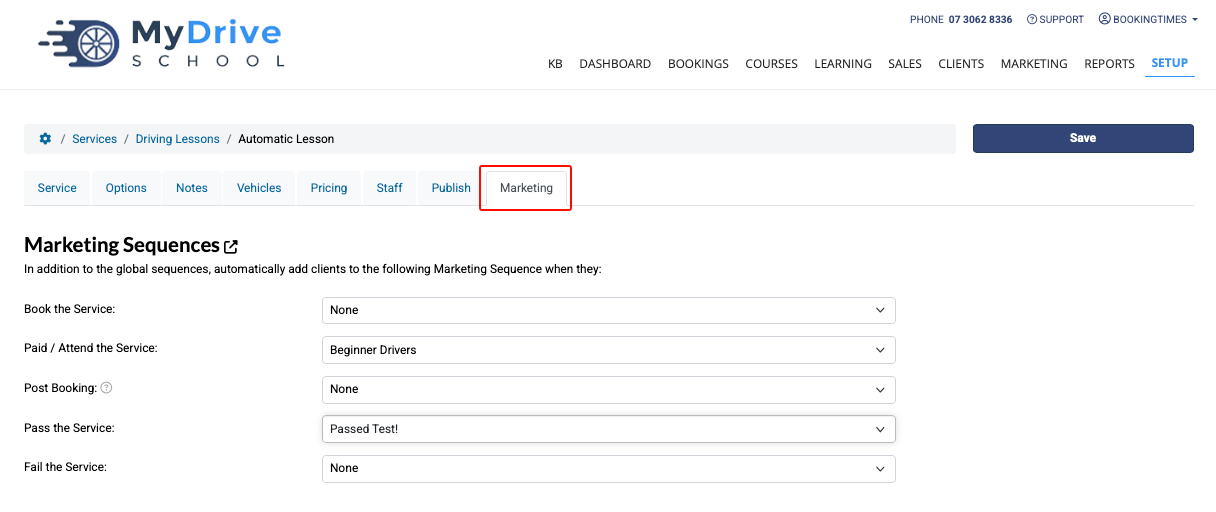
Navigate to the Marketing tab
Under Marketing Sequences, select the sequences you want applied from the dropdown lists
A sequence can be applied both when a client makes a booking and when a client pays for/attends a booking
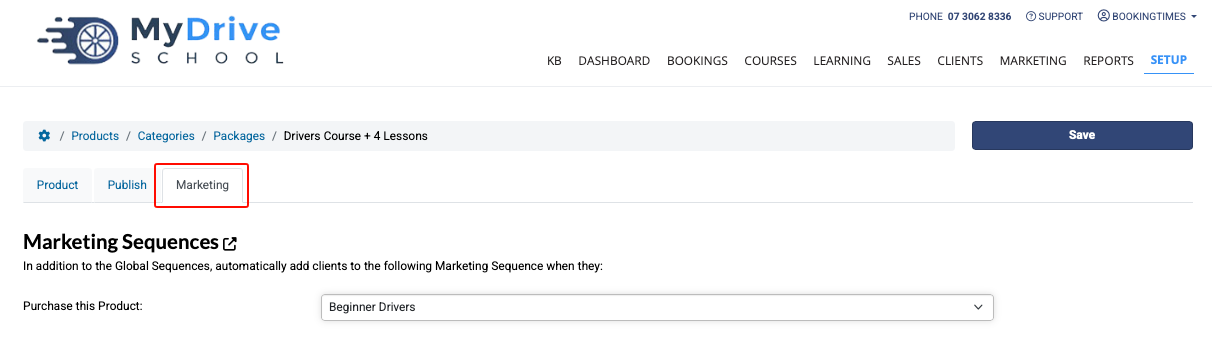
Automatically add subscribers when purchasing a product
The Marketing Sequence will be sent after a customer purchases a product
Steps
Navigate to Setup > Shopping > Products & Packages
Select the relevant product
Navigate to the Marketing tab
Under Marketing Sequences, select the sequence you want applied from the dropdown list
Automatically add subscribers for an online course
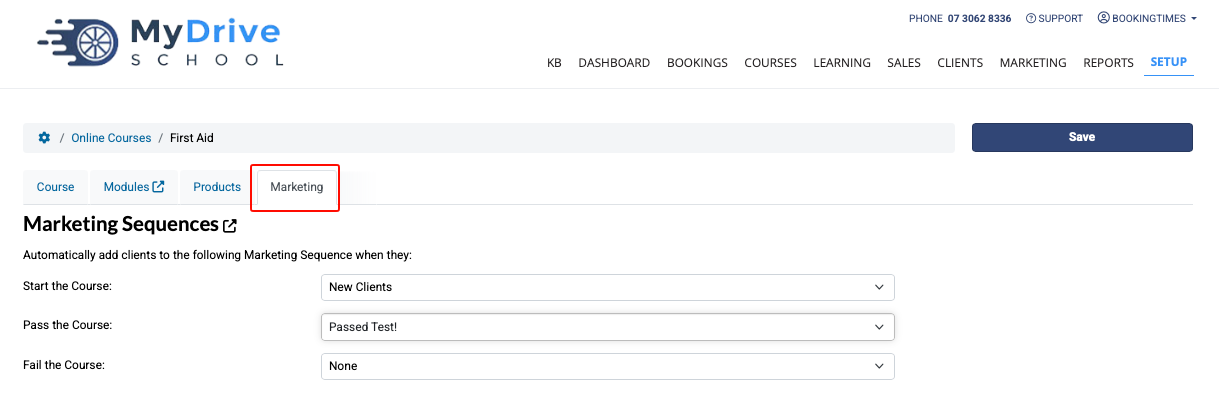
The Marketing Sequence will be sent after a customer starts an online course.
Steps
Navigate to Setup > Bookings > Online Courses
Select the relevant online course
Navigate to the Marketing tab
Under Marketing Sequences, select the sequence you want applied from the dropdown list
Automatically add subscribers to global marketing sequences
Global Marketing Sequences also exist and can be set up in addition to any others that have been covered previously within Marketing sequences article. Remember these are different to any reminders (see Setting up reminders article) that may have been set up for similar triggers.
Steps
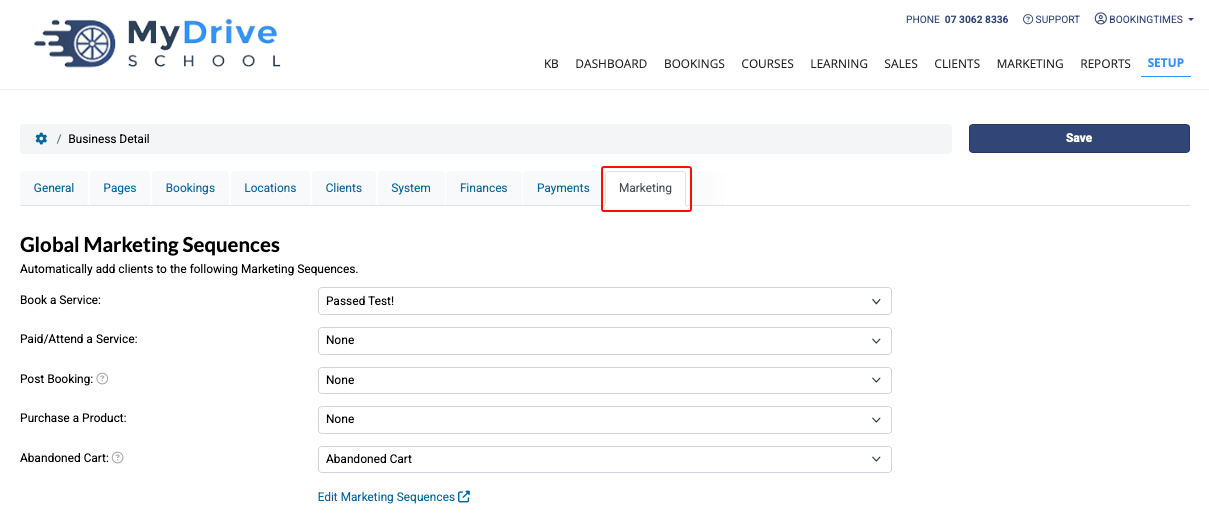
Navigate to Setup > System Settings > Business Detail
Navigate to the Marketing tab
Select the sequence you want applied from the dropdown list for each of these triggers:
Book a service
Paid/attend a service
Post booking
Purchase a product
Abandoned cart
Click Save