A business can add its own processing fee (e.g. whether it’s a Processing Fee, Admin Fee, or Platform Fee) as a percentage to every price the client pays, on every booking and purchase across the business. This fee is incorporated into any advertised prices, and the fee is never itemised separately.
A business may use it to pass the cost of taking payments on to its clients (regardless of how the client pays).
The instructor's commission is worked out on the price before the fee, so what staff earn does not change.
Adding a processing fee to every booking and purchase
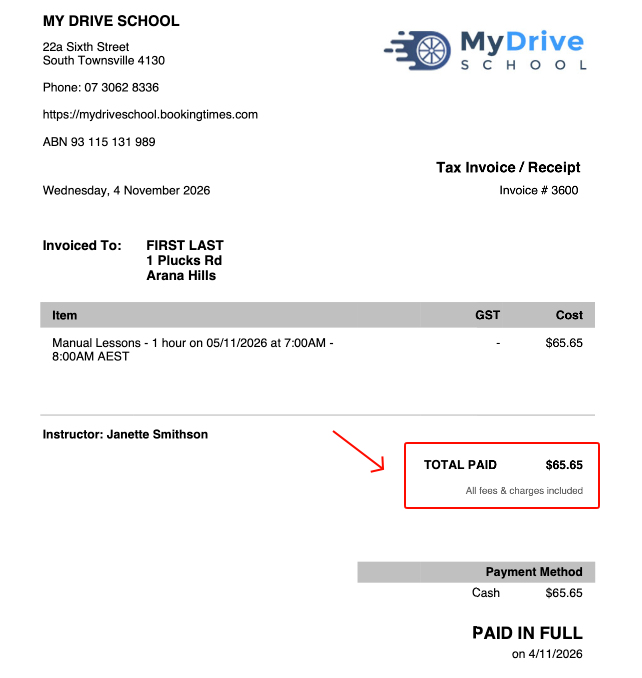
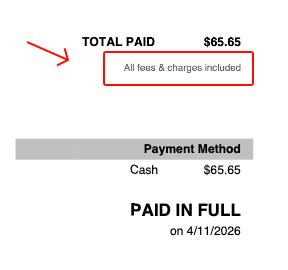
A processing fee is a percentage you set once, added to every booking and purchase your clients make, whatever they pay with (i.e. whether it’s via credit card, bank transfer, cash etc). It is built into every price your clients see: with a 2% fee, a $100 lesson is advertised as $102 and the invoice has it clearly noted that “All fees & charges included”.
This is an example paid invoice for a service that costs $65 with a 1% added processing fee, thus only displaying $65.65.
Vouchers
A service paid with a voucher carries no fee, because the voucher was already bought at the full price. Anything else on that booking, such as an add-on, still carries the fee.
Cancellations
A cancellation refund is what the client paid less any cancellation fee. The processing fee is refunded as well only when a configuration option is enabled "Refund the processing fee when a booking is cancelled." is ticked.
Reporting
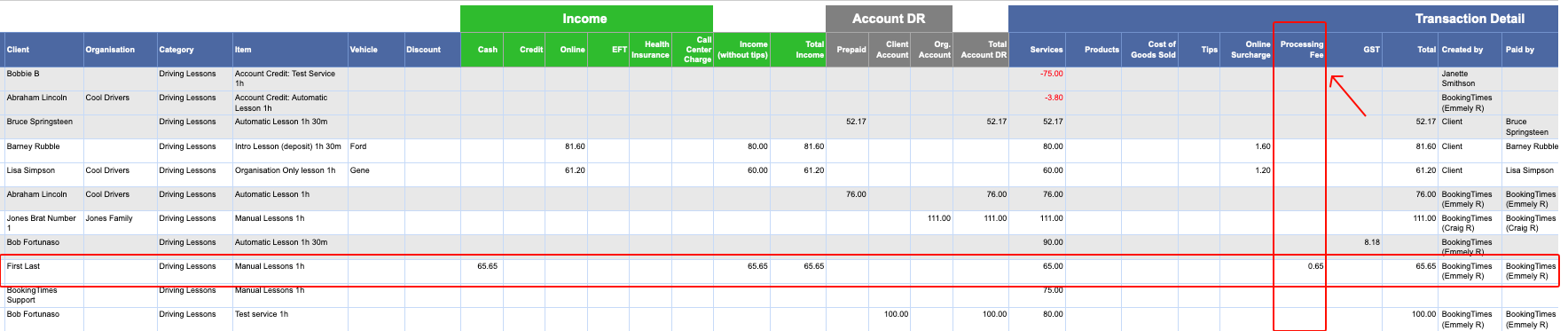
The Income report has a Processing Fee column showing the fee collected on each payment. Noting that the full income includes the Processing fee, and only the ‘Services’ column has the base cost of the booking or purchase.
Setting the fee
Steps
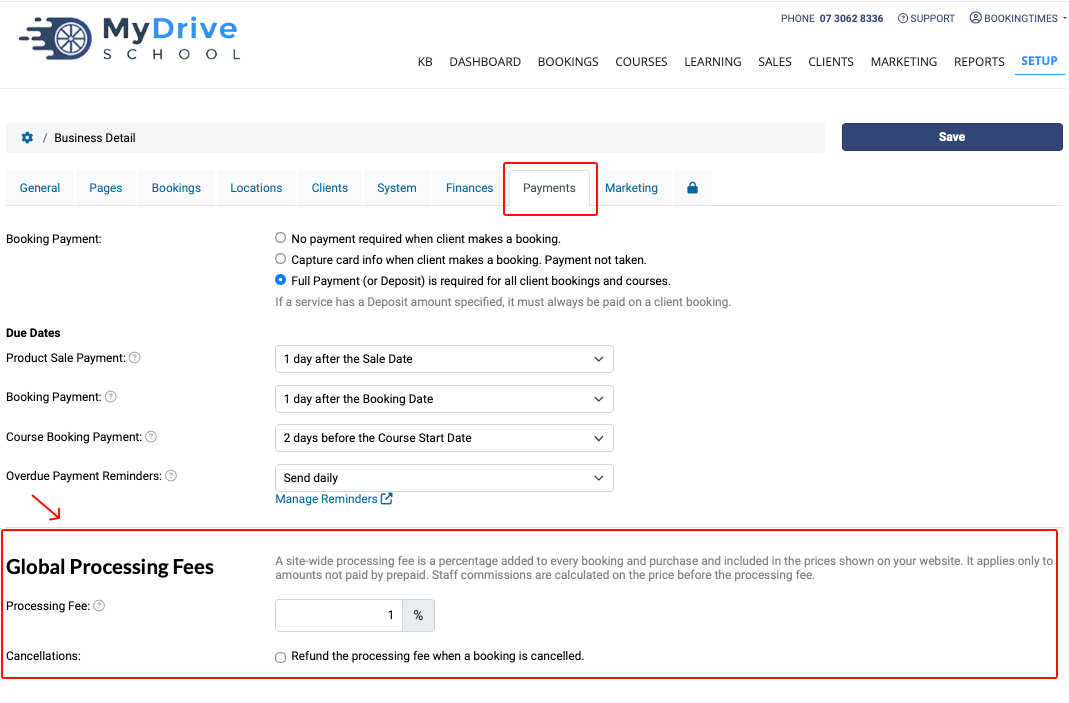
Go to Setup > Business Details > Payments tab
Scroll down to Global Processing Fees
In Processing Fee, enter the percentage, for example 2 for 2%. Anything from 0 to 99.99 is accepted.
Under Cancellations, tick "Refund the processing fee when a booking is cancelled." if the fee should go back to the client with a cancellation refund. Leave it unticked to keep the fee.
Click Save
What your clients see
Every service price for Bookings displayed on your website includes the fee:
All price placeholders on your pages (such as @Price1234) on your services, courses, products and add-ons, as well as the cart and the checkout will show the price including the fee.
A price typed into a page as plain text stays as typed, so swap typed prices for price placeholders, or update them, before turning the fee on.
Price Placeholders
If you don’t have pricing placeholders yet on your public facing published pages, please refer to Using pricing shortcodes/placeholders article on how to incorporate them, thus ensuring clients see the correct total pricing.
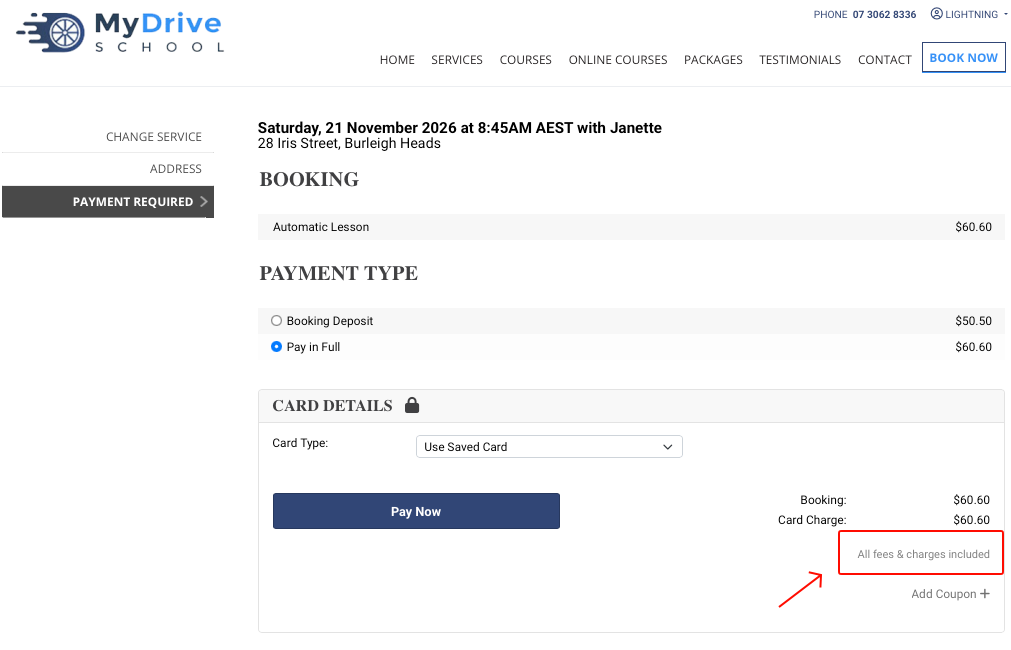
There is no separate fee line, an "All fees & charges included" shows under the total in the cart, at checkout, and on the booking payment step.
Your website's Terms page (e.g. YourDomain.com/Terms) has a new item under Fees, for example: "Prices include a processing fee of 2% on every booking and purchase. This fee is not charged on services paid by voucher, and is not refunded when a booking is cancelled." The last part drops off if the refund box is ticked.
Invoices show each line with its share of the fee, and "All fees & charges included" under the total.
If you also charge a card surcharge, it still shows as its own line, because that charge depends on how the client pays.
What your staff see
The booking and product sale screens show every service and product with the fee included, the same price the client sees. The below example shows prices that now include 1% procession fee. Please note only the invoice will display the “All fees & charges included” line.
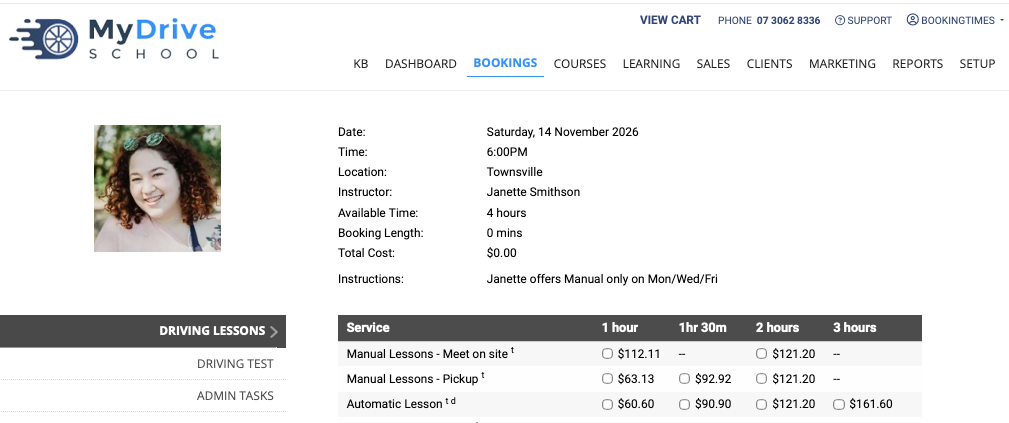
A booking or sale that has been paid keeps the fee it was charged. Changing the percentage later only changes future prices.
Staff commissions are worked out on the price before the processing fee.
Turning the fee off
Once cleared, prices go back to their normal amounts straight away; bookings and sales already paid keep the fee they were charged.
Steps
Go to Setup > Business Details > Payments tab
Scroll down to Global Processing Fees
In Processing Fee, clear the fee amount
Click Save
Processing fee vs business booking fee
Within BookingTimes you can also set up a business bookings fee so a summary of both is described below to help you decide which (or both) is applicable for your business.
Processing fee (set up on the main business configuration): a percentage added to every price the client pays, on every booking and purchase across the business. The client pays more, and the instructor's commission is worked out on the price before the fee, so what staff earn does not change.
—> A business uses it to pass the cost of taking payments on to its clients.
Business Booking Fee (set upon each staff member on their commissions): an amount the business keeps from each booking before that staff member's commission is worked out. It is set per staff member and per service, as a dollar amount or a percentage, per booking, per hour or per course.
The client's price stays the same and it never shows on the website, the cart or the client's invoice. It shows on the Commissions report, where it comes off the staff member's commission.
—> A business uses it when its instructors, often contractors, pay the school an amount for every booking they get to help cover the business’s platform cost.