Businesses can choose to create an observation service, that allows observation time on another service. Please note this is currently only enabled for US clients, in particular driving schools, please contact us if you would like access to this feature.
Essentially you need to create an observable service (that may typically be free of charge), and that will then be attached to the (typically paying) service that another student has booked.
In the calendar, the paying service needs to be booked in first, and then the observation service can be booked into that same time slot.
Create an observable service
Steps
Navigate to the service you wish to allow observation time on via Setup > Bookings > Services
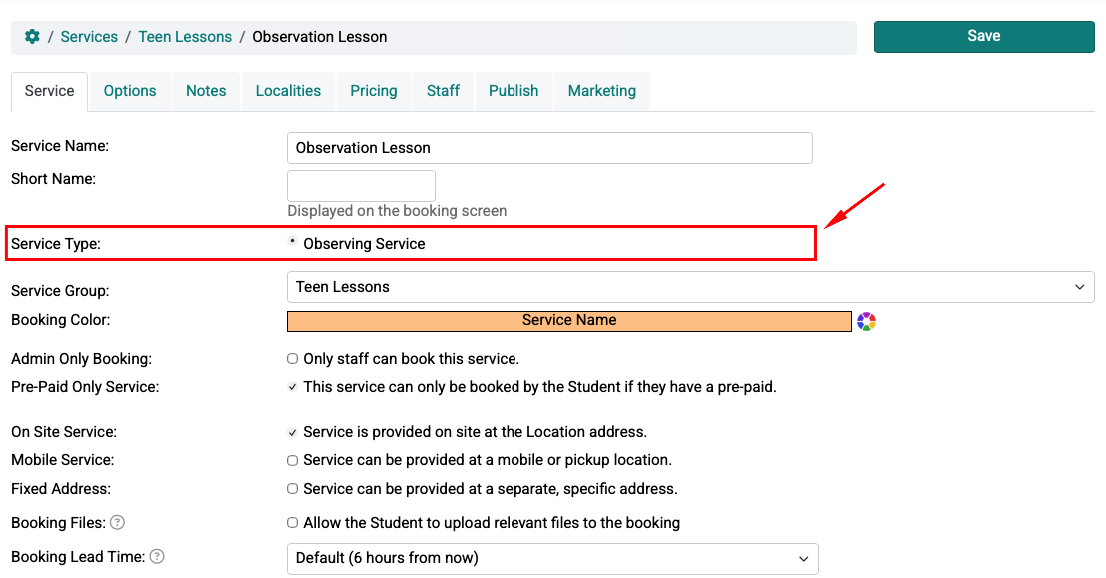
Set the Service Type to Observing Service , and set up the rest of the service configuration as desired.
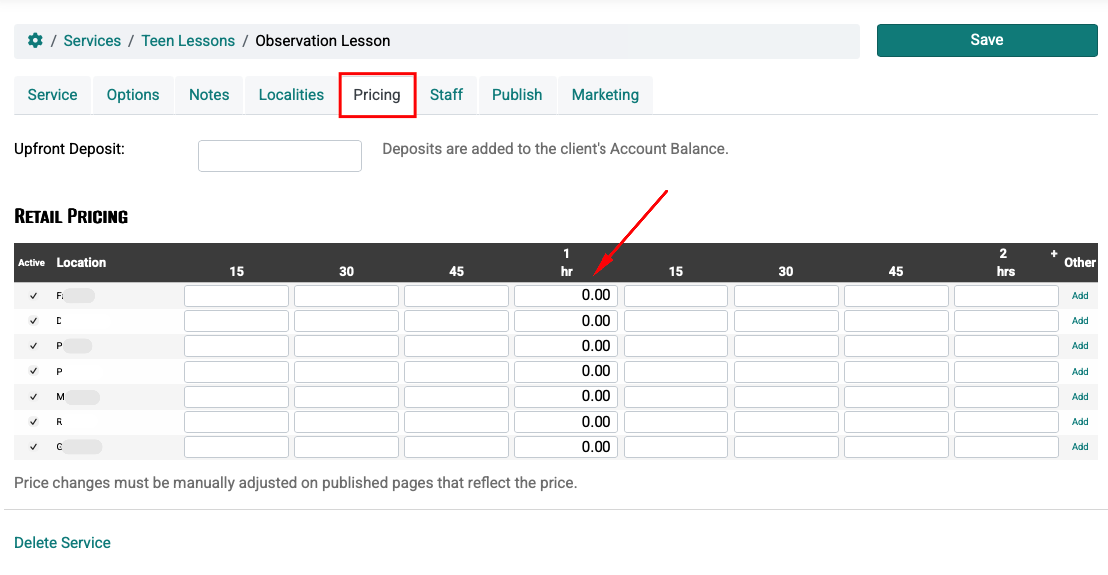
As per setting up a normal service, go the Pricing tab so set your desired pricing. If this is a no cost observation service, simply set the cost to zero.
As per setting up a normal service, go to the Staff tab and allocate staff members.
Click Save
Enable a service to allow an observation service
Steps
Navigate to the service you wish to allow observation time on via Setup > Bookings > Services > select Service
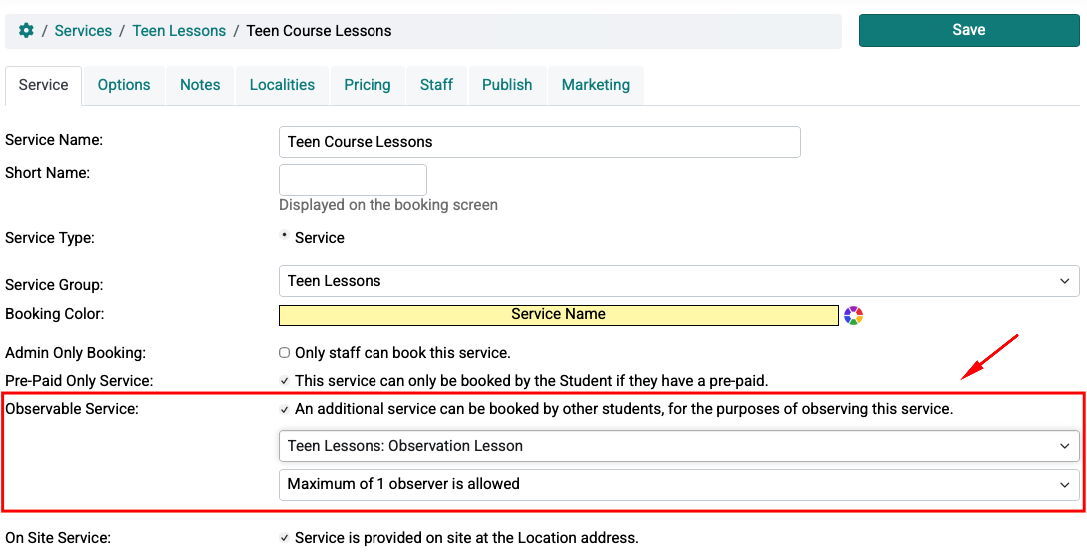
Check the Observable Service option to indicate that this service can be booked by other clients for the purposes of observing.
Select the Observation service that was created in the previous step
Select the number of observers that you want to allow. e.g. allowing 1 observer means there will be a total of 2 students in the car, plus you as the instructor.
As per setting up a normal service, go the Pricing tab so set your desired pricing.
Note: this duration needs to be the same as the observable service you set up in the previous step.
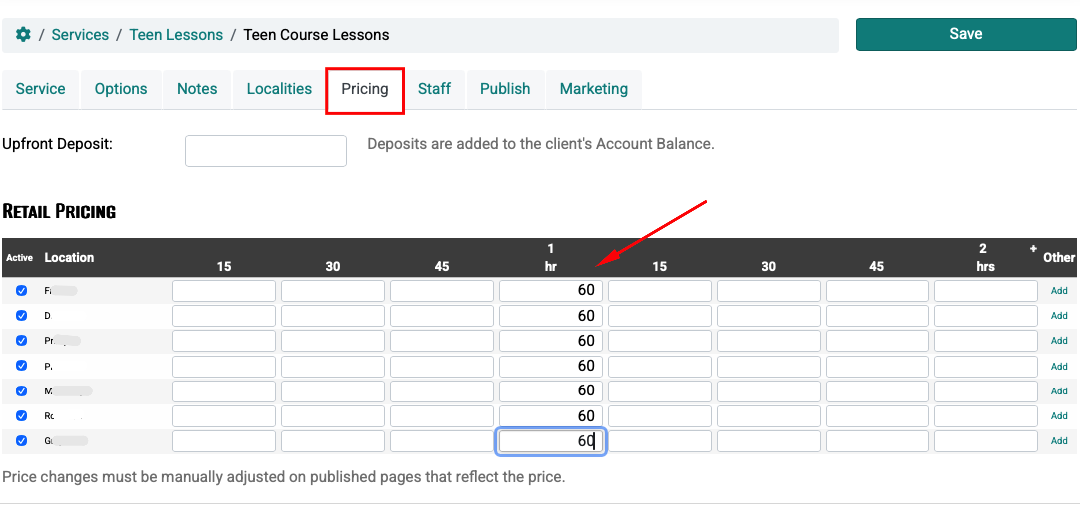
As per setting up a normal service, go to the Staff tab and allocate staff members.
Click Save.
This essentially turns it into a concurrent service, so when viewing the services via Setup > Bookings > Services you will notice an ‘X’ against this service

In the calendar, the paying service needs to be booked in first (e.g. Teen Course Lessons), and then the observation service (e.g. Observation Lesson )can be booked into that same time slot.
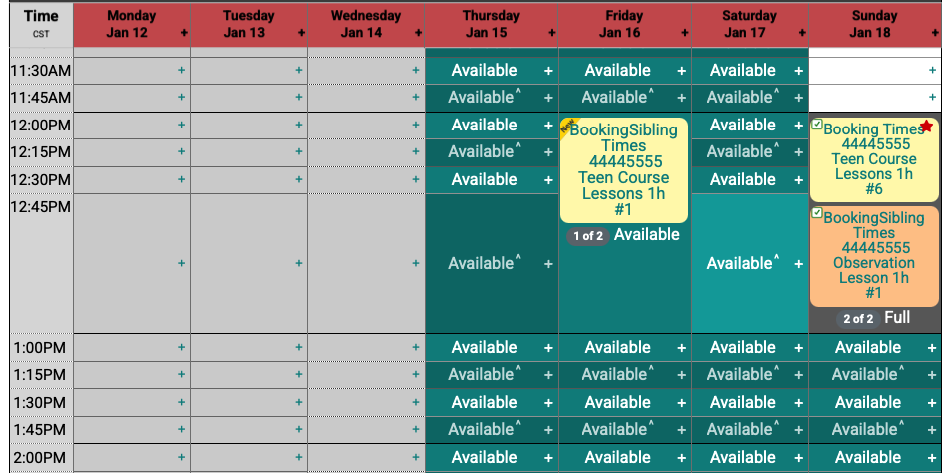
When this service (e.g. Teen Course Lessons below) is booked, it will appear as a concurrent booking in the schedule, showing you how many additional bookings can be made in this same slot. For example:
Friday: 1 of 2 means 1 student so far has booked into this slot, and 1 other student may book into the same slot with the Observation service .
Sunday: 2 of 2 means that the max number of observation services have been booked. If you were to allow 2 observation services, then a 3rd person would be able to book in.