This feature is available on these plans (view pricing)
This article will detail how to setup course intake forms (course signup forms) for a course, which allows you to capture any extra required information from attendees before their course booking is confirmed.
The general workflow is as follows:
Select the course to book the client into
The course signup form will be presented
Course booking is confirmed
This article also outlines how this course signup form appears as attendees are added to the course from both an admin, and client perspective.
Creating a course intake form
This signup form can be done as you are creating a course as outlined in the Adding a course article, or added afterwards once you have created the course. The following steps will outline the latter option.
Steps
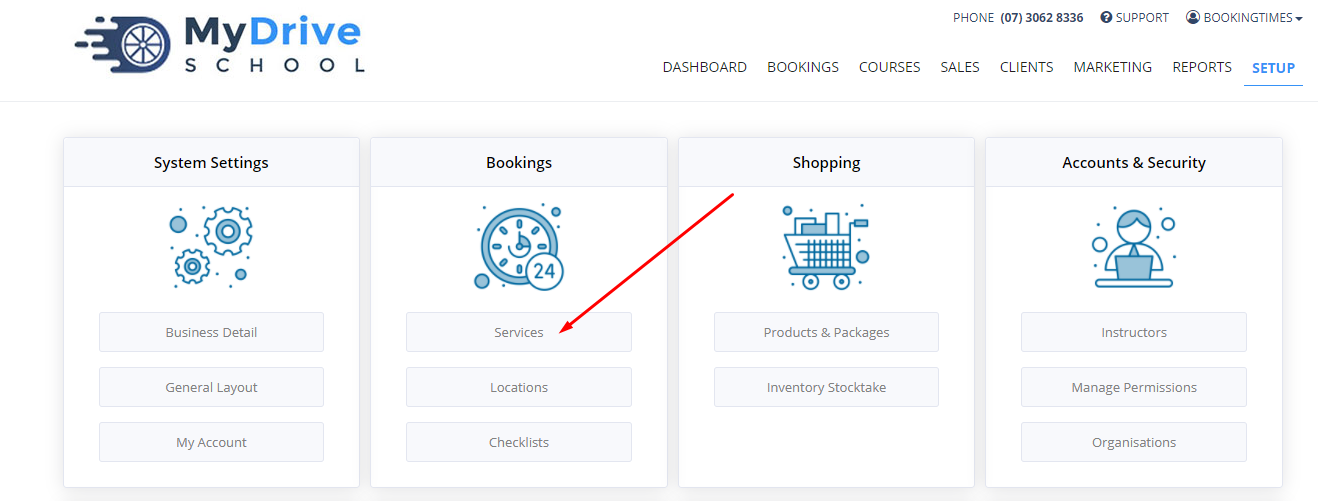
Navigate to Setup > Bookings > Services
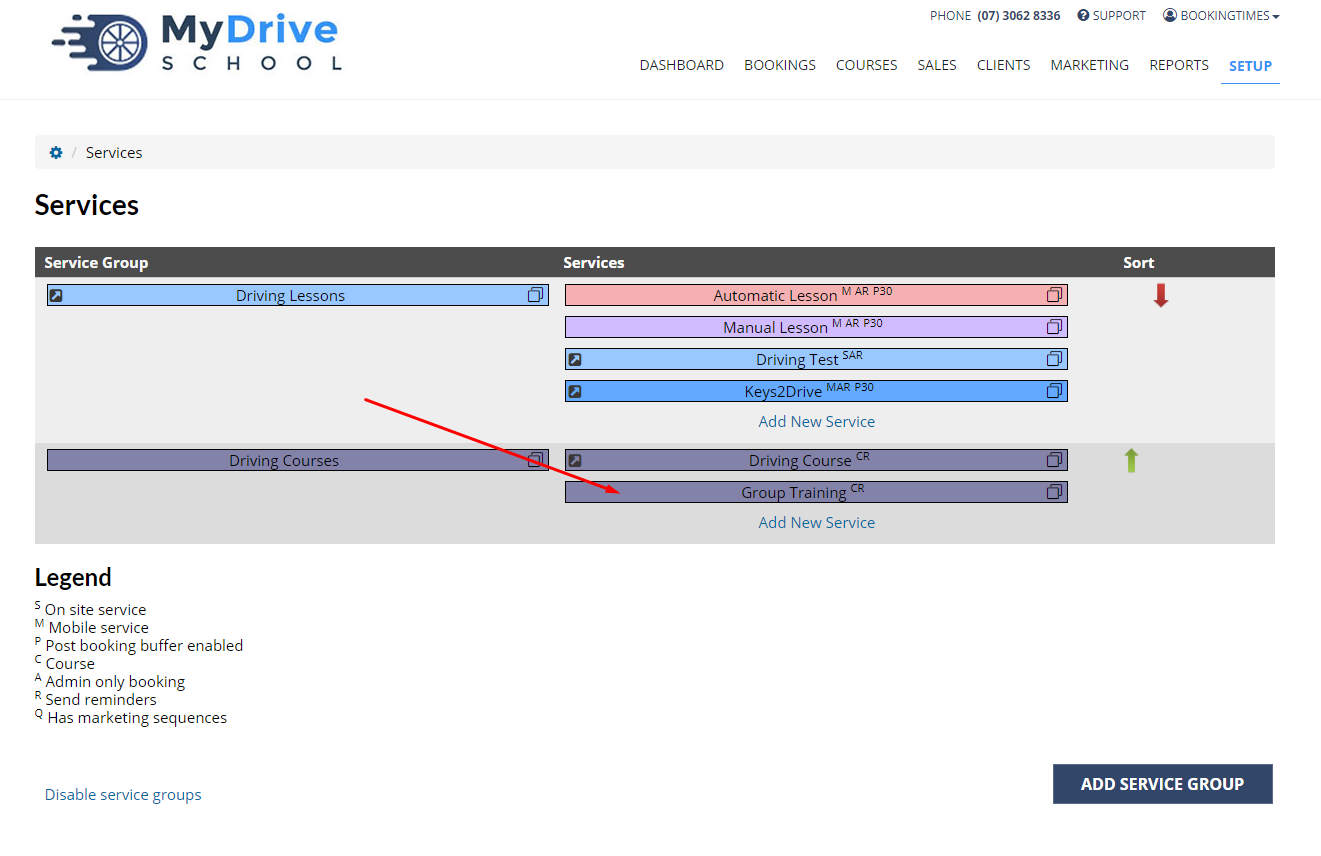
Select the course you want to add a signup form to
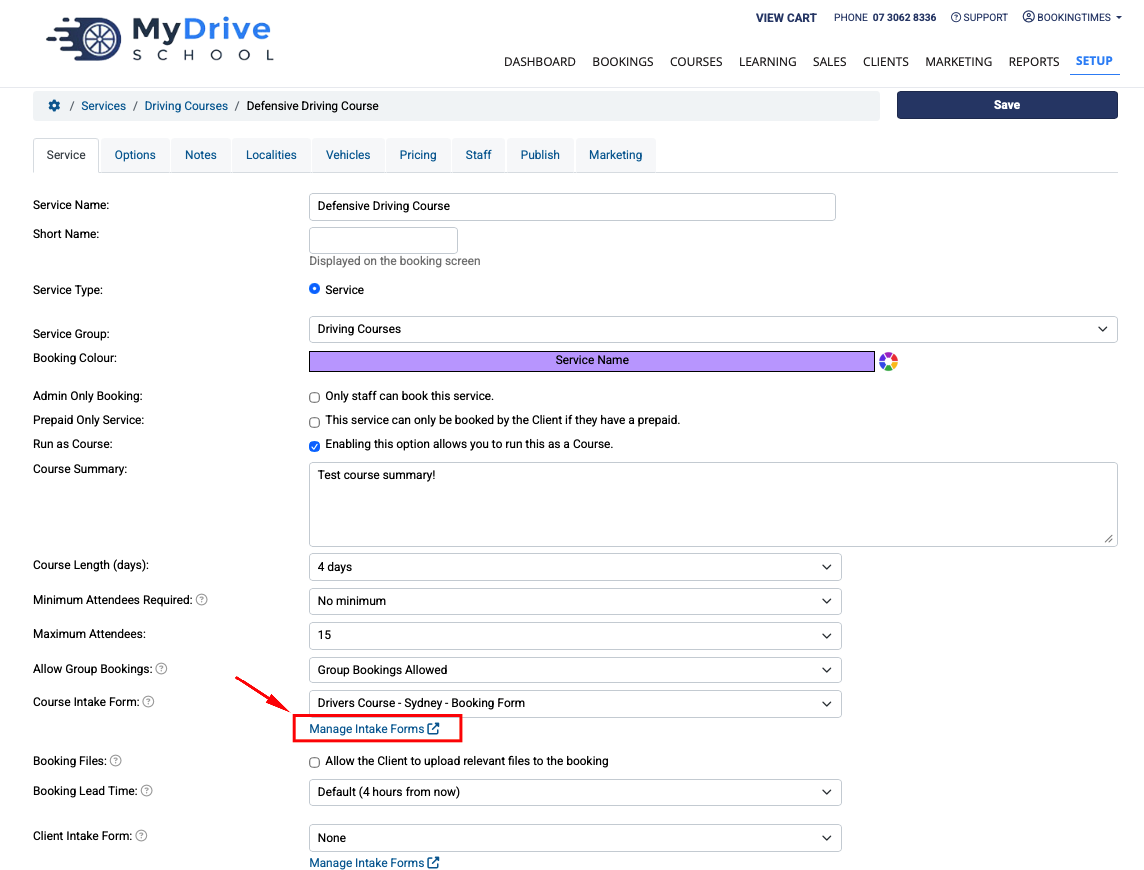
Click Manage Course Intake Forms to create a NEW form. Otherwise choose an existing form from the drop down menu.
Click Add intake form
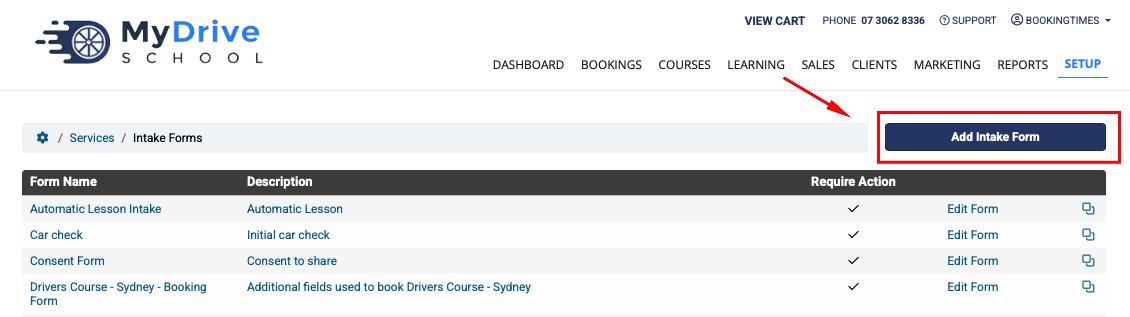
Enter in a Form Name and Description
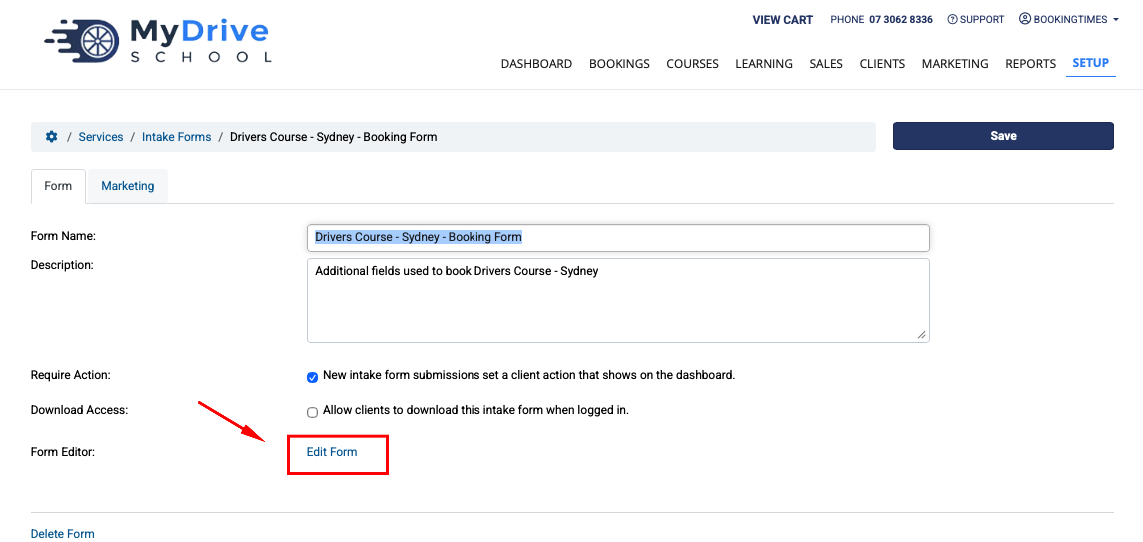
Click Save (this will trigger the next step to appear)
Click Edit Form link
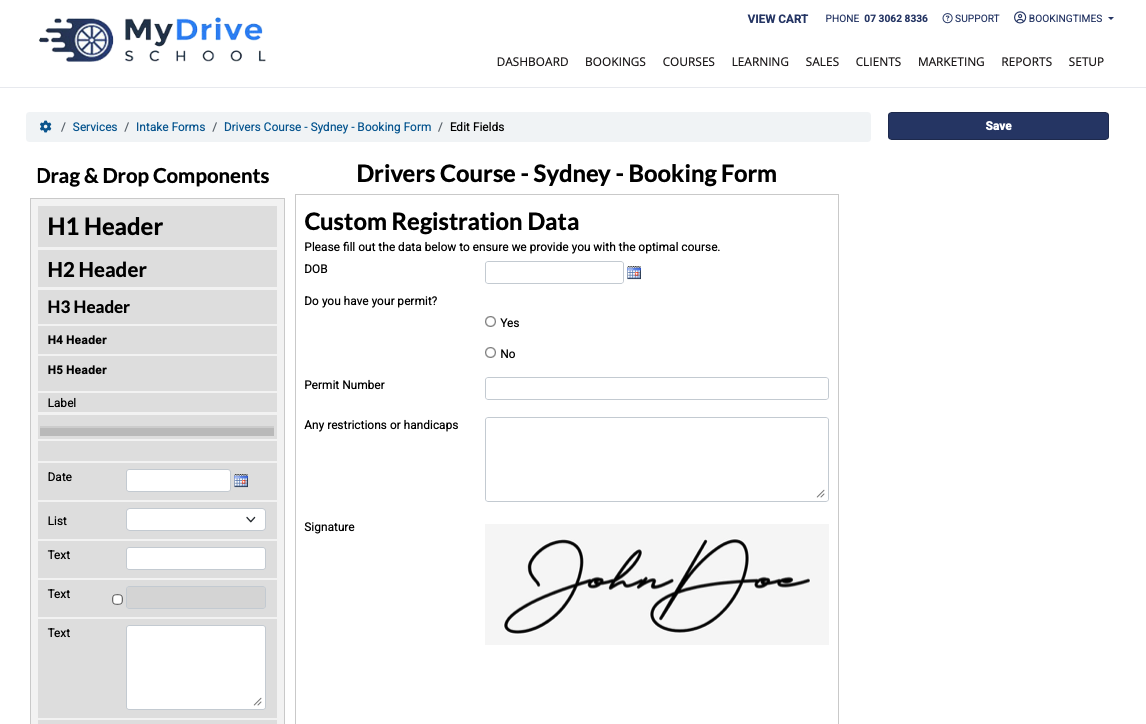
Create your course signup form by dragging and dropping fields onto the central panel to add them
Enter field details on the right
Drag fields off the form to remove them
Click Save
Go back to the course (steps 1 and 2), scroll down to Course Intake Form and select the course signup form that you just created from the dropdown list
Click Save
Adding attendees with a course signup form as an admin
This section will outline how the course signup form appears when attendees are added. First follow the steps in as outlined in the Managing course attendees article, and the following steps follow on before a client finalises their attendance for a course.
Steps
After a client has been selected to be added as an attendee for a specific course on the Manage course attendee page
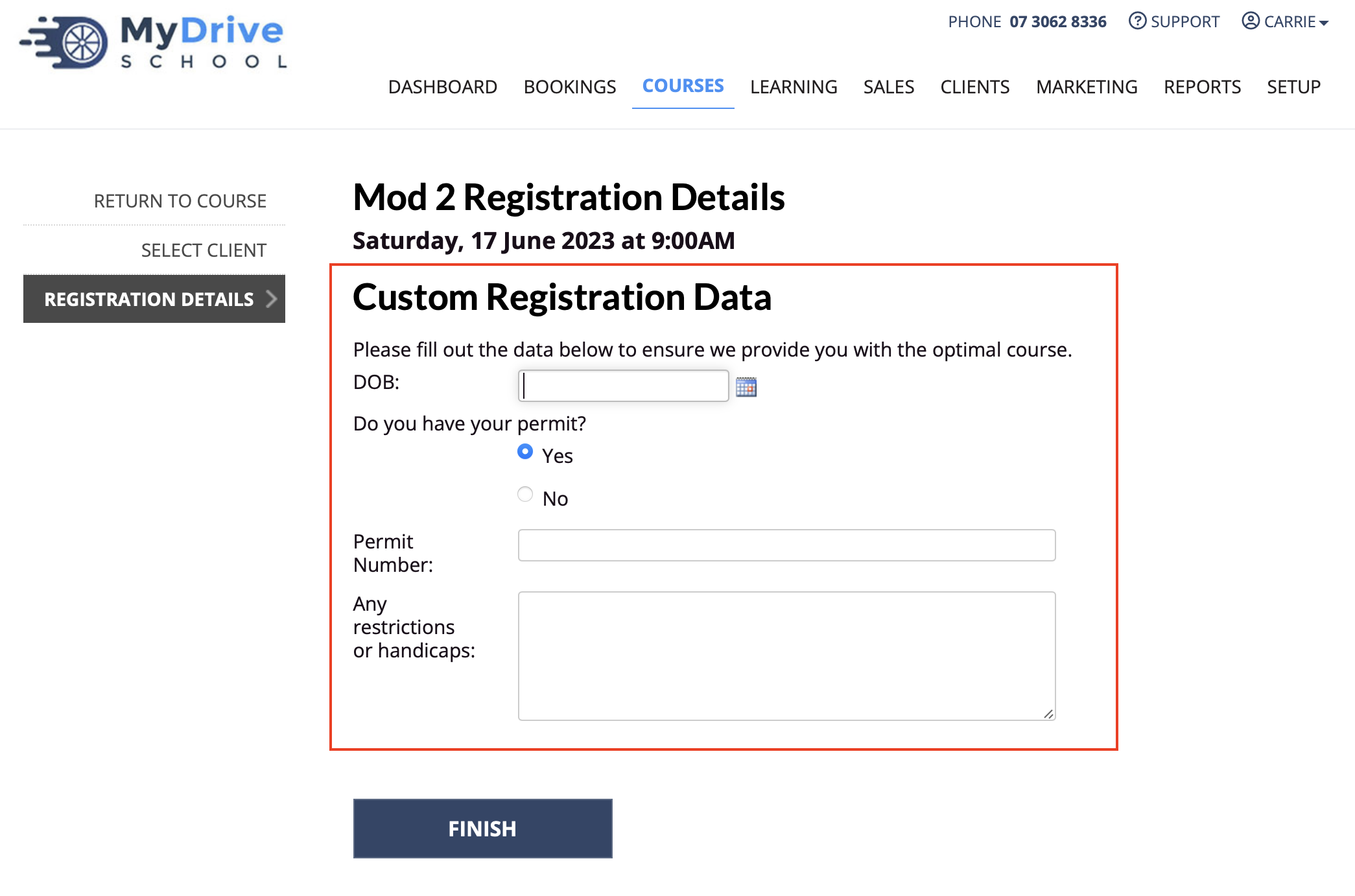
The course signup form associated with the course will appear. Enter all the required data and click Finish
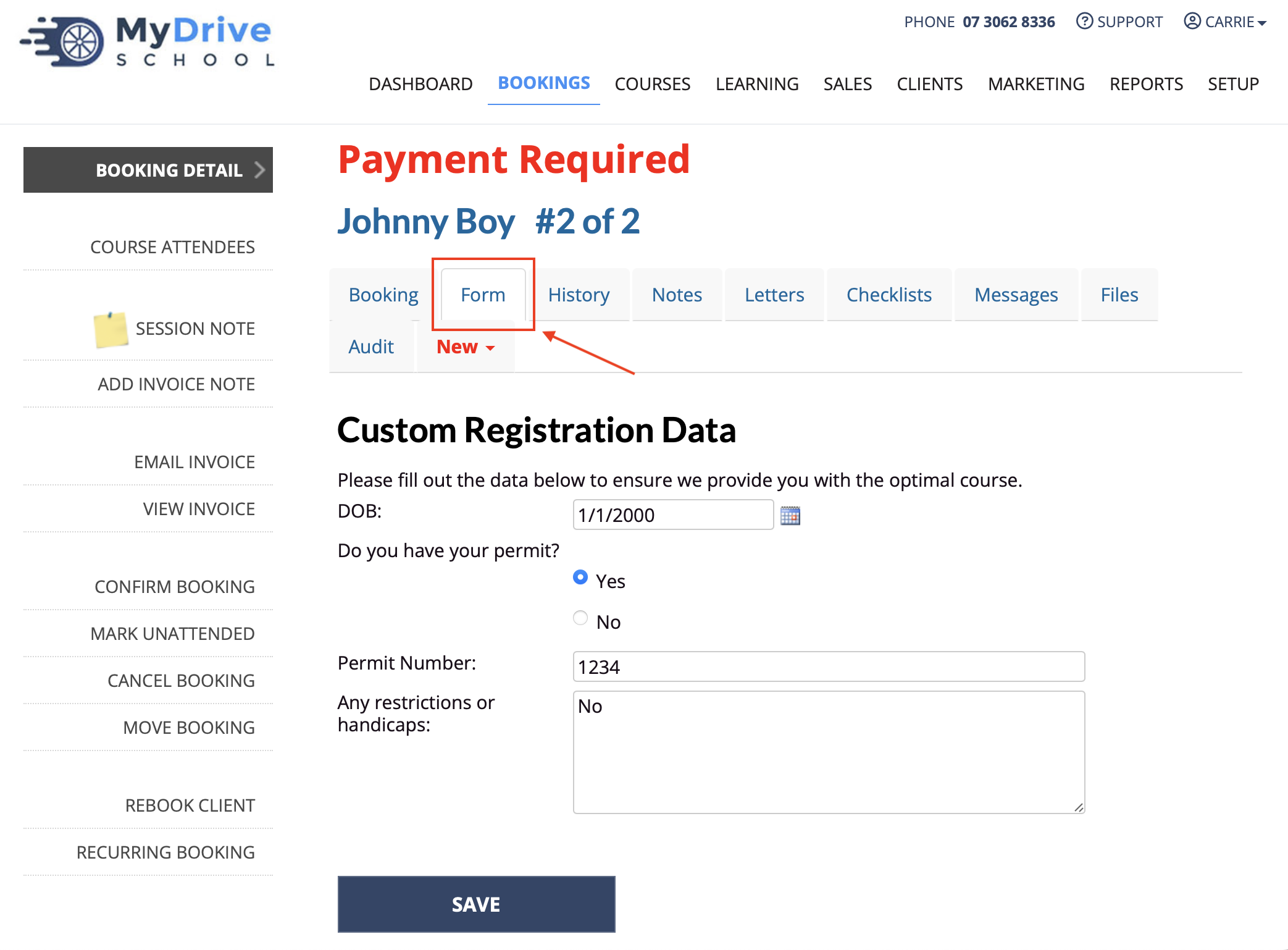
3. The course signup form now appears on the course booking for the attendee that was added under the Form tab
Adding attendees with a course signup form as a client
This section will outline how the course signup form appears when a client books in for a course.
Note: Client can either log in first, or navigate to the course they book into and log in later.
This flow assume the client logs in first.
If they don’t, it will ask them to log in after they have completed the course signup form.
Steps
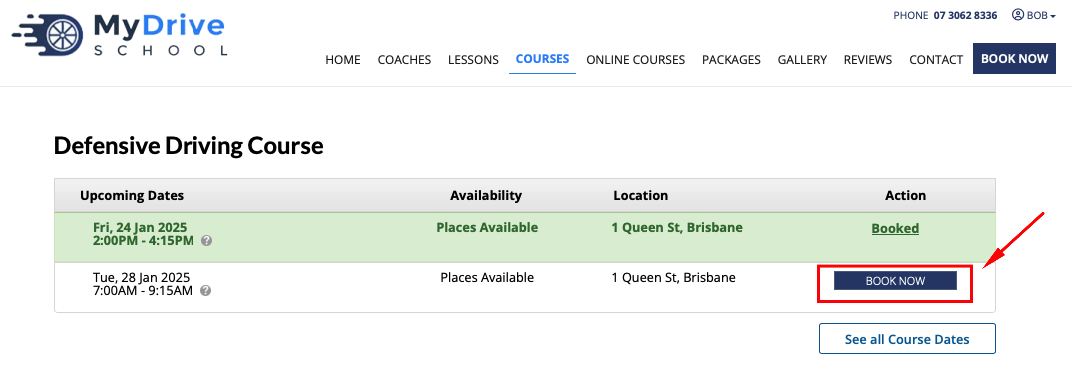
Client logs in and click on Courses menu item and select the course to book into
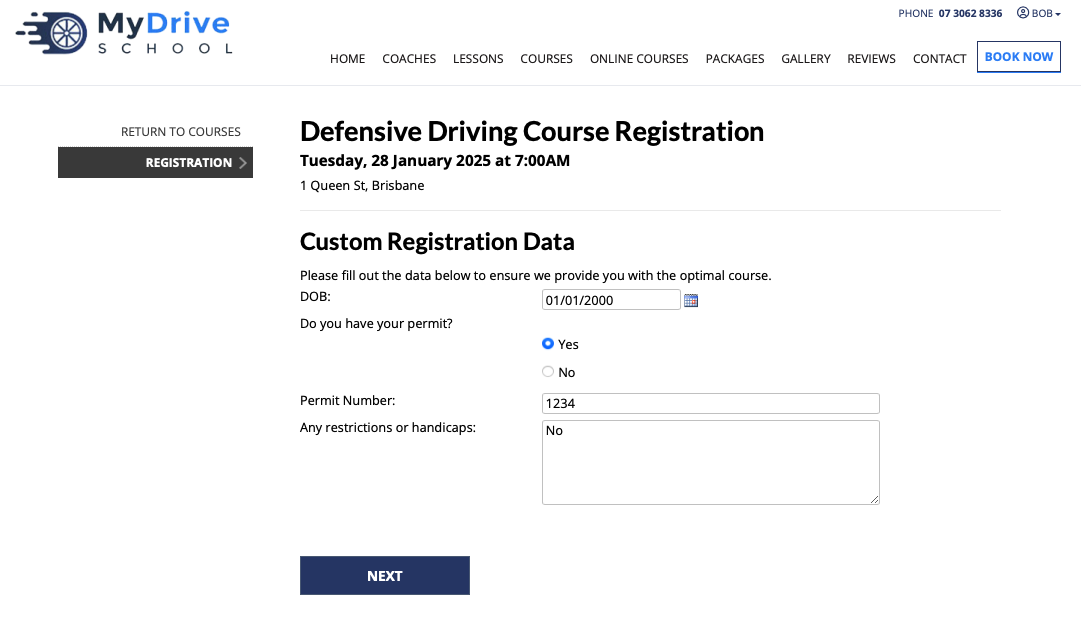
The course signup form associated with the course will appear. Enter all the required data and click Next
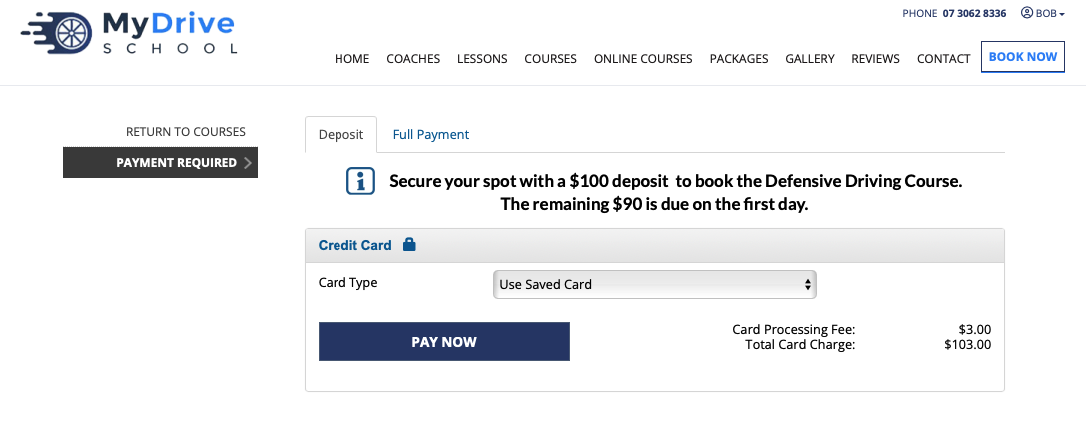
After the course signup form has been completed, they will be prompted for payment
If the client hasn’t logged in, they will be prompted to log in first, and then prompted for payment
Course booking confirmation appears