This feature is available on these plans (view pricing)
This article covers how to set staff commissions for services and products, as well as set up business booking fees.
Commissions can be calculated as a fixed dollar value ($) or percentage (%) per:
Hour
Booking
Course
Product
Once commissions are set, please refer to the following articles which outline the commission process and how to pay your staff, including the creation of commission invoices (also referred to as Recipient Created Tax Invoices):
Note
Commissions need to be set up for each service and individually for each staff member.
Setting a commission rate for a staff member
Steps
Navigate to Setup > Accounts & Security > Staff & Admins.
Select the relevant staff member.
Navigate to the Services tab.
In the commission column, click the Set Commission link or the existing commission rate for a service.

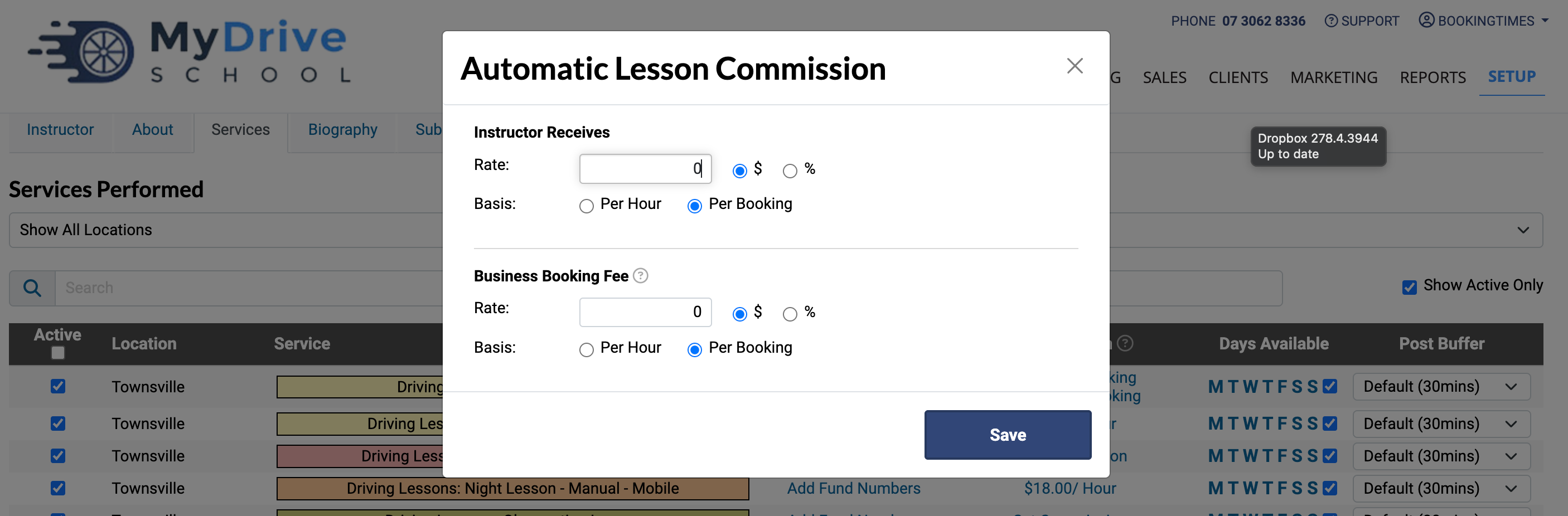
Under Instructor Receives, enter the commission Rate (this is the amount that they will receive, not that the business is keeping).
Set the commission Rate in currency ($) or percentage (%).
Set commission to be Per hour, booking, or course.
Click Save.
Repeat these steps for each service for that staff member.
Removing staff commissions
Steps
Navigate to Setup > Accounts & Security > Staff.
Select the relevant staff member.
Navigate to the Services tab.
In the commission column, click the existing commission rate.
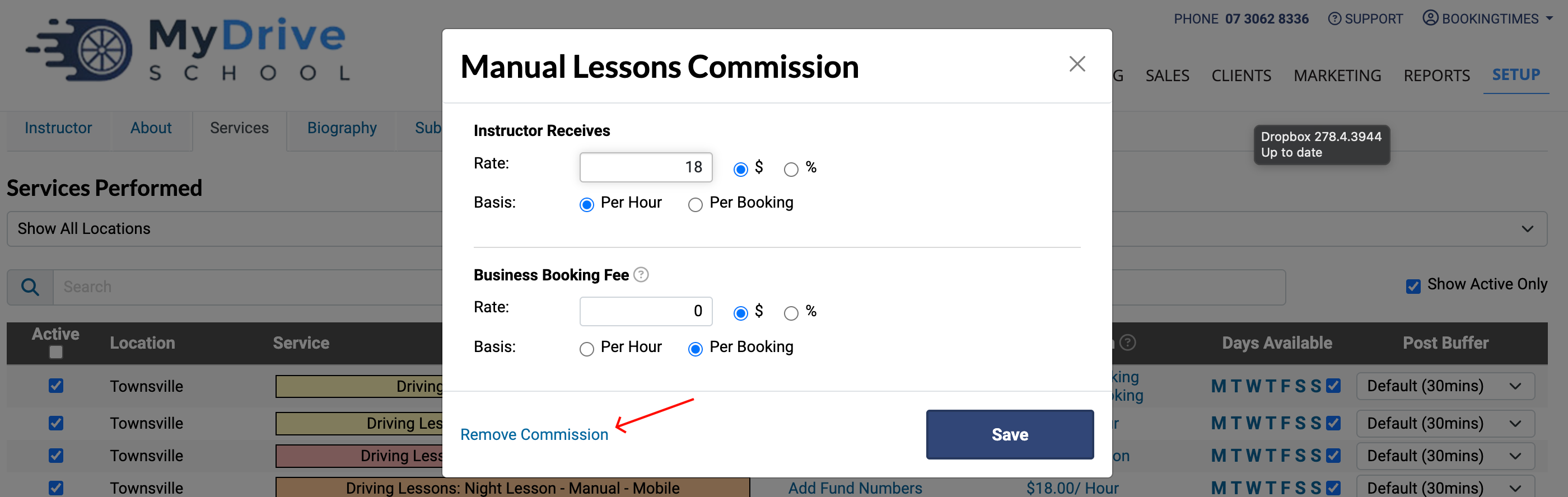
Click Remove Commission link in the bottom left of the window.
Setting a business booking fee
A booking fee can be applied to each service — this is an amount that the business keeps from each booking.
Steps
Navigate to Setup > Accounts & Security > Staff & Admins.
Select the relevant staff member.
Navigate to the Services tab.
In the commission column, click the Set Commission link or the existing commission rate for a service.
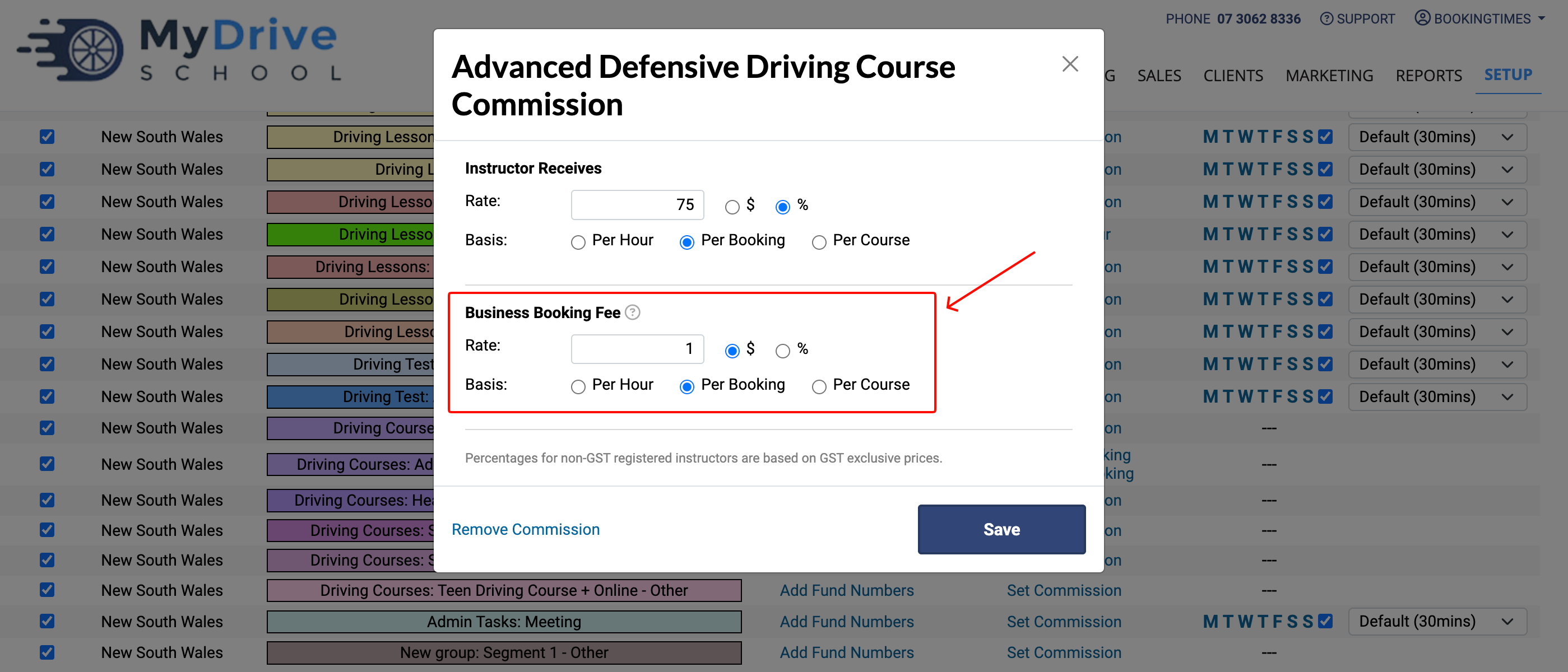
Under Business Booking Fee, enter the Rate (this is the amount that the business will receive).
Set the commission Rate in currency ($) or percentage (%).
Set the commission Basis to be Per Hour, Per Booking, or Per Course.
Click Save.
Both the Commission and Business Booking Fee are clearly displayed in the list of services for a selected staff member.
The Booking Fee can be viewed on the Commission report which now has a 'Booking Fee' column.

The Booking Fee can also been viewed on the RCI invoice that is sent to staff member (via the staff profile > RCI tab).
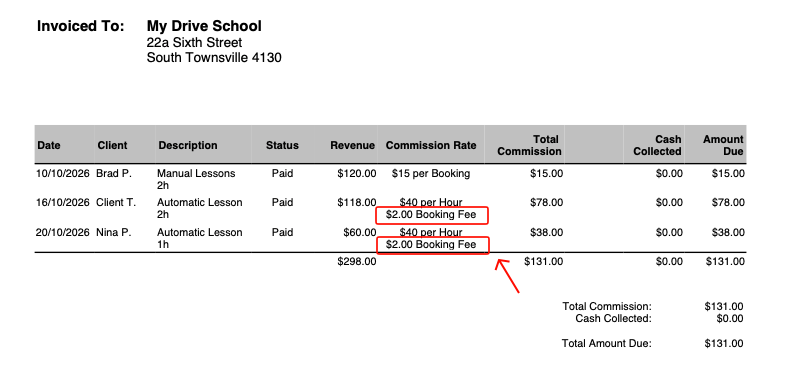
How the booking fee and commission gets calculated
The booking fee comes off the lesson first, and the instructor's share is worked out on the remaining amount.
For an example of a one-hour lesson at $91 with a booking fee of $1 per hour and the instructor keeping 75% per booking:
The business keeps the $1 booking fee.
The instructor will receive 75% of the remaining $90, which is $67.50.
The business will keep 25% of the remaining $90, which is $22.50.
Therefore the business keeps $23.50 in total.
How the fee options behave:
Per Hour scales with the lesson length, so for the example above a two-hour lesson takes $2.
Per Booking takes the same flat amount from every booking, whatever its length.
The % option takes a percentage of the lesson price instead of a dollar amount.
For an instructor paid a fixed dollar rate rather than a percentage, the fee comes off that rate, so $60 an hour becomes $59.
Adding a booking fee does not change what the student pays (so nothing is shown on the client invoice). It moves part of the instructor's share to the business, which can be used to offset any business costs.
Setting commissions for products
Commissions can be set against products and will be used for any admin product sales. Any web sales that are created by the client will not have a sale’s person allocated, so no commissions will be allocated for those.
Steps
Navigate to Setup > Shopping > Products
Select the product
Under Staff Commission set the commission rate in currency ($) or percentage (%)
Click Save

For the commission to be allocated to the correct staff member, select them as the Sales Person on the product sale.

Additional commission settings
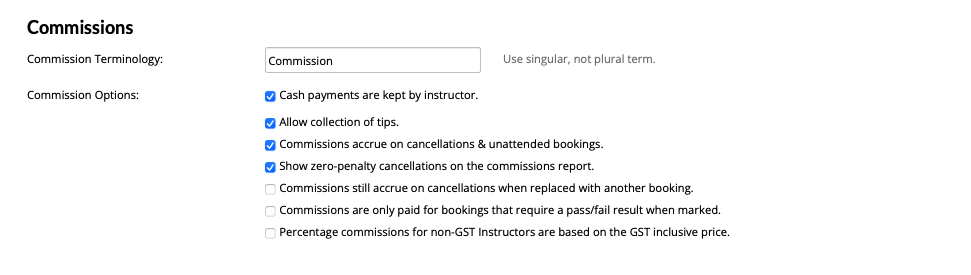
Additional commission settings can also be configured. These include if you want to allow commissions to accrue on cancellations and attended bookings, and if any cash payments are kept by the instructor etc.
Steps
Navigate to Setup > Business detail > Finances tab
Select your desired options
Click Save