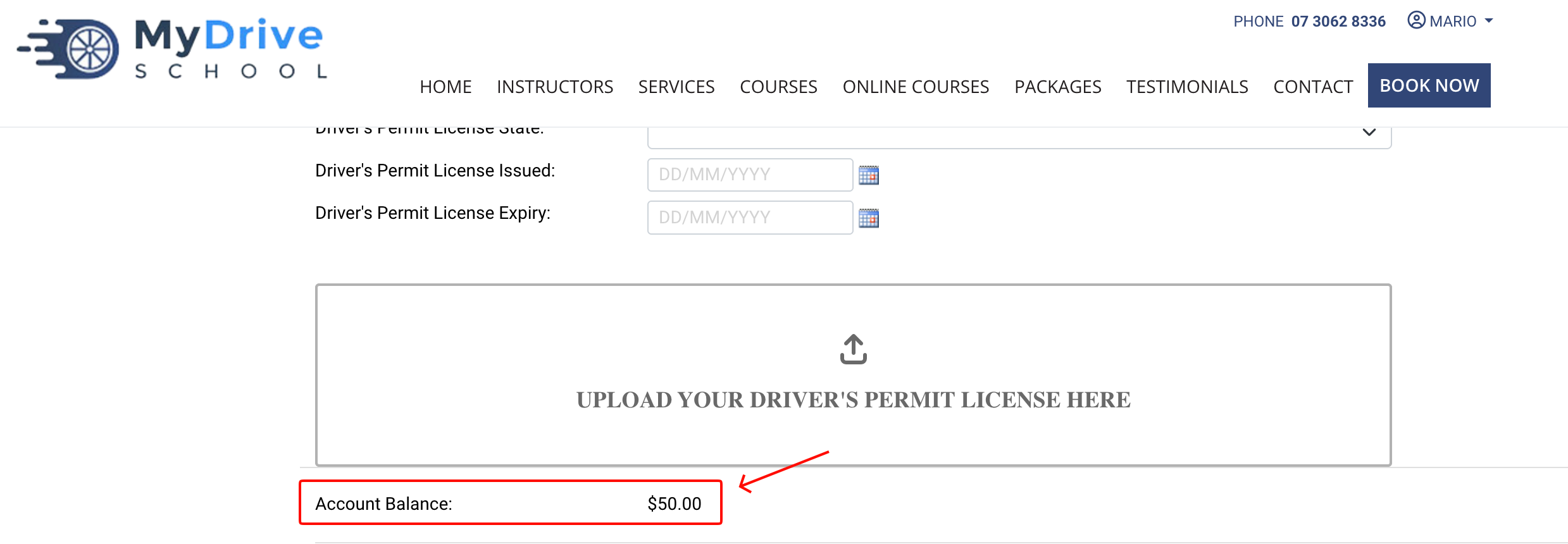
A service or course can be configured so that a client is required to pay an upfront deposit when booking the service.
However, an admin staff member can still book a client into the service without taking the required deposit, and the deposit can be taken at a future date.
This article will outline the process of enabling an upfront deposit for a service (which is covered in more detail in the Add a service article), as well as how to manually take a deposit for a booking.
Enable upfront deposit for the service
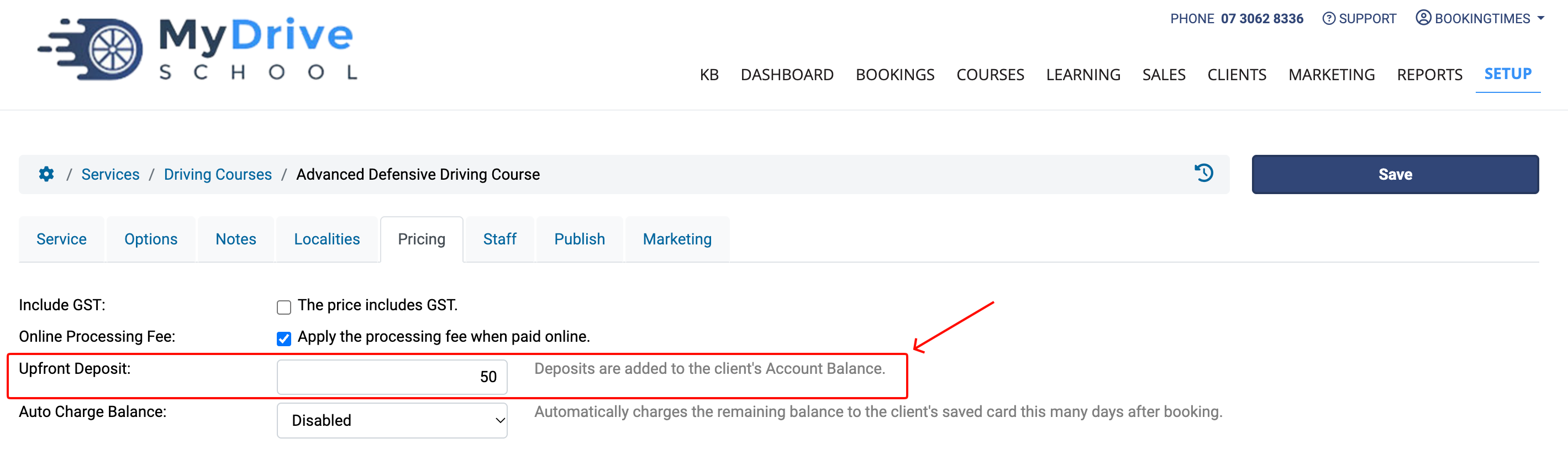
In order for a deposit for a service to be taken via the Pay Deposit button when an Upfront Deposit amount has been set for the services. If no amount has been set then the Pay Deposit button will not be displayed on the booking screen.
Steps
Go to Setup > Services and select the required service.
Go to the Pricing tab and enter the Upfront Deposit amount for the service.
Click the Save button.
Taking a deposit for a booking
When you book a client into a course/service first and then use the Pay Deposit button on the booking screen, this deposit will be added to their account balance but remain held against that booking only. It cannot be used on any other bookings.
This strategy could be utilised to ensure there is an amount held in the account balance to cover any potential cancellation fees.
Note: this is different from a deposit taken via a Sale (i.e. when an admin creates a Sale > Booking deposit product). When you take the deposit via a sale the amount will go onto their account balance and can be used against any other bookings.
Steps
As an admin, book a client into a service/course that has an upfront deposit enabled.
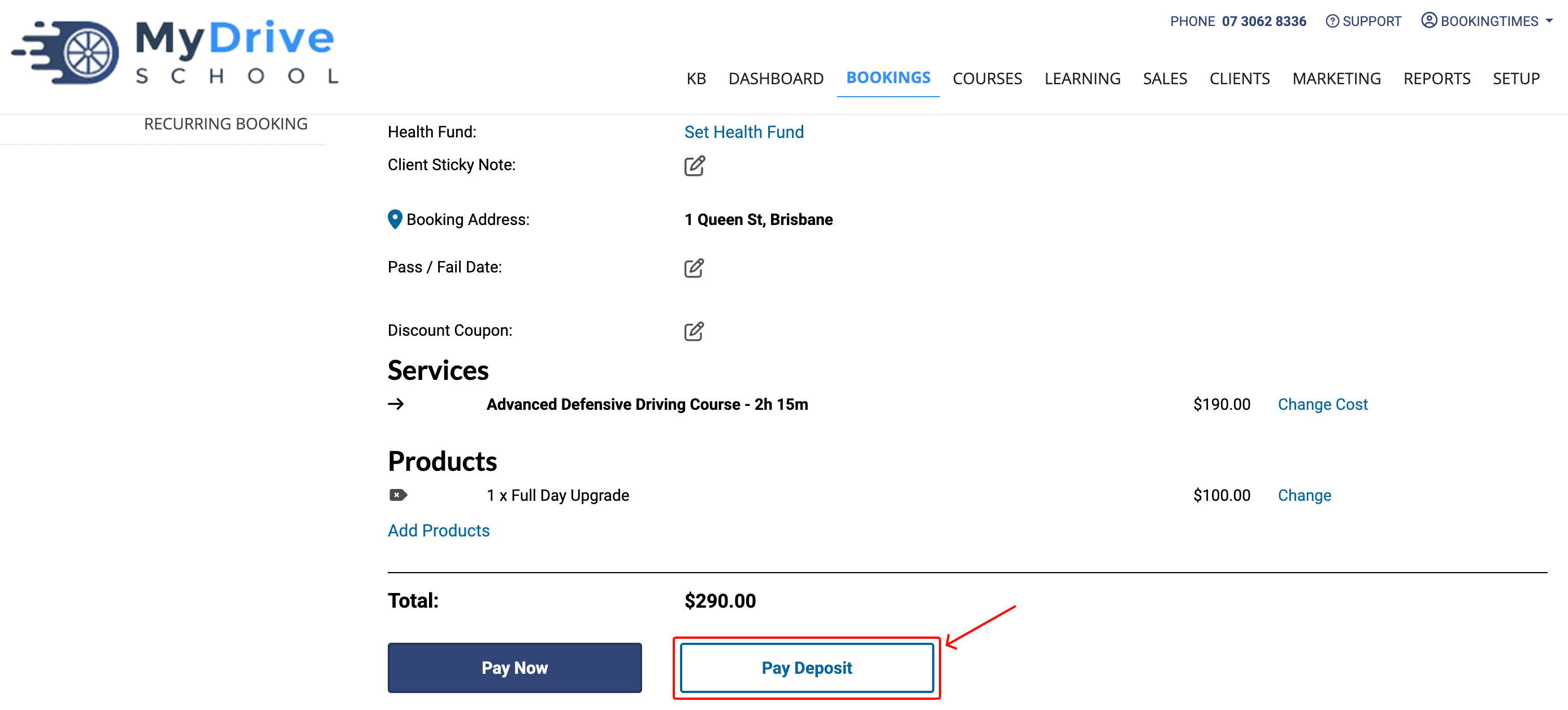
Go to the client’s booking and click the Pay Deposit button.
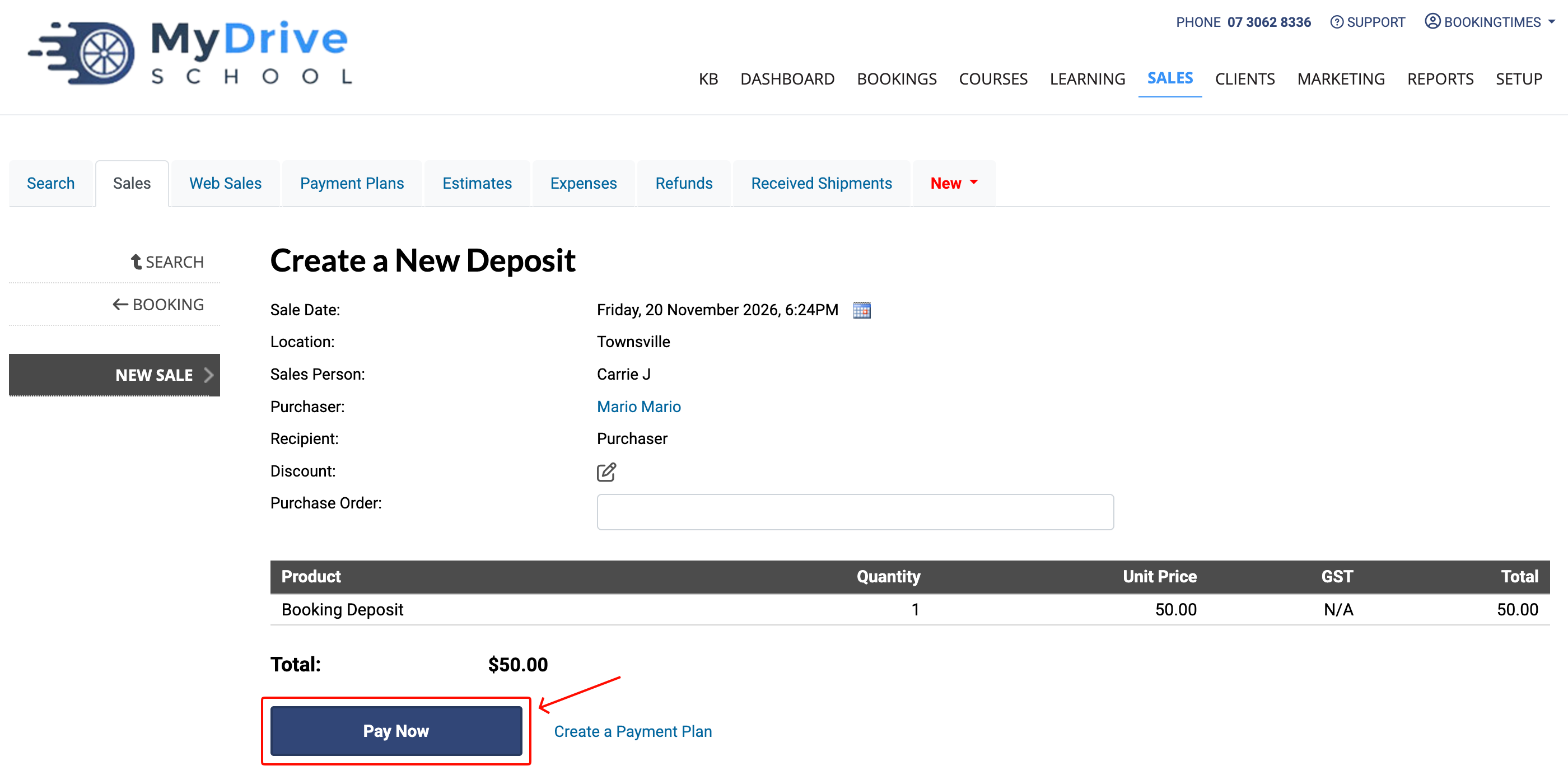
Click the Pay Now button the on the Create New Deposit screen if you want to pay the entire deposit.
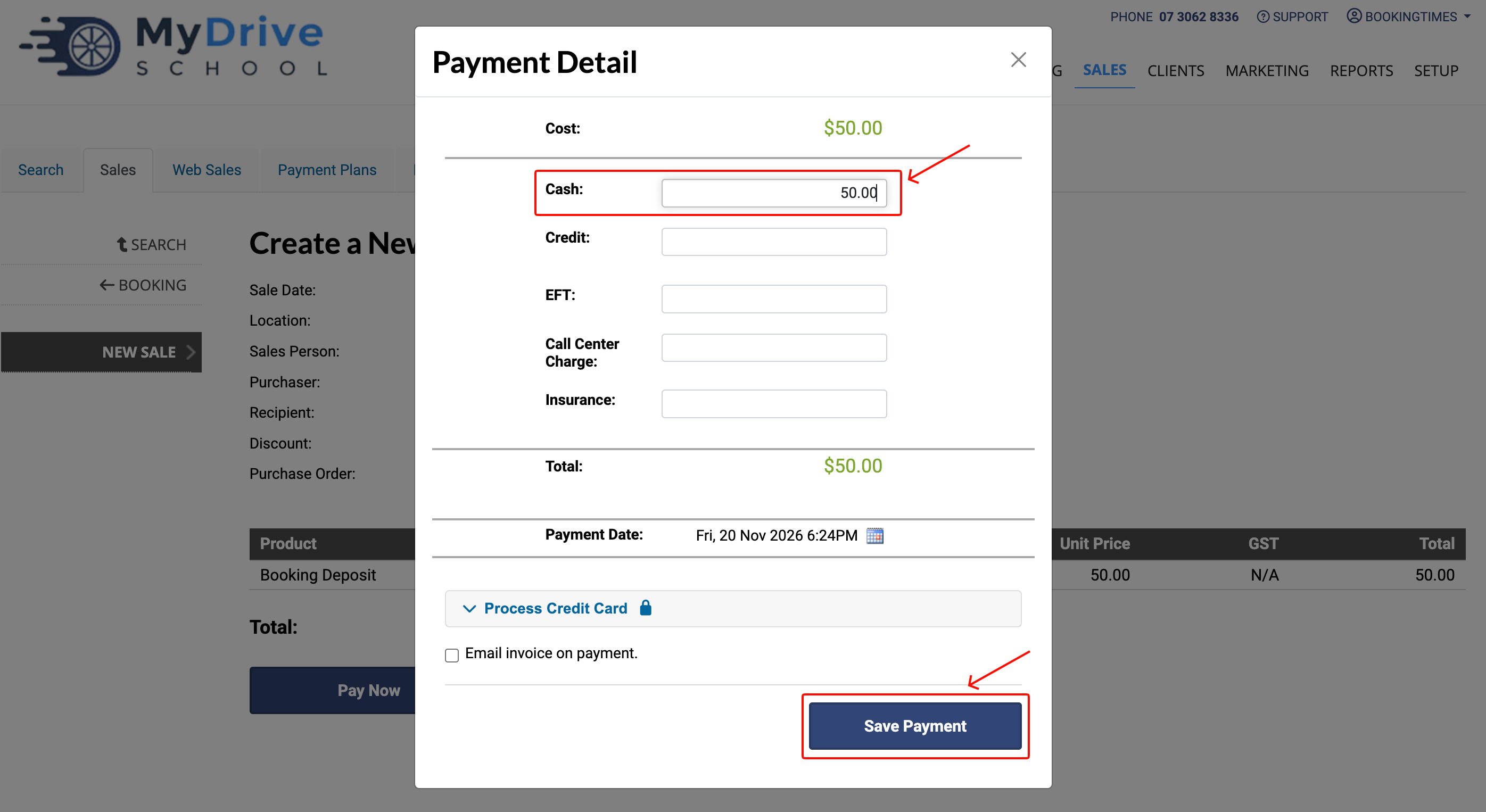
Add the amount into the relevant field, then click the Save Payment button.
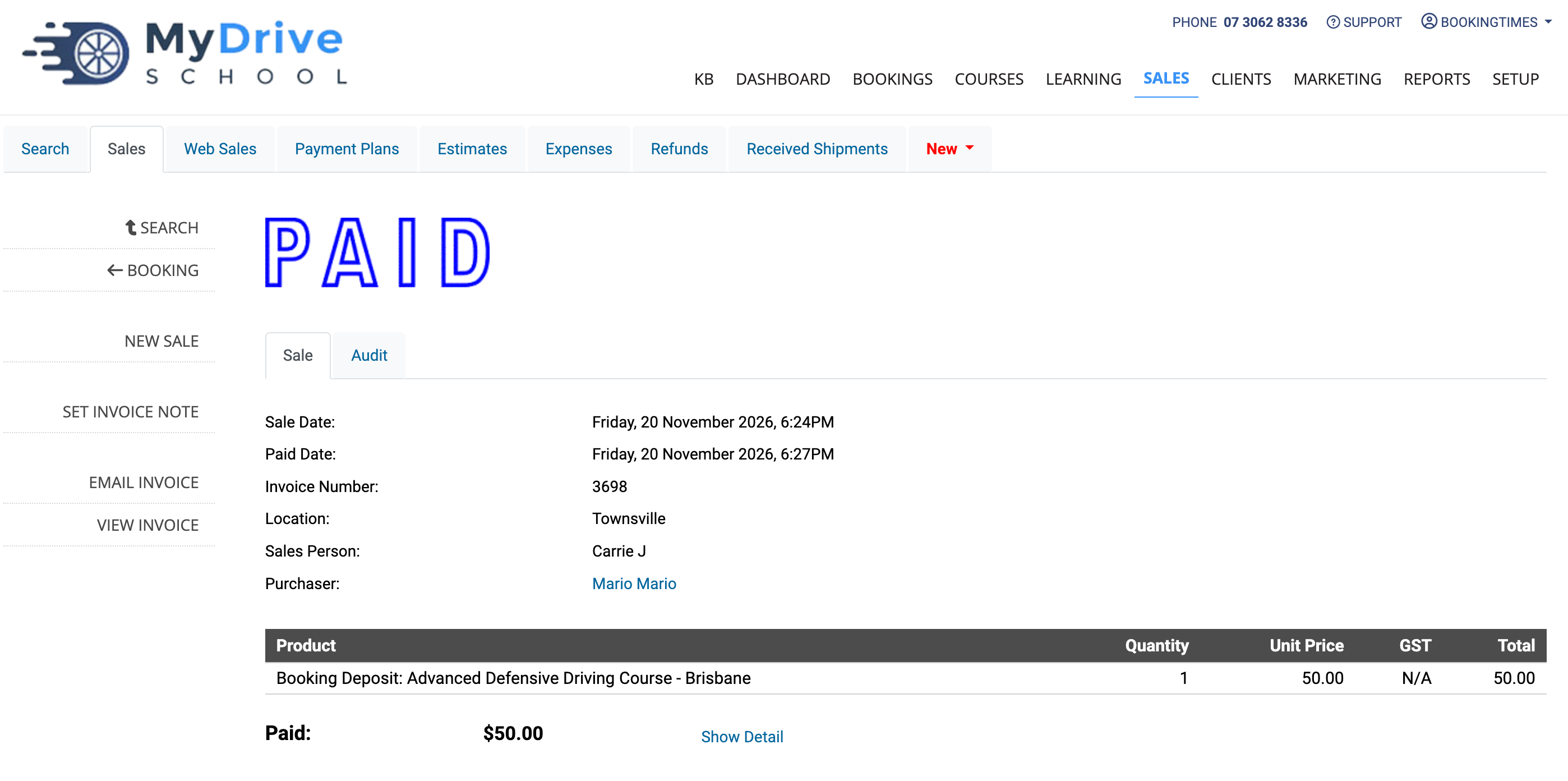
Confirm the paid invoice for the deposit.
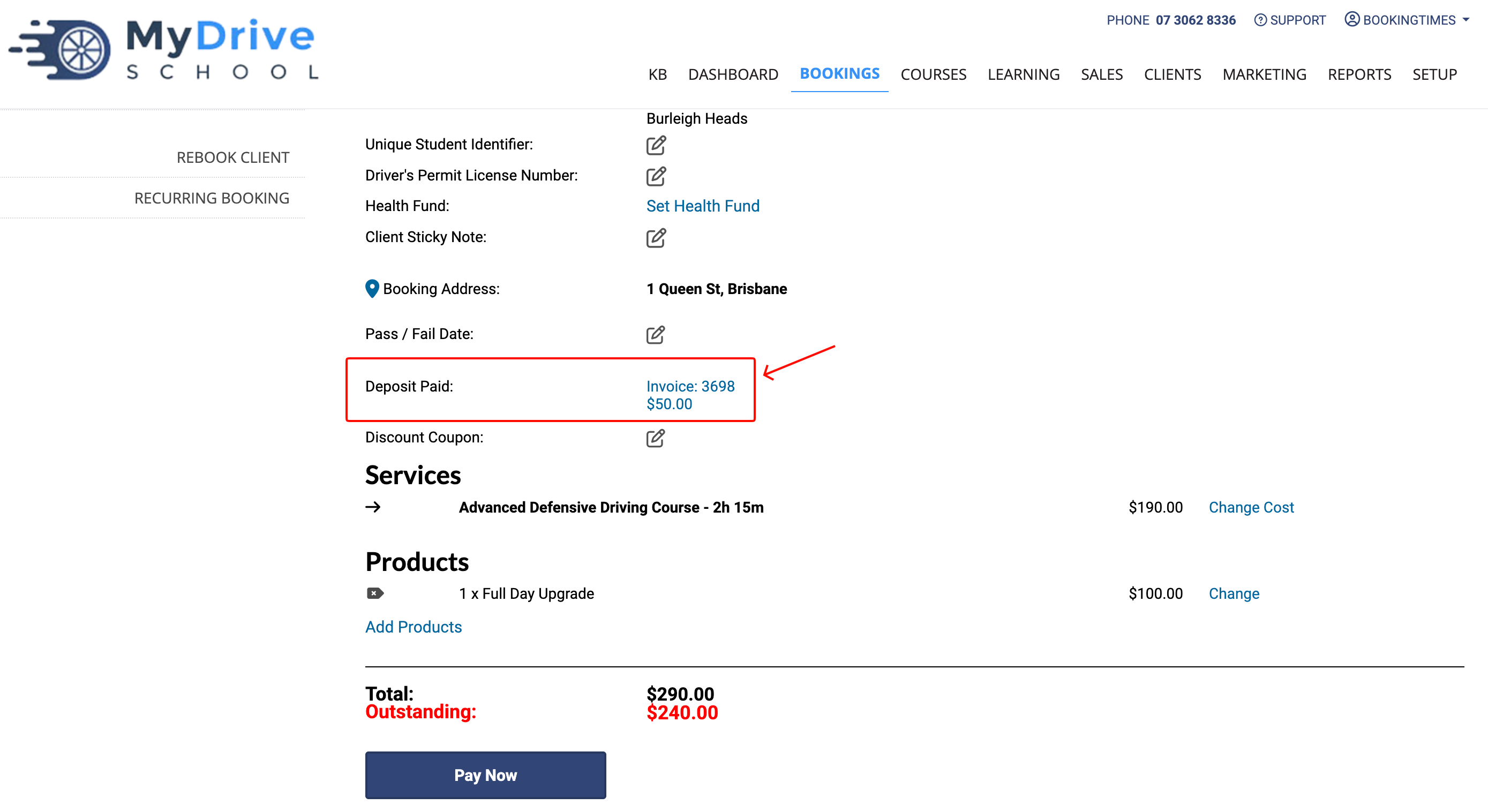
Navigate back to the booking page to see the deposit recorded against the booking.
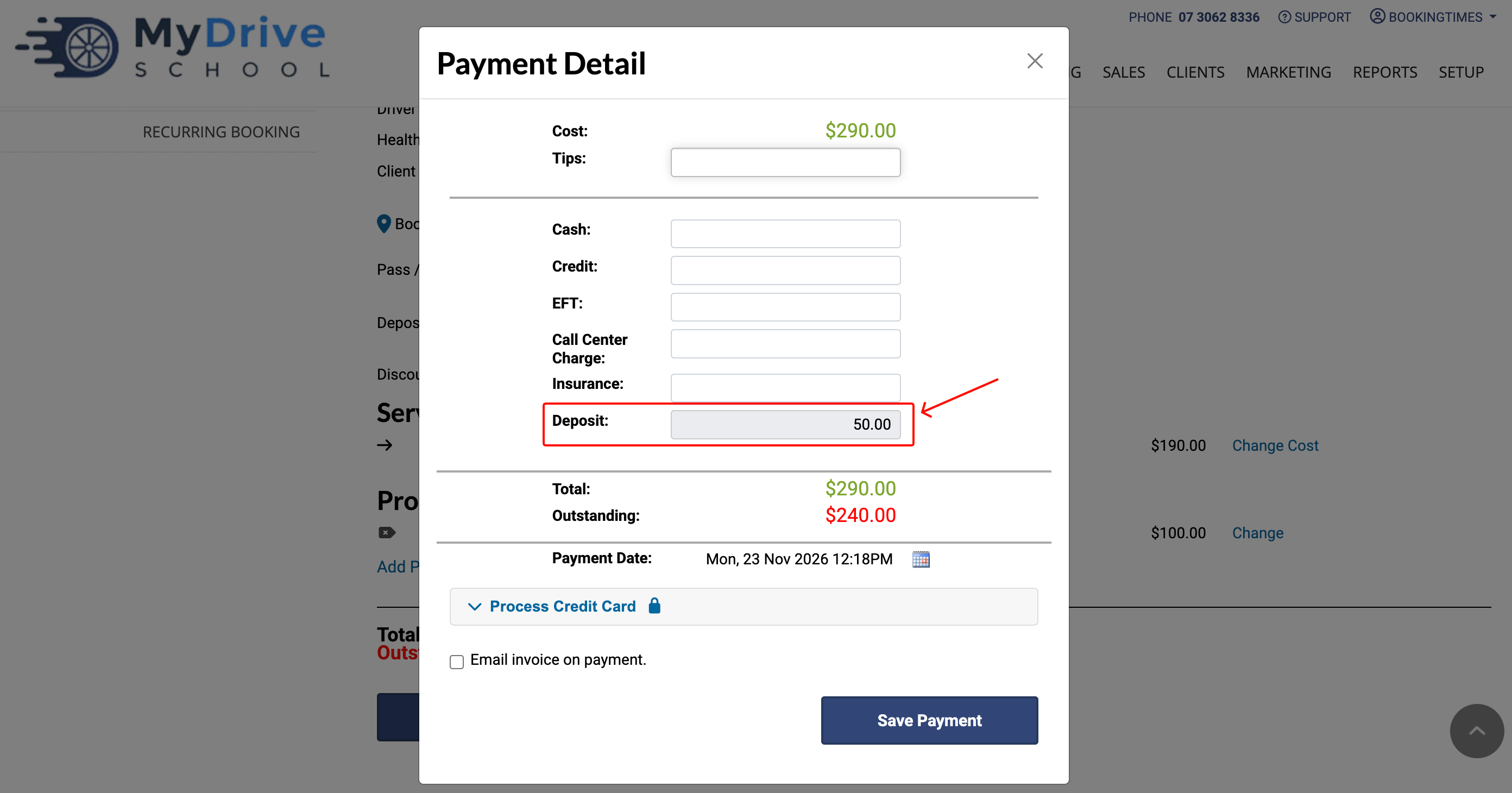
Note when you click the Pay Now button, you will also see the deposit listed on the Payment Detail screen.
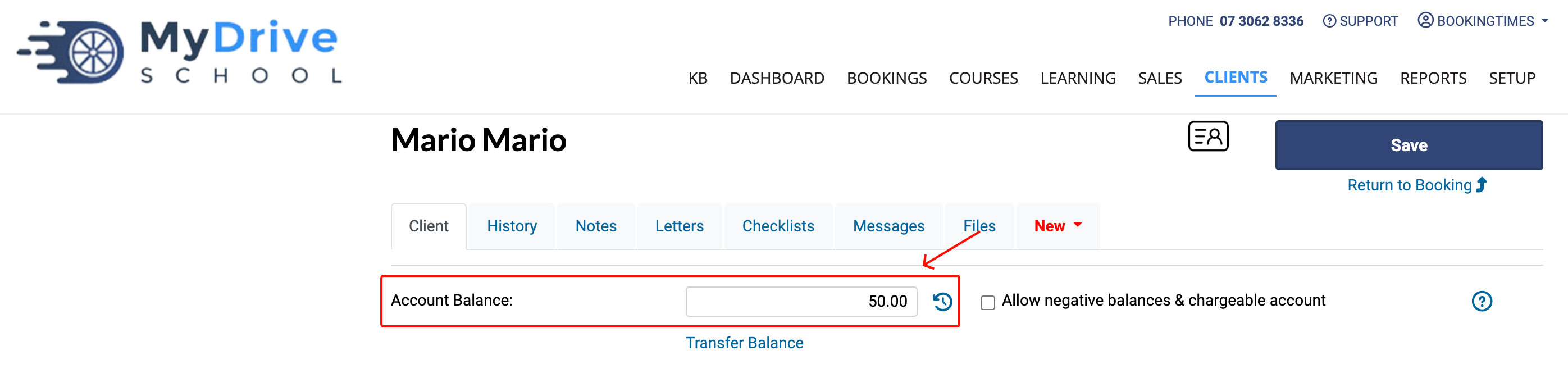
Navigate to the client record to see the account balance held against the client.
The account balance is also shown on the client’s public view.