Business often require a simple way to pass on a fuel surcharge to clients without overhauling their entire pricing structure. The good news is that BookingTimes makes this easy for those on our Nail & Scale plan.
This article outlines how to create and add a fuel surcharge product as automatic addon to your vehicle services. Upon booking, the surcharge will be applied automatically, and appears on the invoice as an individual line item.
Products and Packages
This surcharge cannot be applied to any products and packages in the same way. They will need to have their price increased overall as per the normal process.
You could also un-publish them if you want to temporarily halt the sales of any packages, noting that any existing vouchers can continue to be used for the services (even if they now have a surcharge attached).
If you're on our Kick Starter plan, you can opt to update your lesson prices directly across the board instead.
Creating a surcharge and allocate to a service
Steps
Navigate and login to your website, we're going to setup the surcharge product first, then allocate it to a service.
Click Setup > Products & Packages so we can set up the Fuel Surcharge as a product.
Click Add Product
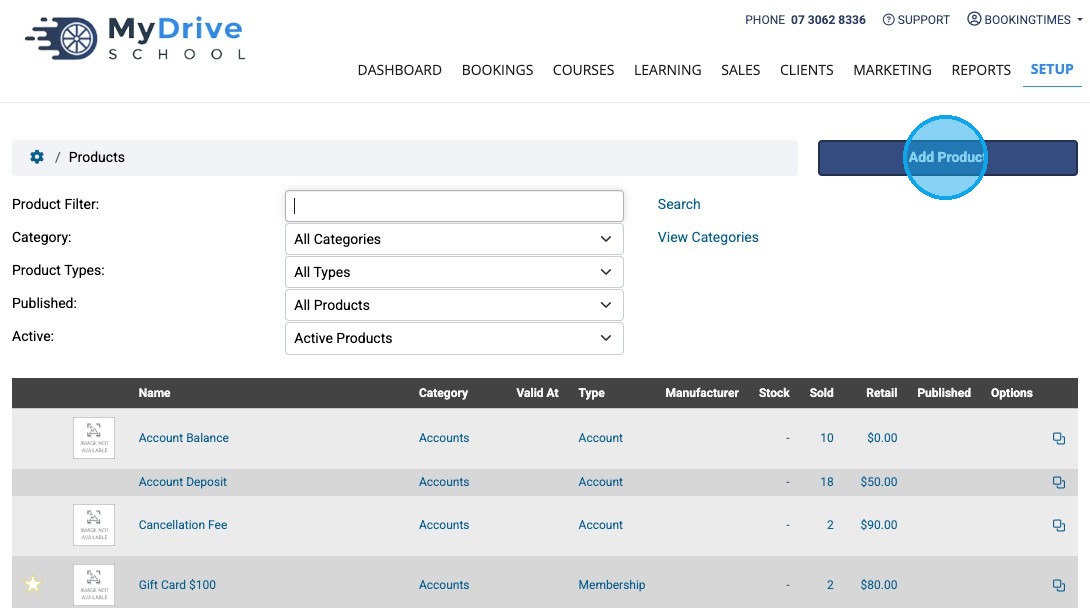
Type in the product name (e.g. Fuel Surcharge), ensure you select the "General Service" option.
Note: You can create a new Category if you like. These products only appear internally.
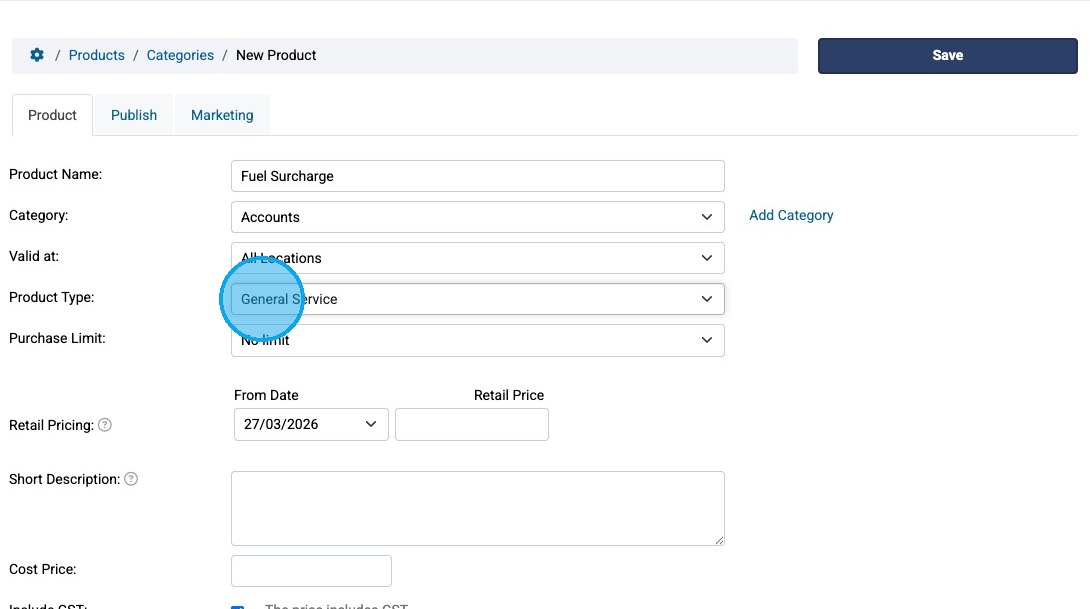
Enter the desired Retail Price field and click Save
All service durations
Please note this Retail Price amount will be applied to all of the service durations that you apply this to. e.g. If you have 1, 1.5 and 2 hour services, this same surcharge applies to all of these.
If you would like different surcharges for these, it's recommended to just update your prices instead.
You can also add a "Booking Page Note" advising clients that this increase includes a fuel surcharge, at the time of them booking (adding this note is covered later in this guide).
Refer to this article on how to update prices, noting that you can make updates to all your services within a location in a single screen via:
Setup > Locations > select Location > Pricing tab
https://support.bookingtimes.com/docs/how-to-make-a-price-change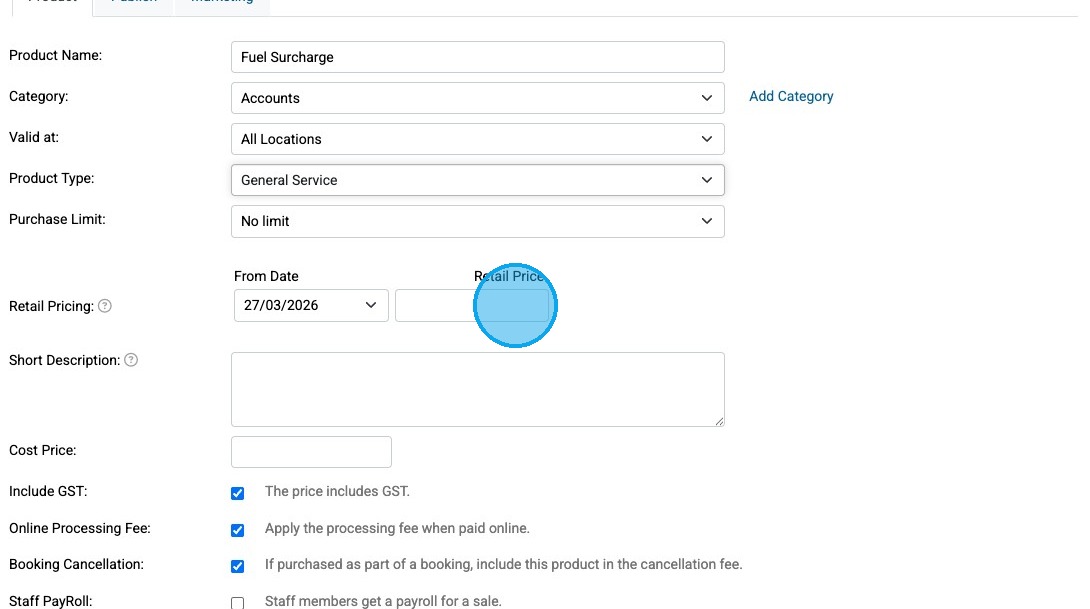
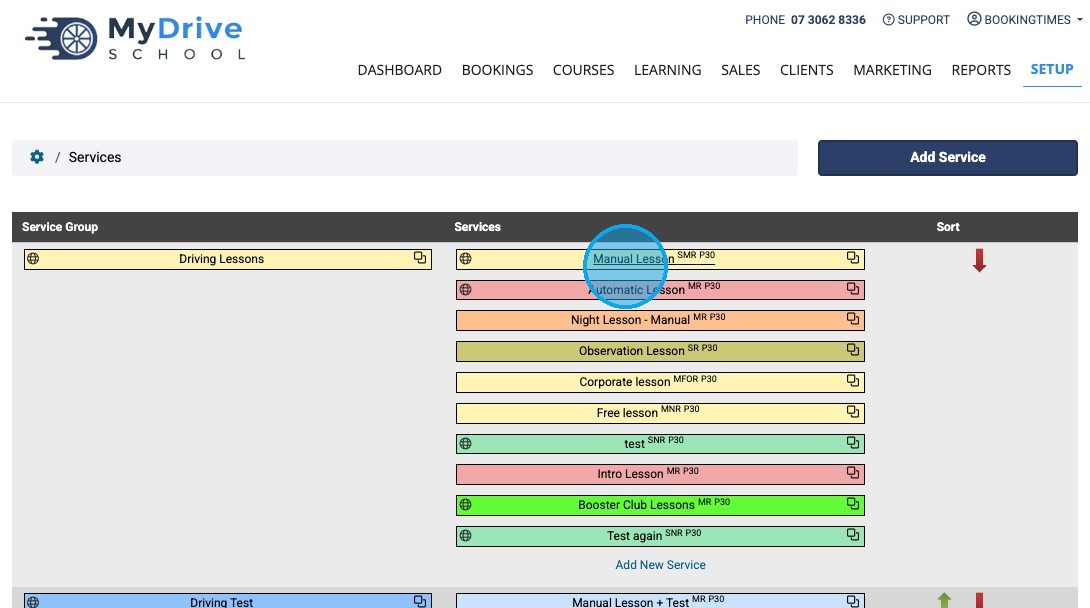
Now we're going to allocate the addons to the required services, click Setup > Services and select the service you wish to apply an addon to.
Scroll down and select the "The specific addon product is always added at retail price" option.
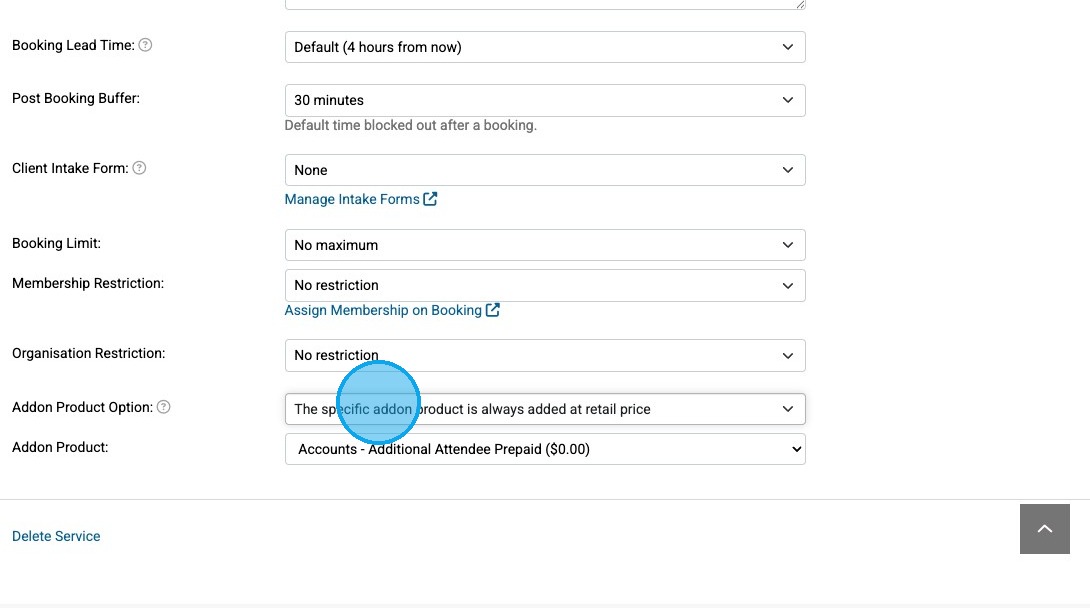
Select the relevant surcharge product for the Addon Product drop down list. e.g. "Accounts - Fuel Surcharge ($5.00)" option, and click Save.
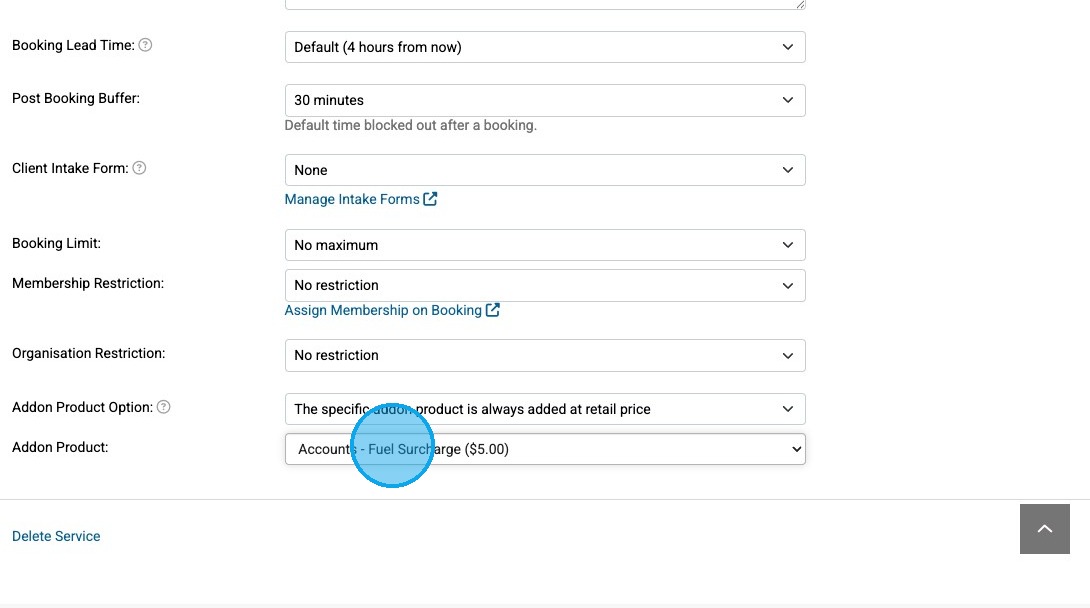
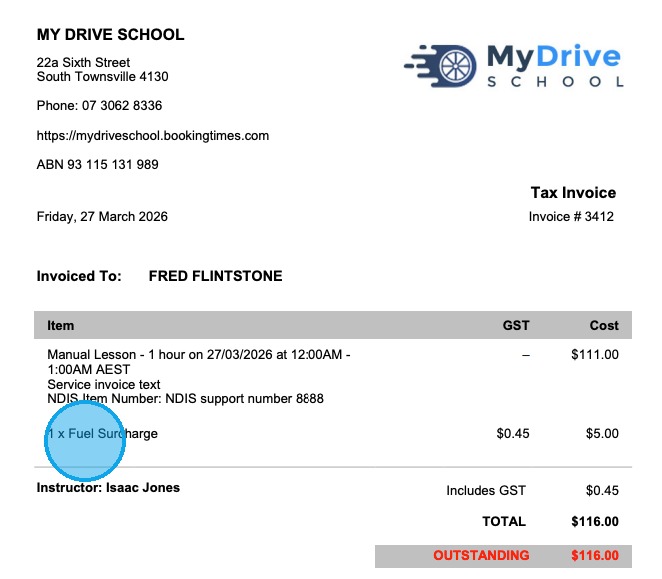
Now when a booking is made for this service, the surcharge will be automatically added, and appears on the invoice as an individual line item as shown in the next section.
Viewing a booking with a surcharge added
Here you’ll see how an addon surcharge appears on a booking and invoice.
Steps
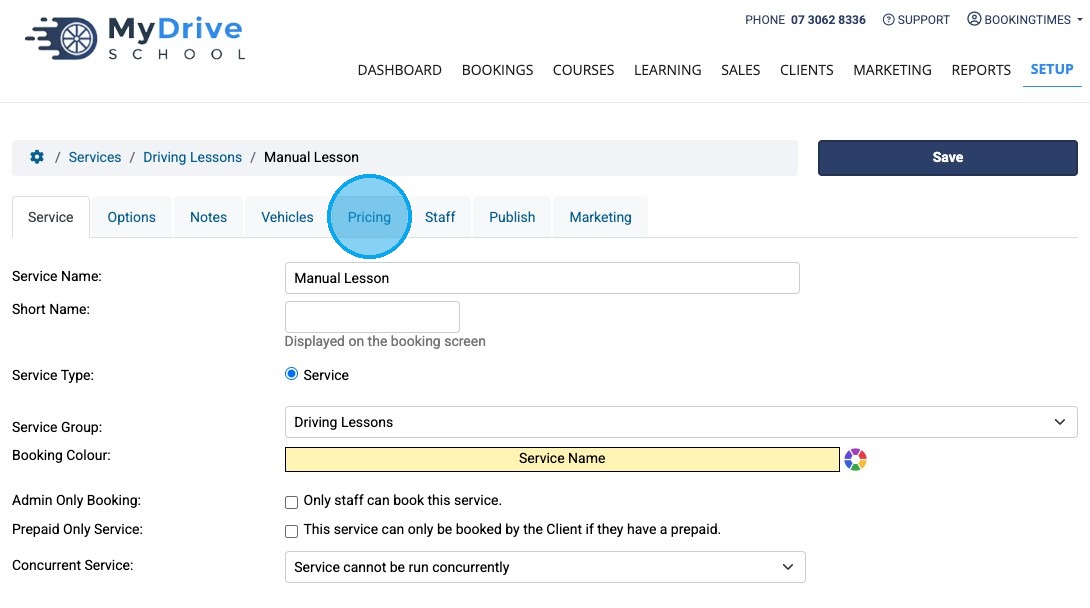
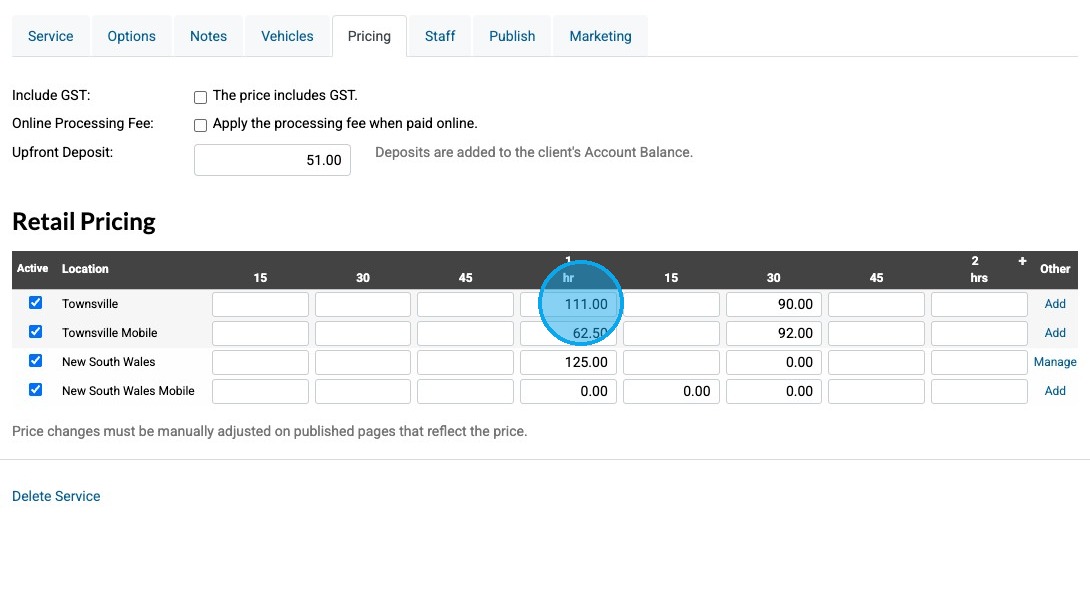
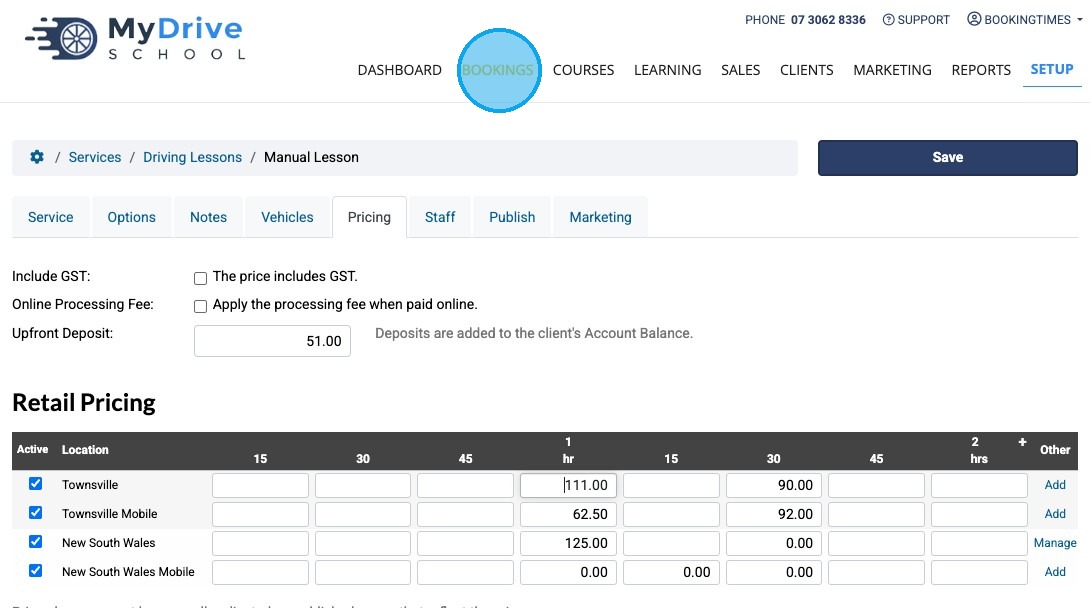
Navigate to Setup > Services > select the service > Pricing tab to see the original price.
Note for this example the 1 hour Manual Lesson is $111
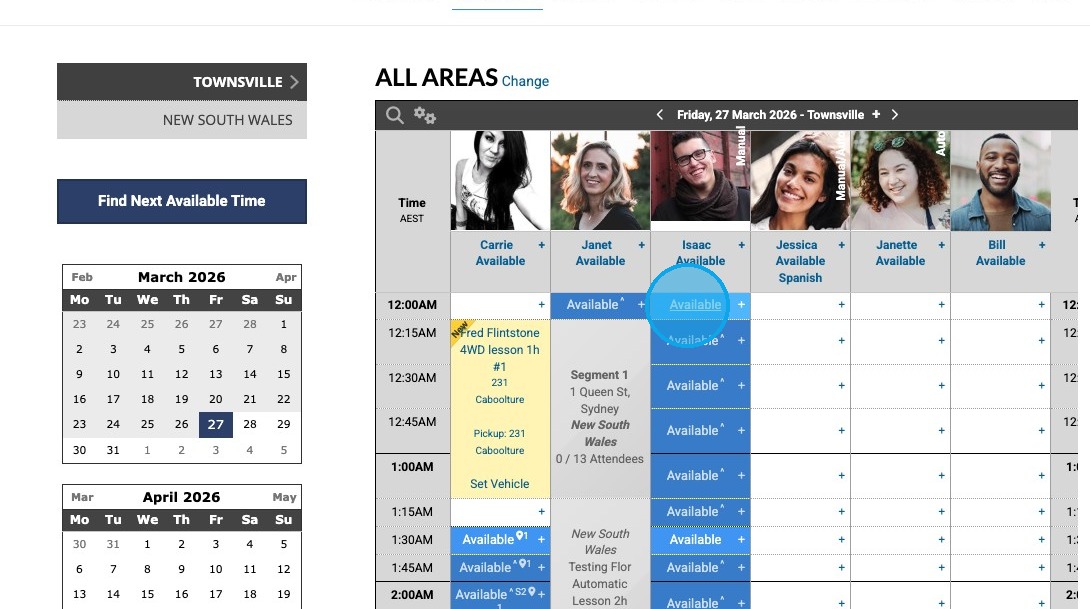
Click Bookings to go to the calendar to make a booking.
Select the desired "Available" slot to book into
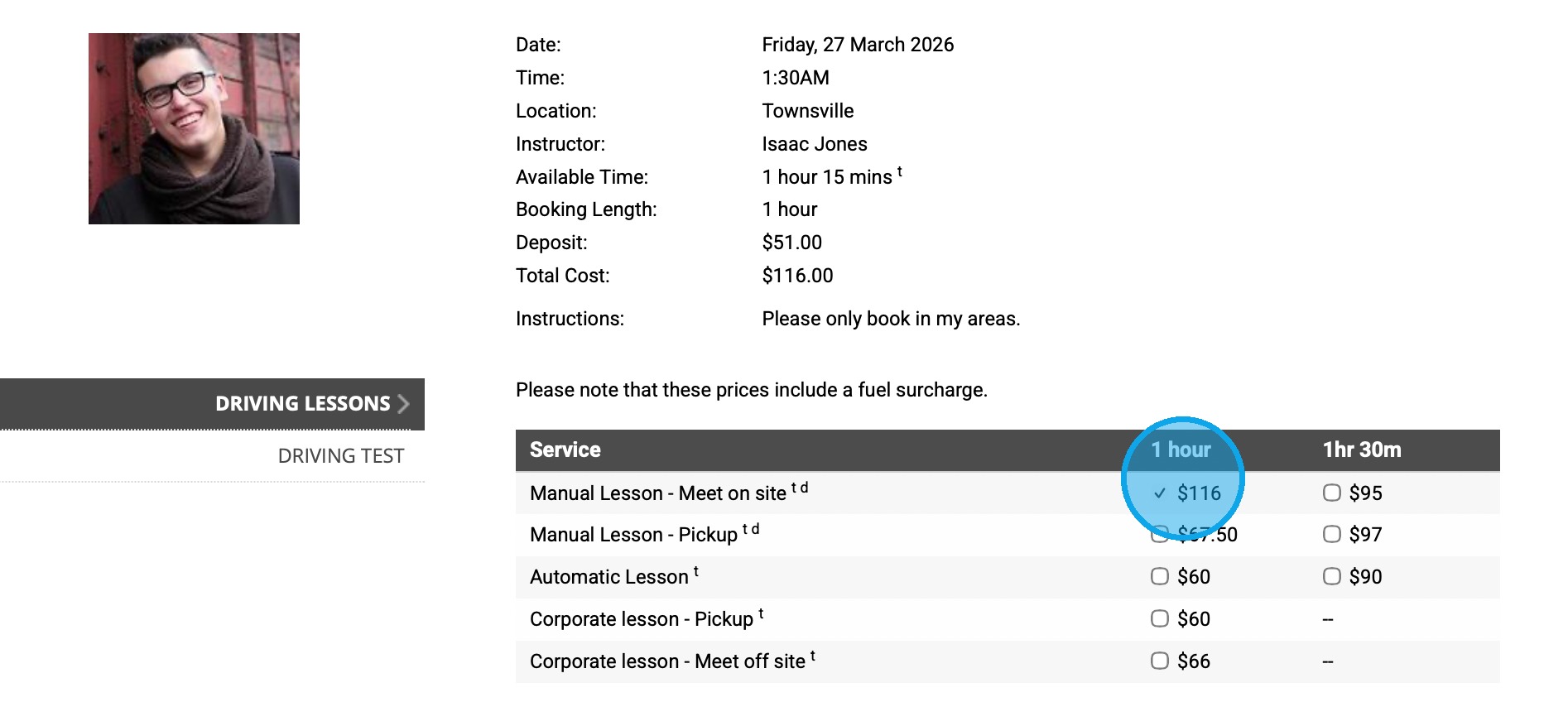
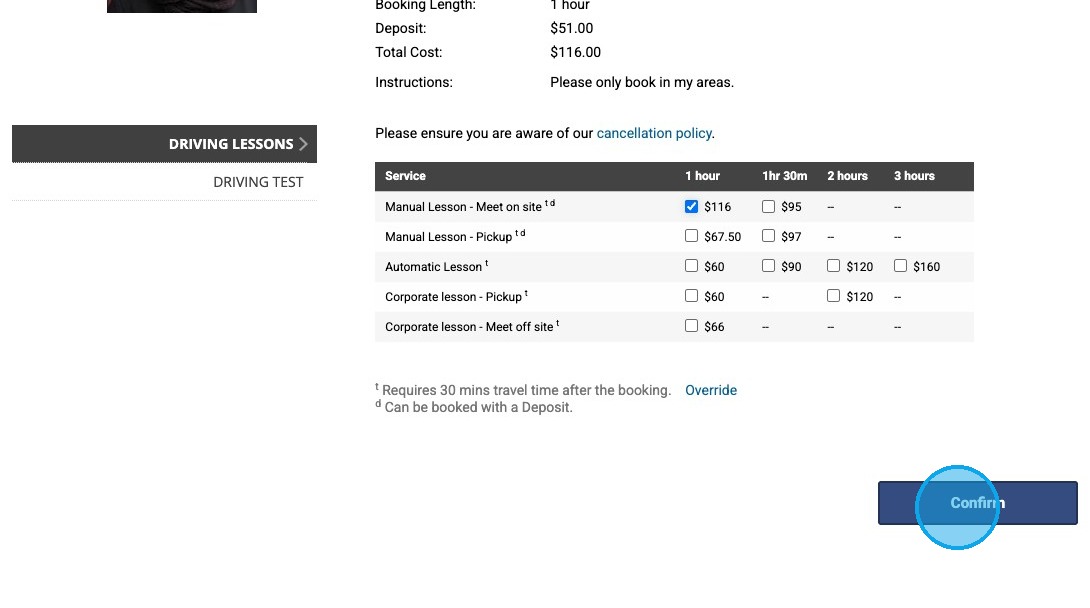
Notice that the Manual Lesson service prices now all include the surcharge. For example:
1 hour = $116 ($111 + $5 surcharge)
1.5 hour = $95 ($90 + $5 surcharge)
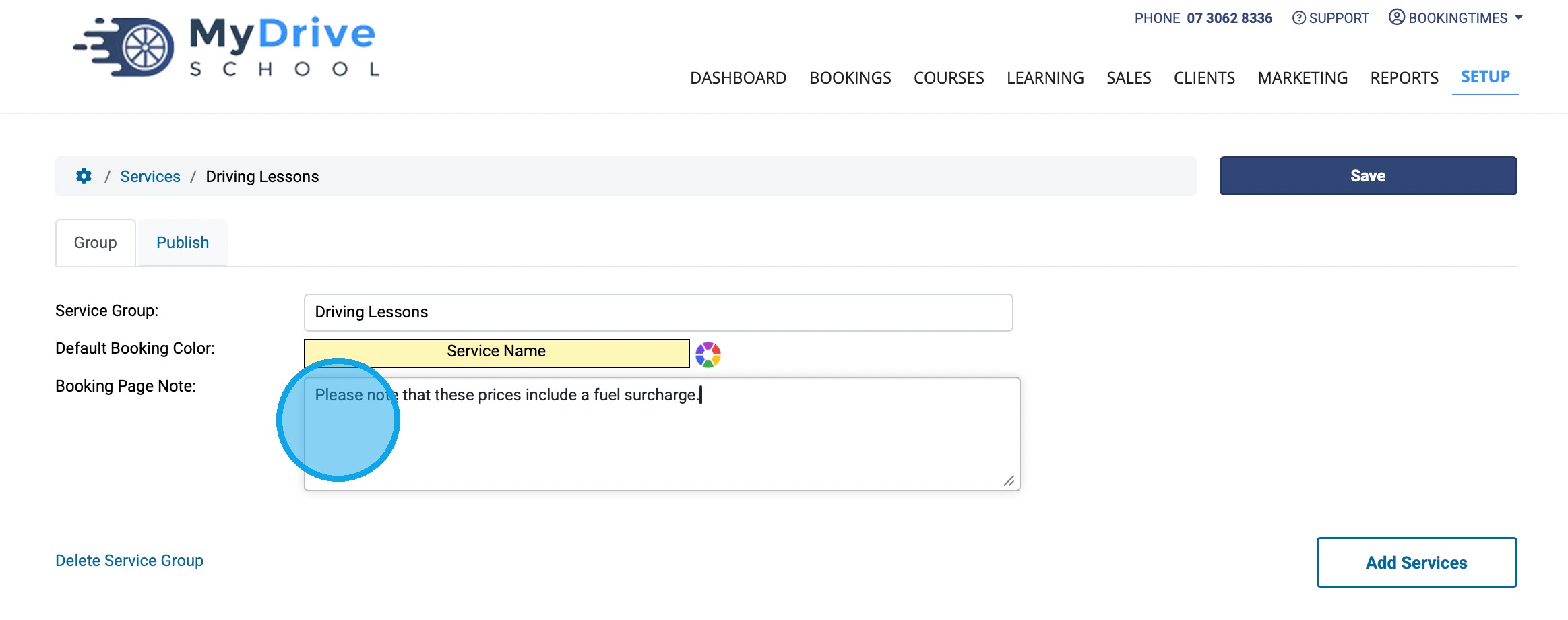
Tip! Booking Page Note
You may also wish to add a "Booking Page Note" on this service group ("Driving Lessons" in this case) to advise that these prices include the surcharge.
Setup > Services > select Service Group (e.g. "Driving Lessons")
Add text to "Booking Page Note"
Click "Save"
Select the desired service duration and click "Confirm"
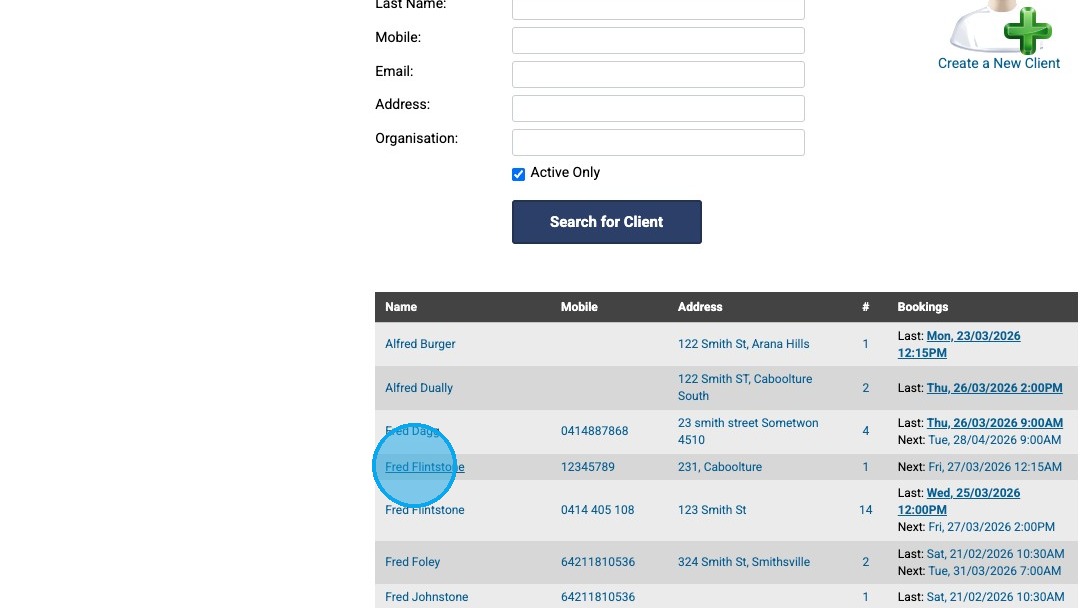
Search and select a client.
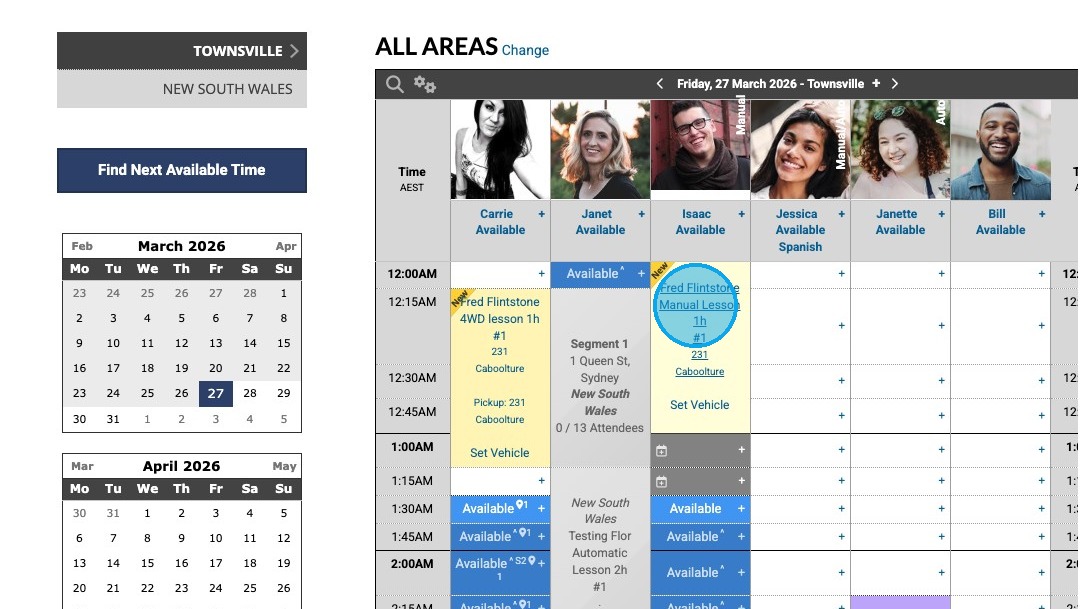
Click on the booking.
Note that surcharge has been added as a separate product line item.
This can be removed or change the price if you've booked this in as an "admin" and it's still unpaid. If a client books it publicly and upfront payments are on this cannot be updated on this booking.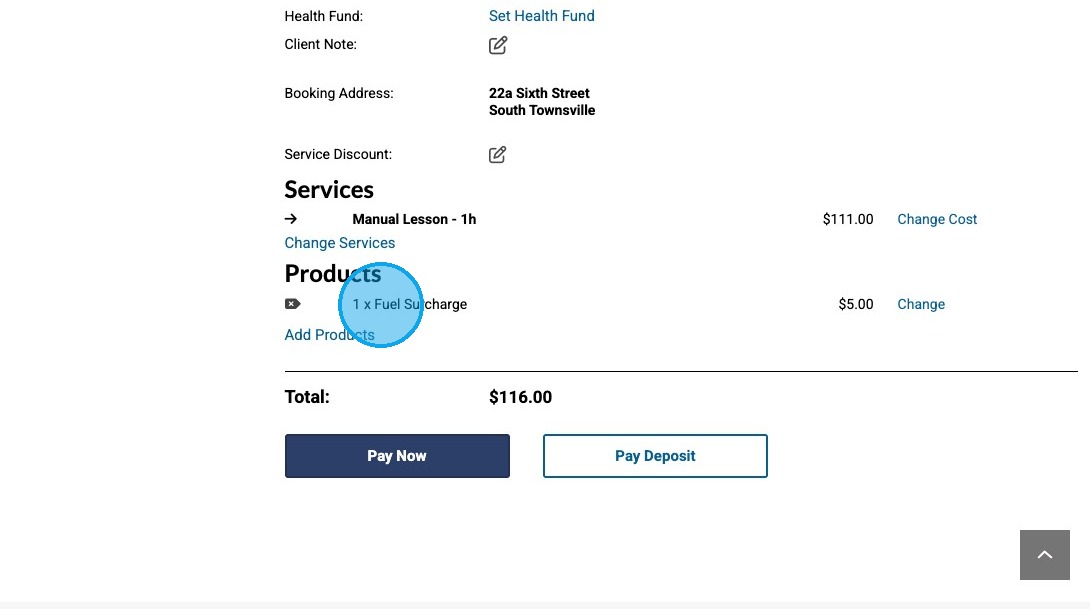
Click View Invoice. Note that surcharge has been added as a separate invoice line item.
Finally - any products and packages will need to have their price increased as per normal process by updating each individual product, this surcharge cannot be applied in the same way to these.
https://support.bookingtimes.com/docs/how-to-make-a-price-change#changing-the-packageproduct-price