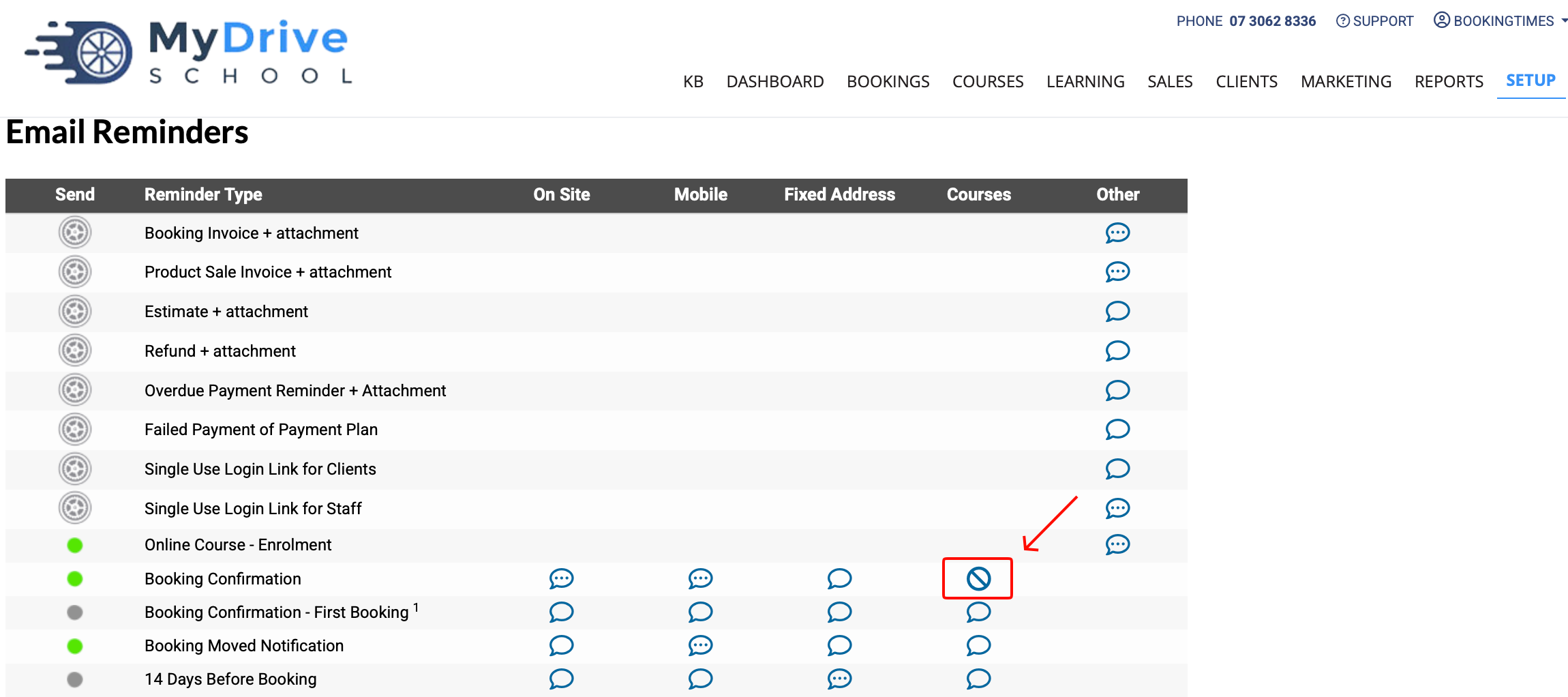
If a reminder is enabled (i.e. the green toggle is on), but you are wanting to disable them in certain scenarios only, there are 2 ways in which a reminder can be disabled:
All reminders can be disabled for a service (i.e. all SMS and/or email reminders), while they will continue to be sent to other services.
A reminder can be disabled for a specific service type. e.g. disable only the Course service type reminders, but continue to send them for other service types
Disable all reminders for a service
This option will disable all SMS and/or email reminders for a service that are currently toggled on via Setup > Correspondence > Reminders. It allows reminders to still be sent for all other services.
Steps
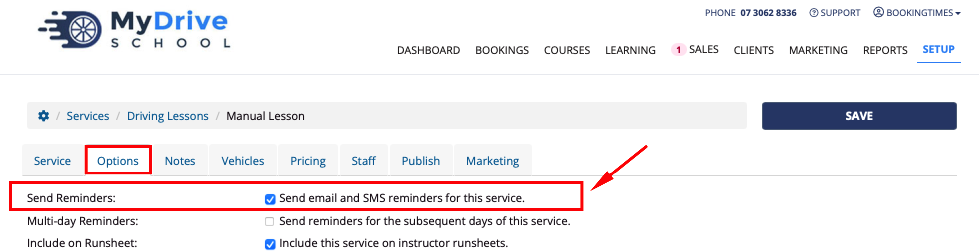
Navigate to Setup > Bookings > Services > select a Service > Options tab
Check or uncheck the Send email and SMS reminders for this service
Click Save
Disable a reminder for a specific service type
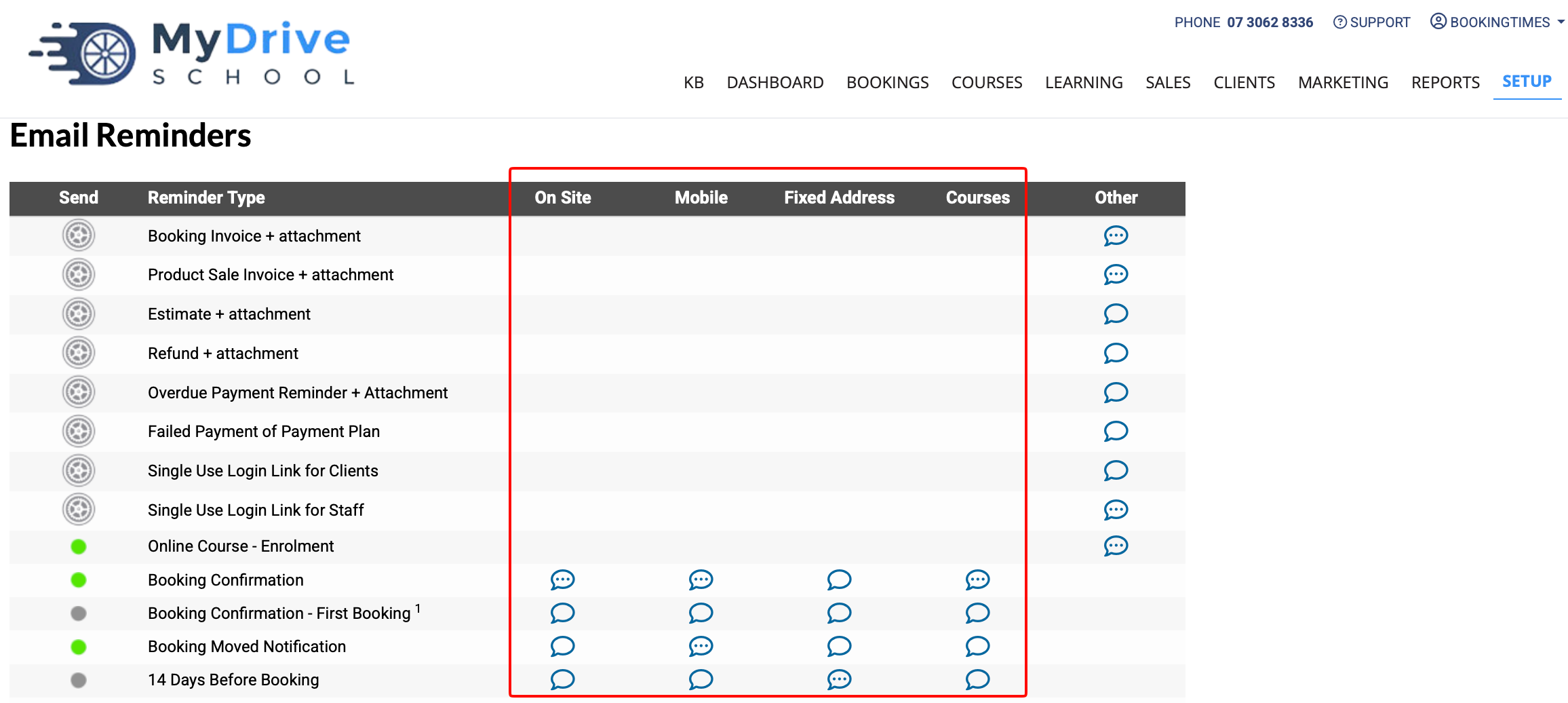
This option will disable the SMS and/or email reminders for a particular service ‘type’ that are currently toggled on via Setup > Correspondence > Reminders. The service types include On Site, Mobile, Fixed Address and also Courses (as they are defined a special type of service)
Steps
Navigate to Setup > Correspondence > Reminders
Select a speech bubble for the reminder you wish to disable, ensuring you click on the one in the correct Service Type column.
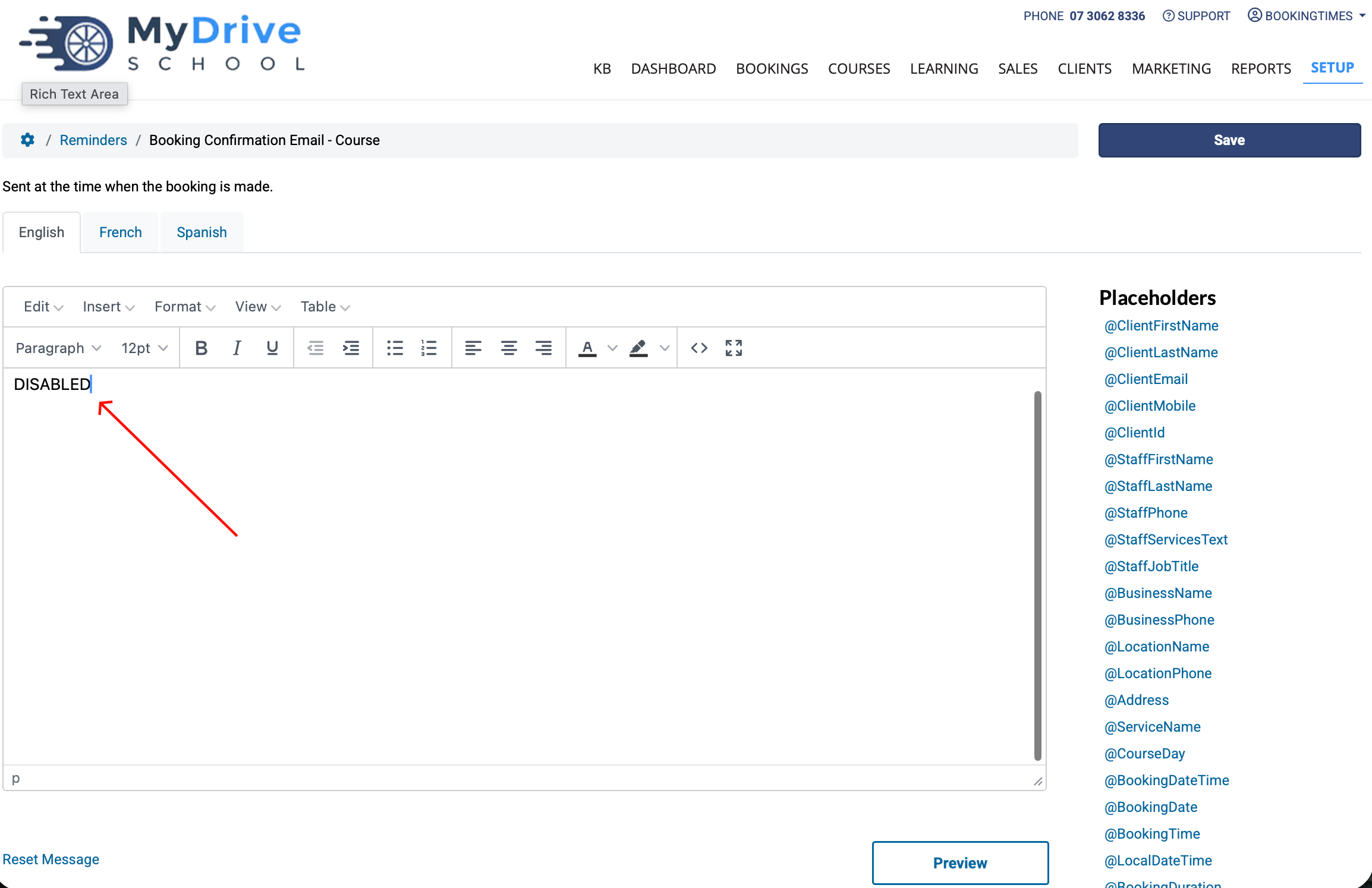
For this example we’ll select the Booking Confirmation / Courses speech bubble, enter the text “DISABLED” into the text area and click Save.
After you’ve disabled a reminder you can clearly see it when you view the Reminders screen as it now displays a different icon (circle with a line through it) to denote it’s disabled.