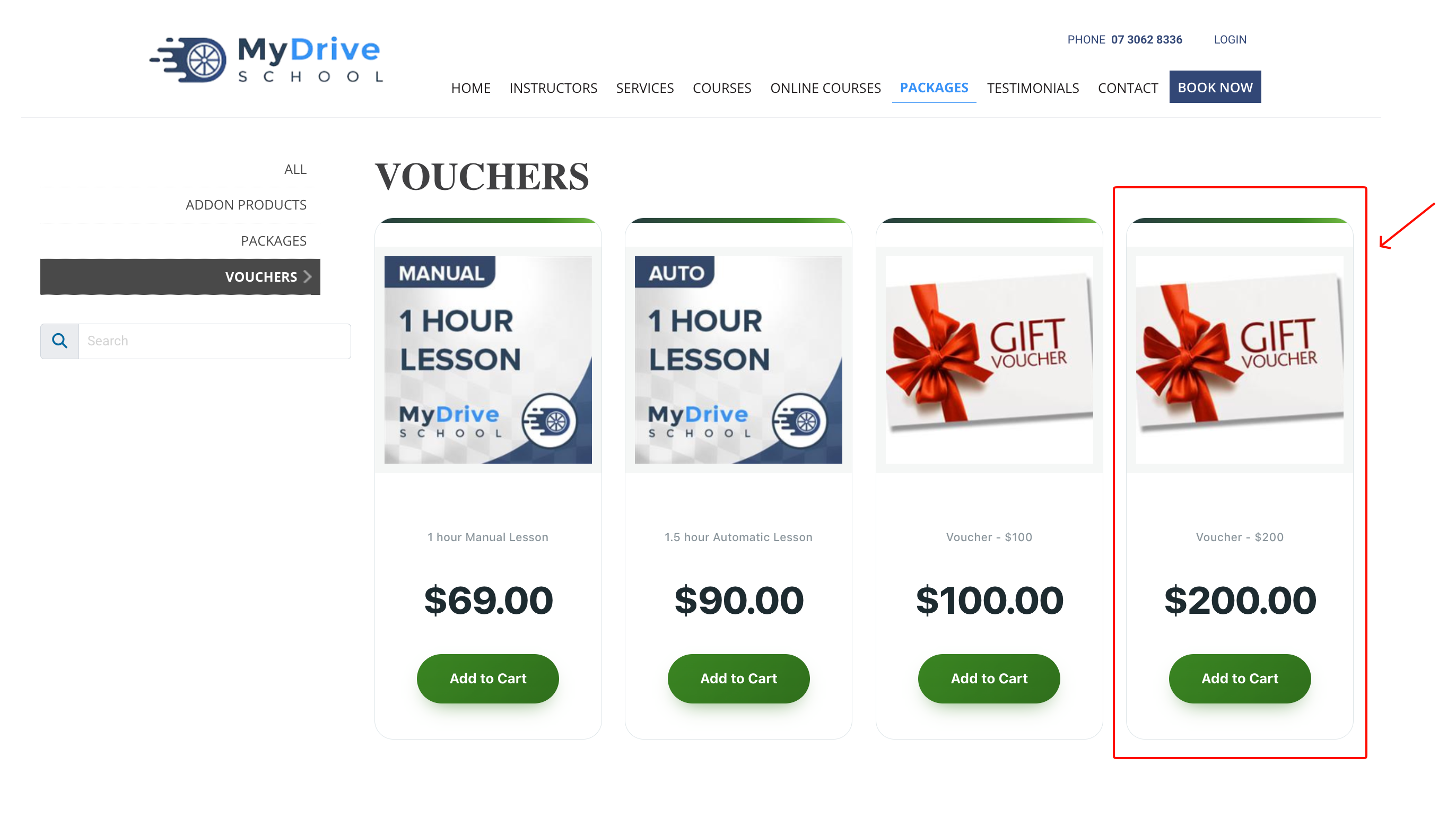
A quick way to create an additional product or package is by copying an existing product or package that shares similar configuration.
Steps
Navigate to Setup > Shopping > Products & Packages.
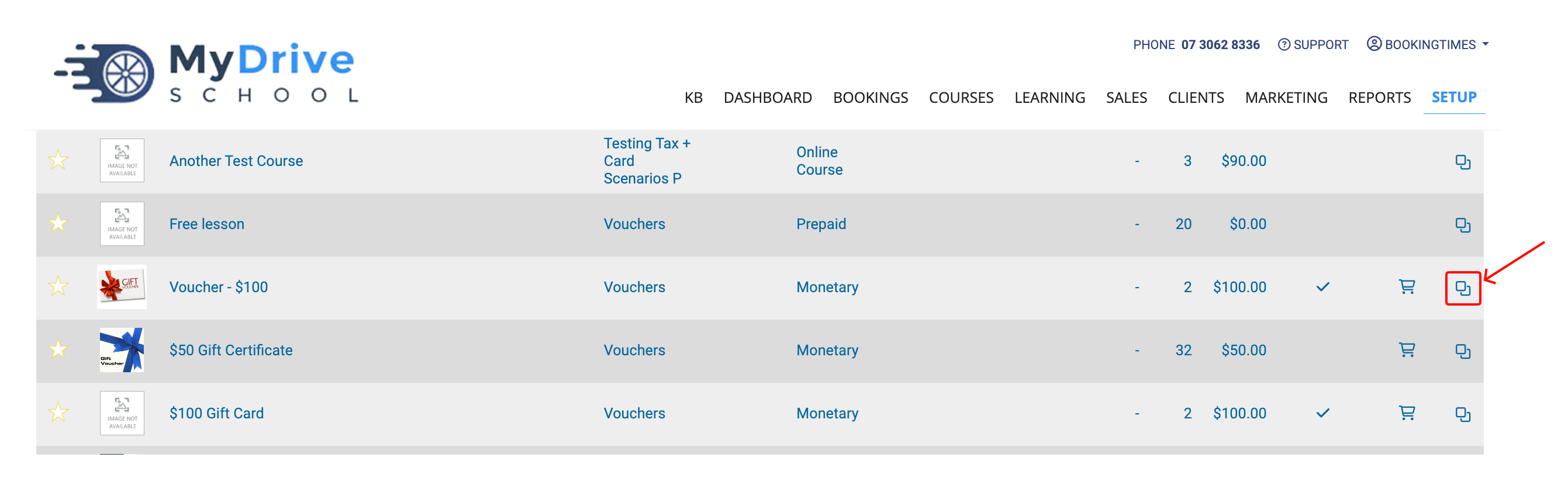
Click the copy icon for the Product or Package that you want to duplicate.
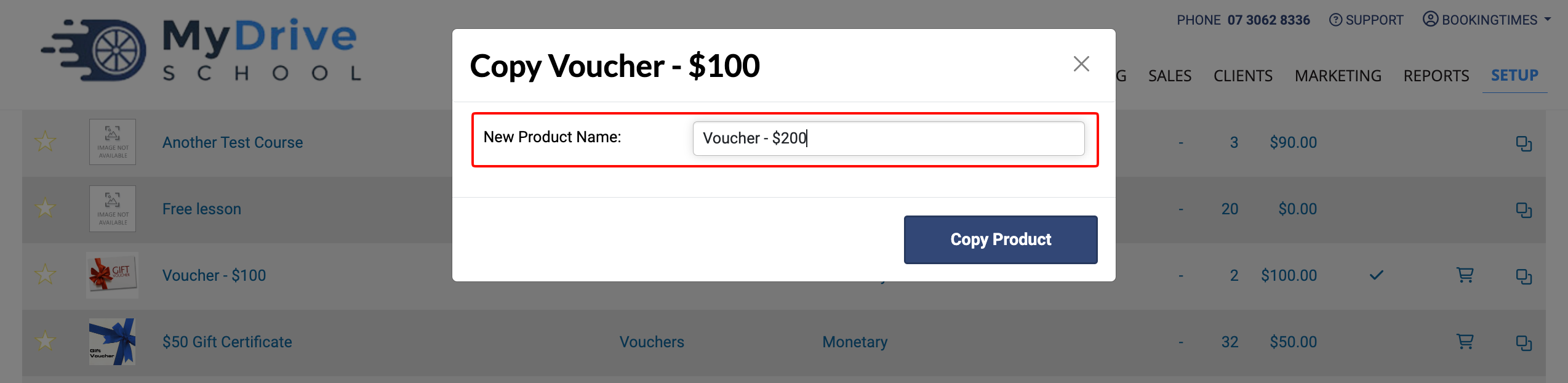
Enter the New Product Name and click the Copy Product button.
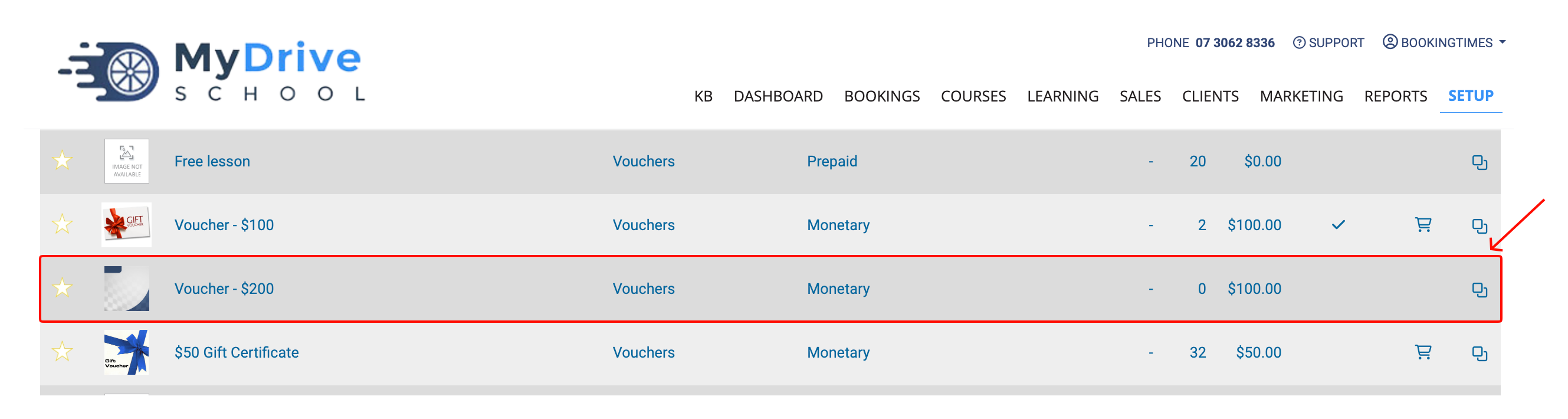
Select the new product that you just created from the Products list.
On the Product tab you can update details for the new product and set the Product Image, then click the Save button.
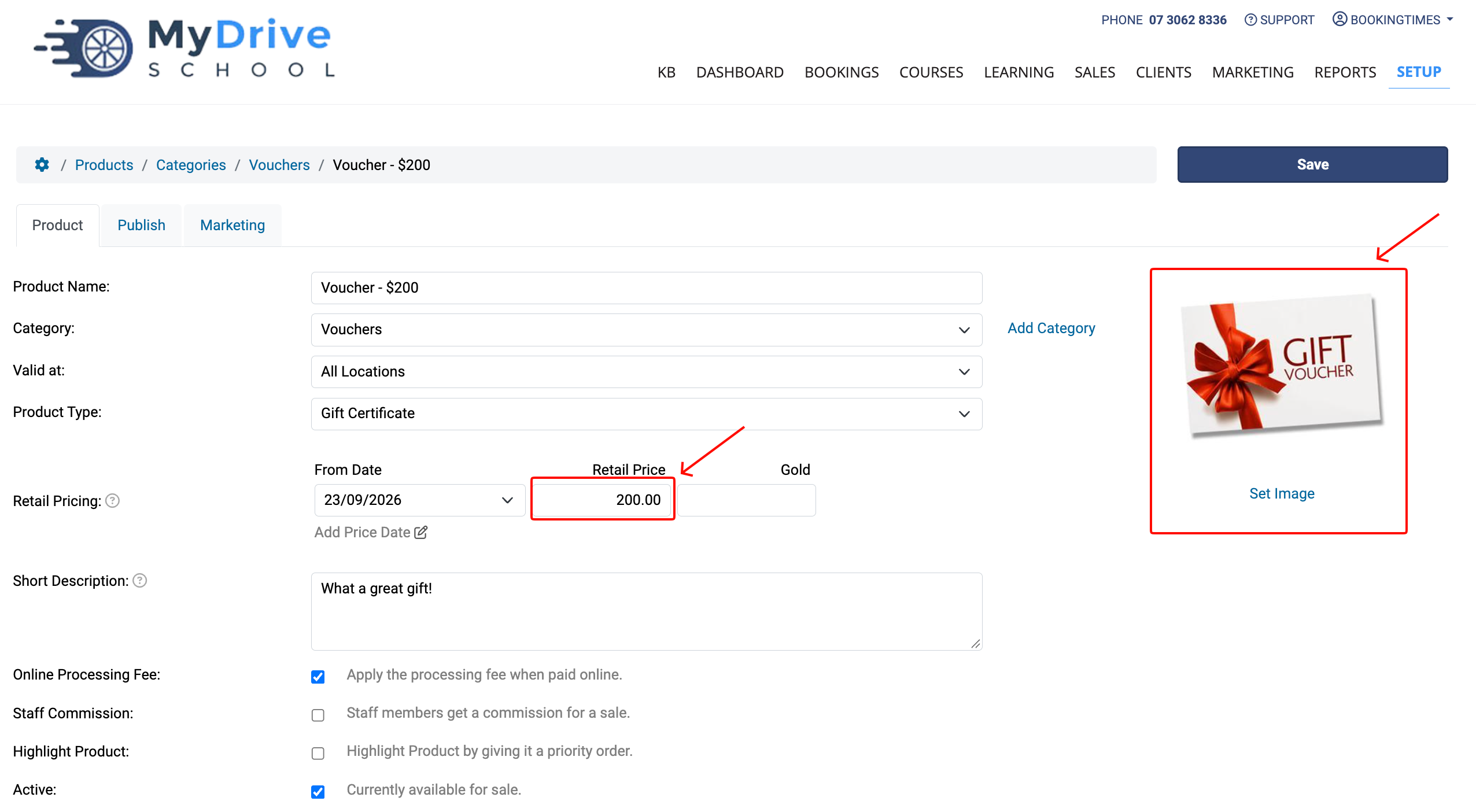
Note:
The product image isn’t copied automatically from the original product so you’ll need to update this otherwise the default product image will be used.
You can view or update the default product image by navigating to Setup > Website Content > General Layout then scrolling down to Product Background Template.
To publish the product to your website, click on the Publish tab, then turn on the relevant options. Make sure to check the Product Page Content and update the content as required. Don’t forget to click the Save button.
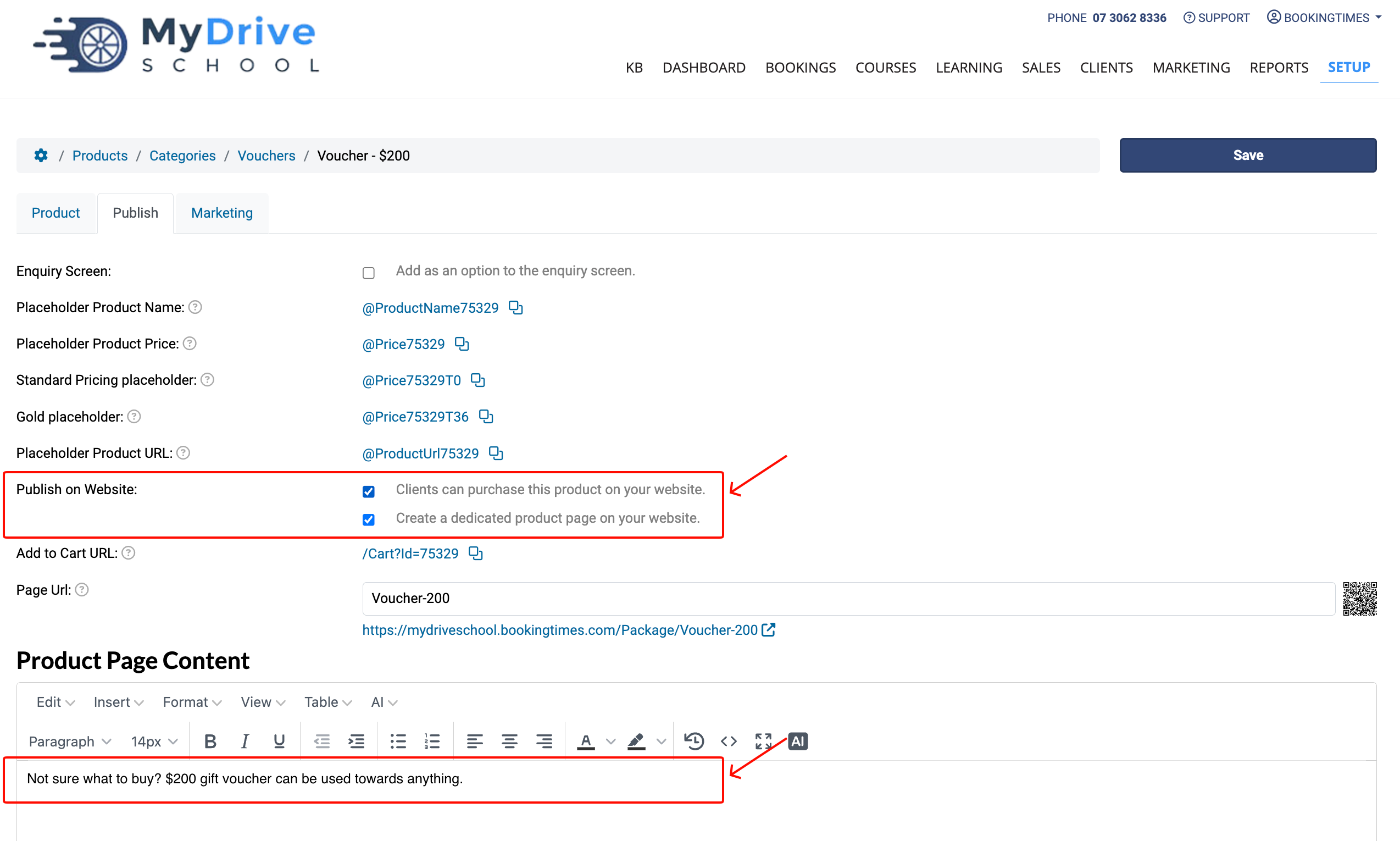
Your new product has now been added to your website and is available for clients to purchase.