This feature is available on these plans (view pricing)
Register BookingTimes as an SSO in Entra
Who this is for: staff and admin users. Students and members are unaffected and continue to sign in as they always have. Email and password sign-in also keeps working for staff, so nothing breaks while you test.
Before you start
When someone signs in with Microsoft for the first time, BookingTimes matches them to their existing staff record using first name, last name and email address. All three must match, so check both sides first:
In Entra: every staff member's record has First name, Last name and email filled in (Users > select the user > Properties). Someone whose record has no first or last name cannot be matched. A display name in the form "Firstname.Lastname" is a strong hint those fields are empty.
In BookingTimes: their staff profile shows the same first name, last name and email address.
Register BookingTimes as an SSO in Entra
Sign in to the Microsoft Entra admin center and navigate to Identity > Applications > App registrations
Click New registration
Enter a name your users will recognize, for example BookingTimes
For supported account types, choose Accounts in this organizational directory only (single tenant)
Under Redirect URI, select the platform Web and enter:
https://bookingtimes.com/OAuth/EntraClick Register, then copy the Application (client) ID and the Directory (tenant) ID from the Overview page
Go to Certificates & secrets > New client secret, add a secret, and copy the Value straight away. Microsoft hides it as soon as you leave the page, and the Secret ID is not the value you need. Note the expiry date and set a reminder — sign-in stops working the day the secret expires, so it needs replacing before then
Under Authentication, add a post sign-out (front-channel logout) redirect URI pointing at your BookingTimes login page, for example
https://yourschool.bookingtimes.com/Login. Add every address you use, including your final production domainGo to API permissions and confirm the delegated permissions openid, profile, email and offline_access are present. Add any that are missing. They are listed under Microsoft Graph in the Entra interface — these are the standard OIDC sign-in scopes, not data access
If your tenant requires administrator approval for applications, have a Global Administrator, Application Administrator or Cloud Application Administrator use Grant admin consent for [your organisation] on the same page. Without it your staff see "Need admin approval" the first time they sign in, and clicking through only files a request for an administrator to approve later
Go to Token configuration > Add optional claim > ID and add email, given_name and family_name. BookingTimes needs all three in the ID token to match a person to their staff record. This is the step most often missed. If it is skipped, sign-in succeeds at Microsoft but BookingTimes has nothing to match on, and your staff are sent to a sign-up form. Note that adding a claim does not create a name that is missing from the directory — see Before you start
The redirect URI is https://bookingtimes.com/OAuth/Entra for every BookingTimes website, so your own web address is not entered in Entra. Your website address travels with the sign-in request and Microsoft returns your users to your own site once they have signed in.
BookingTimes does not read mailboxes, calendars, files or directory data, and never calls the Microsoft Graph API. No tenant-wide application permissions or client credentials are needed, and BookingTimes does not impersonate users. The four permissions above are the standard sign-in permissions that confirm who the person is. offline_access is required so a signed-in session can be renewed quietly while someone is working.
Enable Entra in BookingTimes
To enable this in BookingTimes:
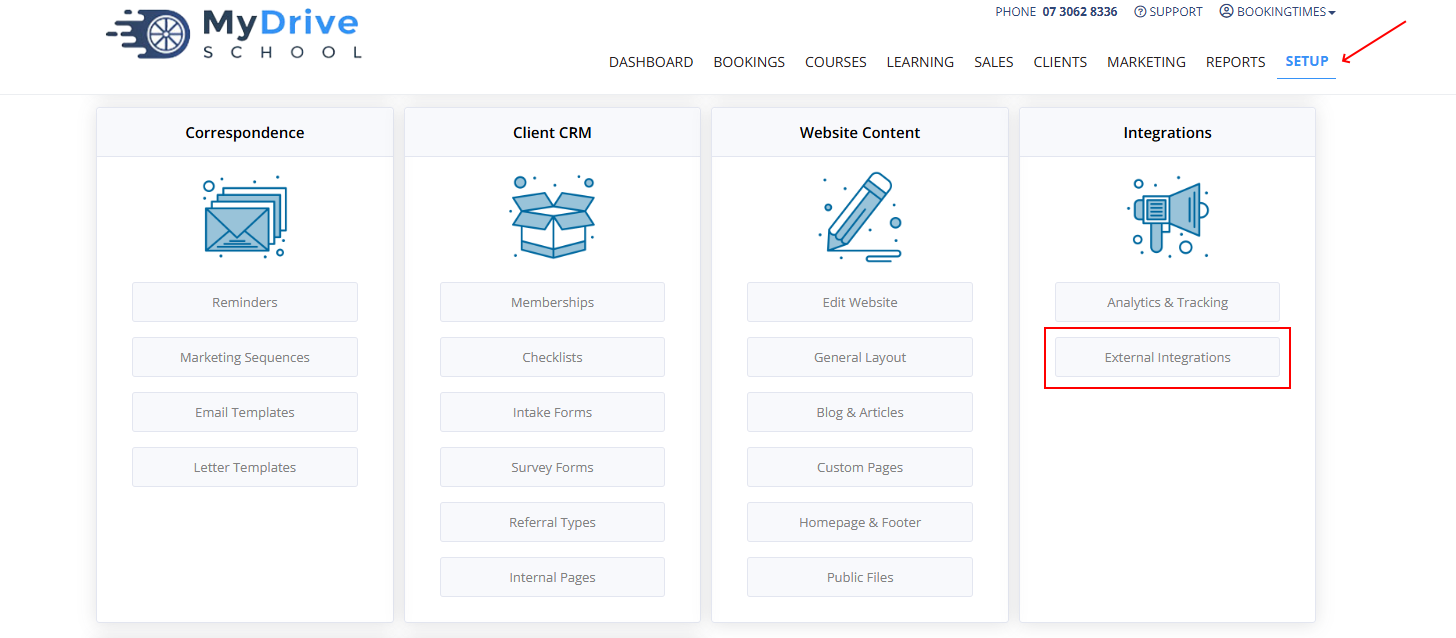
On your BookingTimes website, navigate to Setup > Integrations > External Integrations
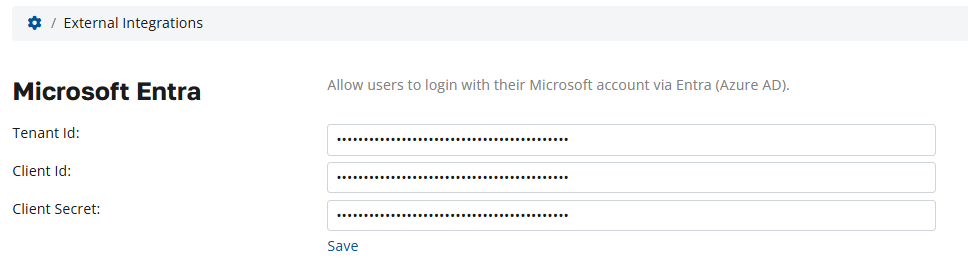
Under Microsoft Entra, enter your Directory (tenant) ID, Application (client) ID and client secret
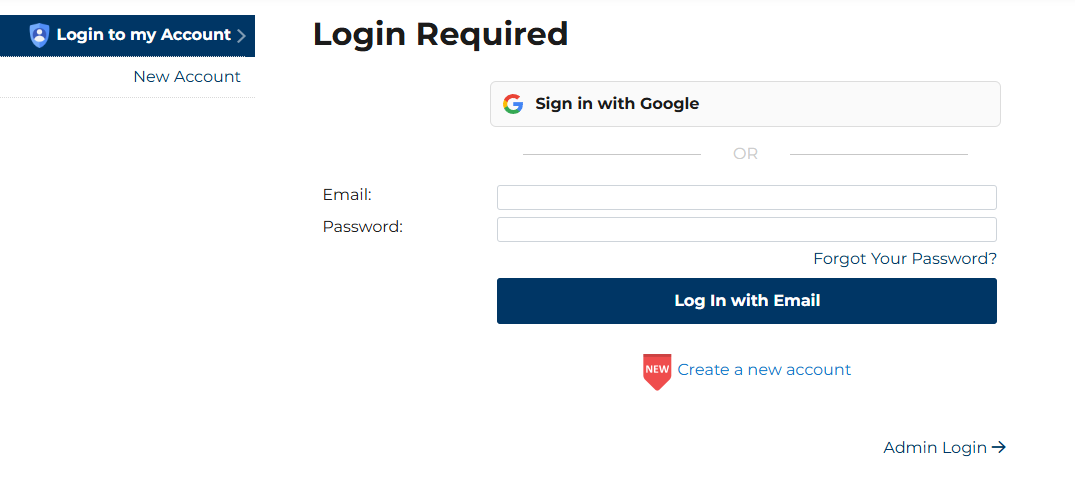
Sign out, then use the new "Admin Login" link on your login page
Assigning staff roles automatically
You can have BookingTimes set a staff member's role from the app role they hold in Entra.
In the Entra admin center, open your BookingTimes app registration, go to App roles and create a role for each BookingTimes role you want to assign, then assign your users or groups to those roles under Enterprise applications > Users and groups
In BookingTimes, navigate to Setup > Role Permissions > Manage Roles
Open the role, enter the Entra app role value in External Role Map, and save
See “Security and Permissions” article for instructions on mapping activated accounts
If someone is sent to a sign-up form instead of signing in:
This means BookingTimes could not match them to an existing staff record. Check in this order:
The ID token claims. Confirm email, given_name and family_name are configured under Token configuration. This is the most common cause
First name and Last name on their Entra user record (Users > select the user > Properties). Empty name fields will also prevent a match
Their BookingTimes staff profile. It should show the exact same first name, last name and email address as their Microsoft account (Rob and Robert are NOT matches)