Cancelling a product sale (either a Sale triggered by an admin, or a Web Sale by the client) depends on if it’s been paid or not, and if so what payment method it was paid with.
If a product sale is unpaid, then it can simply be deleted. i.e. No money was exchanged
If it’s been paid, then you have 2 options:
If a product sale was paid for using the online integrated payment system (e.g. credit card), then a product sale cannot be cancelled or deleted. This is to ensure that the financial records remain accurate as an online payment has been completed for something. Any adjustments will need to be made manually to reflect your business scenario.
If a product sale was paid for via an alternative payment method (i.e cash, bank transfer), then a products sale can be deleted, or have its payment cancelled.
Cancelling an unpaid product sale
Steps
Navigate to the sale (via the Sales menu, the Dashboard or Client record History tab)
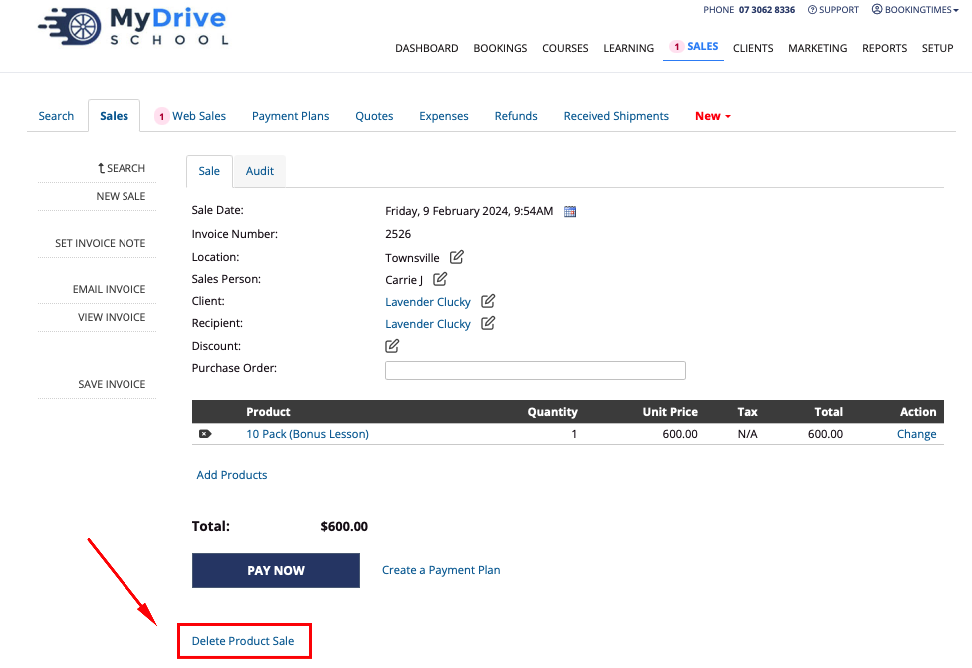
Cancel the sale by clicking Delete Product Sale on the sale screen
Cancelling a paid product sale - online payment
If a product sale was paid for using the online integrated payment system (e.g. credit card), then a product sale cannot be cancelled or deleted. This is to ensure that the financial records remain accurate as an online payment has been completed for something.
Any adjustments will need to be made manually to reflect your business scenario. e.g. if the sale was for prepaid vouchers, then redeem the vouchers to the client’s account balance and re-allocate as needed, including if a refund needs to be done.
Cancelling a paid product sale - other payment method
If a product sale was paid for via an alternative payment method (i.e not online/credit card but cash, bank transfer et), then a products sale can be deleted, or have its payment cancelled. Both scenarios will be covered below.
Delete product sale
When a product sale is deleted in this case, no money is returned to the account balance as it’s assumed that it was an incorrect payment allocation.
Steps
Navigate to the sale (via the Sales menu, the Dashboard or Client record History tab)
Cancel the sale by clicking Delete Product Sale on the sale screen and confirm on the popup
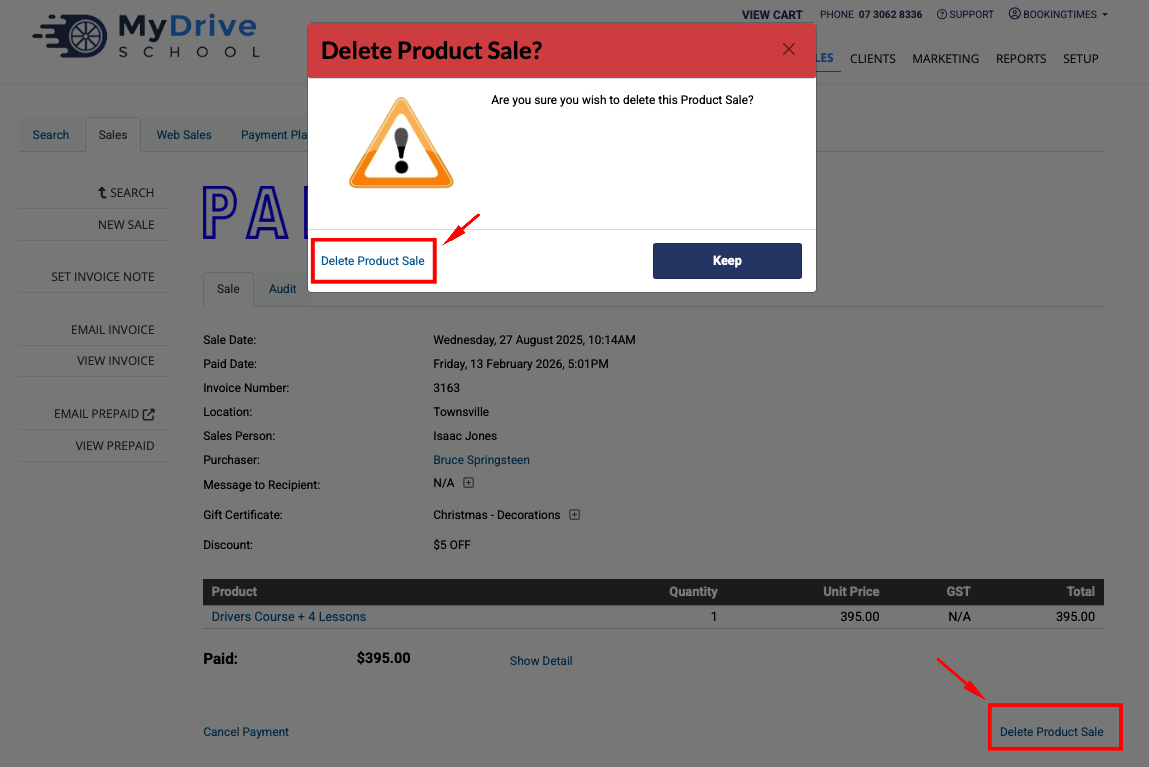
The product sale is deleted, and this record can still be viewed via the client’s History tab and clicking Show Deleted Records link at the bottom of the table.
Cancel payment for the product sale
You may wish to cancel payment for a product sale in case you incorrectly allocated the previous payment type.
Steps
Navigate to the sale (via the Sales menu, the Dashboard or Client record History tab) payment can also be cancelled in case the incorrect payment type was added.
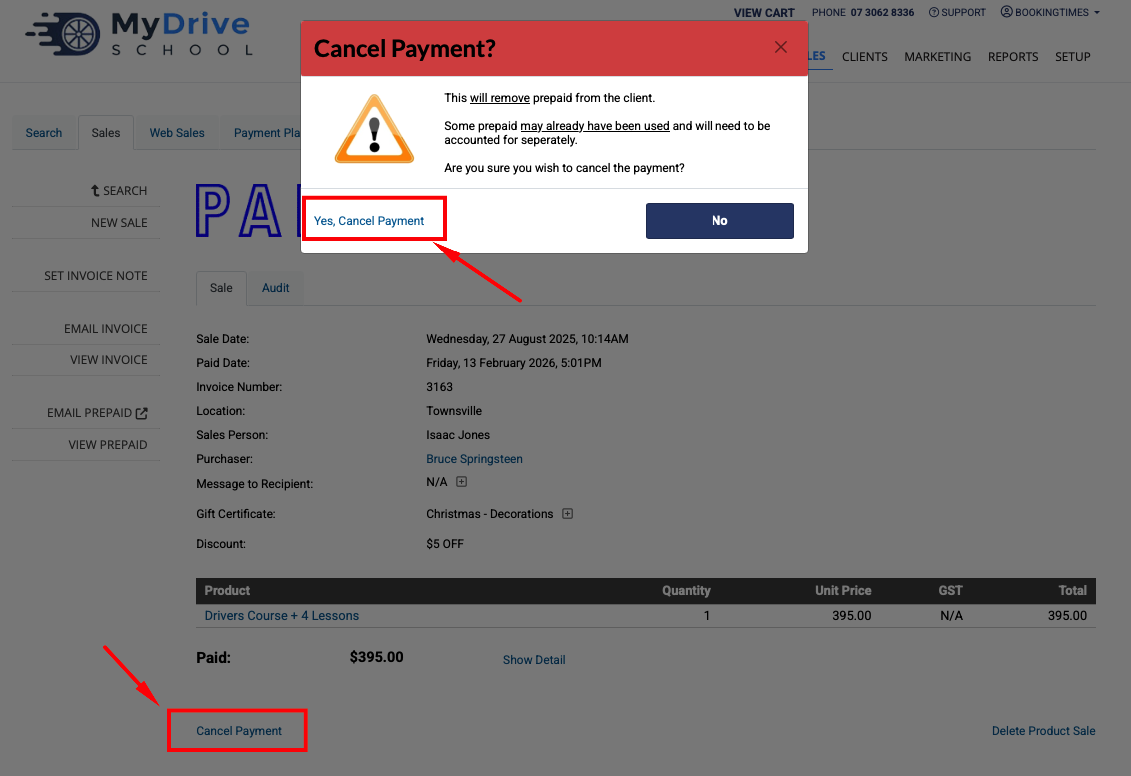
Click Cancel Payment link on the sale screen and confirm on the popup
Note if the product sale was for prepaid vouchers, if any vouchers were already used you will need to account for those separately, but any remaining vouchers from this initial sale will be removed from the client.