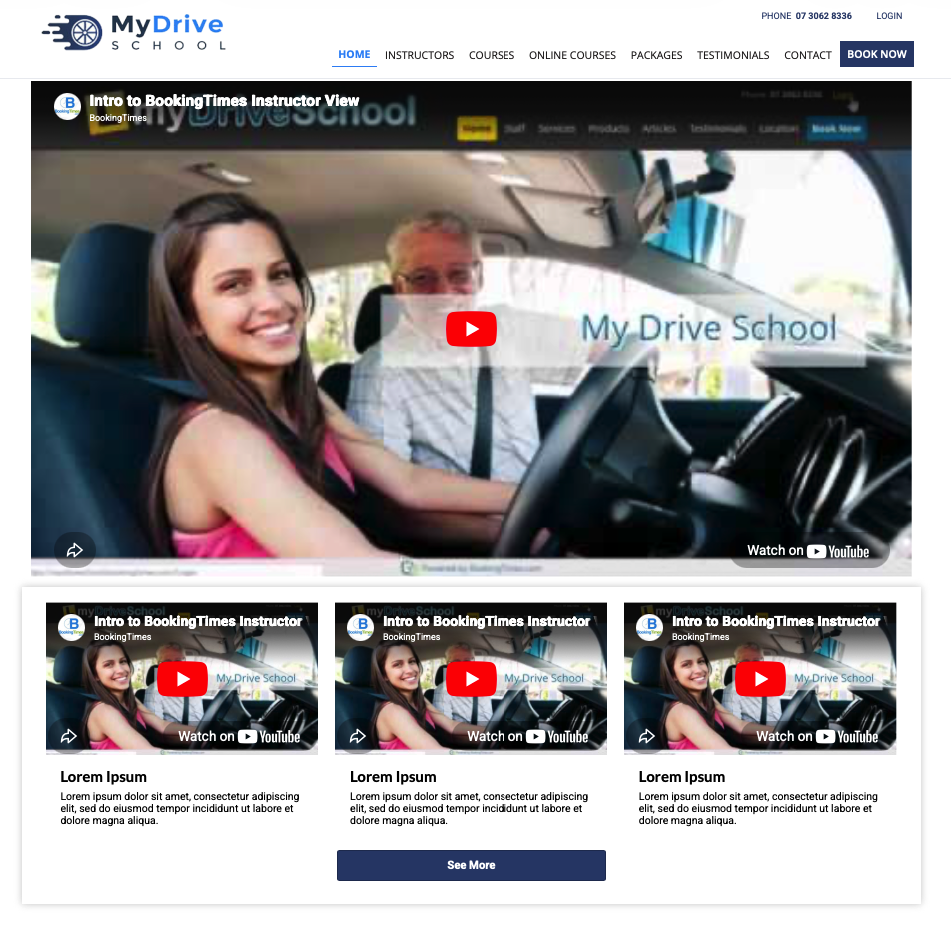
This guide details how to add either a single, or 3 embedded YouTube videos to your website. They can be added to your homepage, or to any published page (e.g. published service pages, published suburb page, or custom pages).
See example of both snippets below:
These instructions will outline how to add these snippets to your homepage, to add to another page, simply navigate to that page and get into Full Page Editor mode by clicking the 4 arrow icon.
Steps
Navigate to Setup > Website Content > Edit Website
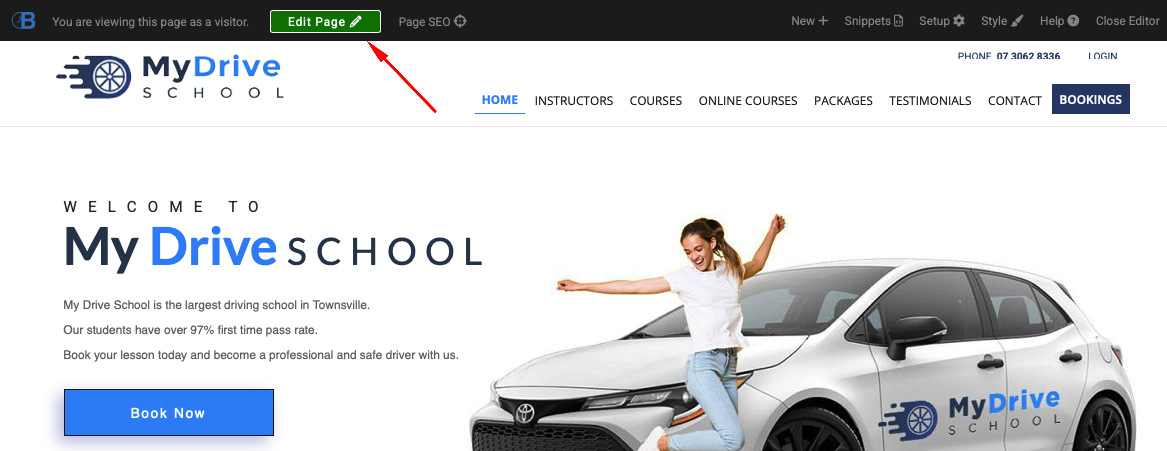
Click Edit Page button in the top toolbar
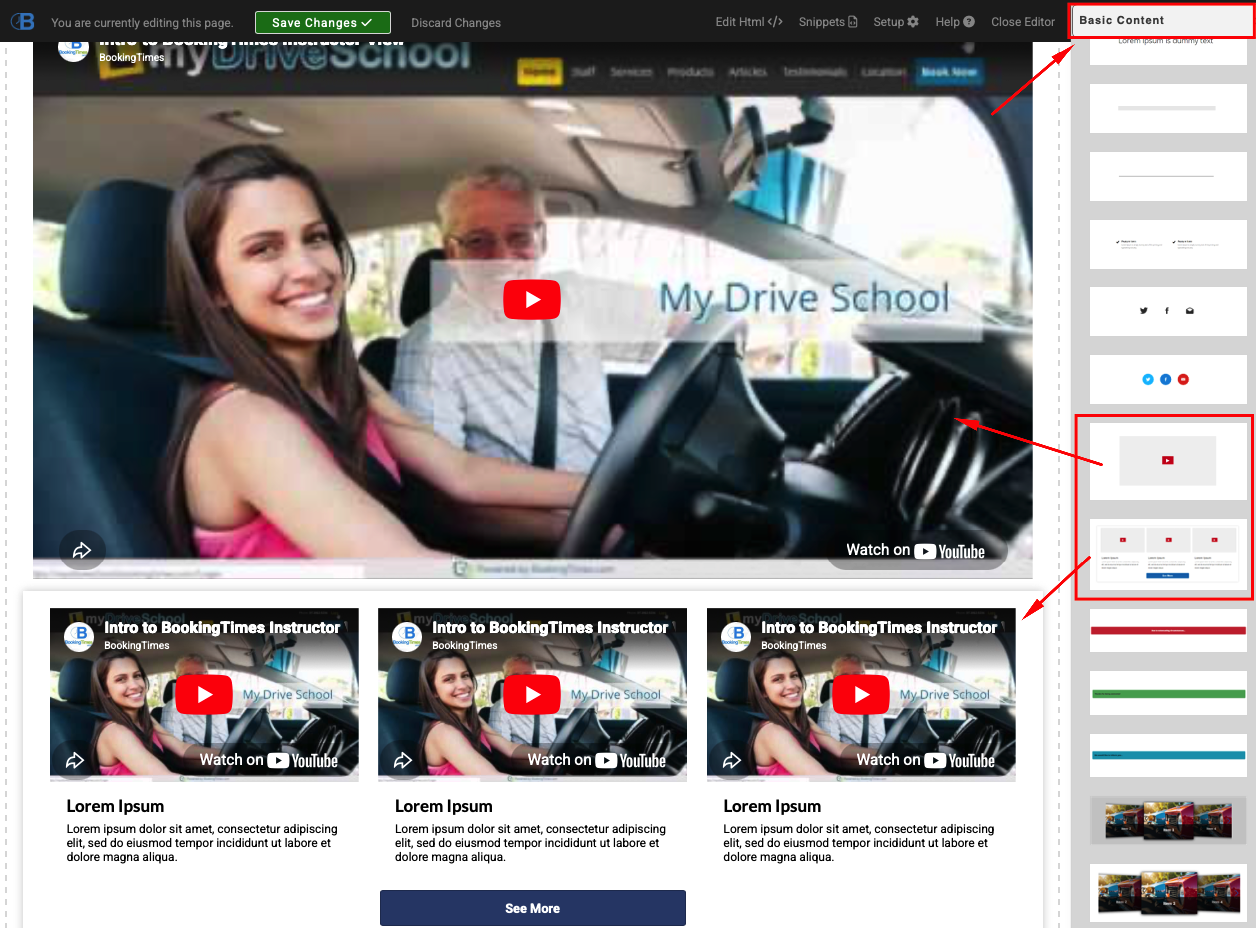
From the snippet selection on the right, select the Basic Content Category
Select the desired YouTube snippet and drag and drop it on to where you would like it to appear on your homepage
Click on the snippet and then click on the grey cog icon when it appears
Paste in the link to the YouTube video you want to show and click OK. You get that link by going to the YouTube video in YouTube, click Share, and copy the link that appears in the popup.
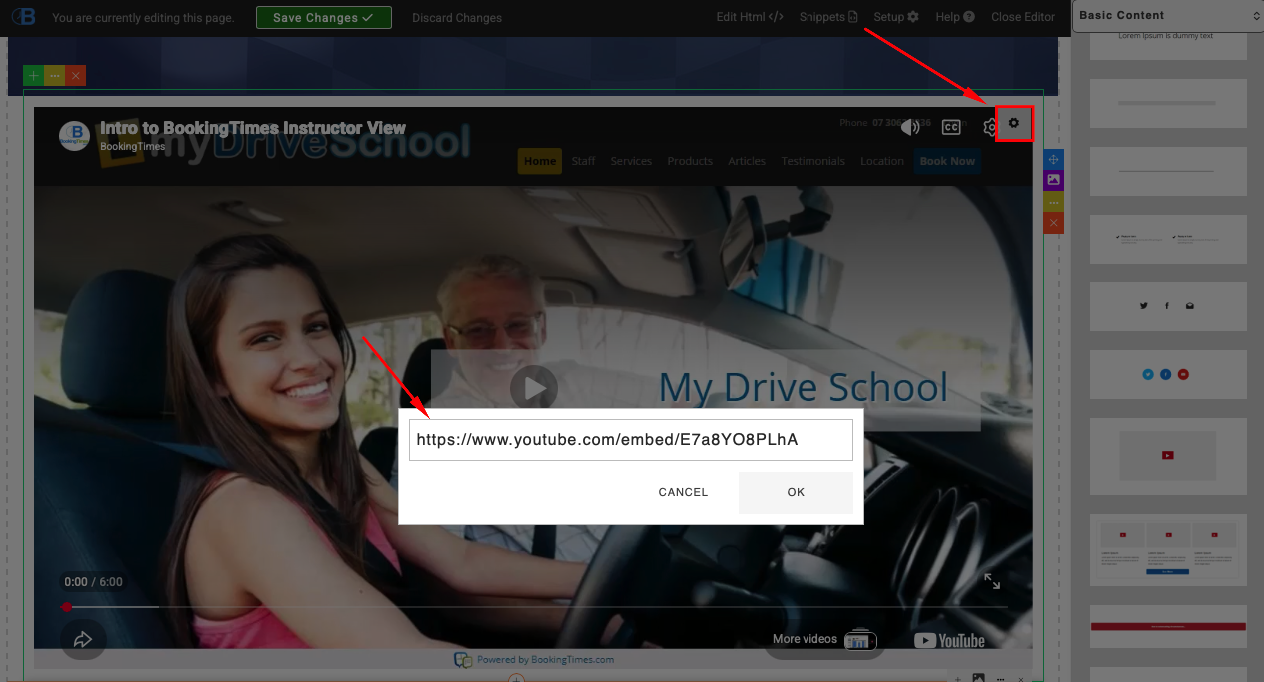
If you are using the 3 video snippet, repeat this process for each of the remaining videos.
You will also need to edit the text under each video by just clicking into the text and updating it.
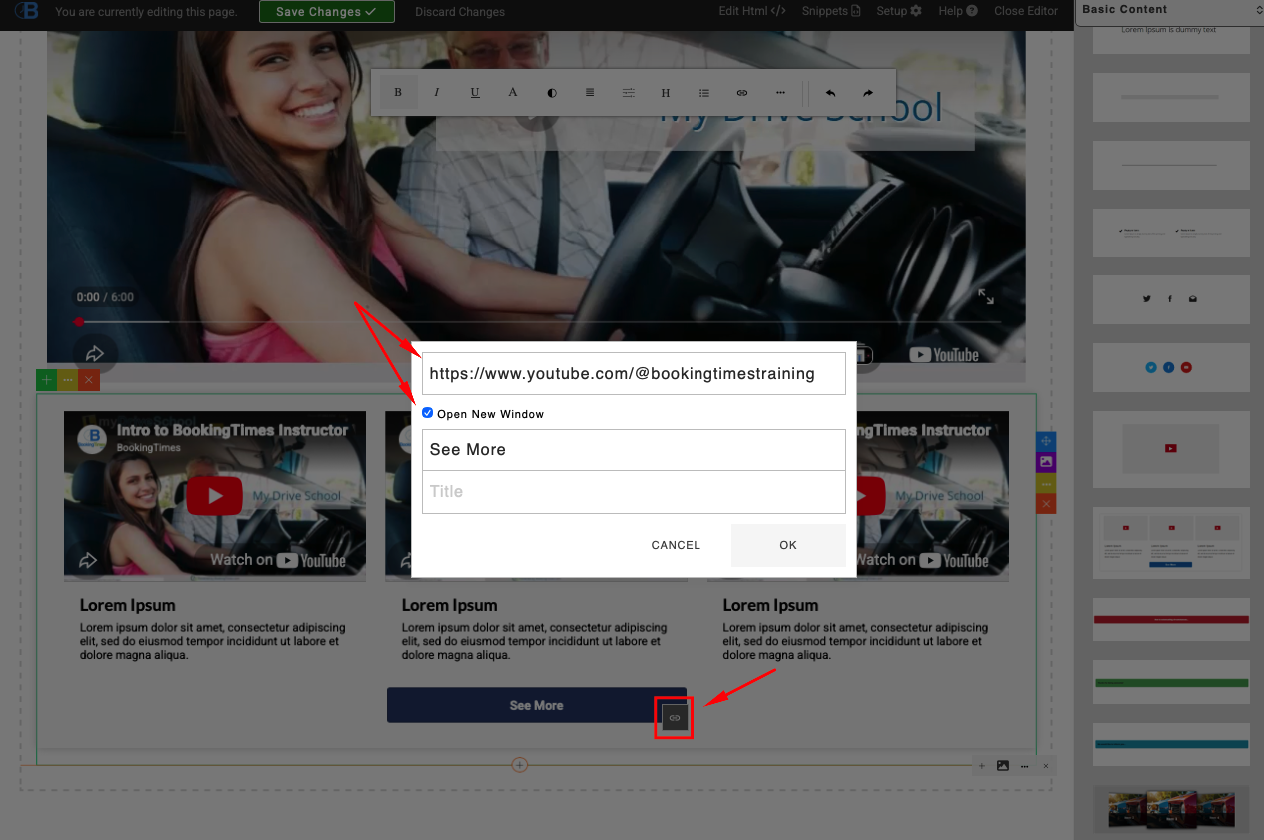
And finally, click on the See More button > click on the link icon > add a link to your YouTube channel. Ensure you select Open New Window so it doesn’t close your website window, you want to keep that open for bookings! Click OK when completed.
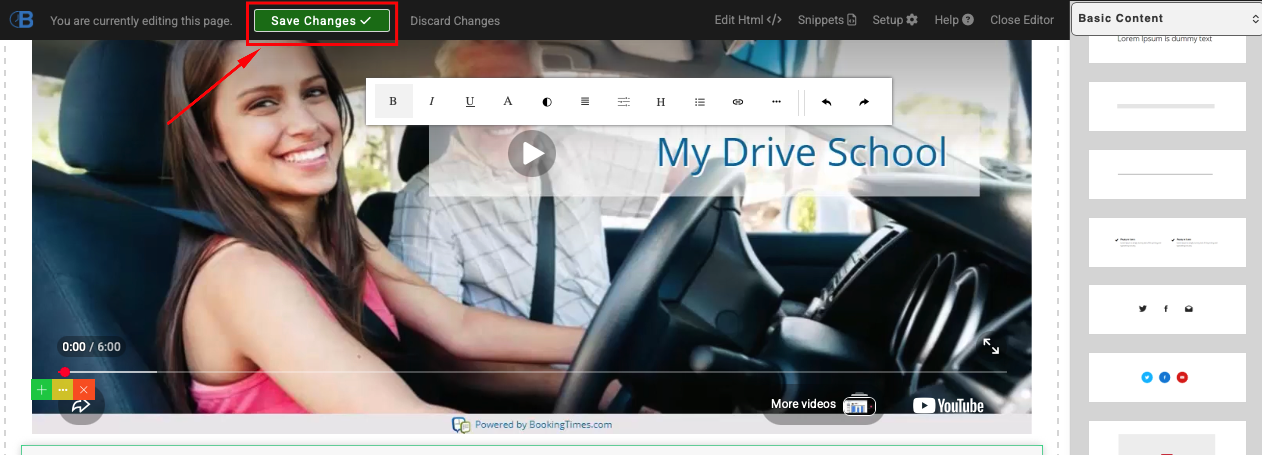
Click Save Changes in the editor tool bar when you’ve completed all your updates.
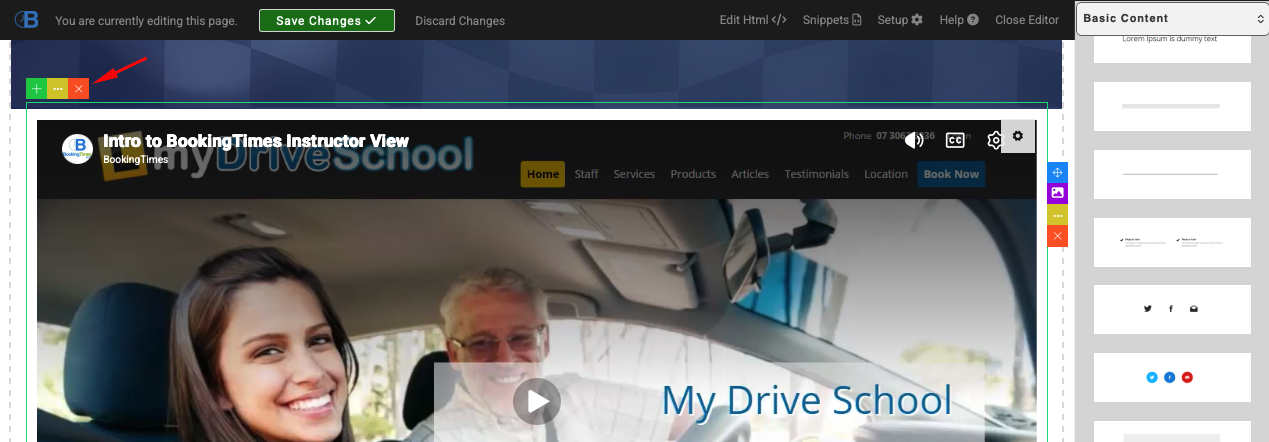
If you’re wanting to ever remove the snippet, follow the above steps to get back to editing mode. Select the video snippet and click on the red ‘x’ icon to delete it, then Save Changes button.