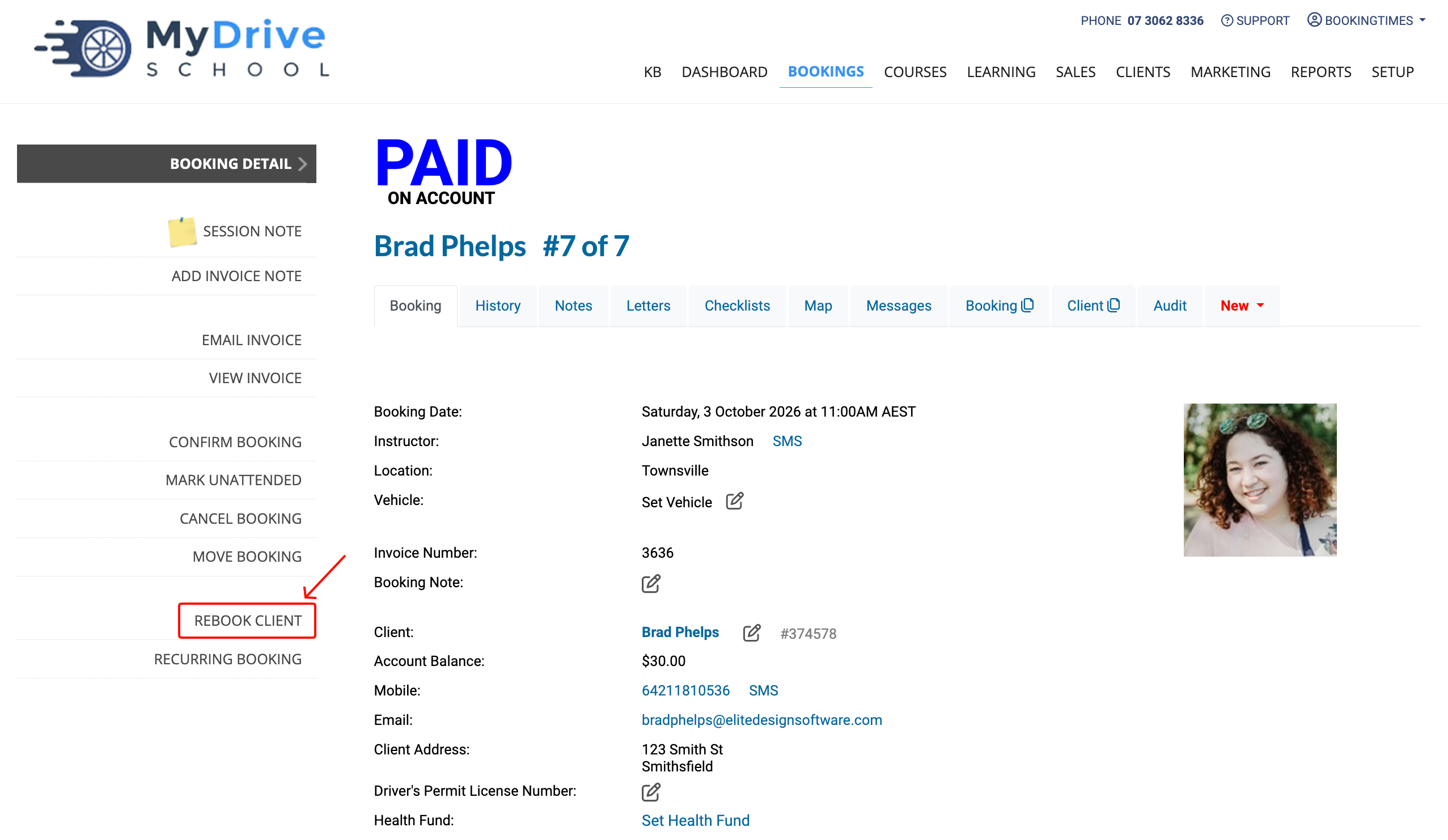
When viewing a Booking, you can easily rebook the same client for the same service with the Rebook Client action which will display a popup that includes any rebooking possibilities.
To access this feature ensure it’s enabled via Setup > System Settings > Business detail > Bookings tab > select Show possible availabilities when rebooking. > Save
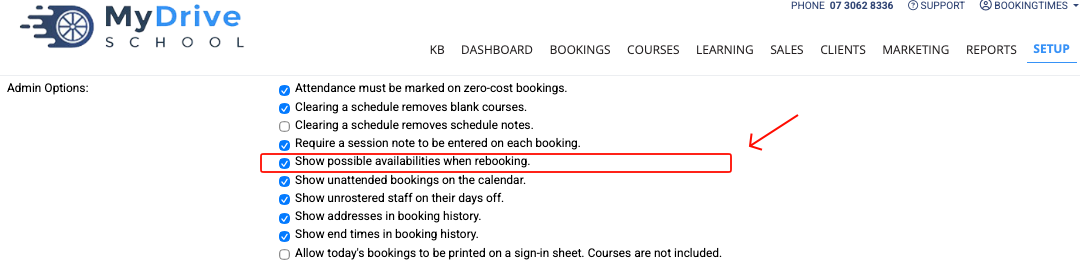
Please note: if you wish to turn this feature off please unselect it from above, and upon Rebooking the normal booking calendar will be displayed for you to navigate and select the desired day and time for booking.
Steps
Ensure the rebooking
Navigate to the Bookings page.
Select the relevant booking.
Click Rebook Client from the Booking Detail screen.
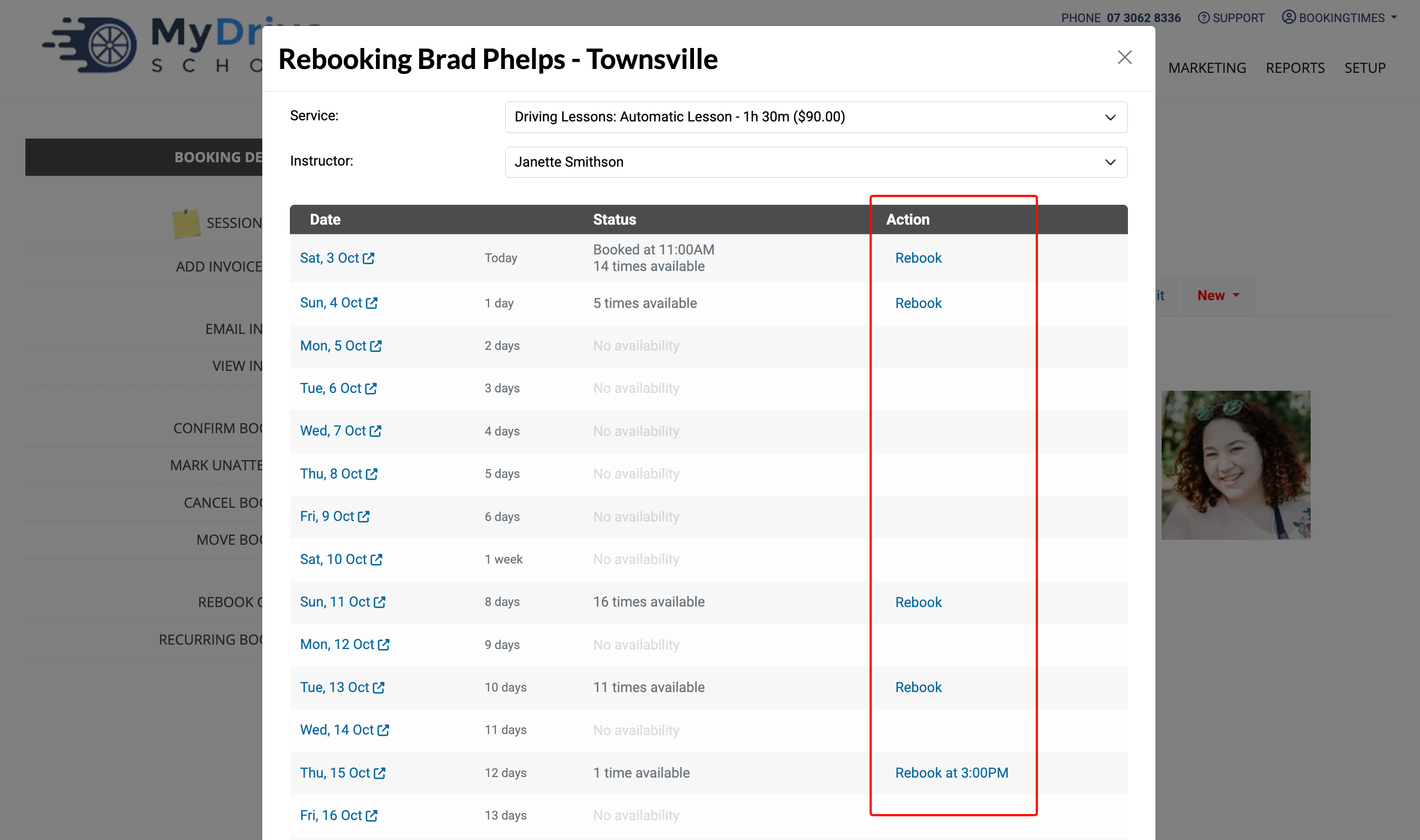
Choose the Service and Instructor that you want to rebook with — the system will default to the same service and instructors as the booking you selected earlier.
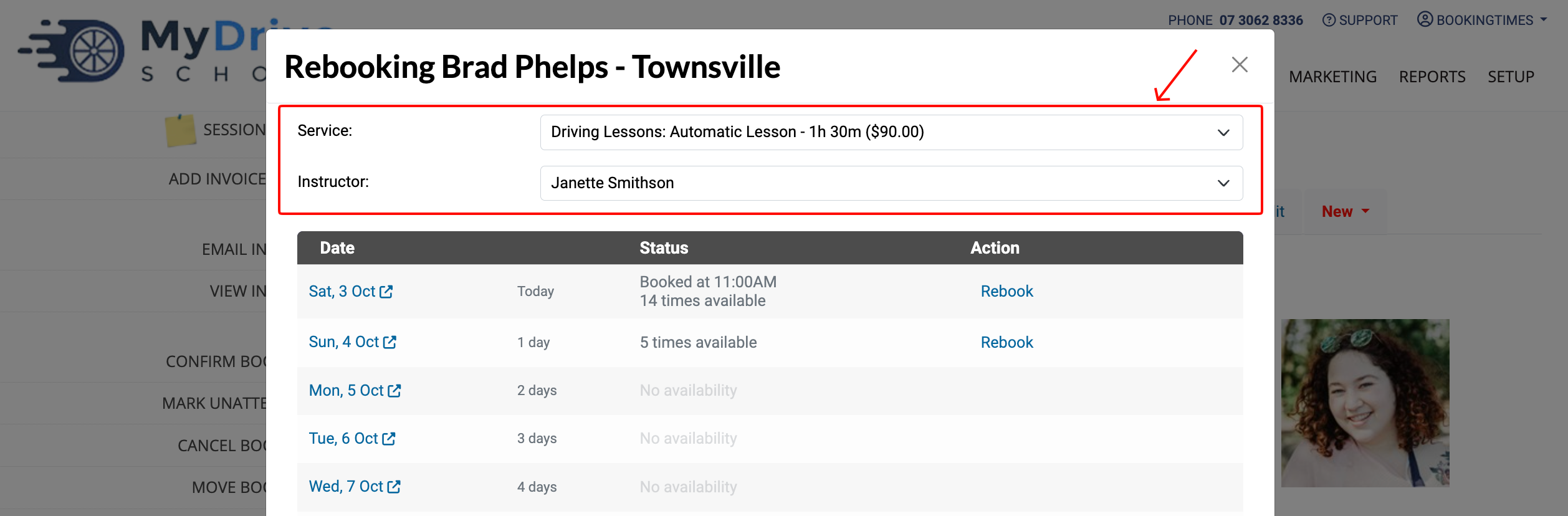
Find the date that you want to book and then click the Rebook link to choose the available time.
Tips
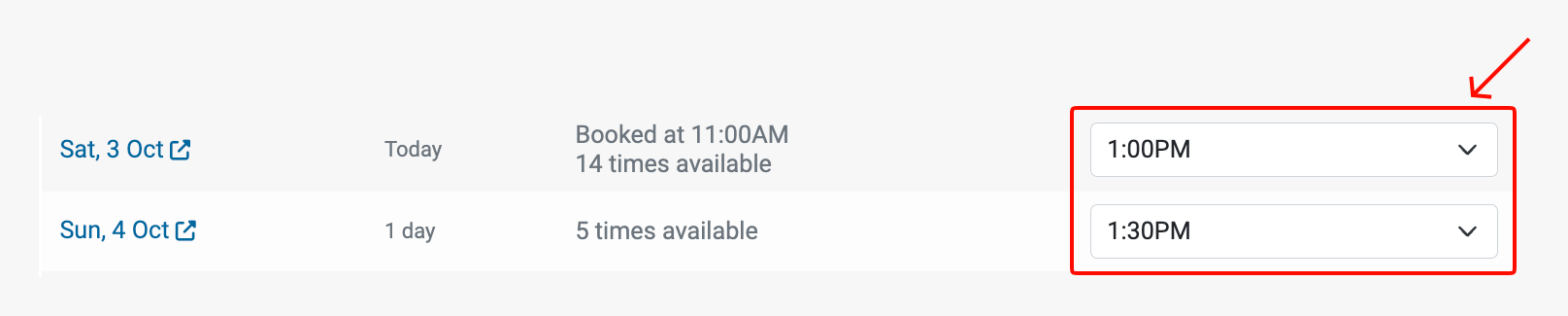
You can select multiple dates/times for the future by clicking on multiple Rebook links to select your desired times. Note that only 1 specific time is able to be selected per day.
If a particular day only has a single time available, it will display this information in the list and will be selected immediately when you click on the link.

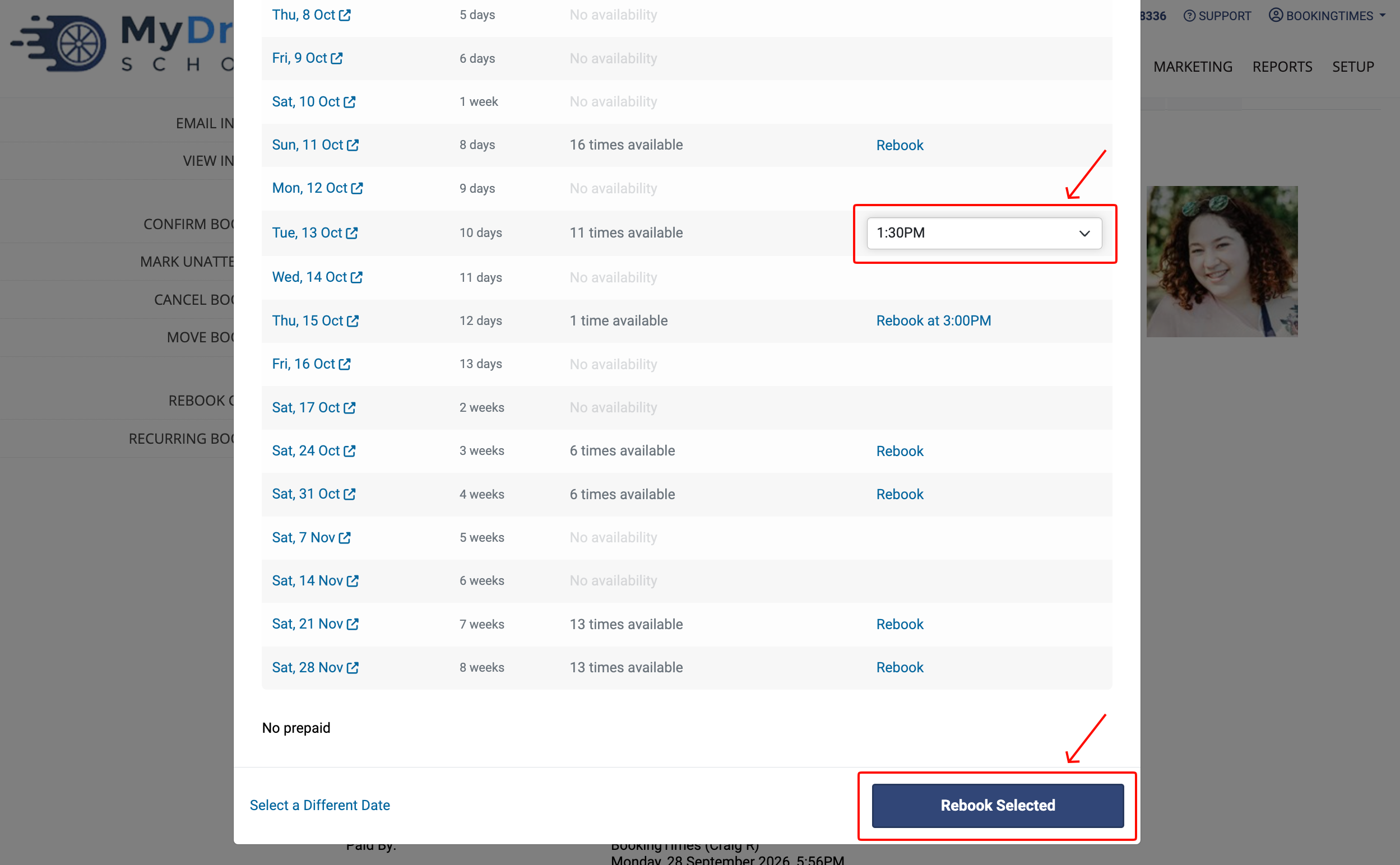
Once you have selected all the dates/times you want to book, click the Rebook Selected button.
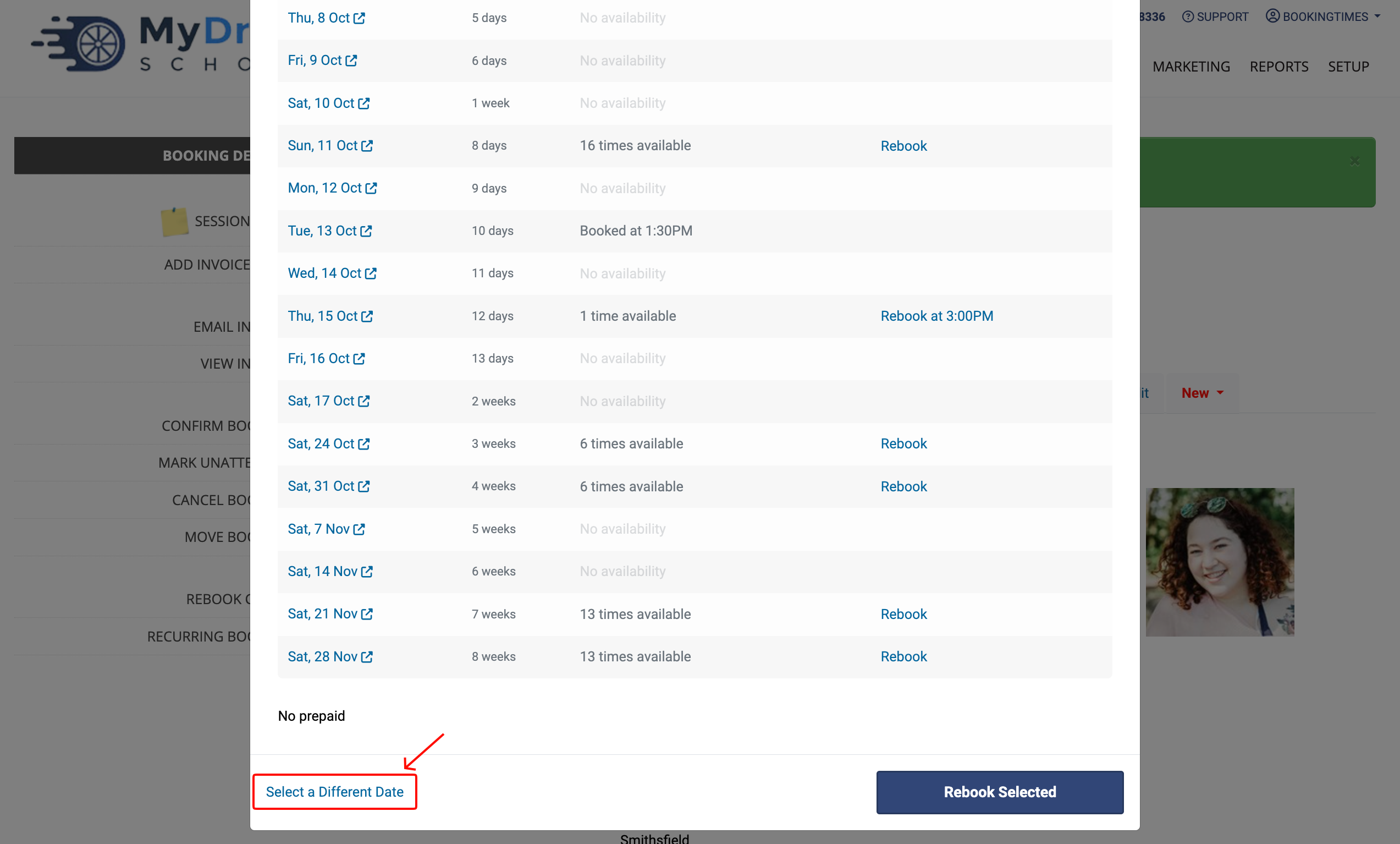
If you can't see the dates you want, click the Select a Different Date link to view the full booking calendar.
Click on any of the Available slots on the Schedule to book that date/time.
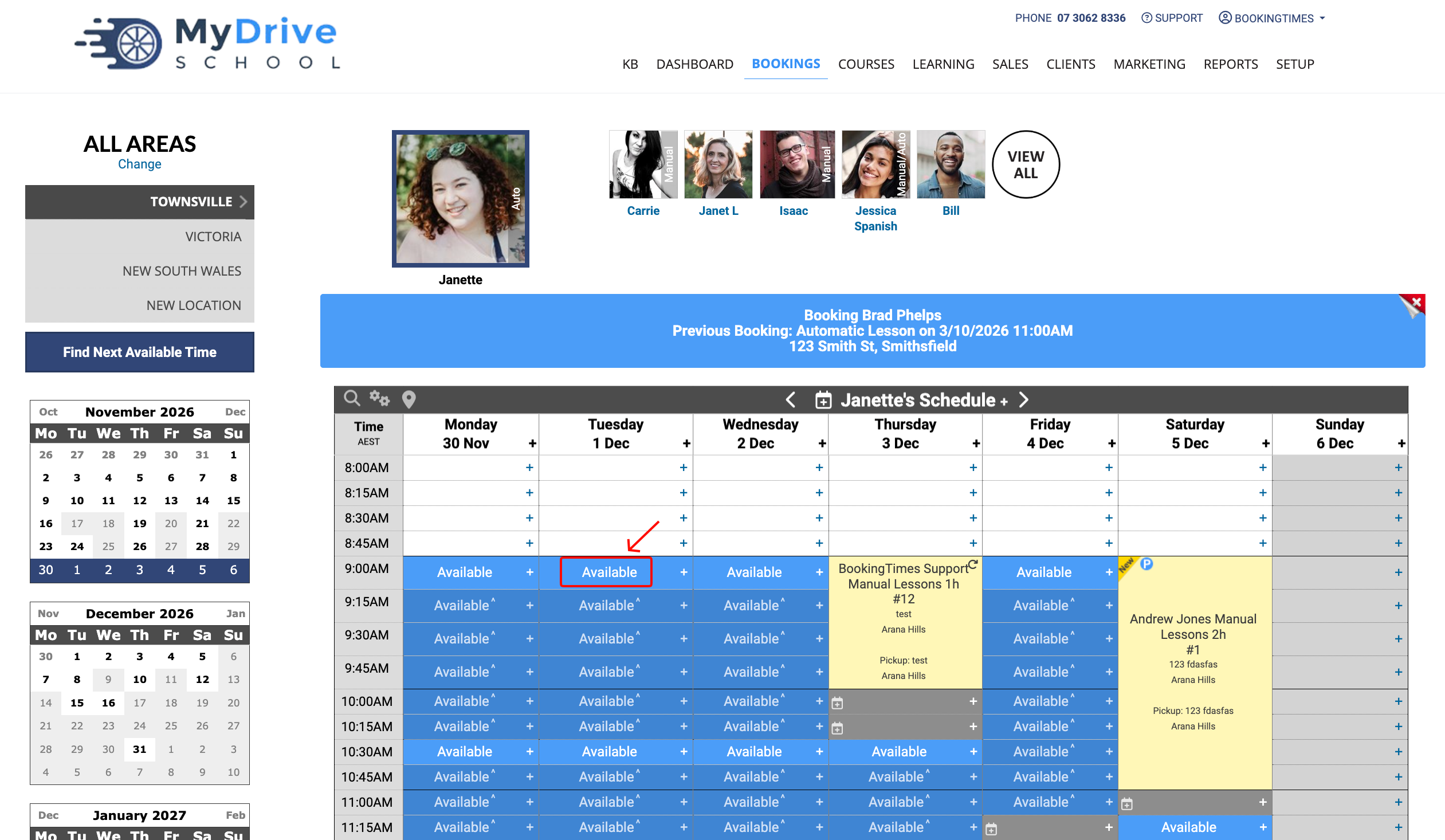
Follow the steps outlined in the Creating a booking to complete the booking process.
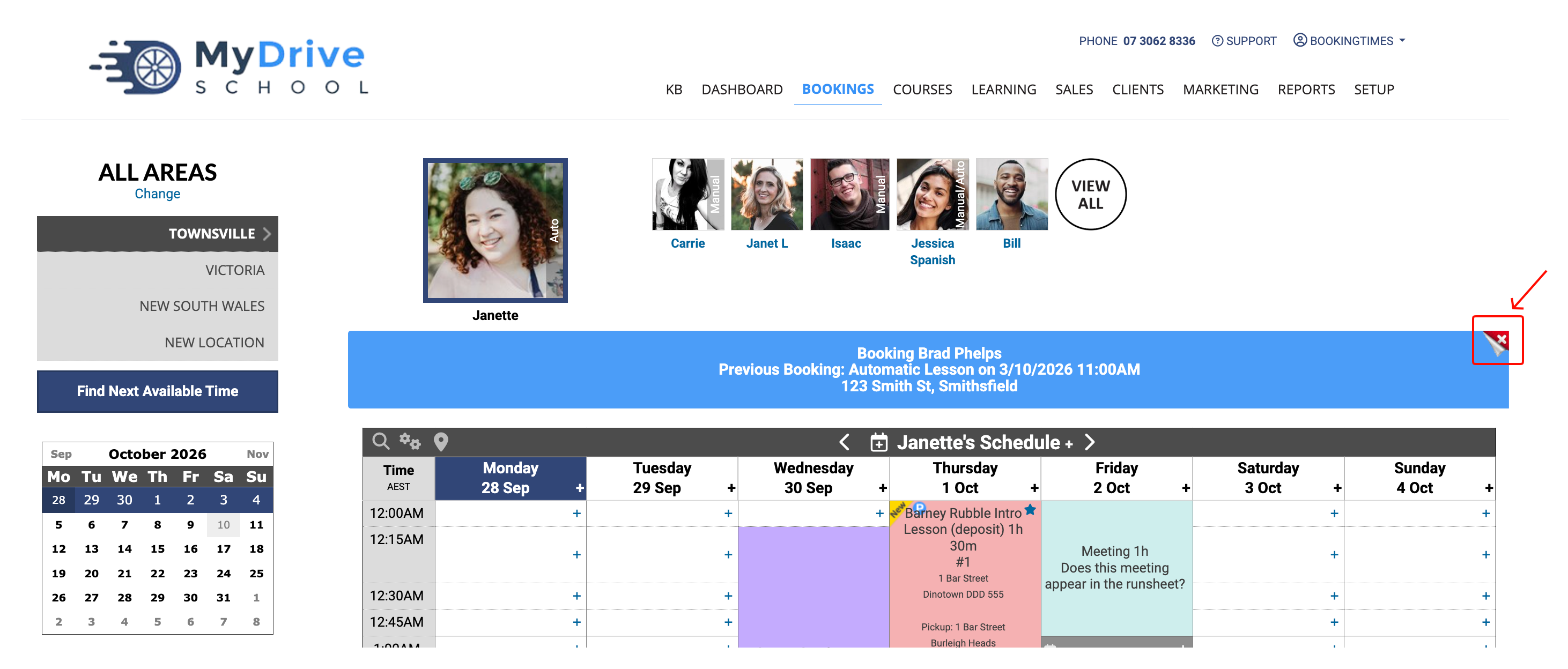
To exit the Rebook Mode, either refresh your page or click the "X" in the banner above the calendar.