BookingTimes allows you to make snippets for the drag and drop editor. These snippets let you drag pre-formatted content onto the webpage. This article will detail how to create a snippet for the drag and drop editor. If you would like to learn more about using the drag and drop edit, you can do so here: How to edit your website using the website editor.
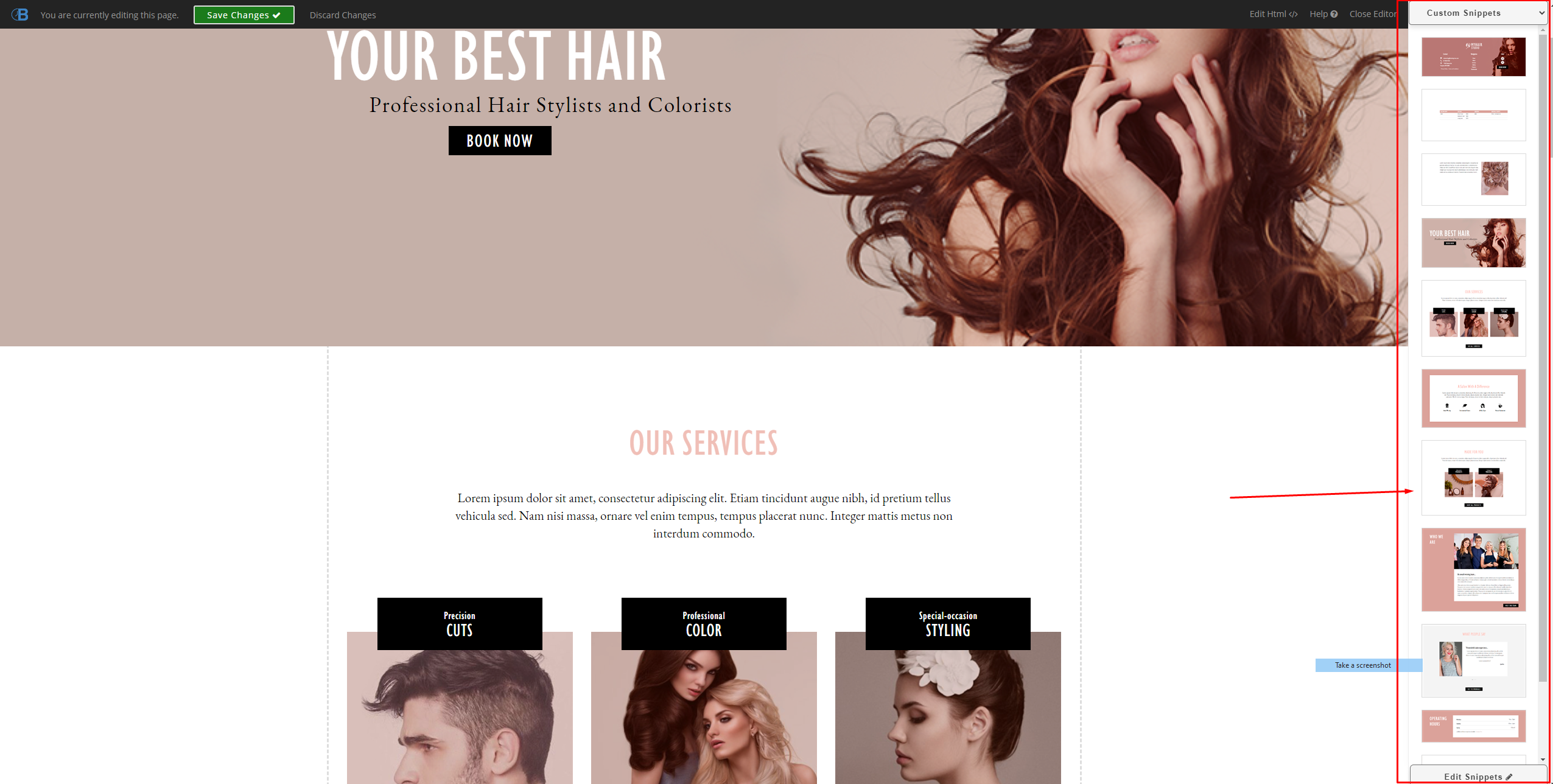
Snippets on the right hand side which can be dragged onto the webpage
Steps
Navigate to Setup > Website Content > Edit Website
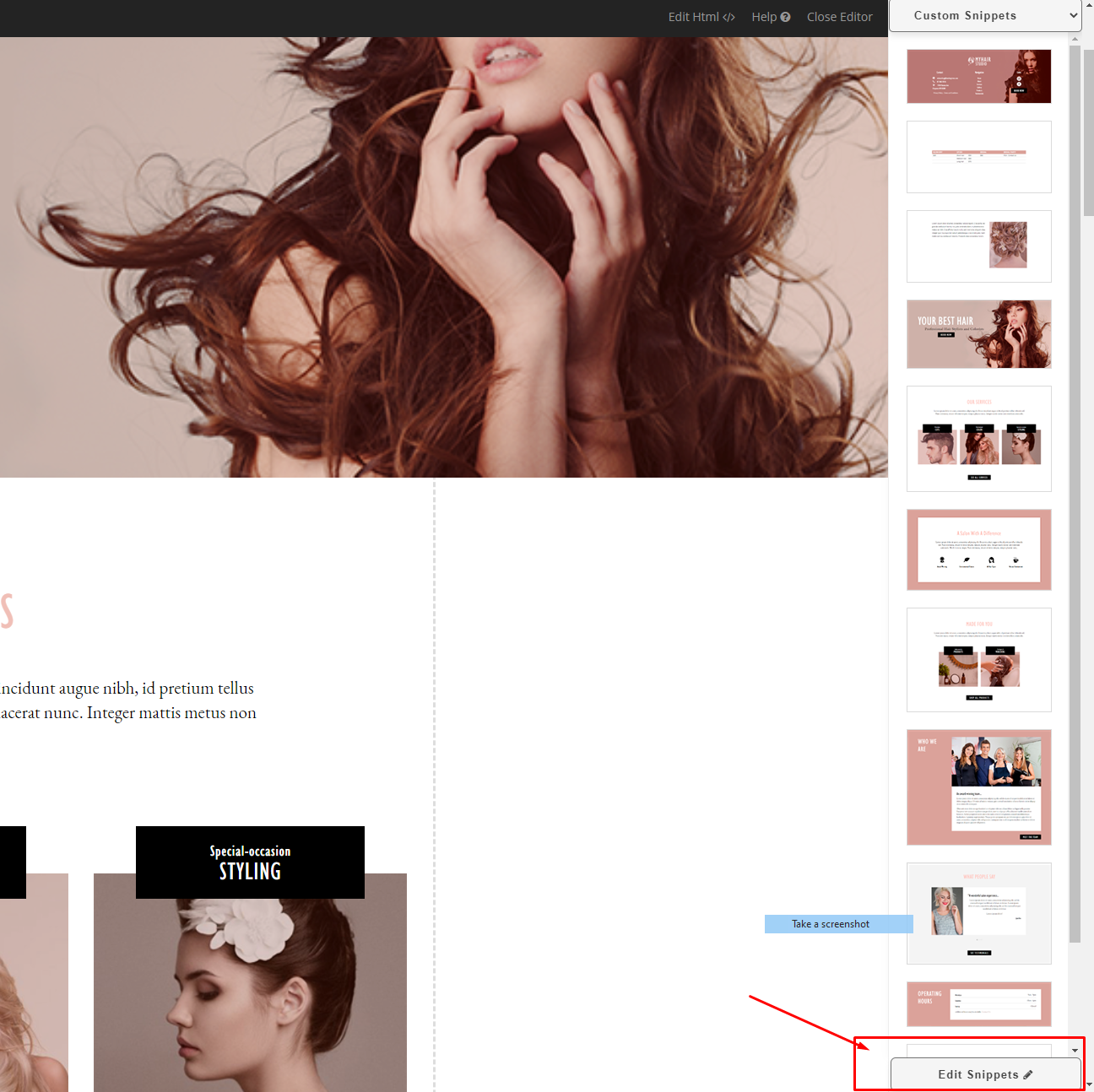
Click Edit Snippets on the bottom right of the drag n drop editor
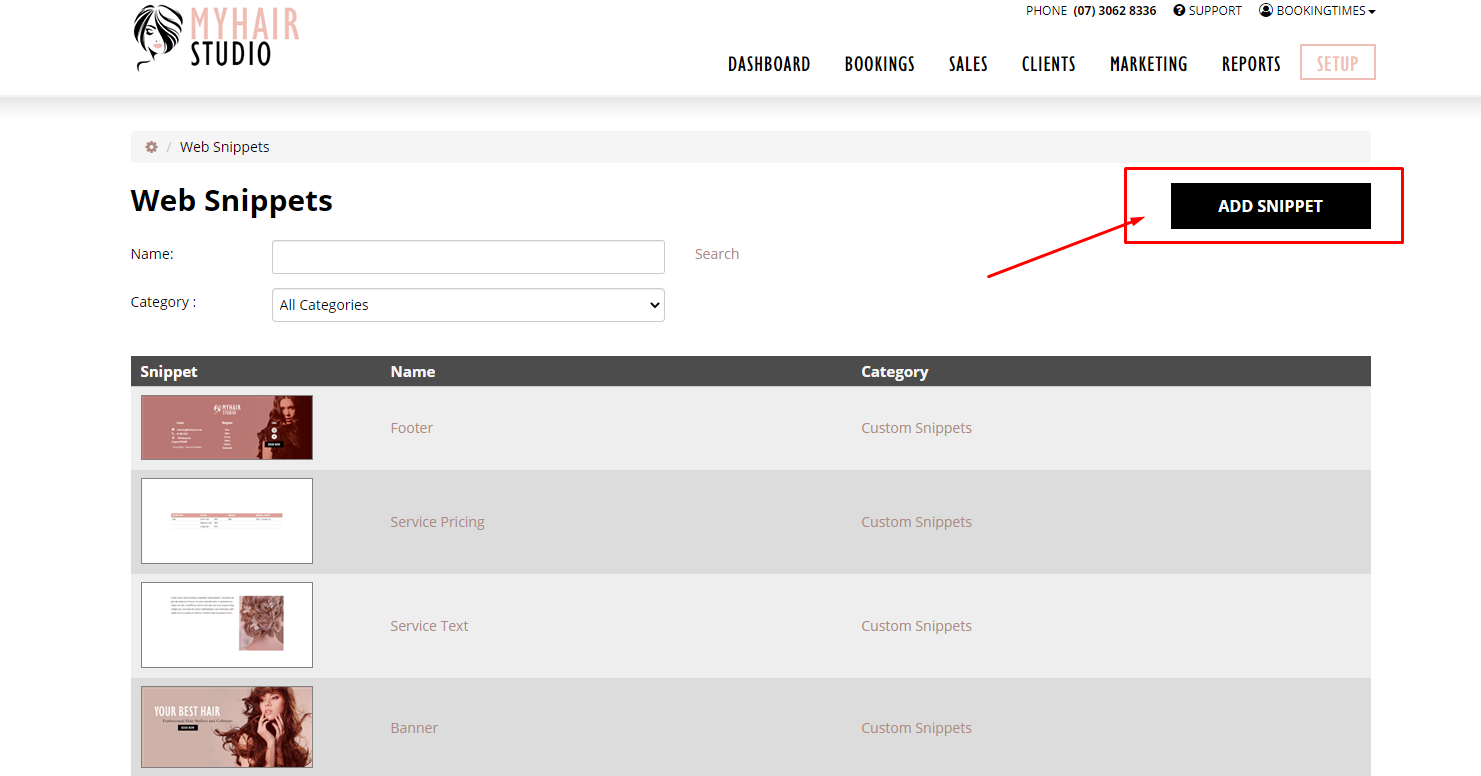
Click Add Snippet
4. Enter snippet name and category. Please save the snippets to a category called Custom Snippets
5. Add snippet HTML code in the TinyMCE editor by clicking the source code <> icon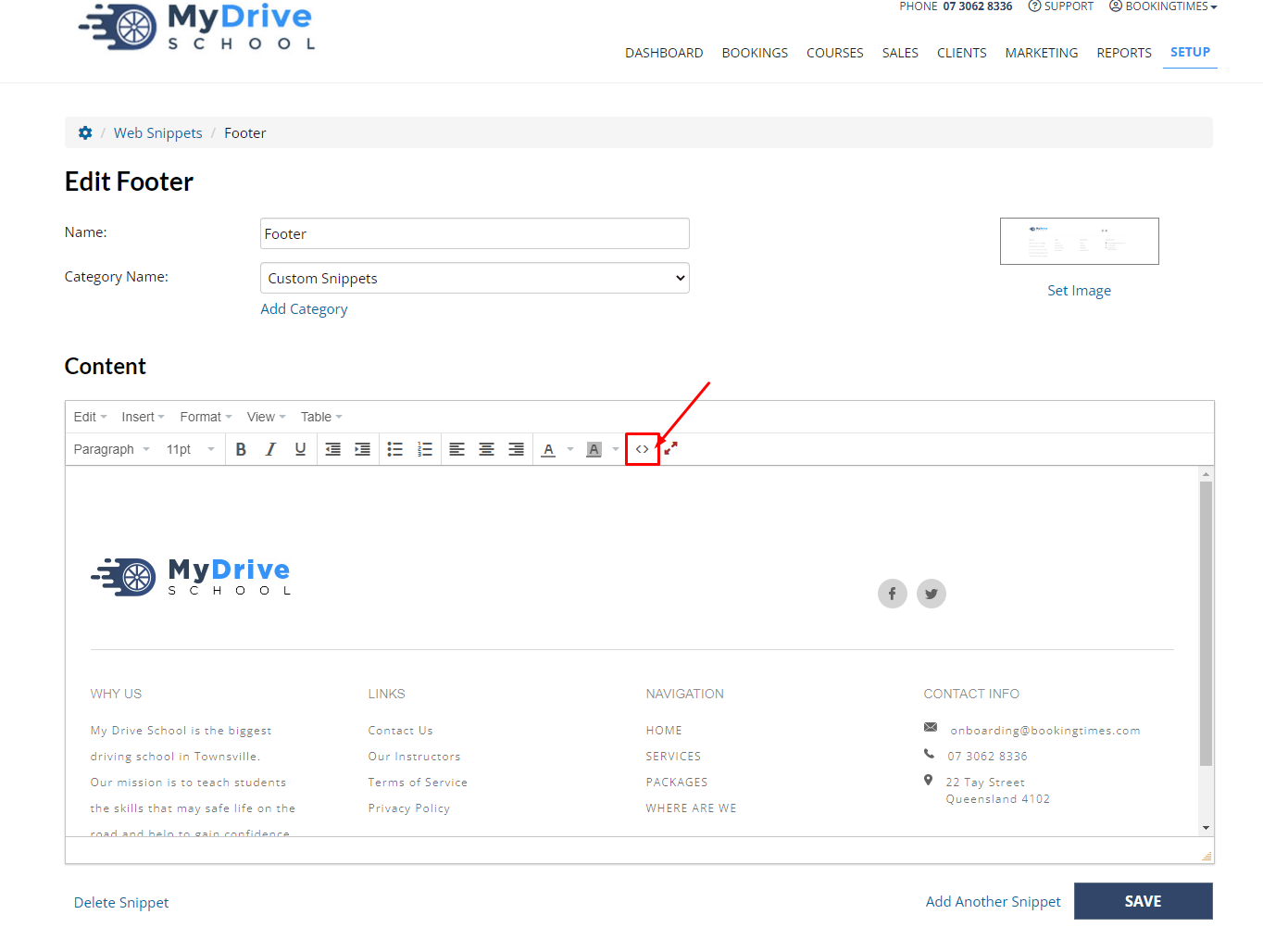
7. Click Save
8. Add a snippet thumbnail image, the image should be 170px wide.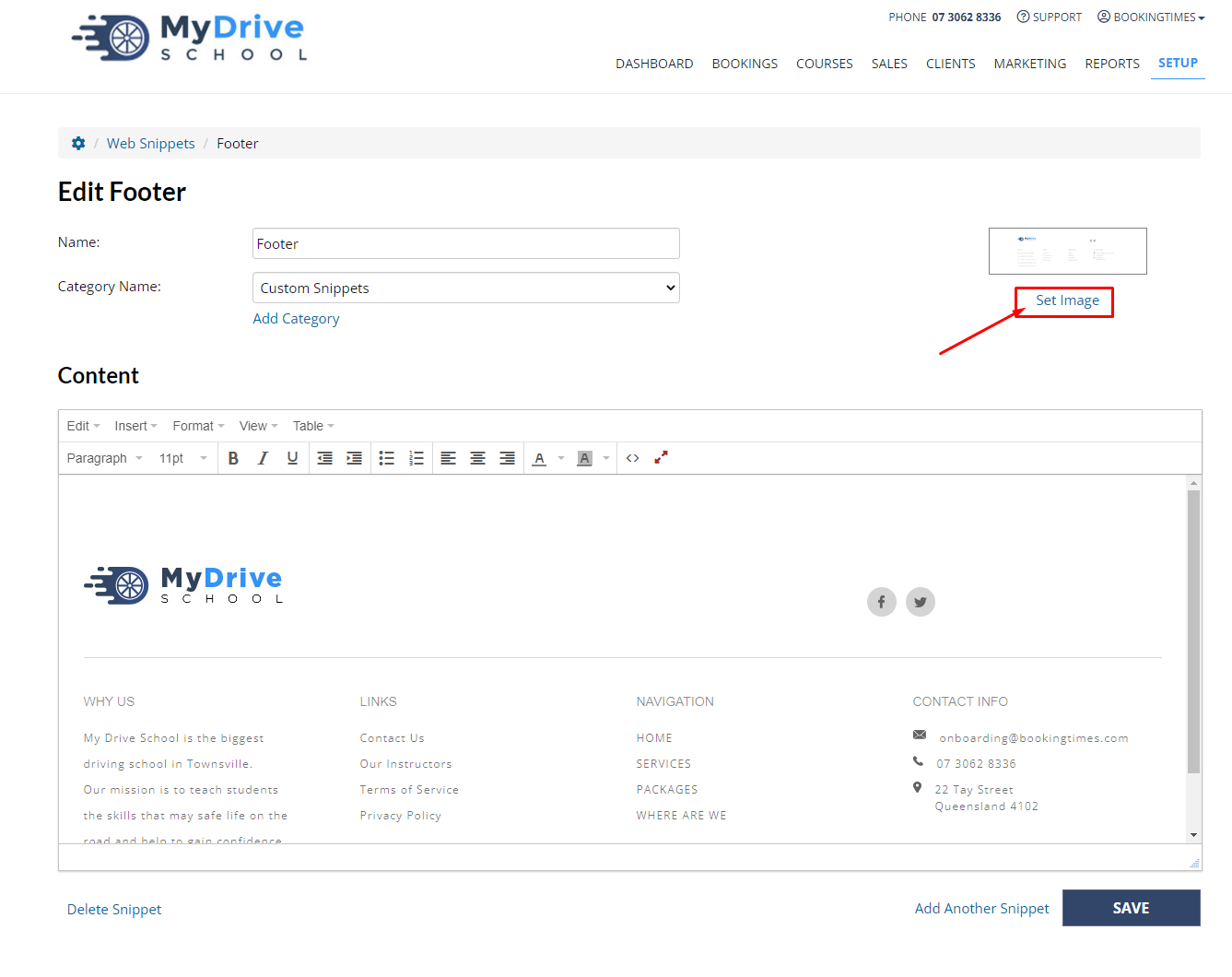
Global snippets
If the same snippet is used across multiple pages, when you make updates to the snippet you can now choose if you want it to behave as a ‘global snippet’ meaning that your updates will be applied to the other pages that use this snippet.
Steps
If you have a global snippet on a page, you can edit it as follows.
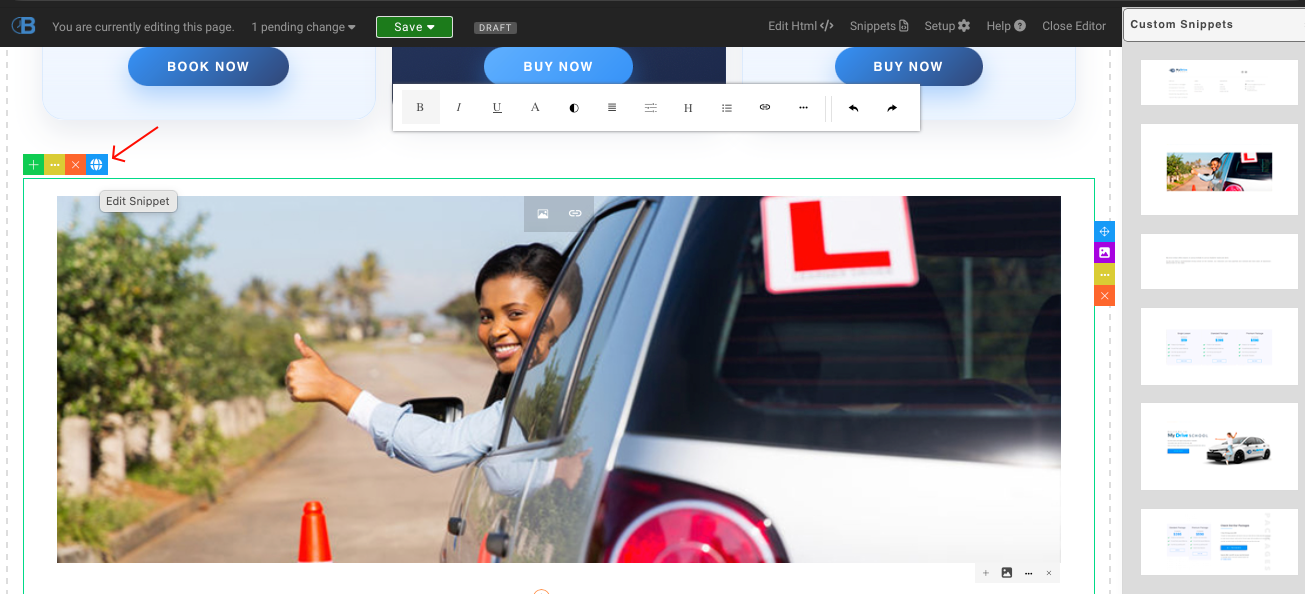
Navigate to Setup > Website Content > Edit Website > Edit Page > select blue globe icon to ‘Edit Snippet’
Or access directly via Setup > Website Content > Web Snippets > select snippet
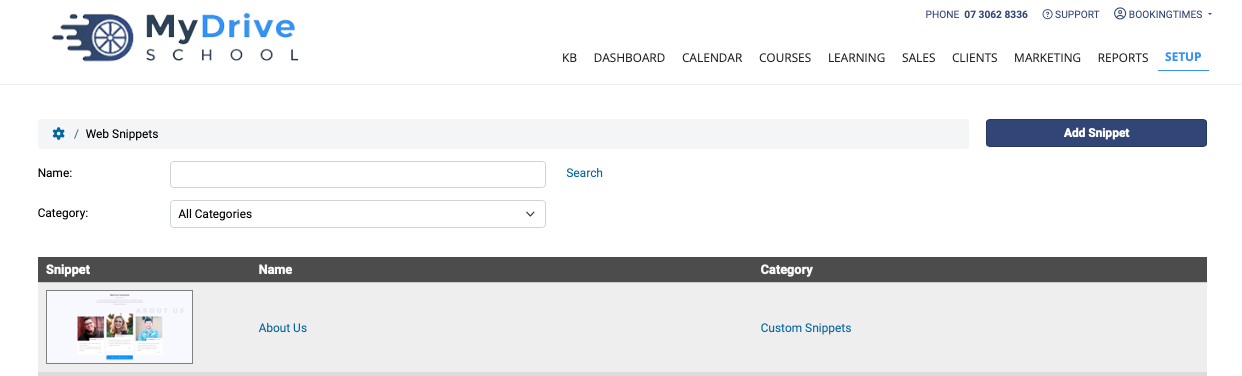
Make edits as needed to the snippet and click on Save. If the snippet is used on multiple pages, a popup will appear to confirm if you want all linked pages to now use this updated snippet. Select applicable pages and click Save & Apply
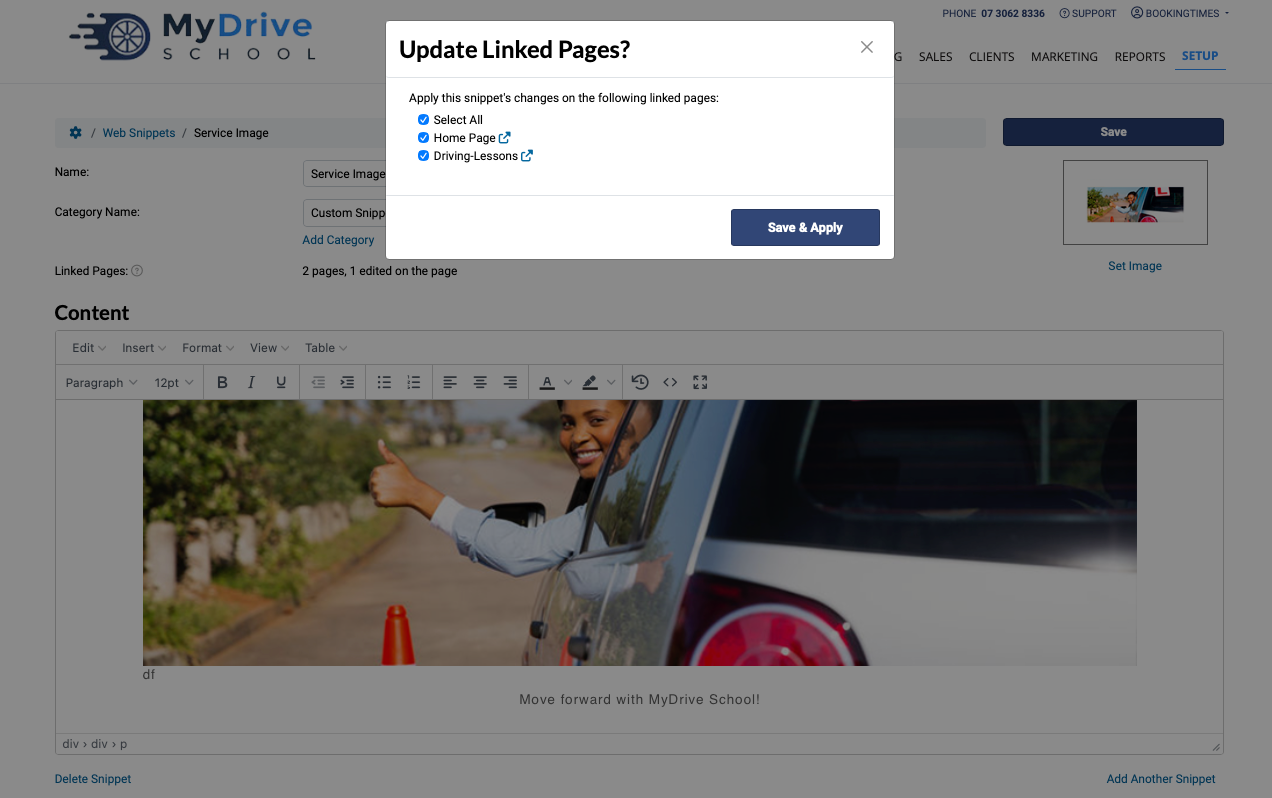
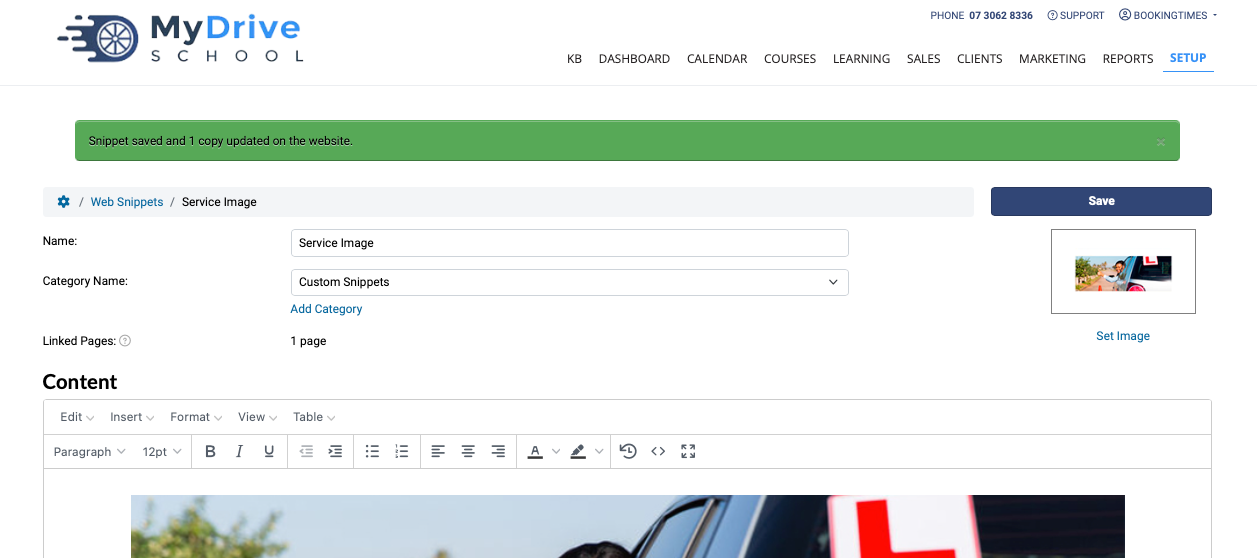
The update of any linked snippets is also confirmed with a green success banner.