This feature is available on these plans (view pricing)
Certificates can be automatically generated for services or courses that have the Pass/Fail setting turned on. Once a client has paid and passed a course, the completion certificates will be generated and can be downloaded by admins, or by the client when they log in and view all their bookings.
Turning on completion certificates
Steps
To enable them, go to Setup > Bookings > Services
Select the relevant service
Go to the Options tab
Select the Show Pass / Fail option and then choose the certificate that is generated under the Pass Certificate dropdown list.
You can modify the Certificate from that screen by clicking on Manage Certificates
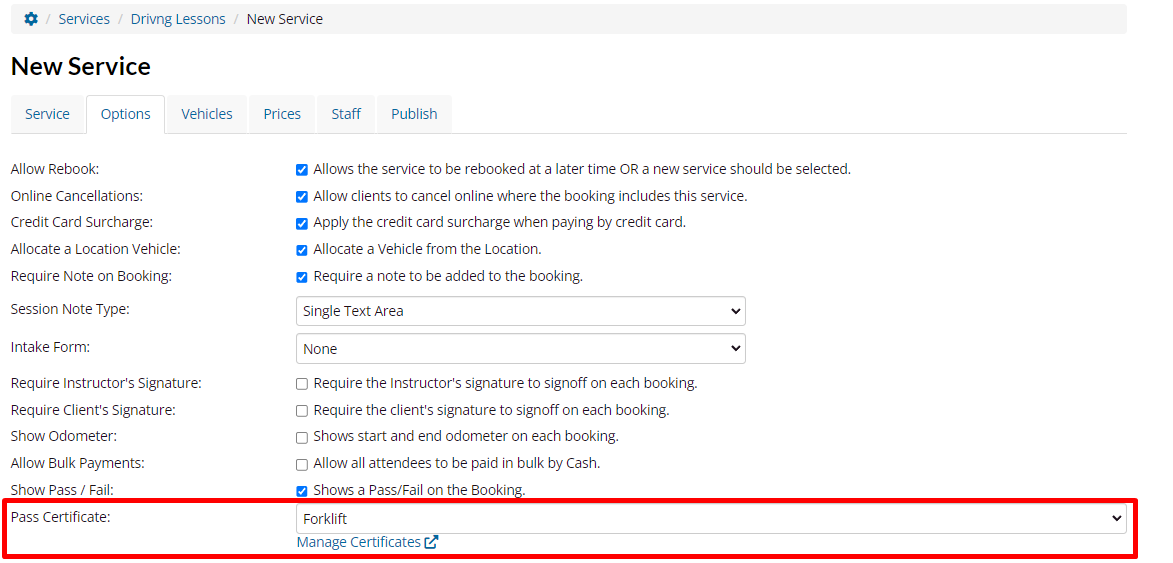
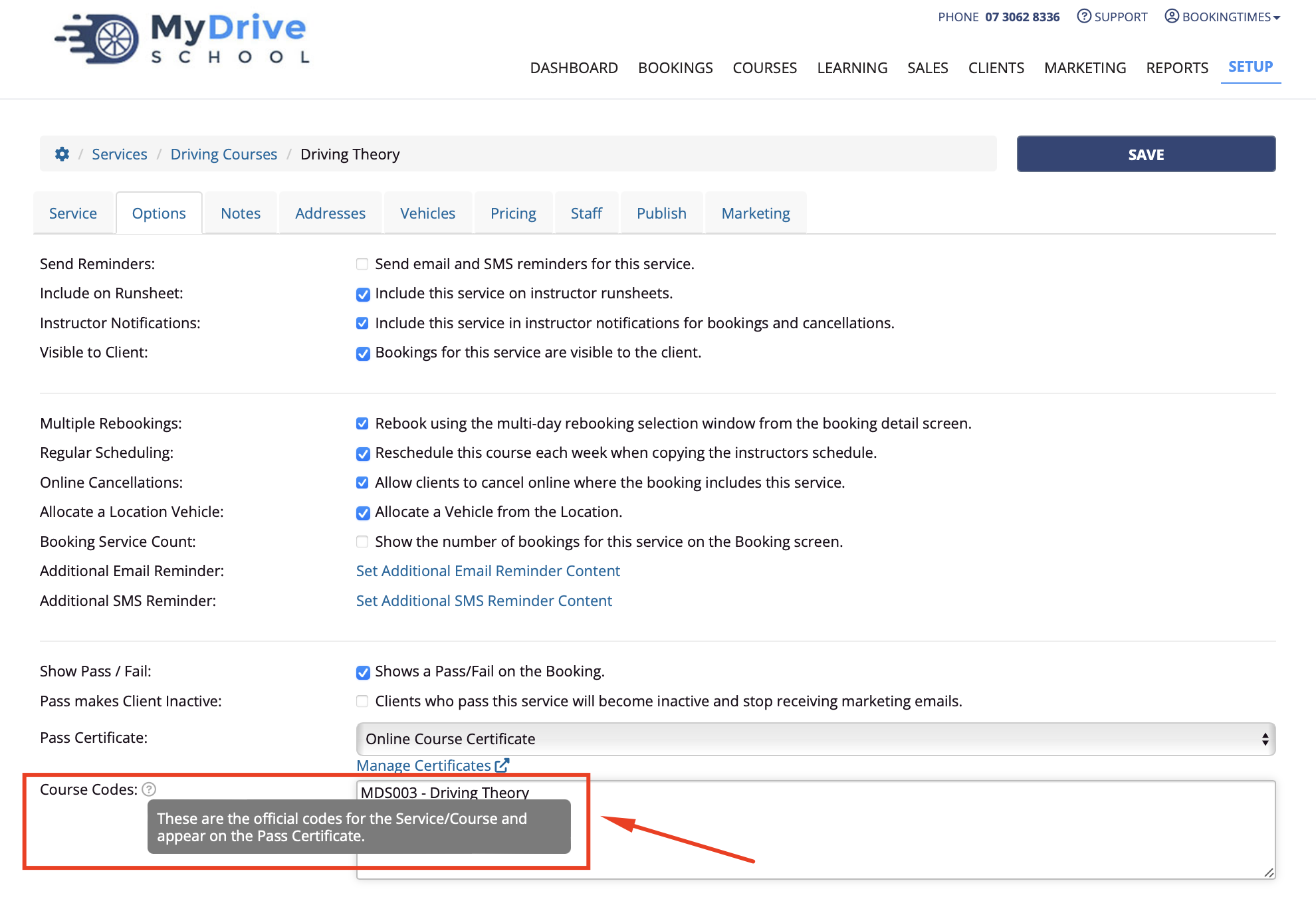
Optinally enter in Course Codes text which will appear on the Pass Certificiate. If left blank it will appear as the course name.
Managing certificates
Steps
Navigate to Setup > Bookings > Certificates
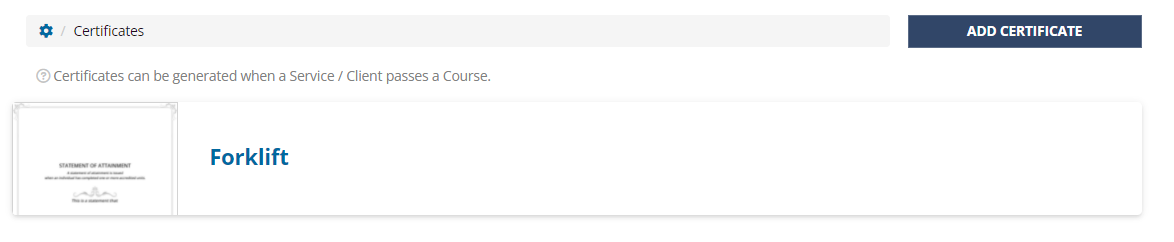
To add a certificate, click the Add Certificate button, or select an existing certificate from the list.
Enter the Certificate Name so you can reference it easily on from the Services page.
Select if this course is Certified by the staff member or the business owner (this will display on the certificate).
Note: The certificate will use the staff member's signature from the Setup > Staff & Admins, select the Staff Member, Options tab / Signature
Select any Additional Fields as required
Click Save
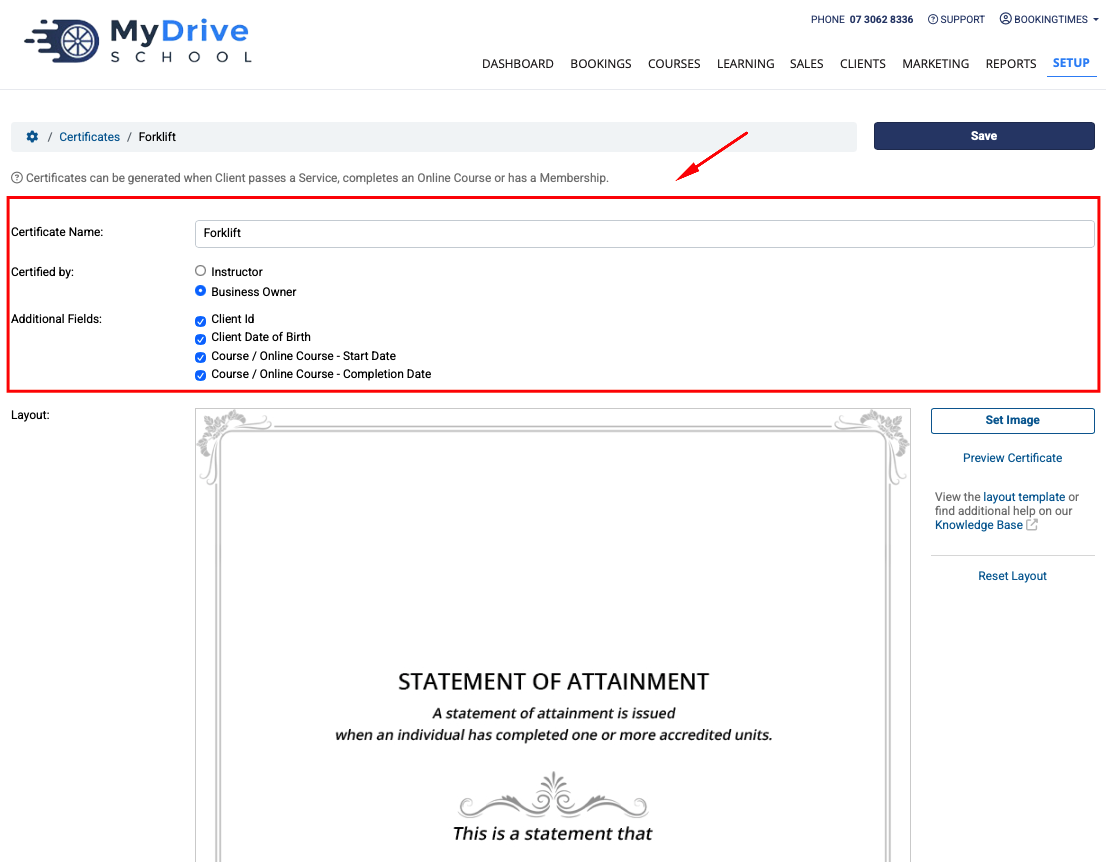
Click on Preview Certificate to see your certificate layout with sample data. For example
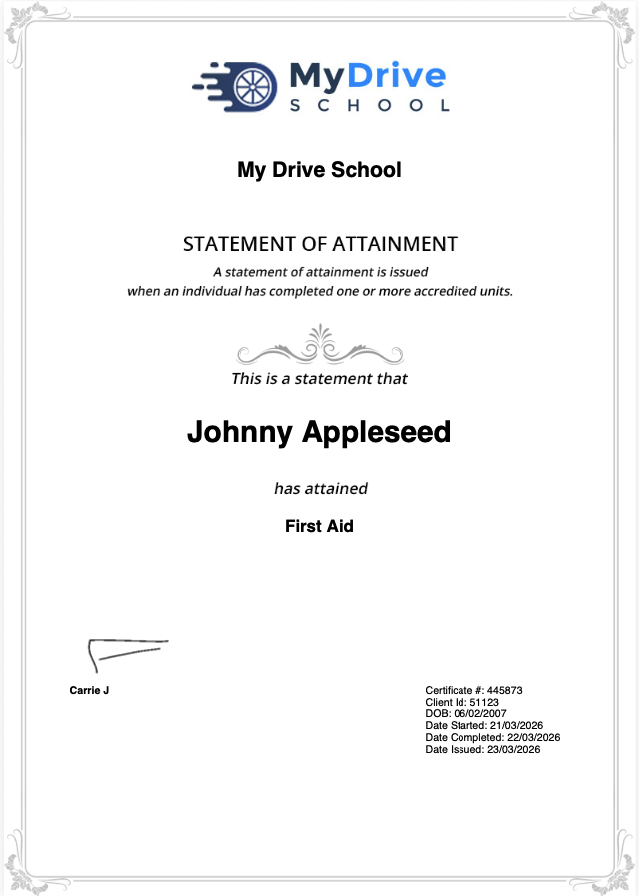
Certificate layout
Please refer to the Certificate layout article to outline the layout and details of what’s included in a generated certificate.
Generating certificates as an admin
Certificates can be generated once a client has paid and passed their course. Then they can be downloaded from either the booking screen, for via the overall course Manage Attendees screen.
If you have the Passed Booking/Course reminder enabled, the client will be sent this reminder as soon as they’ve been marked as passed also.
Steps from the booking screen
Open the relevant booking, either via the calendar or searching for the client
If the service requires "Proof of Identity", make sure that the client's identity has been verified.
Make sure that the booking has been marked as passed and paid, then the Download Certificate link will appear
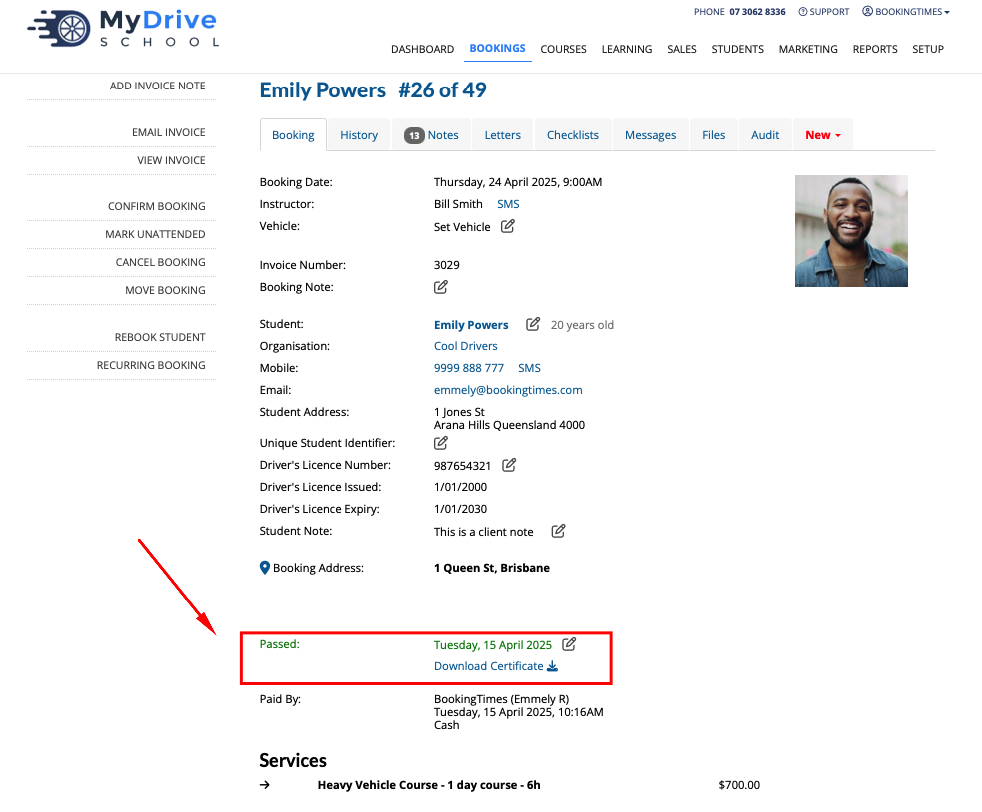
Steps from the course Manage Attendees screen
For more information about the Manage Attendees screen please refer to the Manage course attendees article.
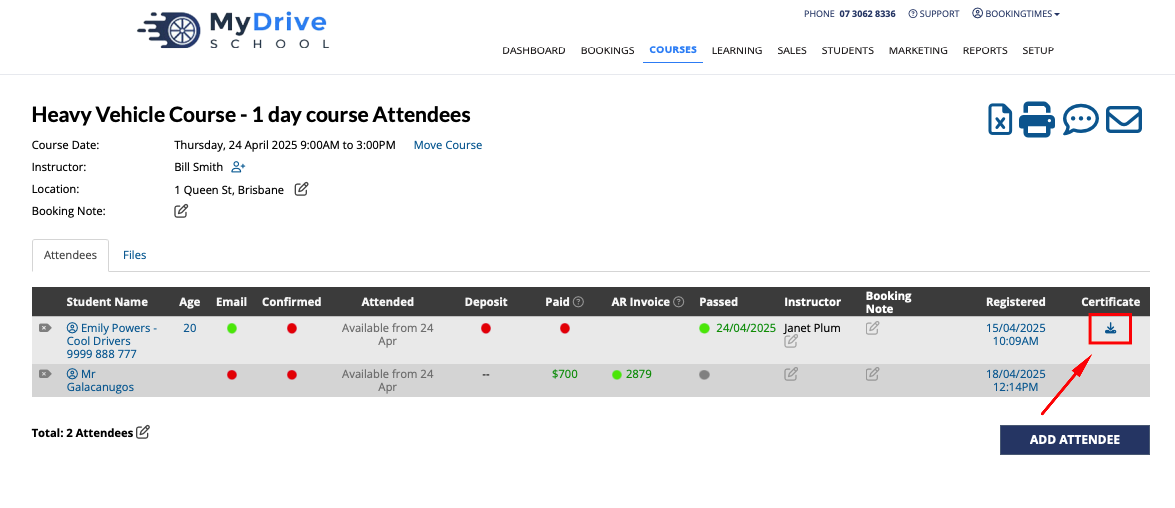
Go to the Courses menu item and select the relevant course.
If the service require "Proof of Identity", make sure that the client's identity has been verified.
Make sure that each client has been marked as passed and paid
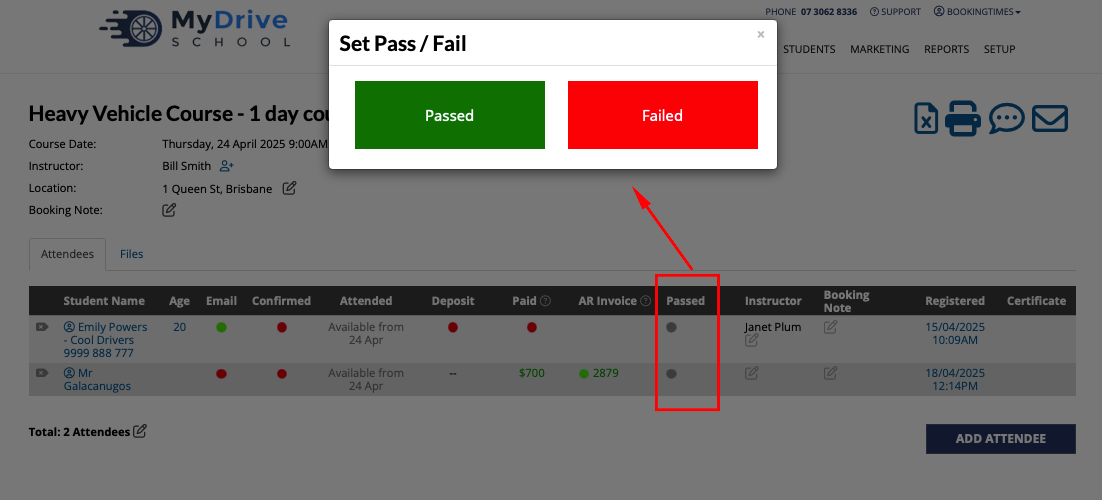
Once marked as passed and paid, the Download Certificate icon will appear next to the client record
Downloading certificates as a client
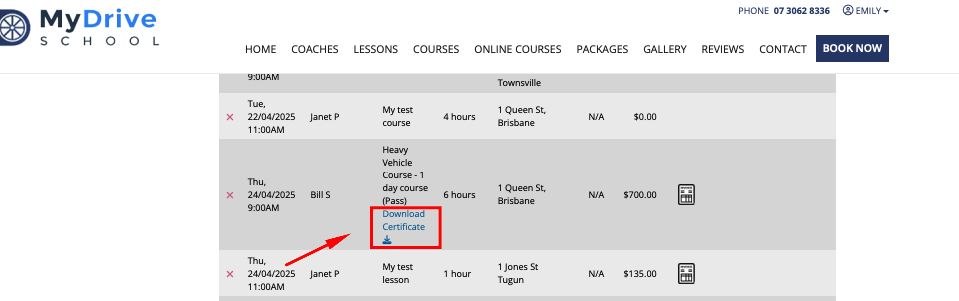
Once a client has paid and been marked as passing a course by an admin, they can download their completion certificate simply by logging in and viewing their bookings.
Steps
Client logs into their account and navigate to their My Bookings page.
If they’ve paid and passed the course, a link to Download Certificate will appear against the course booking and they can download their certificate directly from there.