Upon booking, you can enable a 1 day booking reminder (email or SMS) that prompts the client to confirm their appointment. This automated touchpoint improves attendance and reduces 'no-shows'. Note that if a client fails to respond, the booking still remains active and will not be automatically cancelled.
When, this reminder has a Confirm link (for SMS r email) or Confirm button (for email only) that will allow the client to click on it to confirm their booking on the following day. If a client opts to not click the link but simply reply, the follow replies will also confirm the booking: yes, y, yeah, yeh, yep, ok
Once a client confirms their booking, a green dot symbol appears on the calendar against their booking so it’s easy to tell as a staff member that the client as confirmed.
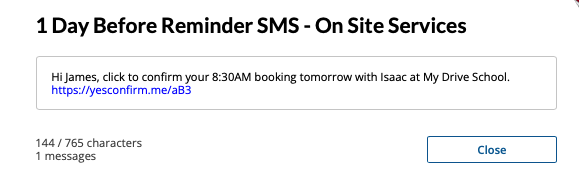
Example SMS with a Confirm link
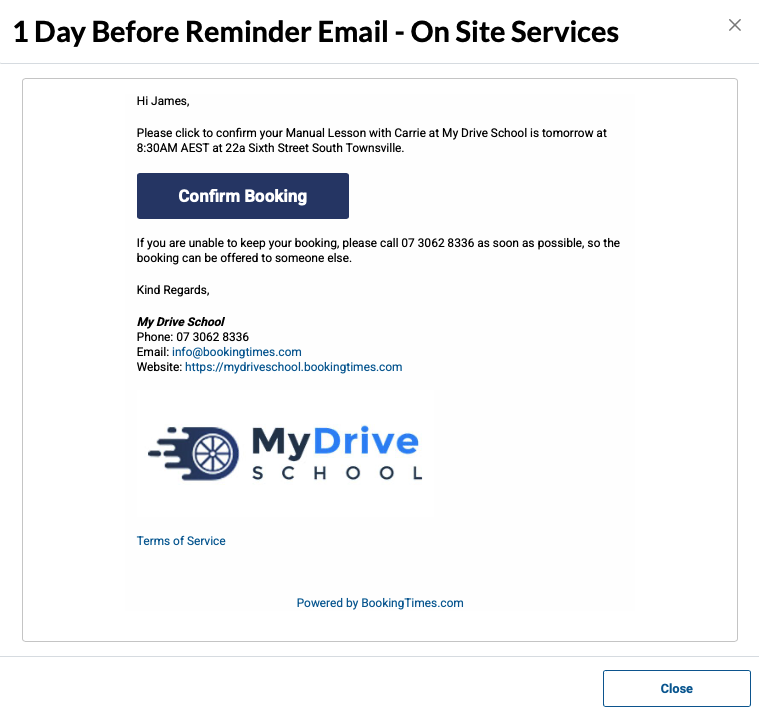
Example email with a Confirm button
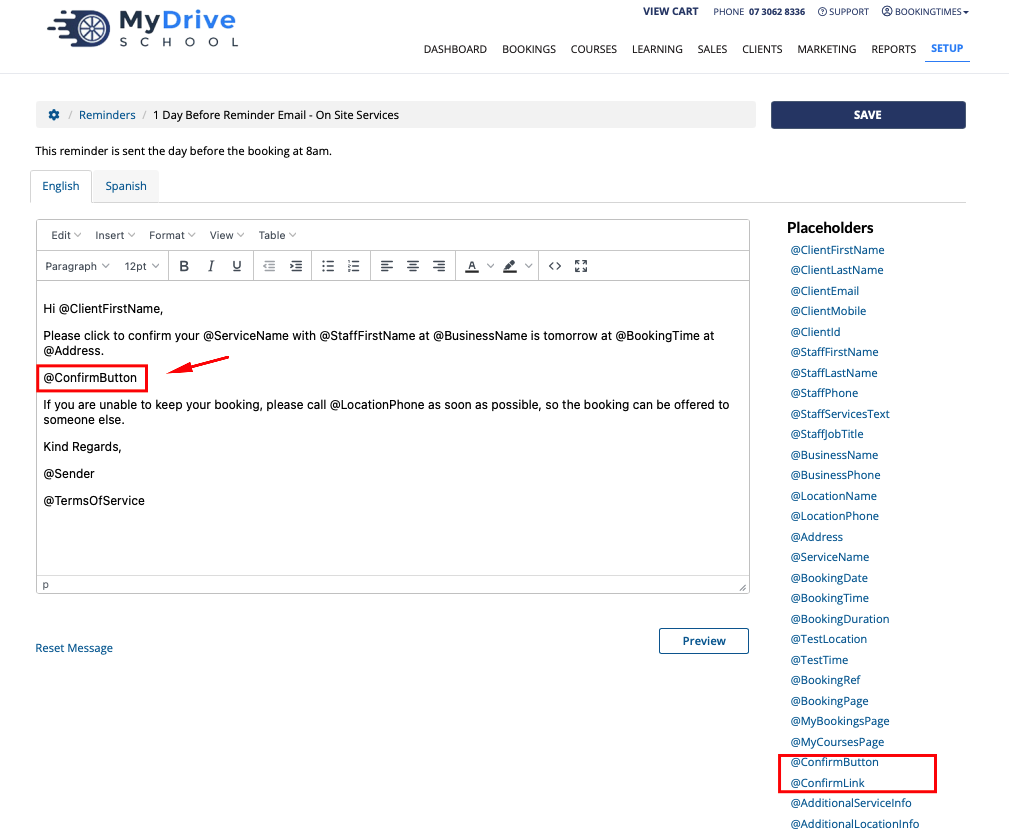
Enabling the reminder
Please note - the underlying confirmation link itself is already built into the reminders and is generated for each reminder when triggered, the following steps just show you where they are.
Steps
Navigate to Setup > Correspondence > Reminders
Select the 1 Day Before Reminder Email (and your service type such as On Site, Mobile etc) and toggle it on so the bubble is green
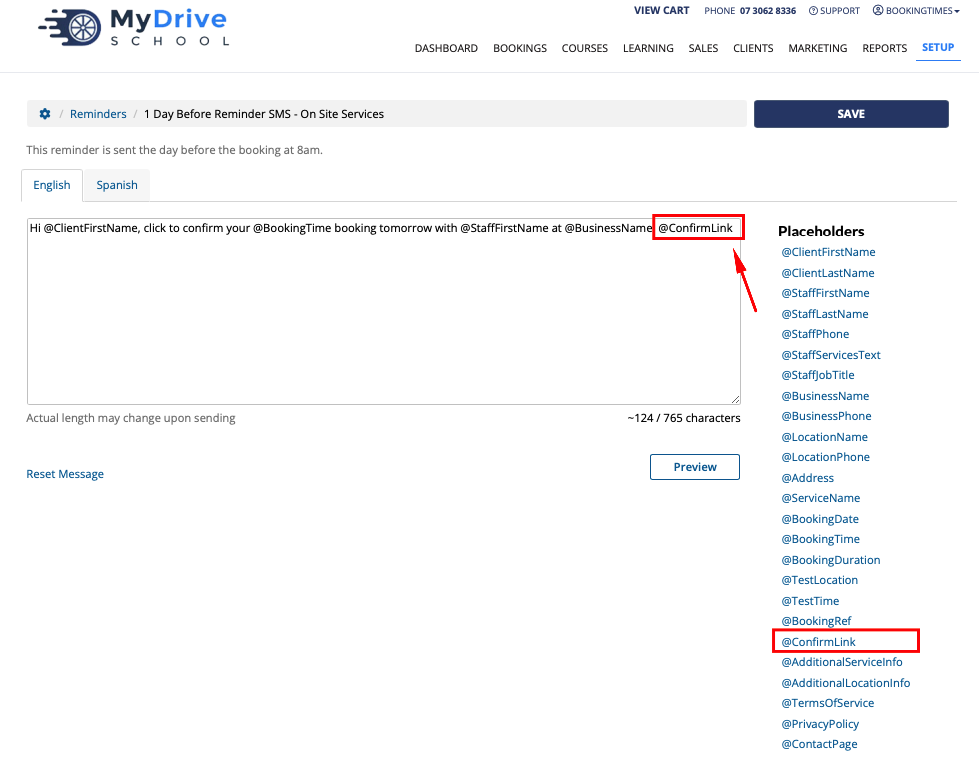
If you click on one of the speech bubbles, you will see the @ConfirmButton (or @ConfirmLink) will allow a client to confirm their booking
Select the 1 Day Before Reminder SMS (and your service type such as On Site, Mobile etc)and toggle it on so the bubble is green
If you click on one of the speech bubbles, you will see thehe @ConfirmLink will allow a client to confirm their booking (no access to @ConfirmButton for a text message)
Automatically confirm bookings made within 24 hours
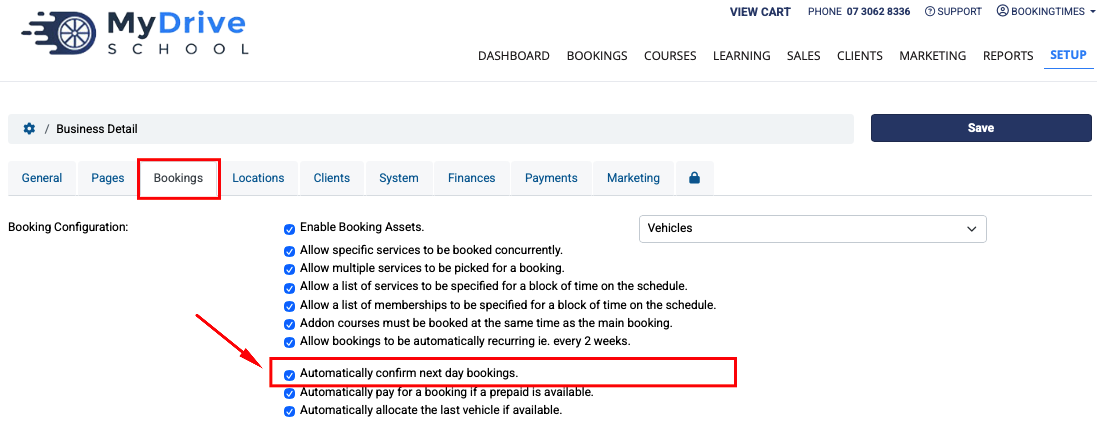
Bookings can be automatically marked as confirmed if the booking is made within 24 hours of booking time to prevent unnecessary follow up calls.
Steps
Setup > System Settings > Business detail > Bookings tab
Select the Automatically confirm next day bookings option
Click Save
Client accidentally confirms
If a client confirms a booking but didn’t mean to, immediately after they confirming they will see a “Oops I didn't mean to confirm. I need to cancel” link. Upon clicking this, this will remove the confirmation flag so that you as an admin don’t see that as a confirmed booking, and then sends them to the cancellation page.
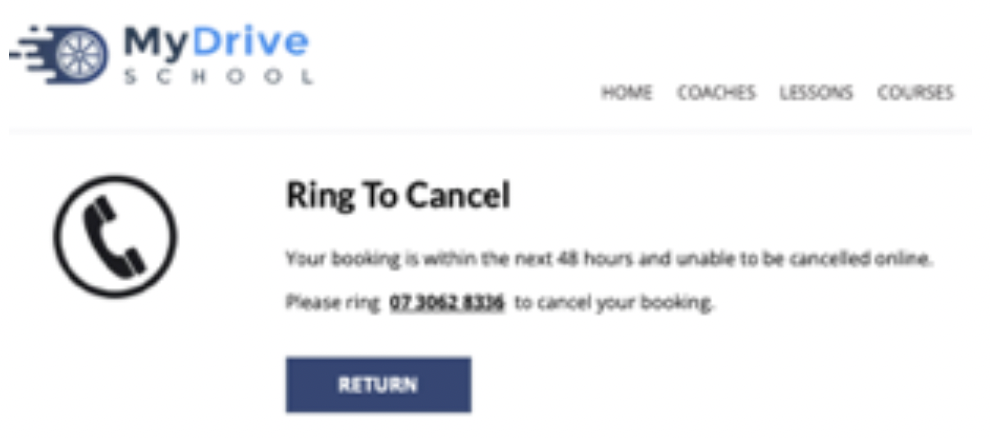
Note: depending on your cancellation policy (if it’s less than 24 hours), it might allow the client to cancel their booking online, or otherwise it will show the following screen with instructions on contacting the business to cancel their booking.