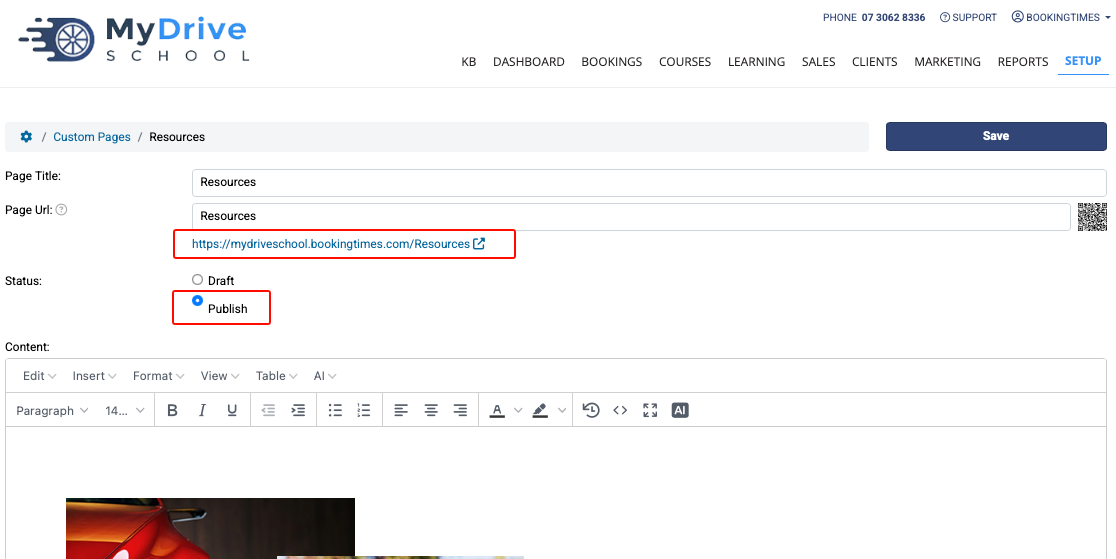
This article will cover how to create and publish custom pages on your website. Custom pages allow you to create your own landing pages or custom forms for your website - examples being a job application form or a resources page. Published pages also include a QR code which you can use to direct clients directly to this page.
Note
These custom pages won't show up on the main menu like "Bookings" or "Courses", however, they can be linked directly from other pages on your website, or from other websites, emails, or . For example: you could share a link for your job application form along with a job description on a job advertisement website.
Creating custom pages
Steps
Navigate to Setup > Website Content > Custom Pages
Click Add Custom Page
Enter Page Title
Under Status select Publish
If you're not ready to publish your page yet you can leave the status as Draft.
Click in the Content text box to edit the webpage using the basic word processor options, or go into the web editor to drag and drop other elements including images (see below).
Click Save
Tip for editing web pages
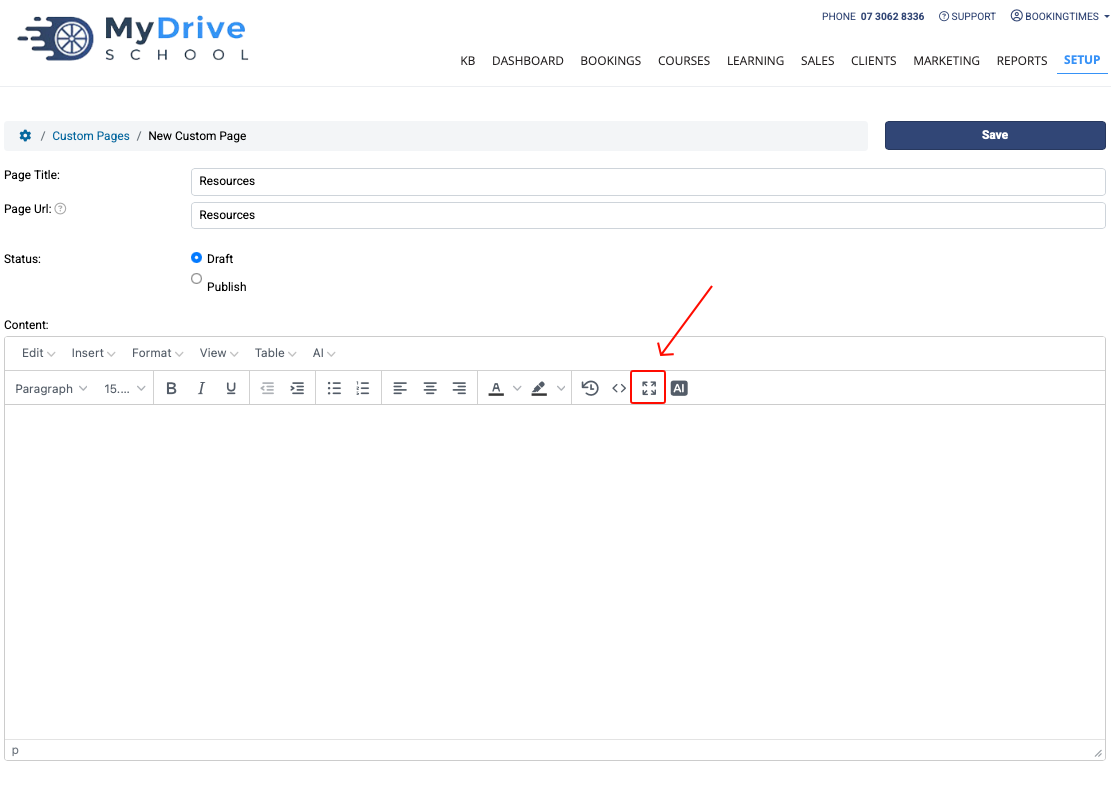
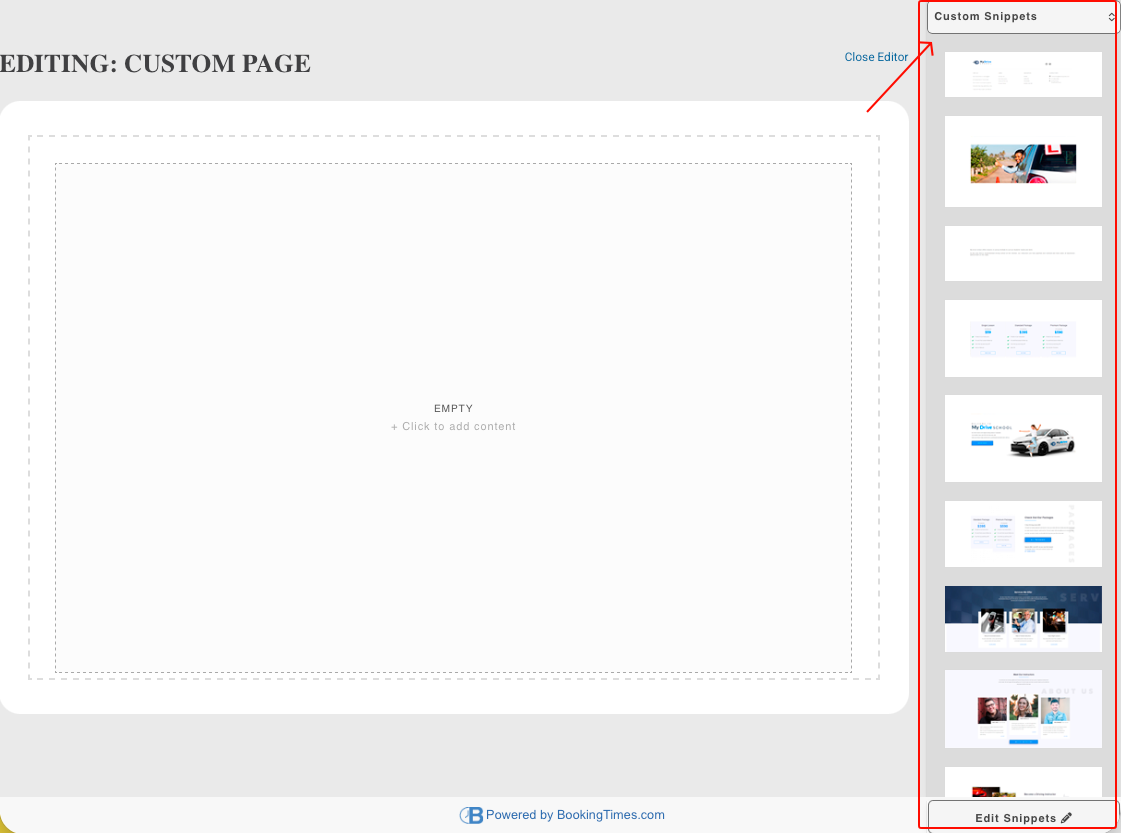
You can click the 4 diagonal arrow icon in the text editor to open the drag and drop editor. This will give you special text and image blocks you can drag onto the page, including any Custom Snippets if you purchased a website template from us.
You can also access the HTML source code via the <> icon for more advanced editing.
Please refer to the How to edit your website using the website editor article for more details.
Inside the web editor, use the category drop down on the top right to drag and drop your desired snippets onto your page.
Publishing custom pages
Steps
Once you’ve created and published your custom page, highlight and copy the page URL
Use the URL to give access to your webpage, for example:
Share the URL in an email
Paste the URL on another website or somewhere on your own website
Use the URL as the link for a button (if using internally please note you only need to copy the relative URL. e.g. only the “/Resources” part of the URL)
Your customers will be able to click the URL to access the custom page, or you can provide them with the QR code (which can be copied neg to the Page ULR field) which will direct them to this page.