Certificates can be downloaded or emailed upon successful completion of a service/classroom course or online course. This article covers the online course certificates, please refer to Course completion certificates article to attach it to a service/classroom course .
For the certificate layout, you can also use standard BookingTimes certificate template, or create your own custom certificate based on the layout requirements.
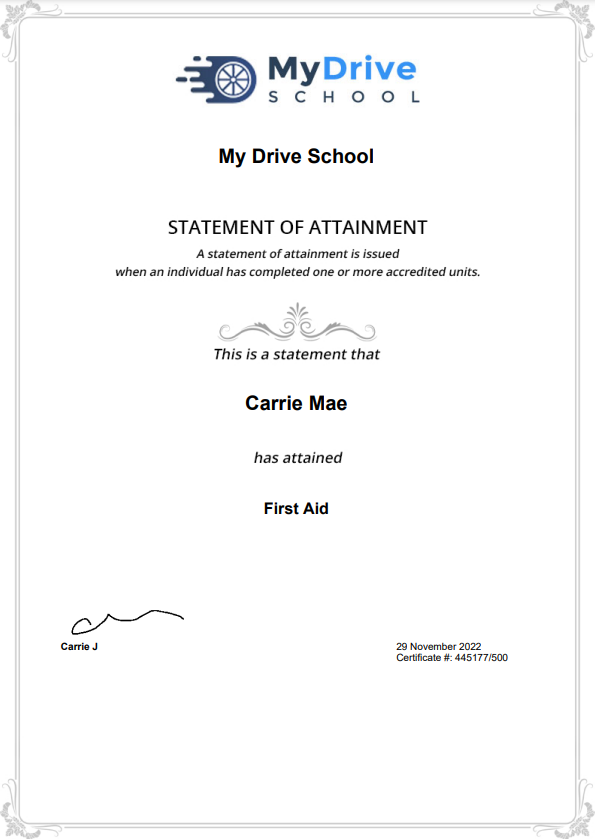
(This certificate is an example only and has redacted information from a demo system)
Create certificate
Steps
Go to Setup > Bookings > Certificates
Click Add Certificate
Enter the Certificate Name and Certified By details
Click Save
On the following screen you can upload a custom certificate design by using the certificate template. Click Set Image to upload your custom design. You can also keep the default design and skip this step.
Click Save
Certificate layout
Please refer to the Certificate layout article to outline the layout and details of what’s included in a generated certificate, and instructions for if you wish to create your own certificate design.
Add certificate to an online course
Steps
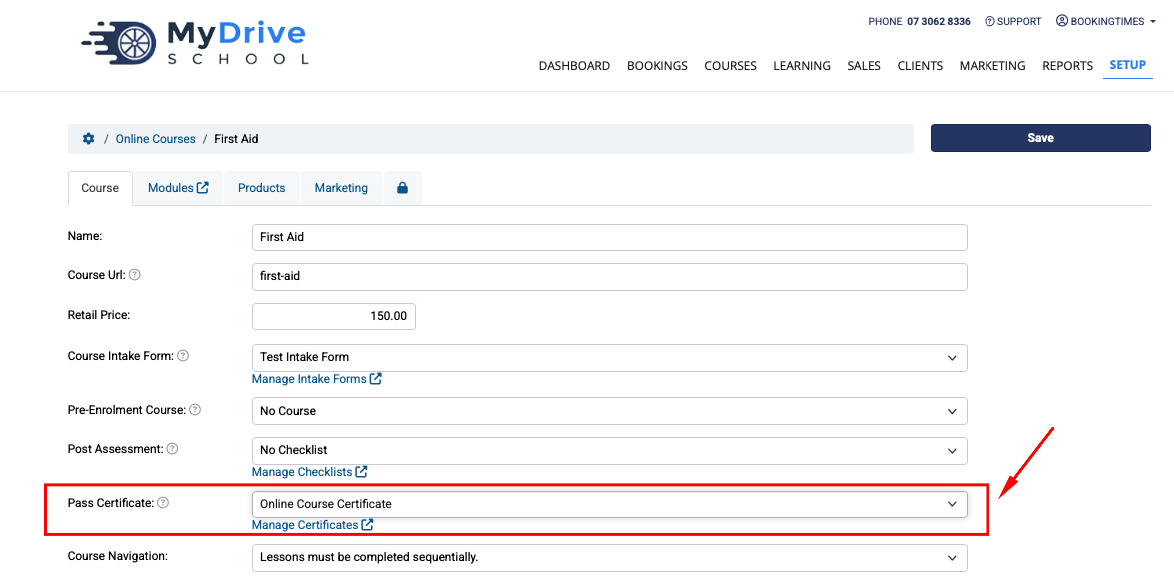
Go to Setup > Bookings > Online Courses
Select your course
Under Pass Certificate select your certificate design from the dropdown list
Click Save
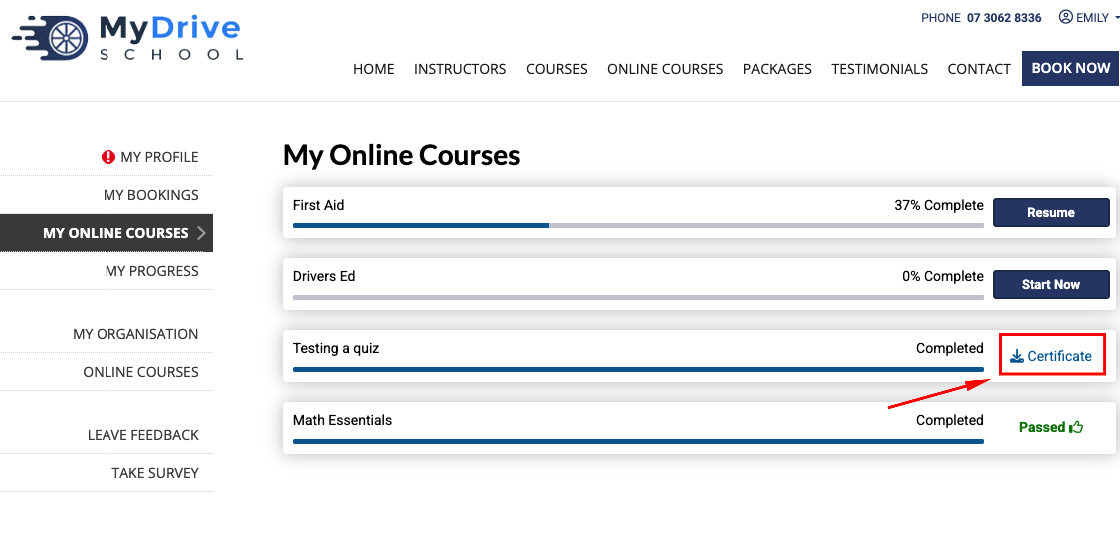
Download certificate for an online course
The client will be able to download their certificate after finishing the course, and an admin can also download the certificate from the Monitoring online course progress.
Marketing sequence
Marketing sequences can also be triggered for an online course. For example, when a client starts, passes or fails a course. Please see the Marketing sequences article for more details.