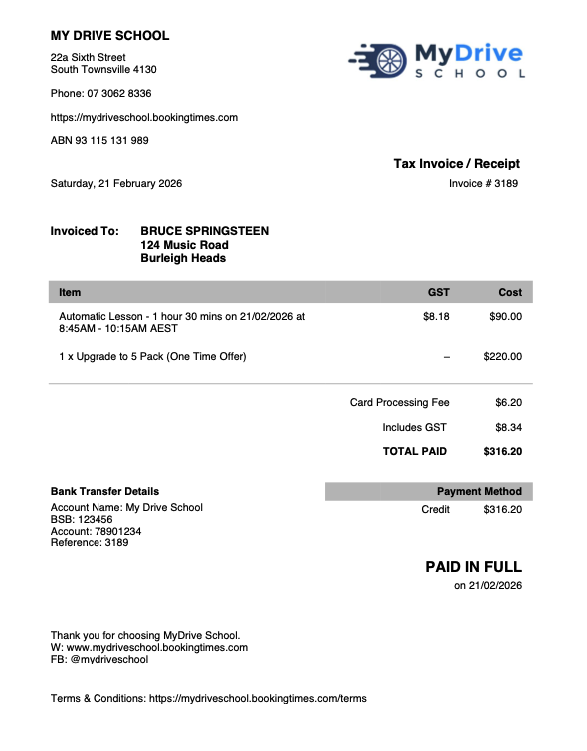
The invoice can be configured to include different details. This includes displaying different information based on the payment status, and a range of other details regarding the booking (including service specific additional information) and bank details. An invoice note can also be added manually to already created invoices.
Payment status
Unpaid: If the service has not been paid, the invoice will indicate that payment is outstanding.
Paid: If the service has been paid for, the invoice will indicate the payment method and amount.
Other invoice details
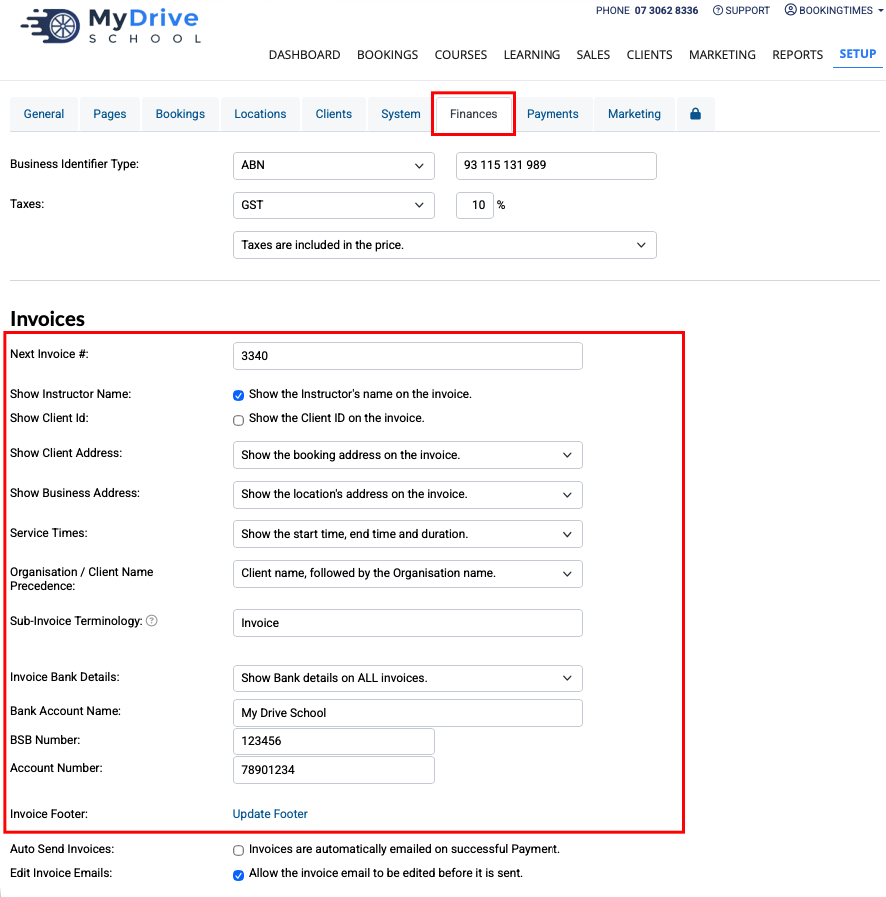
A range of options are available to configure what information you'd like to appear in the invoice. These include:
Instructor's name
Client ID
Client address (show none, show booking address, show client address)
Business Address (this is the address defined in the main business location accessed via Setup > Bookings > Locations > select top/main business location > Public/Postal Address)
Service Times (start time and duration, start/end time and duration)
Organisation/Client Name Precedence
Invoice bank details (show on all/none invoices, show on only unpaid)
Service specific additional invoice text
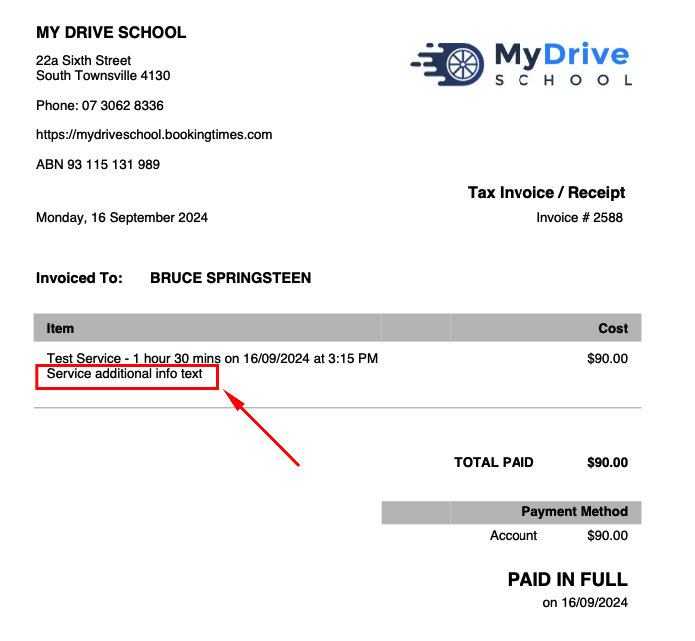
Additional invoice text can be set on a specific service.
Navigate to Setup > Bookings > Services > select service > Options tab
Set any additional text in the Additional Invoice Text field

Click Save
When you view an invoice for this service, the text will appear under the service description
Invoice note
An invoice note can be manually added to an already created invoice.
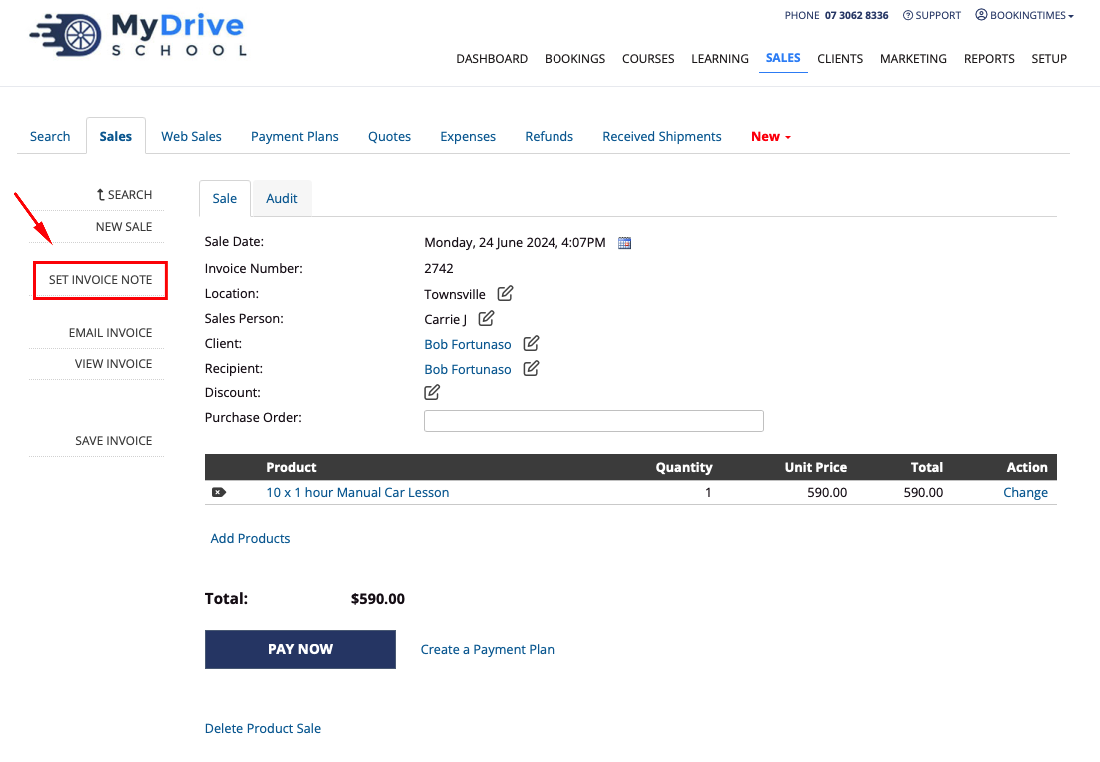
Navigate to the booking or product invoice
Select the Set Invoice Note option on the left hand menu
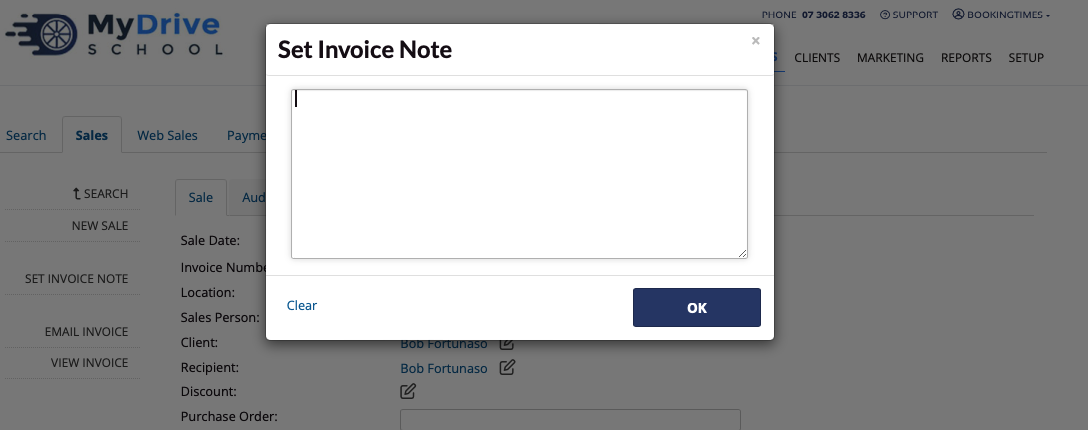
Enter the invoice note and click OK
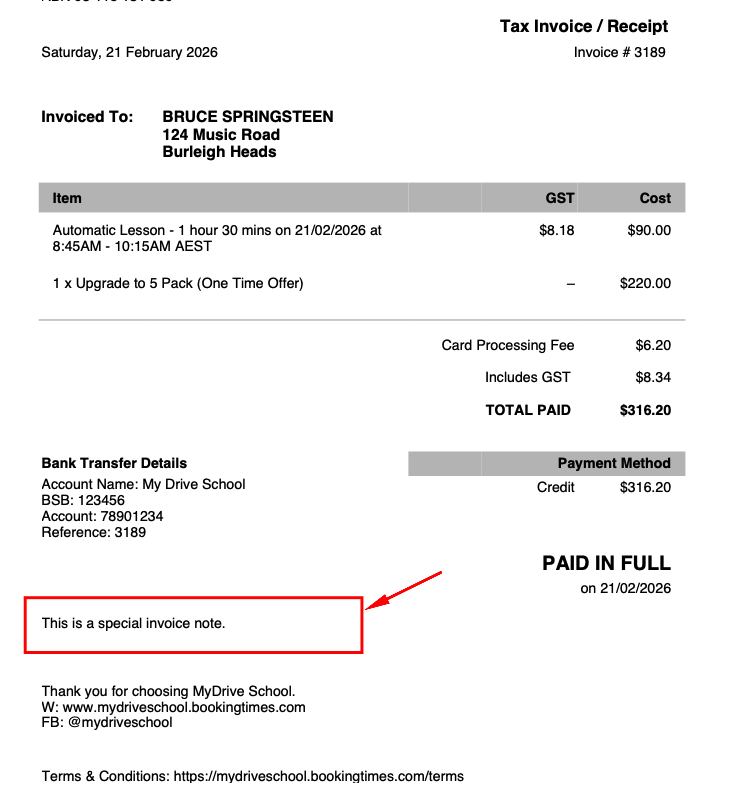
When you view an invoice, the text will appear as follows, above the Invoice footer (if one is added)
Invoice footer
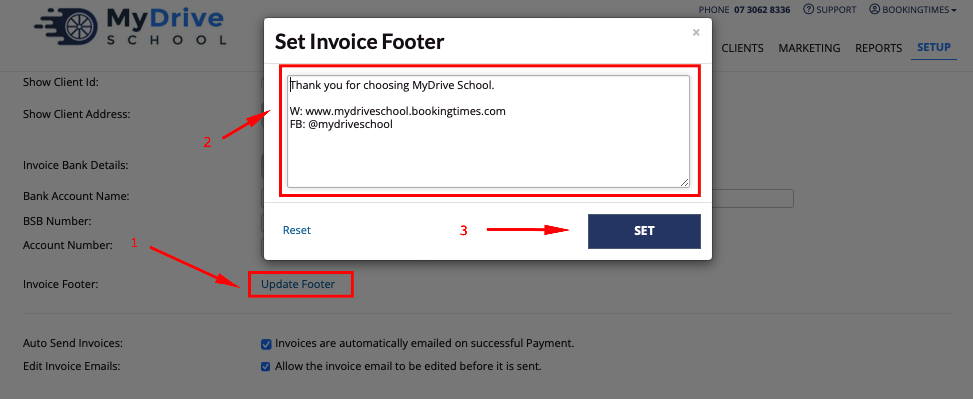
An invoice footer that will appear on all invoices can also be defined and is set up as follows:
Setup > Business Details > Finances tab
Go to the Invoice Footer section and click the Update Footer link
Add any footer text into the text box and click Set
Click the Save button back on the Finances tab to ensure updates are saved