If you’re using the online BookingTimes email platform (and not through another email app such as Outlook etc), then you can still set up a custom signature for the times you email directly from here. When emailing directly from within your BookingTimes system, your signature is auto-created, so this allows you to keep that professionalism via emails only also.
Steps
Access your email online at: https://mail.bookingtimes.com
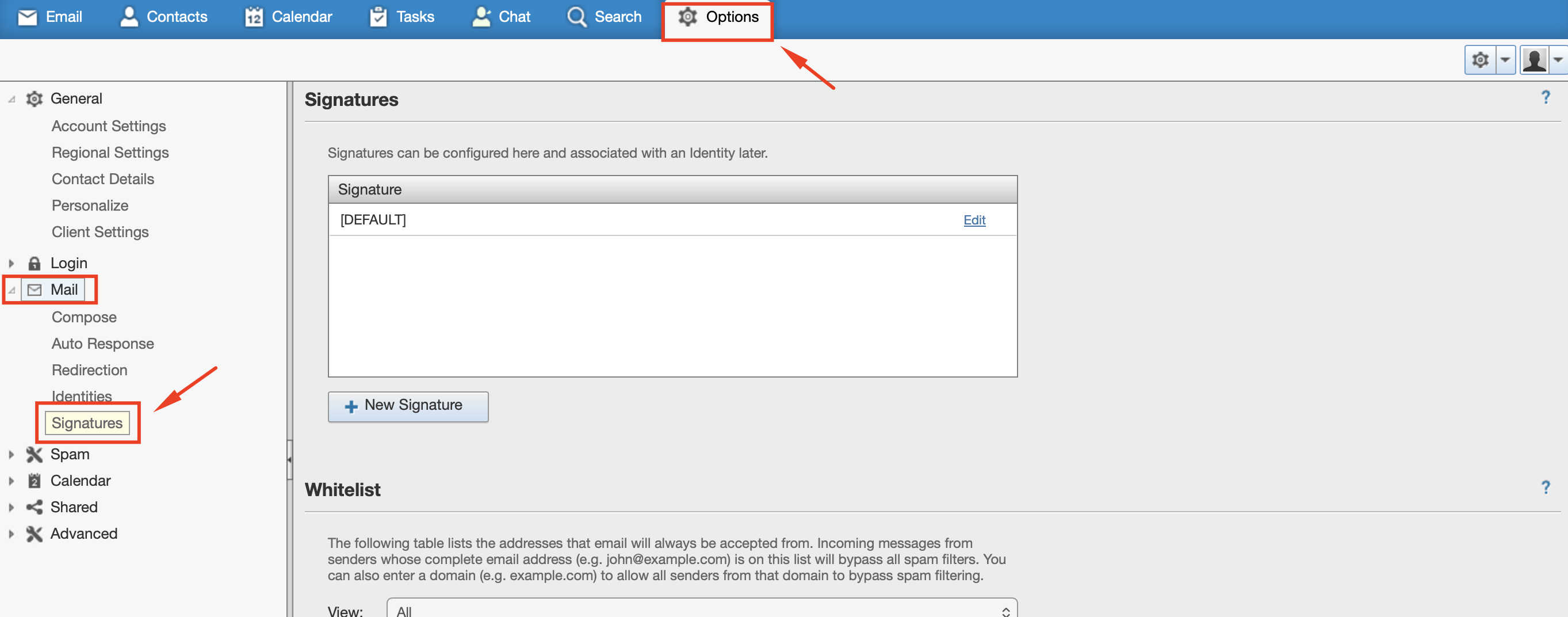
Click on Options menu at the top
Click on Mail > Signatures in the left hand menu
Click on New Signature button (or just edit the default)
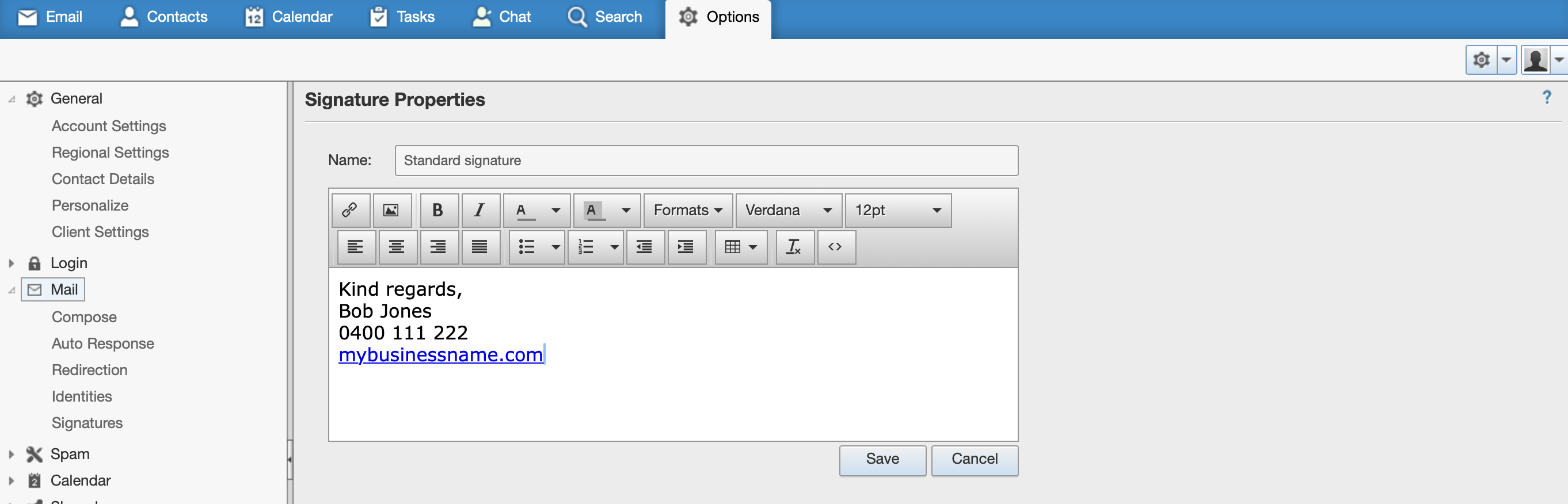
Enter your signature details. Note you can use the standard font formatting options available in the toolbar including adding links.
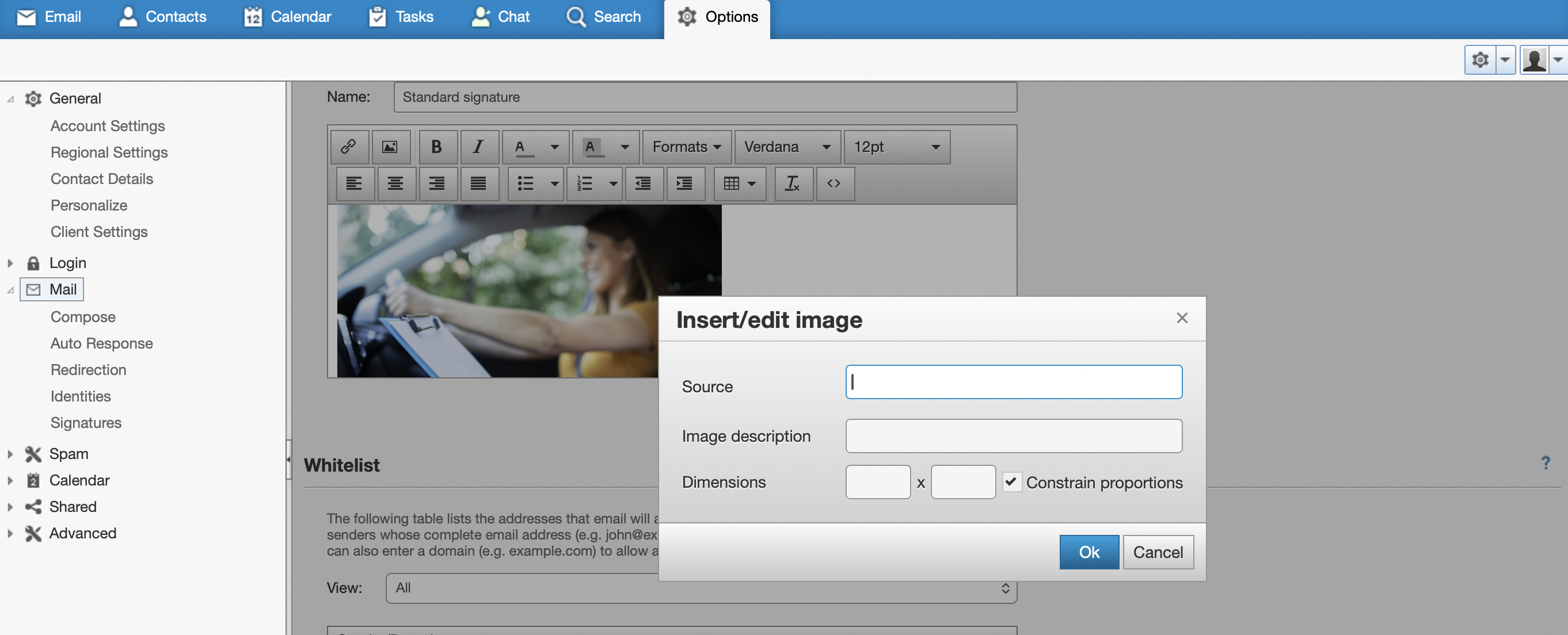
To upload an image click on the image icon. For this the image has to be uploaded online first. You can do this via your BookingTimes website as follows:
Setup / Edit Website / Edit Page / click on any image / click on the image icon / upload your image via that popup
Hover over the image and click on the link icon to copy the uploaded image file path
CLOSE out of the popup and Edit Website (do not save any changes, this is just a way to upload an image file)
Paste that into the popup in the online mail in the Source text field, click OK
Click Save