You are able to close your BookingTimes at any time as follows, and it will remain active until it’s next renewal date.
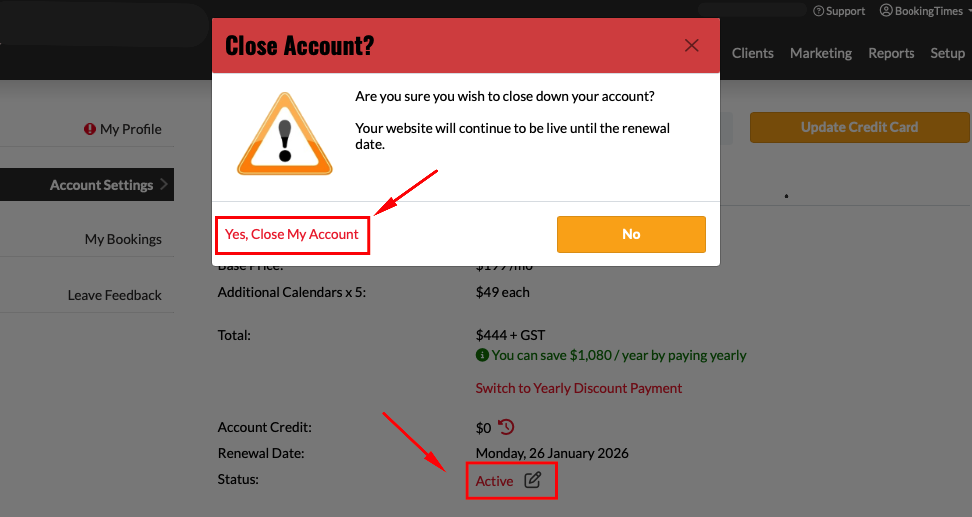
Navigate to Setup > System Settings > Account Settings
(or via your profile name in the top right hand corner select Account Settings)
Select the Active link or the edit icon
Click on the Yes, Close My Account link to confirm
Please ensure that you have downloaded any of your data via the Reports menu if required as you will not be able to access them once your website is inactive. The main reports include (but not limited to):
Income
Liabilities/Vouchers
All Clients
Outstanding Payments
Please see the following instructions for running and exporting reports:
If you'd ever like to re-active your website in the future, please navigate to your website and login. You will be prompted to enter your credit card details to reactivate the account.
If you have any other questions prior to closing your account, please contact our support team at support@bookingtimes.com.
Going on holidays
If you’re on holidays or extended leave it’s recommended to keep your website active so it can continue to rank with the various search engines, and that your clients know your intentions.
In this case ensure that you have no availability in your calendar while you’re away, and you may wish to add a public note to your calendar or an alert banner to advise your clients of your intended leave so they know to check future availability.
Also open up your calendar for when you know you will return already, that way clients can continue to book in and make any purchases!