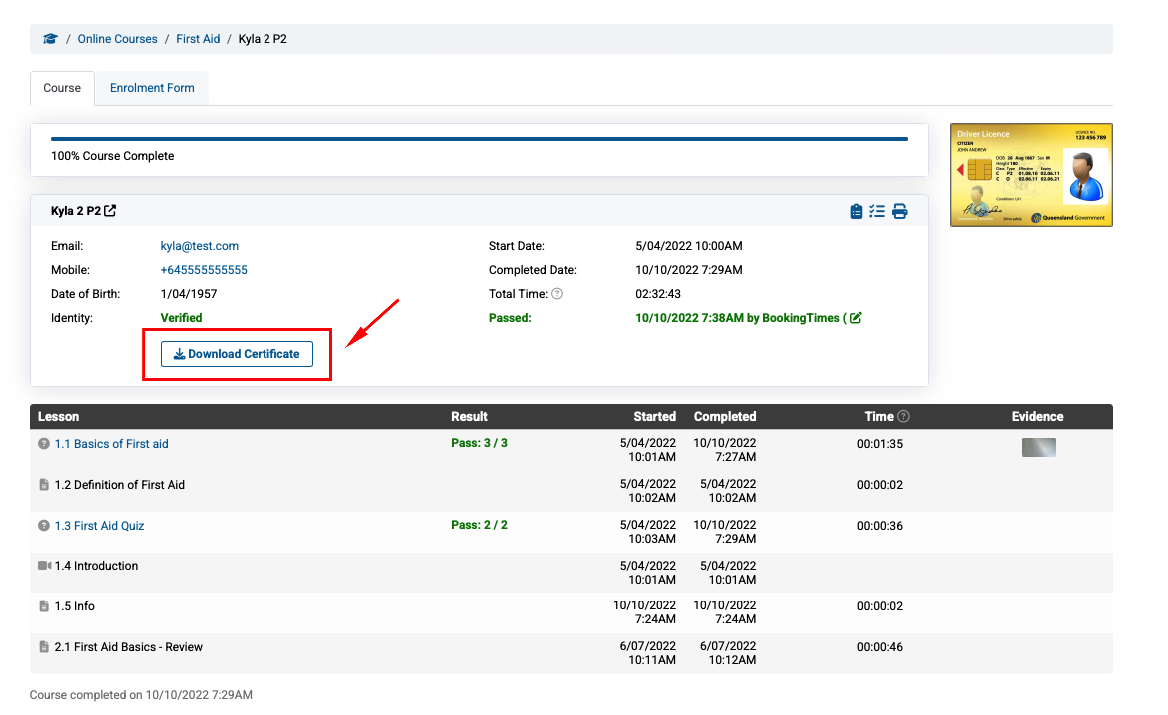
You can monitor the clients enrolled in your online course and view their course progress, including those that have completed the course and the ability to download their certificate (if one has been set). It also allows you to view any enrolment form or post assessment checklist (if they have been set up to be required for your online course)
Please refer to the Marking and managing clients article which outlines any actions that are needed by you as the course admin.
Monitor course progress
Steps
Go to the Learning menu
Click the All Courses tab and select the course
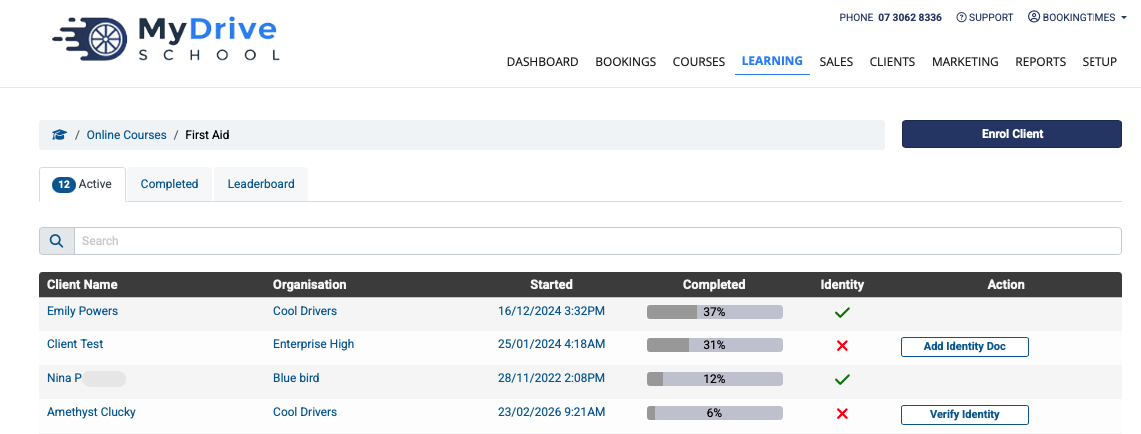
A list of active clients will be displayed in the Active tab. You can see an overview of their progress under the 'Completed' column, and allows some actions to be completed on clients. Please refer to Marking and managing clients for more details.
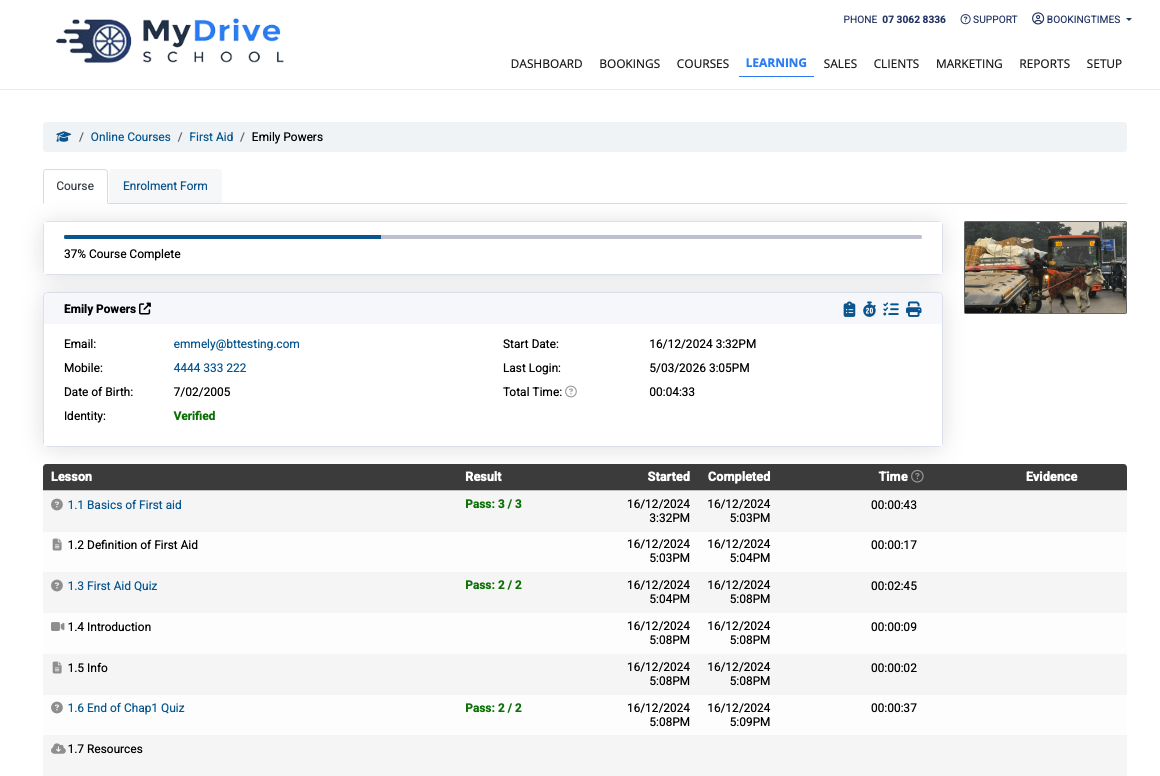
Click on the client to open the client overview, here you can see a detailed breakdown of their course progress in the Course tab. There are several downloadable reports available too using the various icons:
Clipboard list icon: downloads a module summary for the client including course modules, time taken, completion date, quiz result
Stopwatch icon: downloads a time tracking audit client for each module including course modules, time started and duration
Checklist icon: prints the course with quiz answers
Print icon: prints the course lessons including start/completion time, duration, overall quiz results
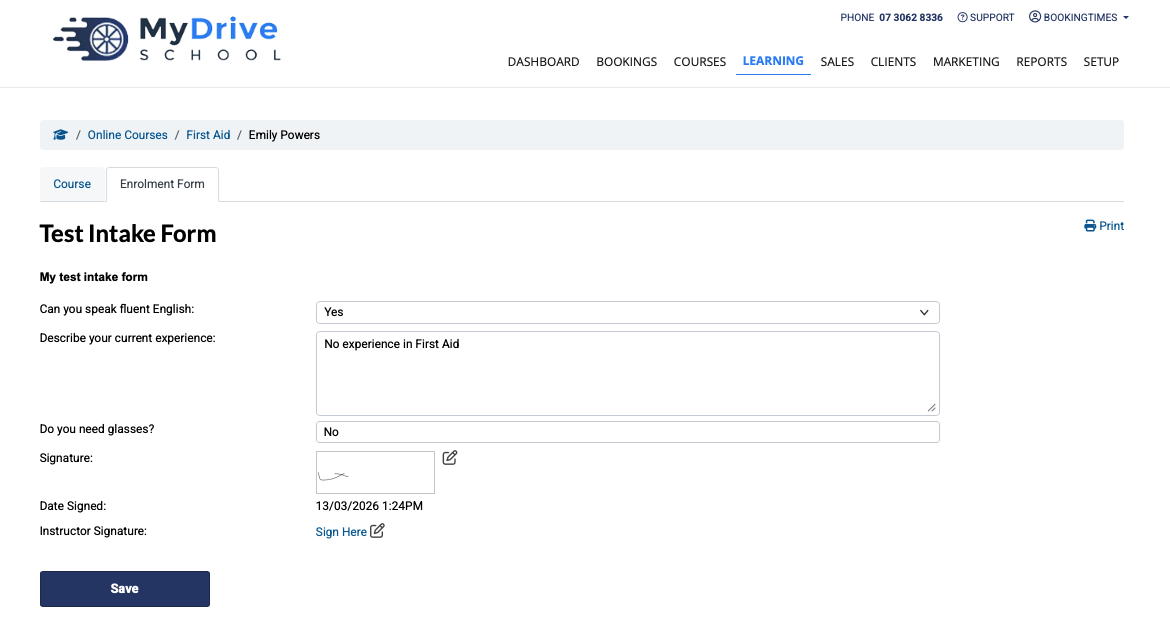
If a Course Intake Form (also referred to as an Enrolment Form) is configured for the online course, it can be viewed on the Enrolment Form tab.
Note: an admin is able to make any updates to this form after it’s been submitted. Any updates to the signature have a date and timestamp on them.
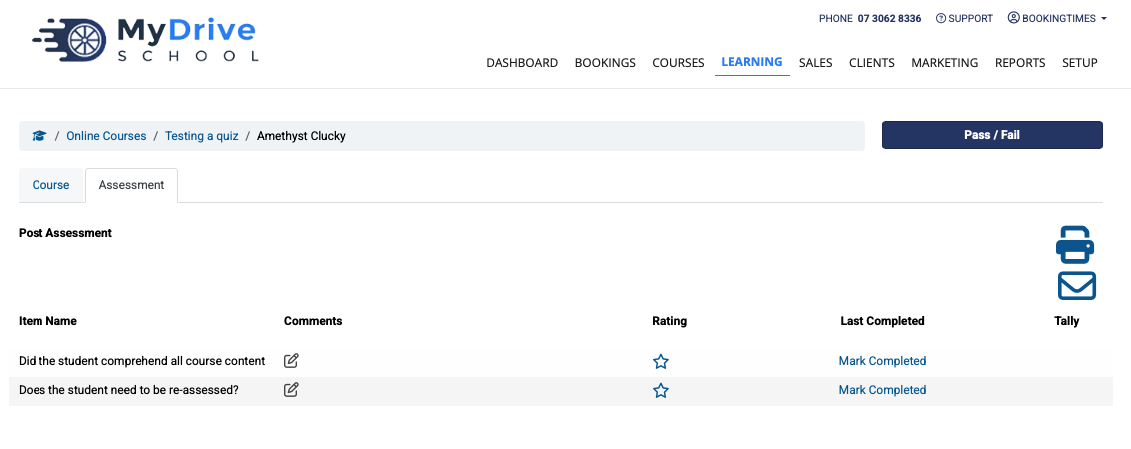
If a Post Assessment Checklist is configured for the online course, it can be viewed and updated on the Assessment tab. Post assessment checklist can be set up, viewed and updated as outlined in this article Post assessment checklist.
View completed courses and download certificate
Steps
Go to the Learning menu
Click the All Courses tab and select the course
A list of completed clients will be displayed in the Completed tab.
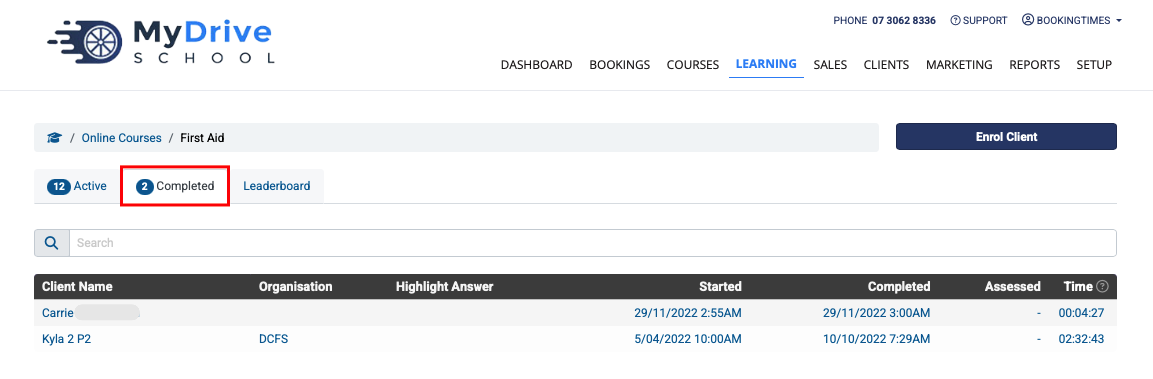
Select a client that’s completed the course to download the certificate if required. This screen also includes the summary information of the client who has completed the course, including pass/fail.