---
title: "Creating a membership product"
slug: "creating-a-membership-product"
updated: 2023-12-05T01:12:00Z
published: 2023-12-05T01:12:00Z
canonical: "support.bookingtimes.com/creating-a-membership-product"
---
> ## Documentation Index
> Fetch the complete documentation index at: https://support.bookingtimes.com/llms.txt
> Use this file to discover all available pages before exploring further.
# Creating a membership product
A membership product is one time or recurring membership. Please refer to the [Creating membership groups](/v2/docs/creating-membership-groups) article for further details on how this product is utilised.
For example:
| Product category | Product type (system defined) | Product name |
| --- | --- | --- |
| Accounts | Membership | Monthly paid gym membership |
| Accounts | Membership | Yearly online health tribe support group subscription |
### Steps
1. Navigate to **Setup** > **Shopping** > **Products & Packages**
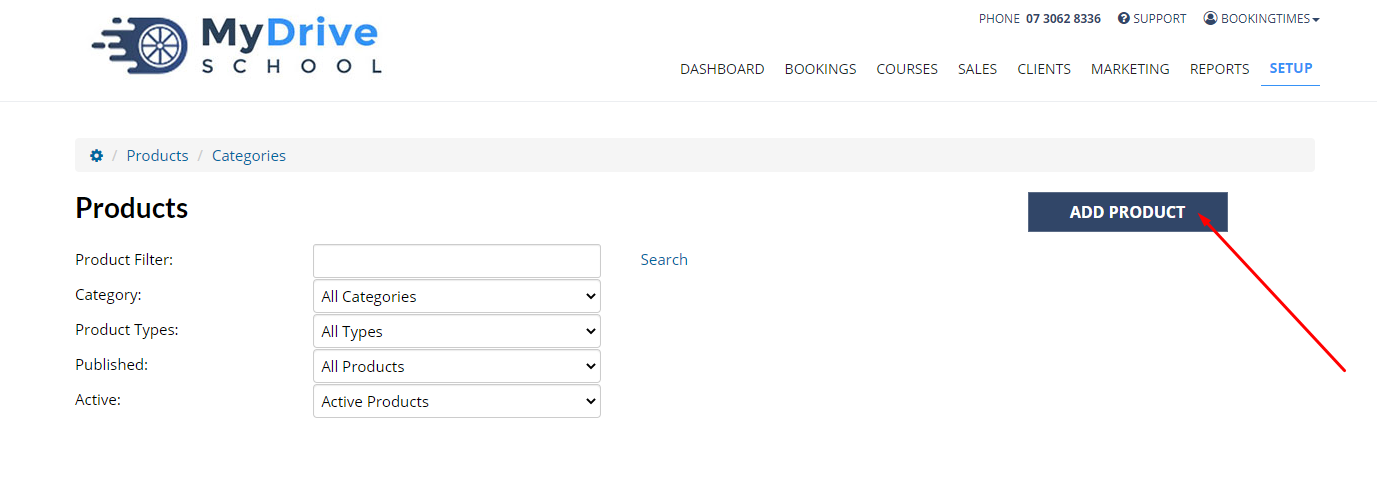
1. Click **Add Product**
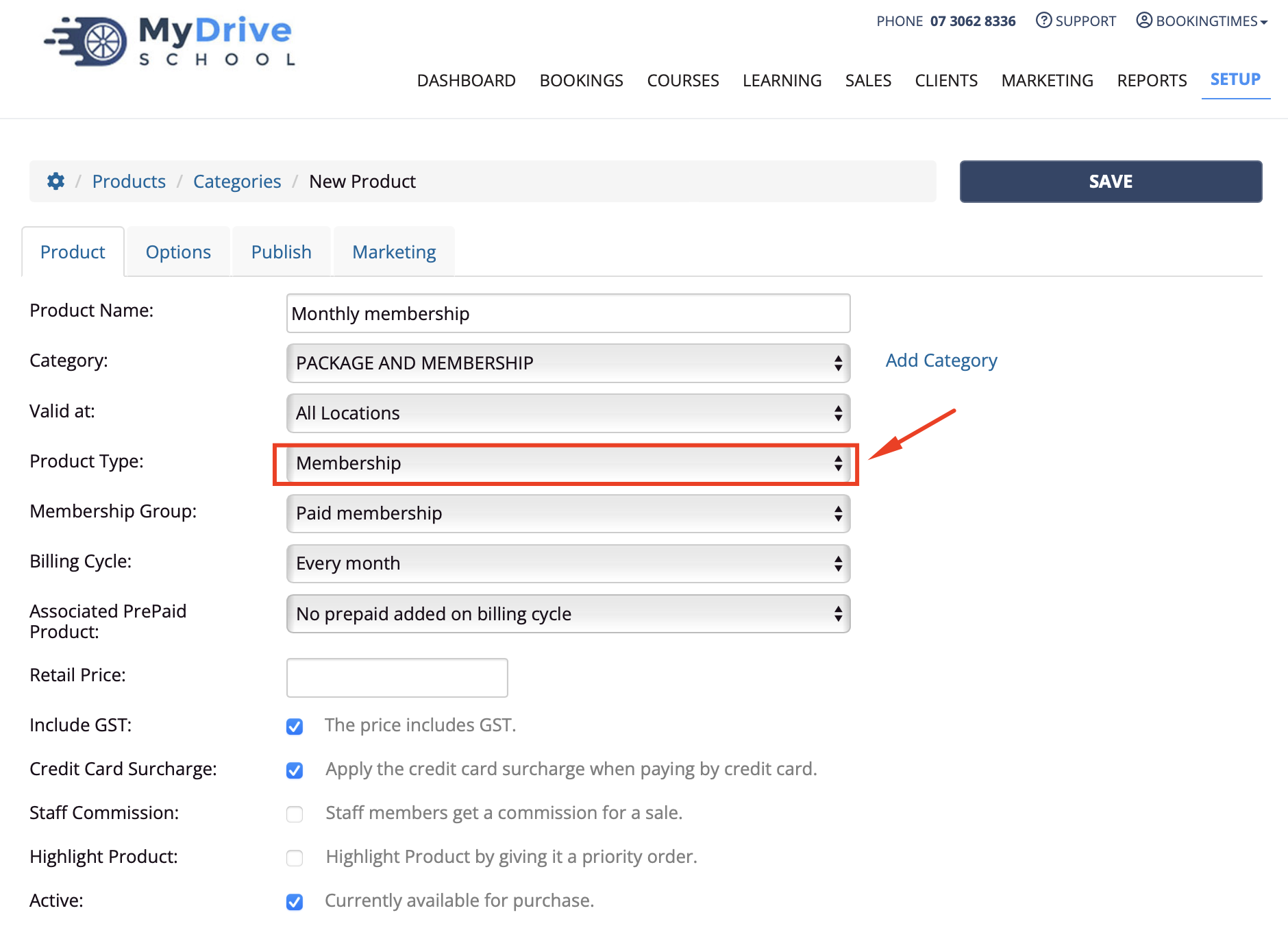
1. Enter the *Product Name*
2. Enter the product *Category*
1. See [Creating product categories](https://support.bookingtimes.com/v2/docs/creating-product-categories) for more information on adding product categories
3. Under *Product Type*, select **Membership**
4. Enter remaining product details, including *Membership Group, Billing Cycle, Associated Prepaid/Voucher product,* *Retail Price etc*
5. Click **Save**