Multi-factor authentication (MFA) is enforced for all staff members as our ongoing commitment to system security and protection against phishing attempts (e.g. sending an email impersonating another business in order to try and gain access to that system) or other malicious attempts. Staff members will be prompted to re-authenticate each month (or if they log in from a different device, wi-fi network or IP/location combination).
Staff can opt to use MFA Authenticators. These include:
Authenticator apps: including Google Authenticator, Microsoft Authenticator, Apple Passwords app, or other 3rd Party apps (that may charge) such as Duo (download via https://duo.com) etc;
Passkeys on their device (e.g. Face ID, Touch ID etc); or
Two-factor SMS authentication (if didn’t receive please read Didn’t receive SMS here)
High level admin staff members with the correct permission are also able to manually authenticate staff should they have any issues.
Adding multi-factor authentication (MFA)
Steps
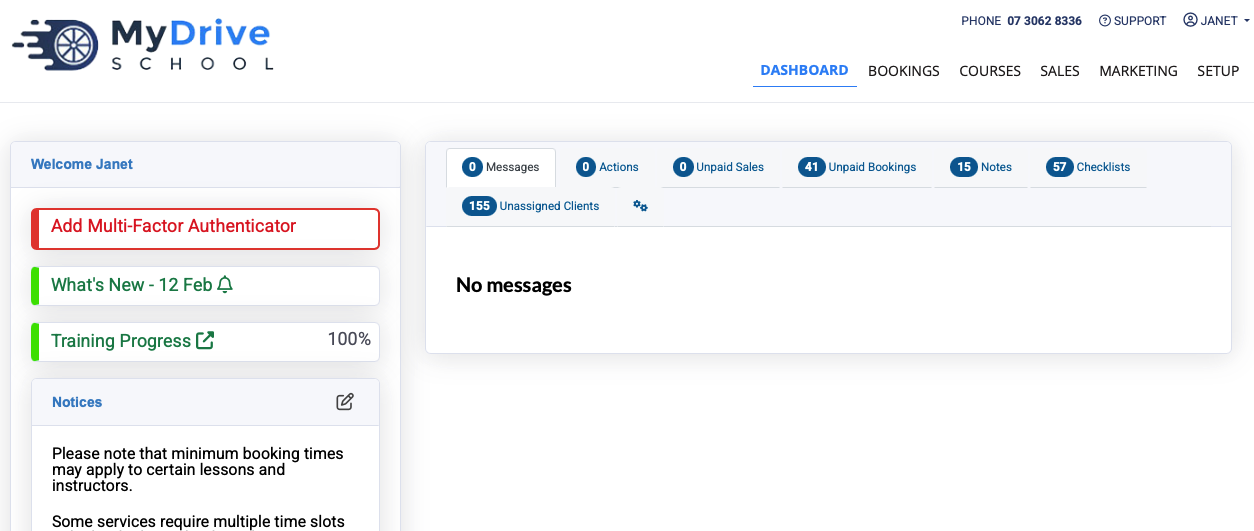
When a staff member first logs in and they haven’t yet set up any MFA, they’ll see an Add Multi-Factor Authentication button on the dashboard and on their My Profile screen.
Dashboard:
Staff My Profile screen:
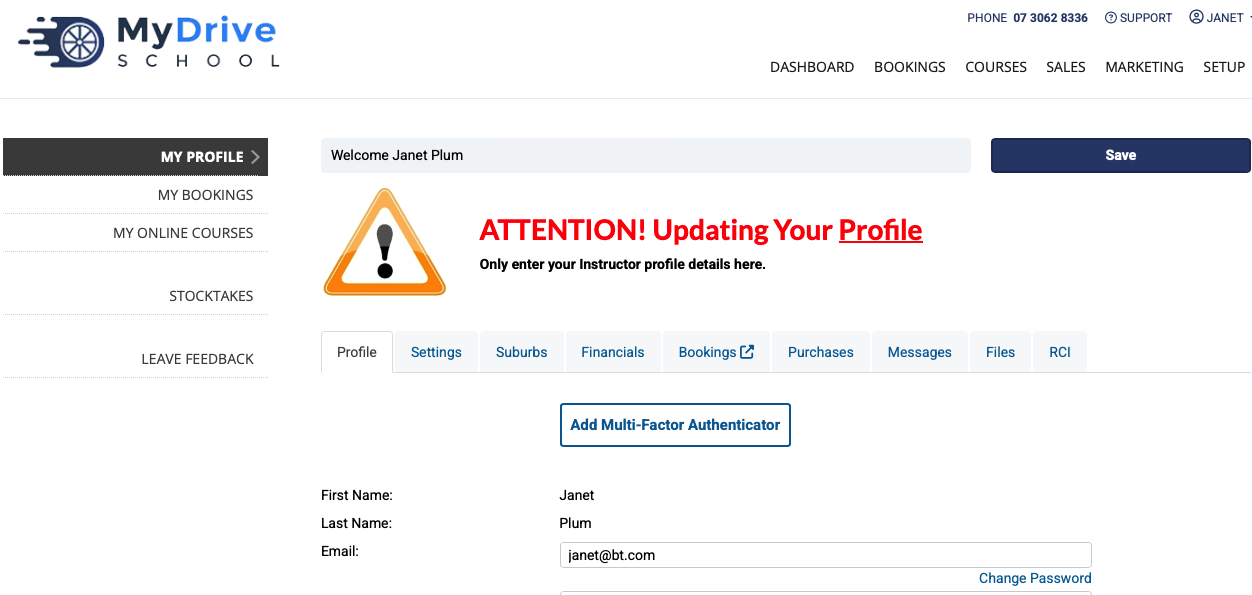
You will now be presented with the following 2 options: using an Authenticator app, or using a Passkey as part of their device’s built-in security.
.png)
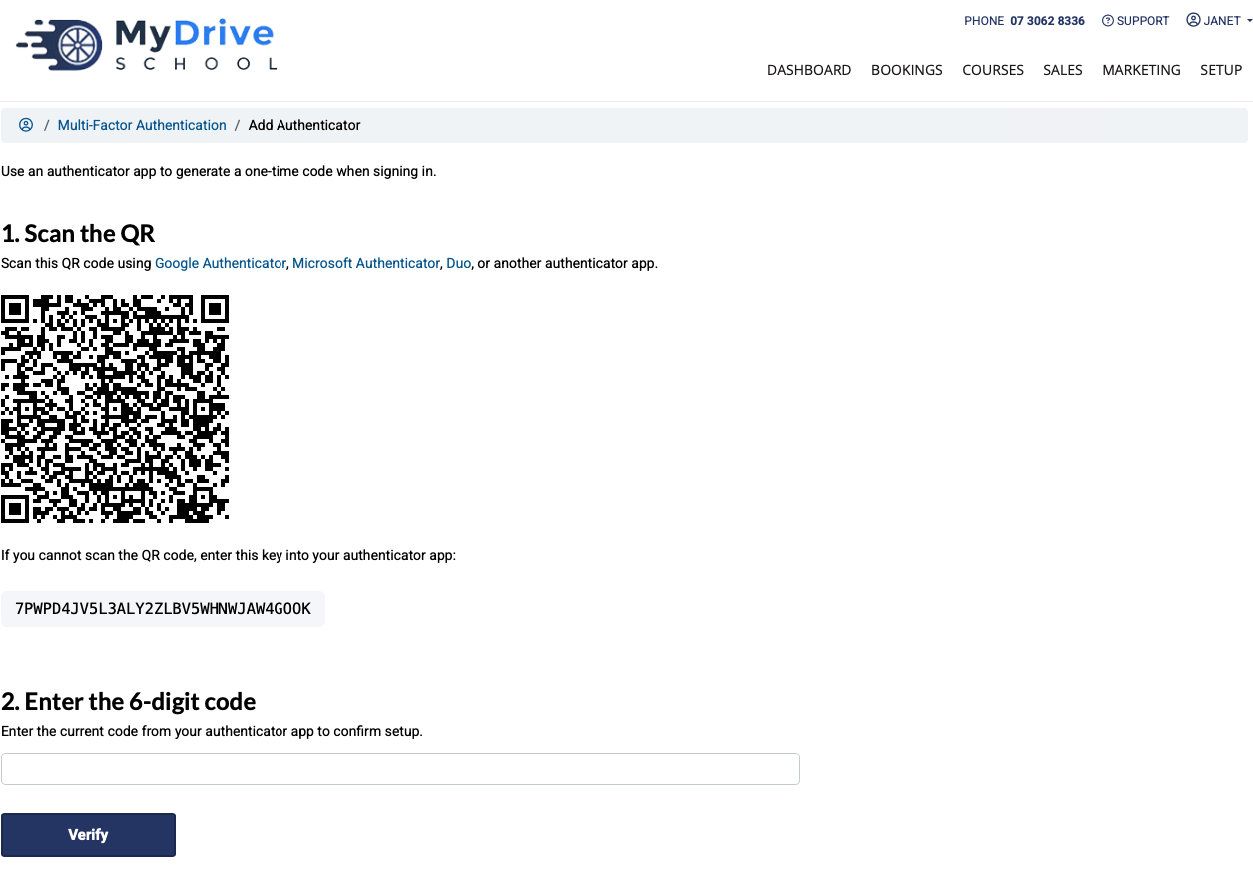
If you select AUTHENTICATOR APP:
Follow the steps which begin with scanning the QR code. A few helpful links are also displayed:
Google Authenticator: https://support.google.com/accounts/answer/1066447?hl=en&co=GENIE.Platform%3DAndroid
Microsoft Authenticator: https://www.microsoft.com/en-au/security/authenticator/mobile-app?ocid=authenticator_marketing_qrcode
Duo: https://duo.com/product/multi-factor-authentication-mfa/duo-mobile-app#download-duo-mobile
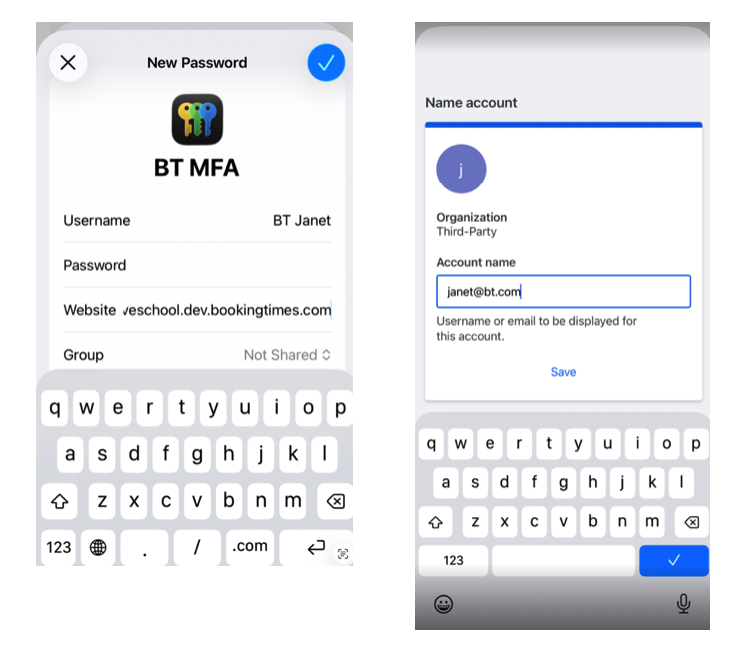
The authenticator app will prompt you to enter a details for you to save this login. This example screenshot shows Apple Passwords app on the left, and the Duo app on the right.
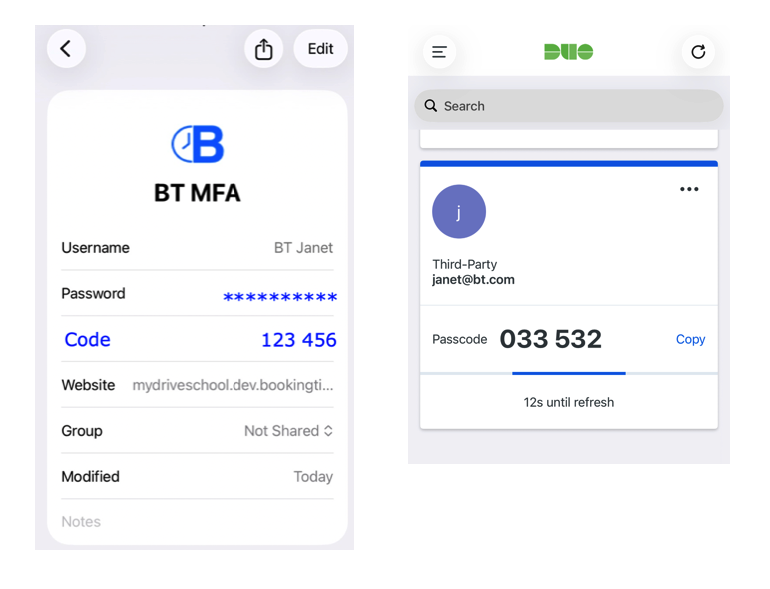
The authenticator app will then display a One-Time Code (a 6-digit code that changes every 30 seconds), that you then enter in back on your BookingTimes website and click the Verify button to complete the process. This example screenshot again shows Apple Passwords app on the left, and the Duo app on the right.
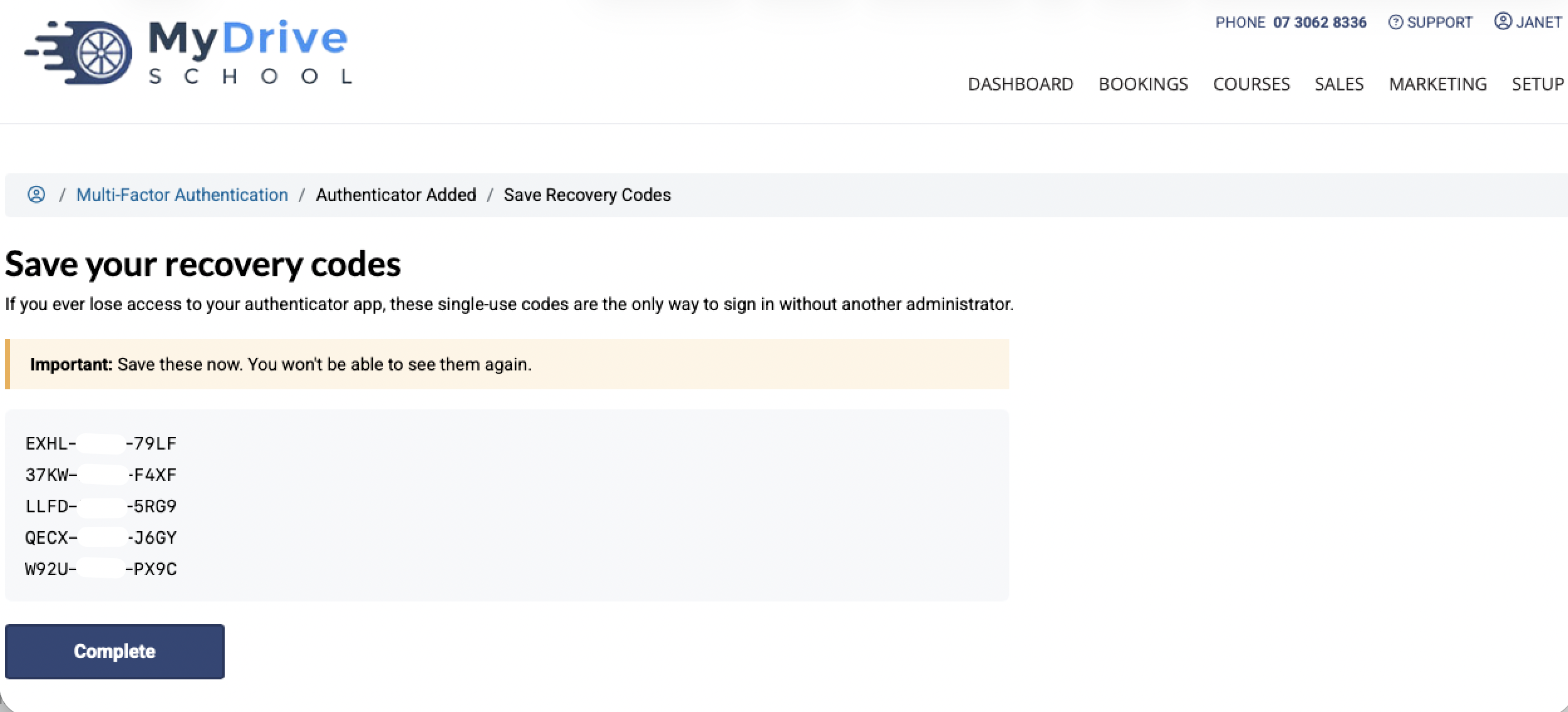
Once verification has been complete, you will be promoted to save your recovery codes in case you ever lose access to your authenticator app, and these single-use codes are the only way to sign in without another administrator.
Save your recovery codes
Ensure you save those codes now as you won’t be able to see them again. Click Complete button once you’ve saved them.
If you select PASSKEY:
Follow the steps which begin with adding a name for this passkey and click the Add Passkey button to continue.
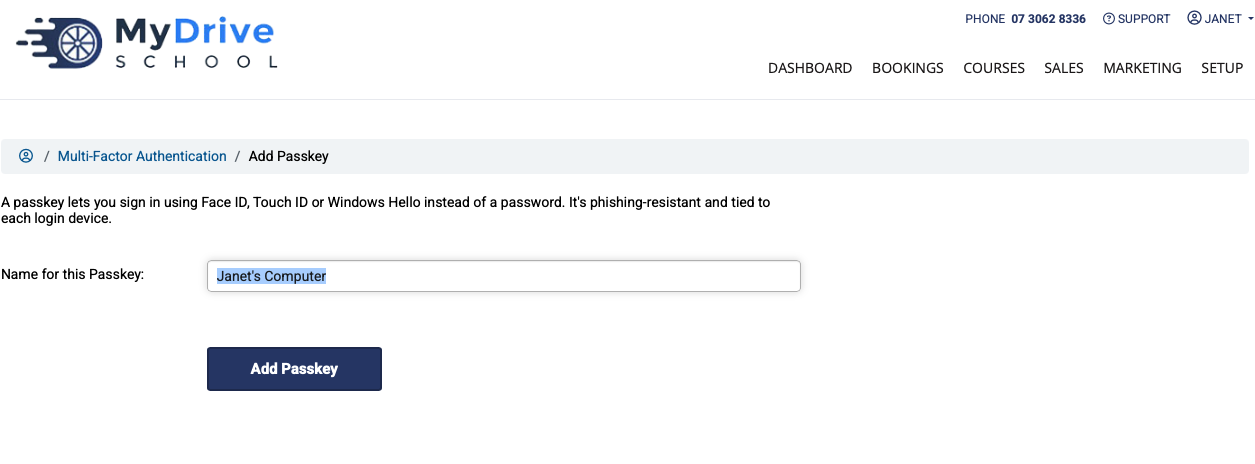
You will now be prompted to choose how to manage your passkeys, please note this will look different based on your device. This example screenshot suggests the Apple Passwords app which also manages passkeys for Apple devices. Please follow the steps based on your device to complete this process.
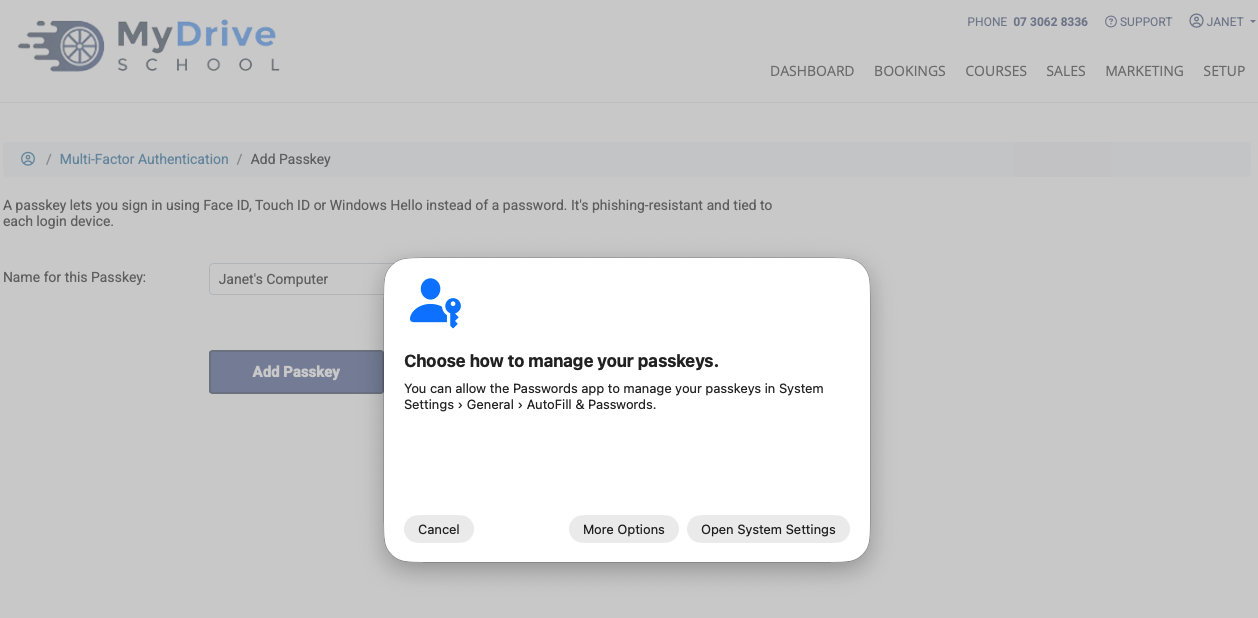
Prompted to use multi-factor authentication
Once multi-factor authentication has been set up, staff will be required to complete MFA verification whenever re-authentication is triggered, such as each month as per our updated security requirements, or when accessing the system from a new device or different IP/location combination.
Steps
The following screen will appear to prompt you to select your desired MFA verification method. If you have Passkey set up then use that now to complete the verification process. If you select the Authenticator App or SMS option, the authentication code will be sent (either displayed in your Authenticator app or SMS).
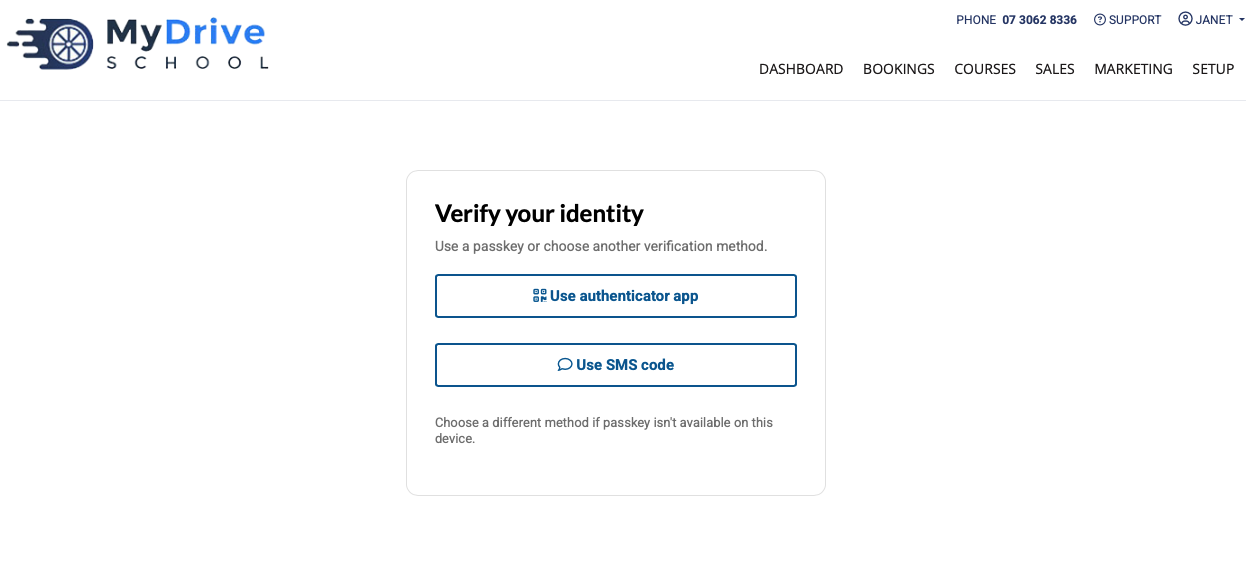
If an authentication code has been sent, enter it here and click Verify.
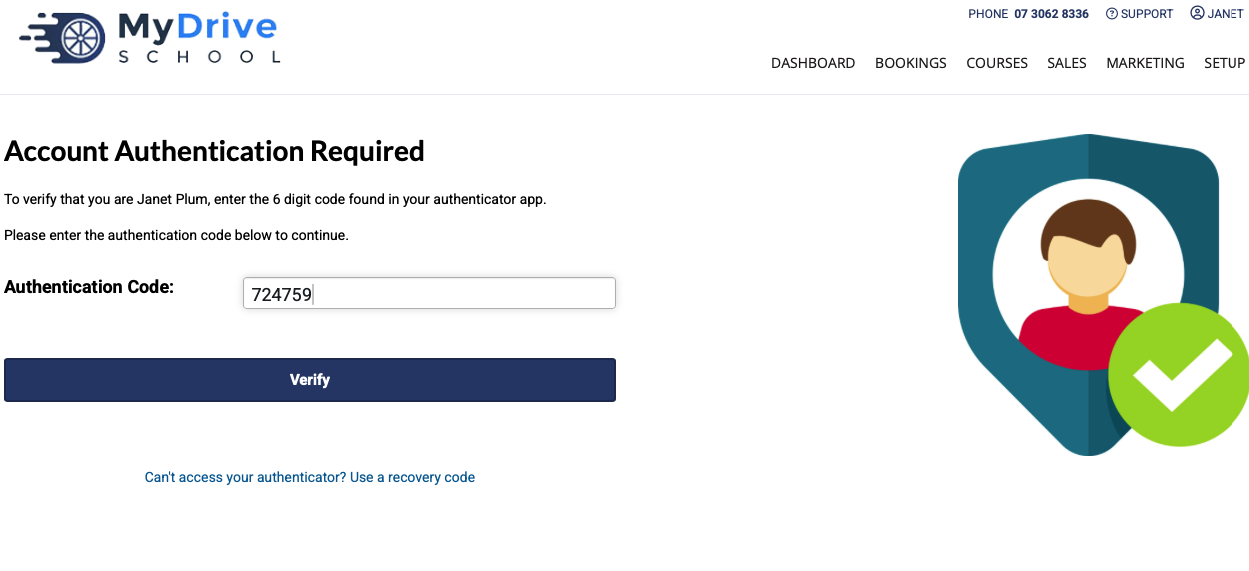
Manually authenticate staff members
High level admin staff that have the right permissions, are able to manually validate other staff connections if MFA is needed (though staff should be using the options available that our outlined in this article using Authenticator apps, Passkeys or two-factor SMS authentication).
Steps
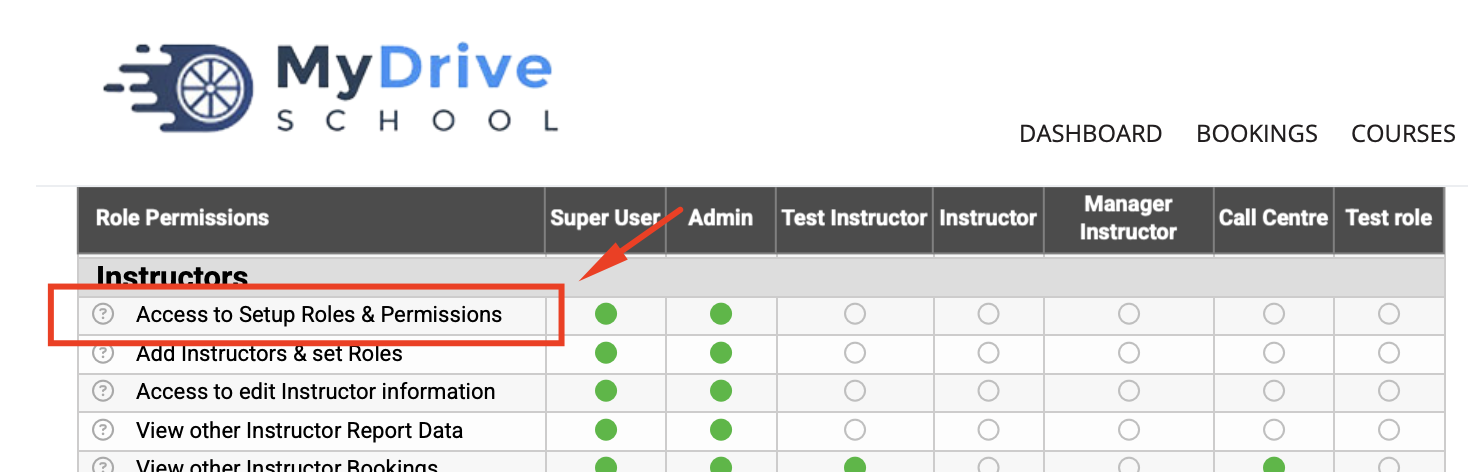
First, ensure the hight level admin staff as the correct permission "Add Instructors & Set Roles" (or “Staff” etc depending on what terminology has been set up for your system) to be able to manually authenticate other staff members.
Please refer to the Security and permissions article for more details.
Navigate to Setup > Instructors & Admins > select staff member
Click on the key icon under their email address
Under the MFA (Multi Factor Authentication) column, you can click on the Shield icon with a + in it to manually authenticate them. Once they've been authenticated on that browser/device/wifi network you will see the Shield icon with a tick in it. If the staff change wi-fi networks, devices, or their IP and location constantly changes, they may be prompted to re-authenticate.
2 factor SMS authentication
This method will be used to initially authenticate any staff member. Please note these SMS text messages are charged, which is why we recommend staff then use either an Authenticator app or Passkey for future verification.
SMS cost
Please note, there is a cost for sending these SMS, these cannot be turned off they are required as a core part of our system security. You can view the cost under Setup > System Settings > Account Settings and scroll down to SMS Pricing.
Didn’t receive SMS?
If the verification SMS was not received in a timely manner for any reason, but if you have someone with high-level access to the system you can either:
Manually authenticate the staff member as per the Manually authenticate staff members section above; or
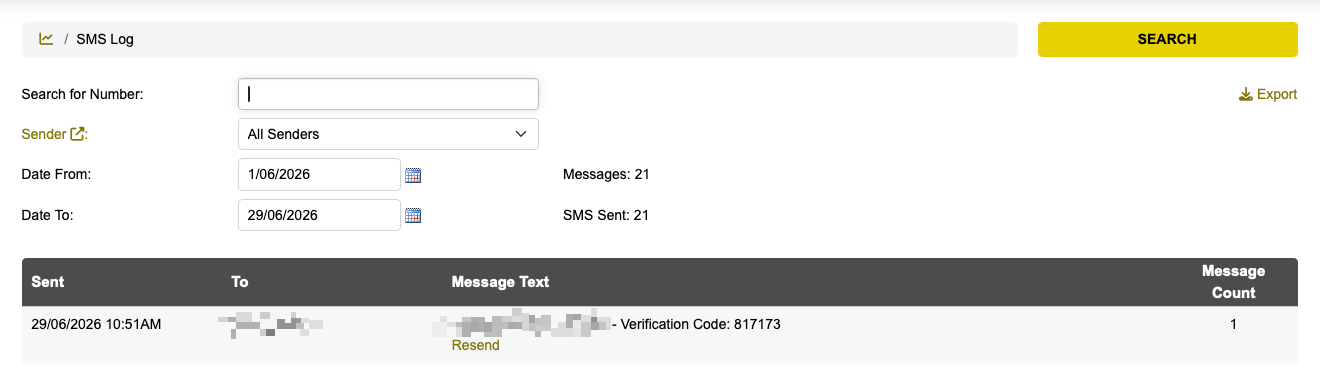
Retrieve the SMS verification code as follows via the SMS Log report
Please do contact support@bookingtimes.com if this issue persists or if you are the sole user of the system and can’t gain access.
Steps
Navigate to Reports > Logs section > Sent SMS report
Find the phone number that was attempting to verify, and copy the Verification Code to give to the staff member attempting to log in
Note: this must be done in a timely manner before the verification code expires.