---
title: "Language Settings"
slug: "language-settings-1"
updated: 2025-03-13T04:30:06Z
published: 2025-03-13T04:30:06Z
canonical: "support.bookingtimes.com/language-settings-1"
---
> ## Documentation Index
> Fetch the complete documentation index at: https://support.bookingtimes.com/llms.txt
> Use this file to discover all available pages before exploring further.
# Language Settings
# Enabling Translation for Clients
## Introduction
The **Enable Translation** option allows clients to see your website content in their preferred language. This feature is available on supported browsers and devices, depending on the user's settings.
## **Supported Languages**
Any language supported by the browser. As long as it’s non-English and set as the user's browser's primary language.
This feature is available on these plans ([view pricing](https://bookingtimes.com/prices))
**Kick Starter**
**Nail & Scale**
---
## Accessing Translation Settings
### **Steps**
1. **Navigate to Client Settings**
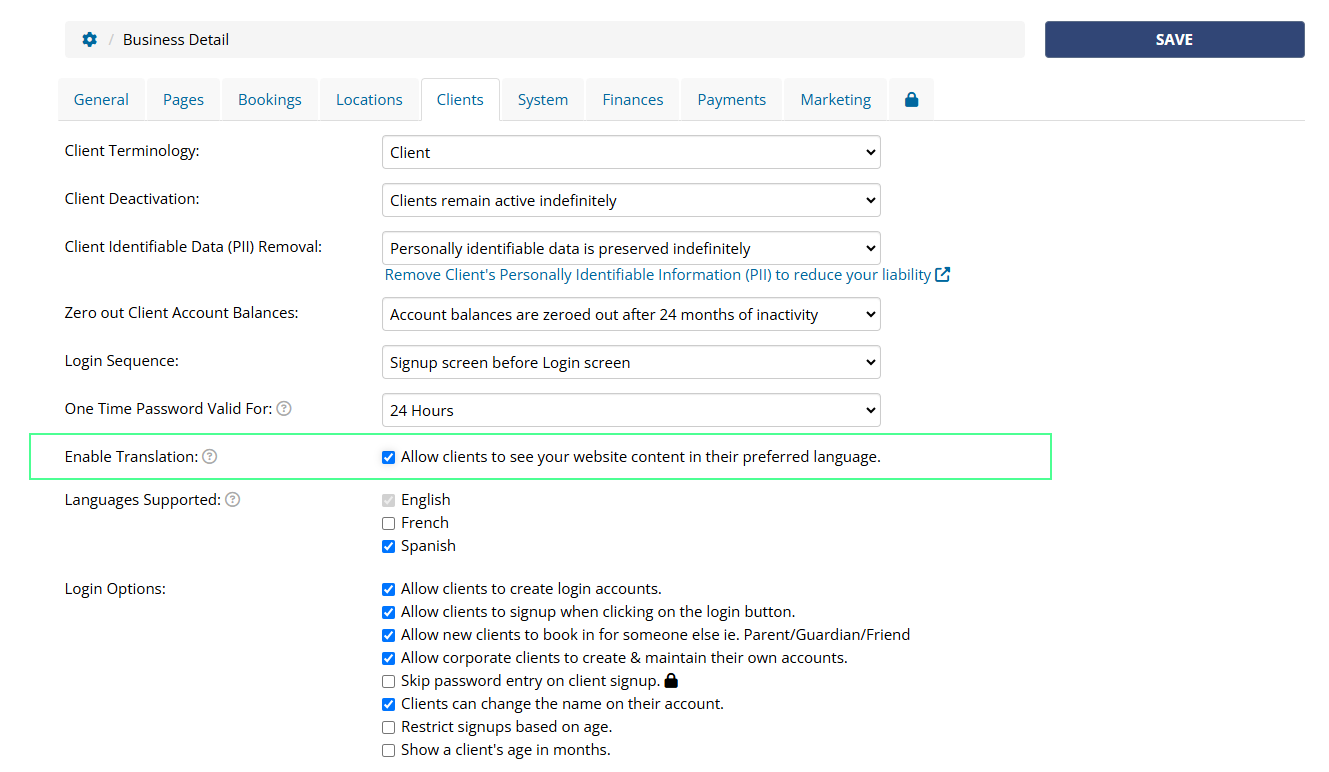
- Go to **Setup > Business Detail > Clients** tab.
2. **Enable Translation**
- Scroll to the **Enable Translation** checkbox.
- Check the box to allow clients to view content in their preferred language.
3. **Save Changes**
---
## How It Appears
The translation settings affect how the website content is displayed based on the user's browser and device.
### **Desktop Layouts**
- When enabled, translated content appears automatically based on the browser’s preferred language setting.
- Works in **Chrome** and **Edge** (latest versions).
- The languages button will show this icon, and when clicked on it will display two options: English and the user’s browser’s preferred language.
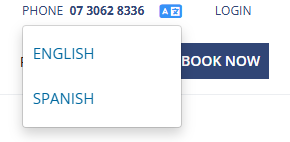
- This button’s position will be determined on the Website’s settings and chosen design layout:
- With any of the **first two layouts**, the Languages button will be found on the top bar menu.

- With the third and **last Layout,** the Languages button will be found on the navigation bar menu.

**Note:** To change your Website Layout please see the related article: [Web Design Overview](https://support.bookingtimes.com/docs/website-design-overview)
### **Mobile Layouts**
- Content adapts based on the default language of the mobile browser.
- Works best on **Chrome Mobile** and **Edge Mobile**.
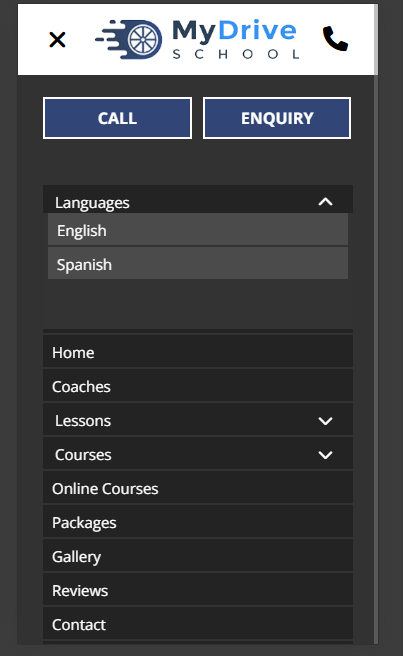
- Users will see the Languages dropdown as the first option of the mobile menu on their site.
---
## Browser-Specific Language Settings
For translation to work, clients must have a **non-English** language set as their browser's primary language.
#### **Chrome Language Settings**
- Open Chrome and go to `Settings` > `Languages`.
- Click **Add a language** and set it as primary.
- Select Display Google Chrome in this language.
- This option is only available on Windows computers.
- Restart Chrome to apply the changes.
- [Official Guide - Change Chrome languages](https://support.google.com/chrome/answer/173424)
#### **Edge Language Settings**
- Open Edge and go to `Settings` **>** `Languages`.
- Click **Add a language** and move it to the top.
- Restart Edge to apply the changes.
- [Official Guide - Use Microsoft Edge in another language](https://support.microsoft.com/en-us/microsoft-edge/use-microsoft-edge-in-another-language-4da8b5e0-11ce-7ea4-81d7-4e332eec551f)
---
## Disable Translation
### Admin Side
To completely disable this feature for clients:
- Uncheck the **Enable Translation** checkbox at Setup > Business Details > Clients Tab
#### **Disabling Translation for Specific Text**
If you want to prevent certain words, names, or sections from being automatically translated—such as business names, legal terms, or technical jargon—you can use the `notranslate` CSS class.
**How to Apply** `notranslate`
Add this class to any element you don’t want translated:
- **Full sections:**
```xml
Terms & Conditions
```
- **Headings or labels:**
```xml
My Business Name
```
- **Specific words inside a paragraph:**
```xml
Welcome to MyBusinessName
```
- **For full-page exclusion, add:**
```xml
```
#### **Client Side**
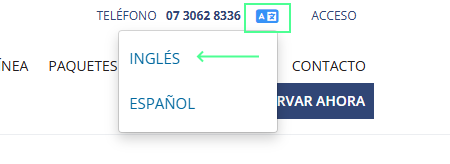
To disable this automatic translation, the user must select the English language on the languages drop down. This will always be the first option. This will show content in it’s original language through-out the user’s session.
---
## Troubleshooting
The translation feature is available on supported browsers and devices, but its functionality depends on both the business and user settings.
If the translation is not working, and you can’t see the Languages button, please check if:
1. **Your BookingTimes Account** is on the [Nail & Scale plan](https://bookingtimes.com/Prices).
2. **Translation is enabled** in the **Setup > Business Detail > Clients** tab.
3. **The client’s browser is set to a non-English language** as the primary language.
4. **The client’s browser is unsupported**: (These browsers do not fully support automated website translation in the same way as Chrome and Edge.)
- Firefox
- Mozilla
- Safari
---
### Contact and Support
For additional assistance or to report issues with the Language Feature, please contact support@bookingtimes.com or visit our [Support Page](https://support.bookingtimes.com/).