An invoice can be created for unpaid bookings and product sales. This covers if both a client or admin makes a booking or product sale (so payment is not required upfront) and an invoice is to be sent to the client to request payment.
This article covers these scenarios, as well as how you can configure the invoice content.
Invoices for paid bookings or product sales
Once a booking or product sale is paid for, you can then email the invoice to the client as part of the payment process. Please see the Email an invoice or receipt article for more details.
Australia - can an Invoice double as a Receipt?
Although the terminology Invoice vs Receipt may imply whether or not something has been paid or not, in Australia a single document can act as both an invoice and a receipt.
Booking invoice
Once a booking has been created, you can generate an invoice from the booking detail screen by either viewing or emailing the invoice.
Steps
Navigate to the Booking
Select View Invoice to preview the invoice, and select Email Invoice to email the invoice to the client
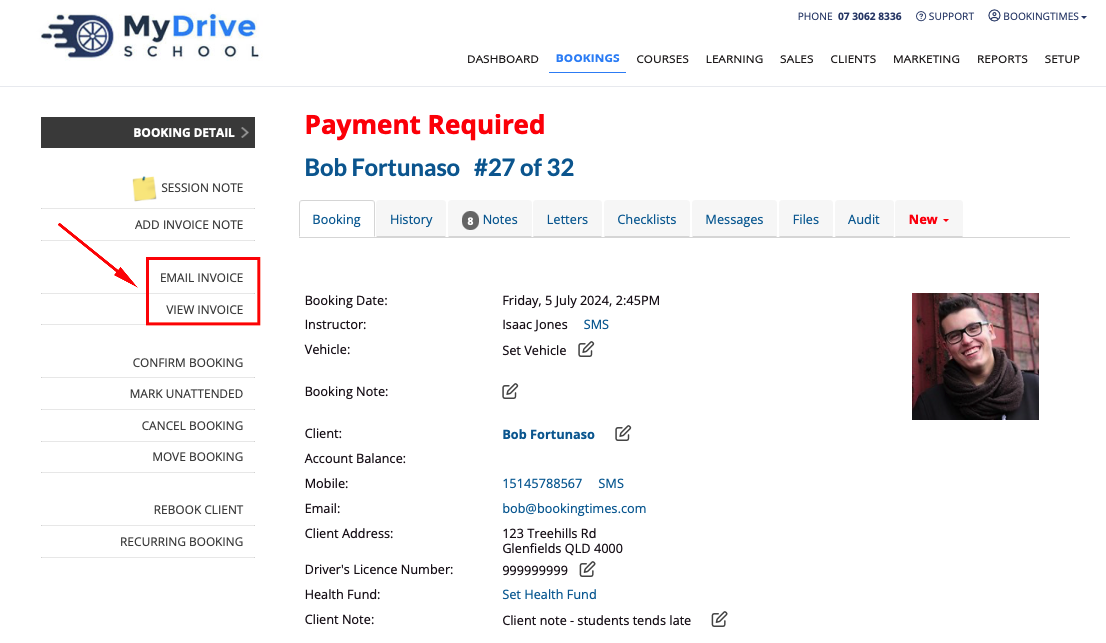
Once that’s done, an invoice number will appear on the booking, as well as shown in the History tab under the Invoice column.

Product sale invoice
Once a product sale has been initiated, you can generate an invoice from the product sale detail screen by saving the invoice.
Steps
Navigate to the Sales menu
Create a New Sale
Add client & product detail including Sale Date, Sales Person, Client, Voucher Recipient and optionally Purchase Order
Click Save Invoice in the menu
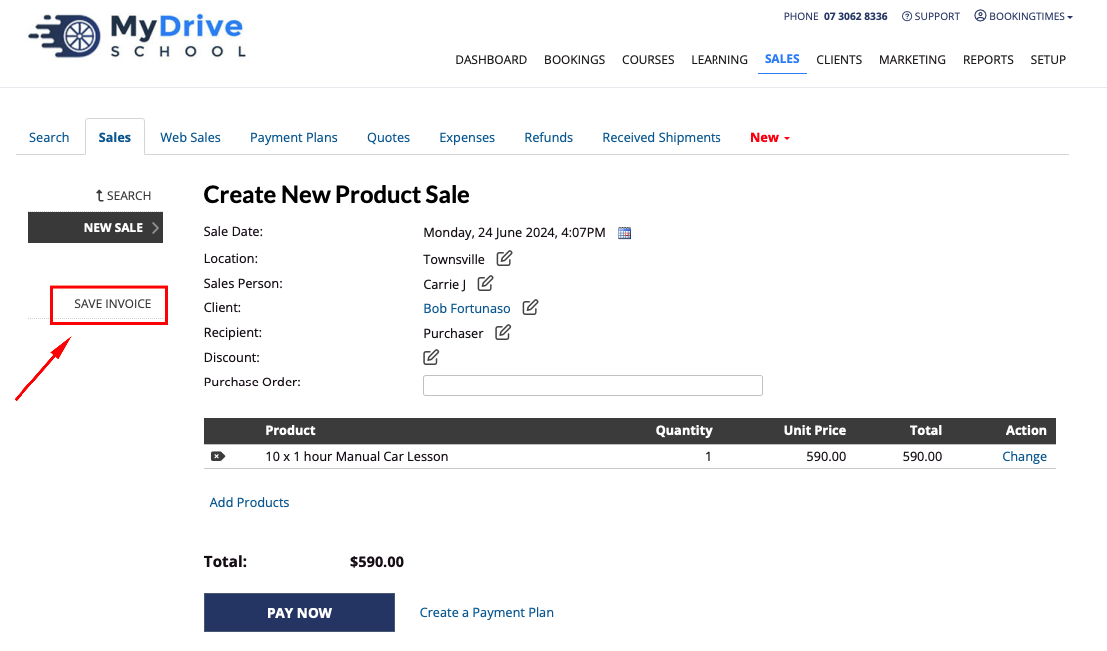
Immediately after you click Save Invoice, options to email or print the invoice will appear in the menu and an invoice number is shown on the Sale and on the client’s History tab under the Invoice column. This invoice will automatically be linked to the client account.
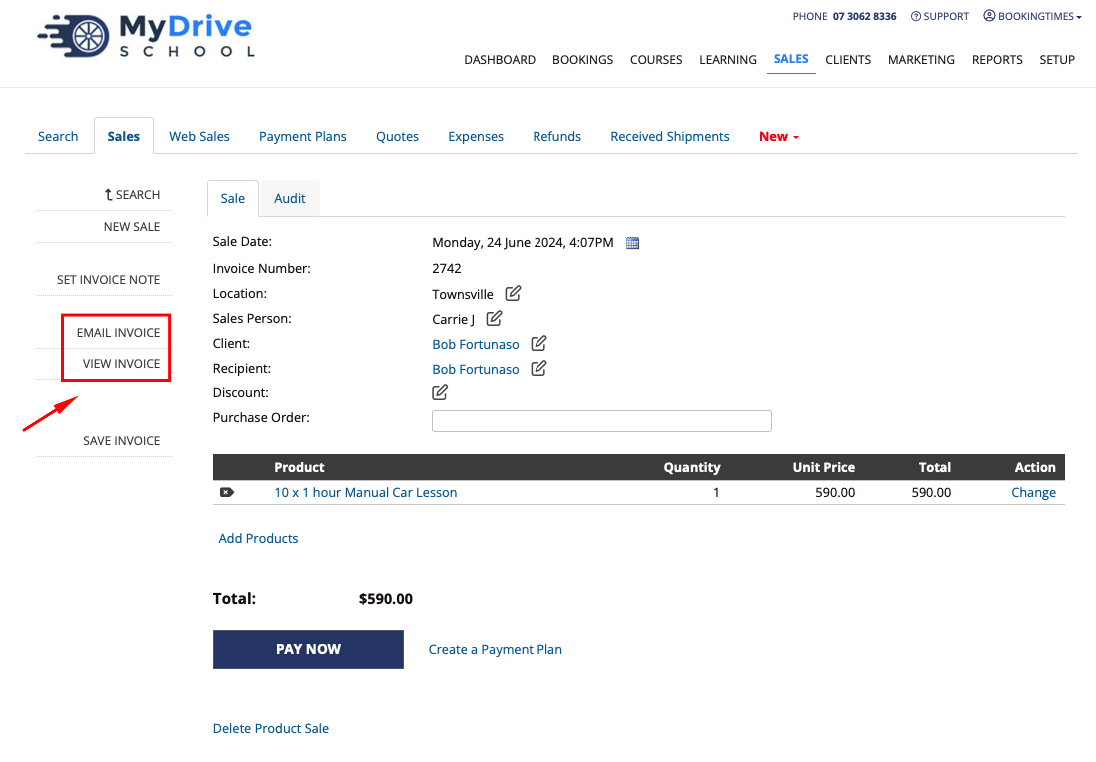
Invoice content details
Please refer to the article Invoice content for details about what information can be configured to display on an invoice.