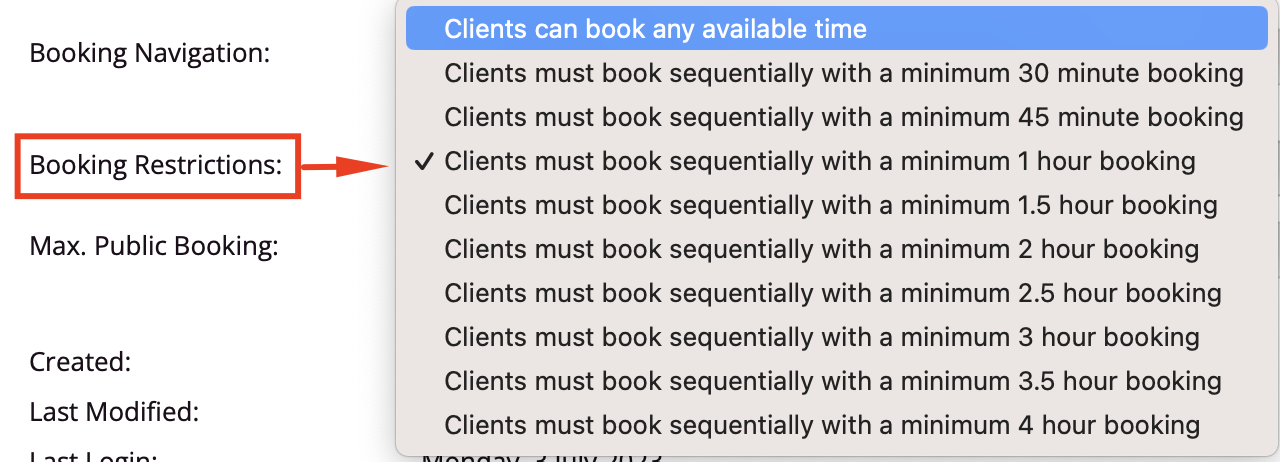
When you're opening up your schedule, you may want to restrict your clients to book in for a minimum amount of time. Rather than increase the slot service length, a more flexible way is to set up booking restrictions for staff members.
This won't force clients to book in one straight after the other, but rather force clients to choose from a set number of slots based on the booking restriction (but will adjust based on bookings). It will also only show the services that meet the minimum booking restriction time. Advantages of this are:
There are less unusable gaps in between bookings
It allows the flexibility that if a client books for a longer period than the booking restriction, the next available slots will automatically adjust. i.e. the booking restriction will apply to the remainder of the new available slots, but no extra gaps are introduced.
Example of booking restriction duration
This example assumes that services have a 30 minute post-booking buffer set up.
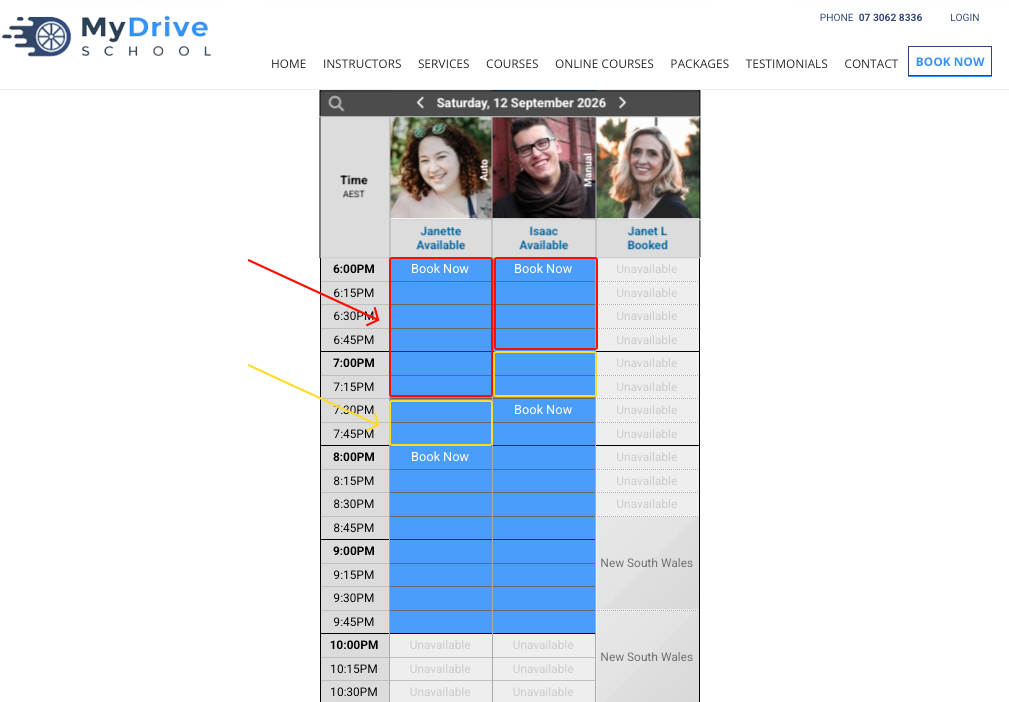
For Issac a booking restriction is set up for 1 hour, the schedule will show available booking slots every 1 hour and 30 minutes when the 30 minute buffer is added on..
The red box on the image show the slot that the minimum service will fit into (1 hour), and the yellow box after it shows the post-booking buffer (30 minutes).
For Janette a booking restriction is set up for 1.5 hours, the schedule will show available booking slots every 2 hours when the 30 minute buffer is added on..
The red box on the image show the slot that the minimum service will fit into (1.5 hours), and the yellow box after it shows the post-booking buffer (30 minutes).
IMPORTANT - If you have various post booking buffers lengths for services
Please note that this functionality will use the minimum post booking buffer for all the staff member’s publicly available services (i.e. they will not look at admin only services or tasks).
This means if you have various post booking buffers and have none for some services and 30 mins for others, the booking restriction will enforce zero minutes in its calculations as that’s the least minimum buffer out of these.
If possible set all your post booking buffers consistent across all your publicly available services to ensure the booking restriction minimises any gaps. If not then you may wish to switch this feature off and allow clients to book all the timeselots instead.
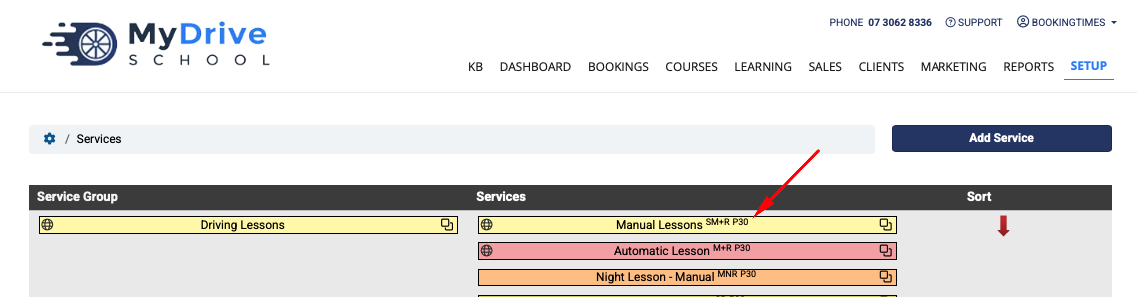
You can easily check the post booking buffers of all your services by navigating to Setup > Bookings > Services and look for the “P<mins>” (e.g. P30) next to each service.
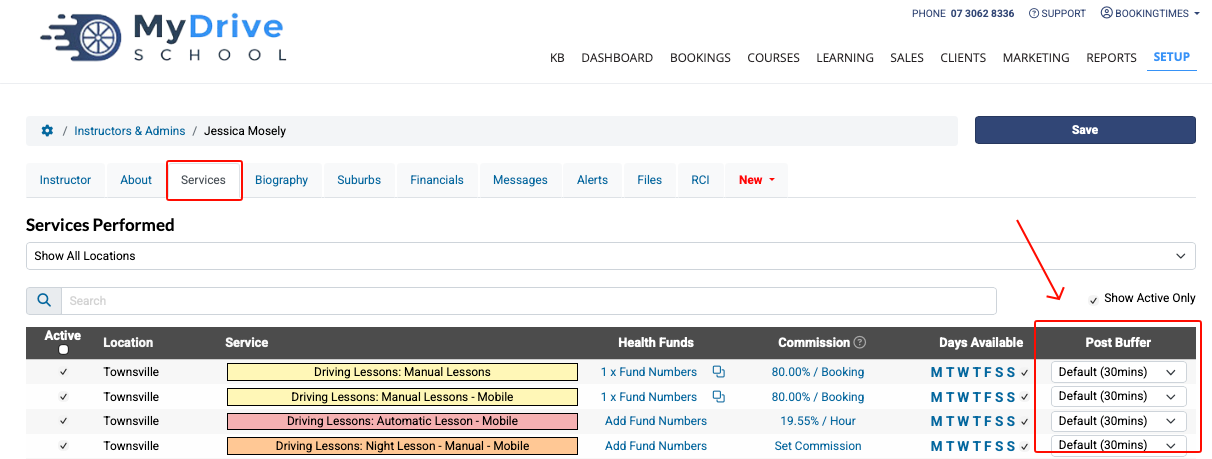
Also check that any staff member’s buffer times as these can override the above service-level buffers, by navigating to Setup > Accounts & Security > Staff & Admins > select instructor > Services tab
Restricted services example
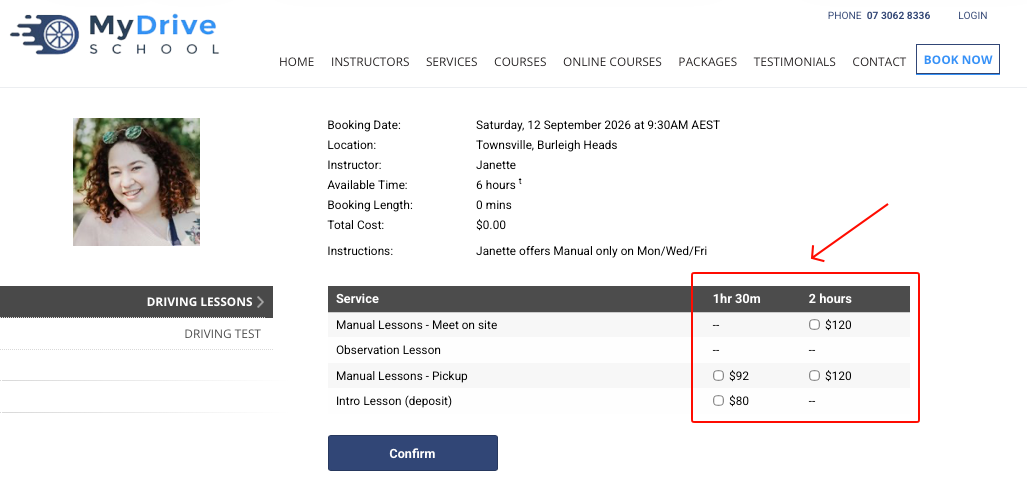
If a client wants to book Janette it will show the following services because they all meet her minimum booking restriction of 1.5 hours (i.e. any 1 hour durations are NOT shown, only 1.5 hours or more) :
Automatic adjustment of available slot times if book longer service length
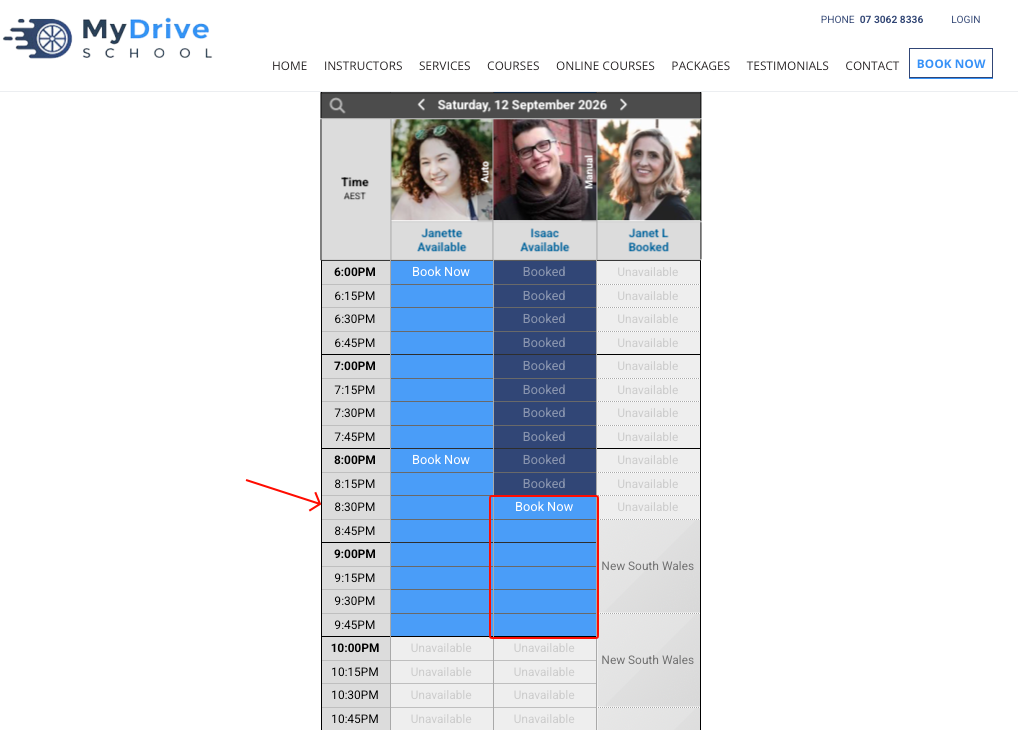
For Isaac, he initially had available booking times at 6pm and 7.30pm (he had a 1 hour booking restriction set up + 30 minutes buffer).
If a client books a longer 2 hour service at 6pm, you will see that the next available slot times have automatically adjusted down to maximise any future bookings, with the next timeslots now being at 8.30pm (was 7.30pm):
Setting up a booking restriction
Steps
Navigate to Setup > Accounts & Security > Staff & Admins (depending on what terminology has been set up)
Select the relevant staff member
Go to the Booking Restrictions section and select the desired restriction
Click Save